Category: eTechTip

eTechTip

  • 10 Common Tech Questions & Our No-Nonsense Answers

    10 Common Tech Questions & Our No-Nonsense Answers

    We write about a lot of different topics in this blog but today we wanted to take the time as a technology provider to answer the questions that are really at the forefront of our clients’ minds, both from a business standpoint and just from an everyday standpoint.Tech News Number 7

    We’ll be covering our top 5 general technology questions and our top 5 business technology questions as of posting this blog. If you have a question that you’re struggling to get answered – and we all know the rabbit hole Google can send us down trying to search for an answer – don’t hesitate to reach out. Chances are we might have the answer!

    Now onto the general questions first.

    1. How do I keep my Laptop battery in tip-top shape? A good rule of thumb is to keep your laptops lithium-ion battery running longer you’ll want to keep them from overheating, not let them discharge fully to 0% before charging, and not leave them plugged in while they’re at 100% constantly. Batteries have a finite life span but taking care of them will make them last longer, this advice applies to devices like cellphones as well.
    2. Do I actually have to eject a thumb drive or USB device? The short answer is yes, the long answer is because when you go to eject your device your PC finishes up tasks related to that device to improve overall performance. Removing it without ejecting it first may lead to corrupt or unusable data. It’s an easy step so don’t skip it.
    3. What happens when I see a warning on a site I use that it’s been hacked or compromised? If your browser is warning you about a site you’re trying to visit we recommend proceeding with caution, it could be that their security certificates are just expired but it also might be that the site has actually been compromised and visiting it or entering data into it might lead to your own system being compromised as well.
    4. Why does resetting my router sometimes magically fix my internet? Your router is a technology device the same as all your other ones, and sometimes a reboot is all that’s needed to get it back to working as intended. You want to wait at least 10 seconds to plug it back in to allow the capacitors inside it to discharge completely and ensure your reset works as intended.
    5. Do hackers really care about my information? All information has the potential to be valuable on the dark web or other nefarious sections of the internet. It may not seem like a big deal if your name, phone number or email are leaked online but they can use this information to get to the accounts they really want (like your financial accounts). It’s always a good idea to safeguard your information and employ good password practices.

    That covers the general questions we see a lot, what about ones specifically for businesses? Technology and business go hand-in-hand and these are the questions that come up the most.

    1. Do my vendors have to work with my other vendors when it comes to the technology I use? If they care about your business many vendors will try to assist clients as they navigate all the various systems you use to conduct your everyday business, but many will charge a fee to do so and some may refuse.
    2. How do I know if I’m spending too much on technology? New gadgets and software solutions come out every day, it would be impossible for anyone to buy or subscribe to them all. At the same time, it’s unreasonable to believe any piece of hardware will last forever or your business won’t outgrow a software that previously performed adequately. It’s a good idea to try and set a reasonable budget and have your IT team work with you to stay within that budget.
    3. Are backups really necessary? Yes, you may not know how necessary a file is until you go to look for it and it’s gone. Important contracts and records are just a couple of things your business can’t afford to leave to chance, we recommend complete system backups so you never have to worry about losing anything important.
    4. Will my team actually use it? If you’re thinking about giving a specific software or tech solution a try a good question to ask if whether your team has the training required to use it, and why it would be beneficial to your business. One example is two-factor authentication. We know businesses can receive a lot of pushback from their employees when they go to implement this, but the benefits drastically outweigh the hassle it may seemingly pose. Proper training is key when implementing any new technology measures within your business.
    5. How does it benefit the business? It can be hard if you’re not someone who works in the IT field or has a pretty good level of familiarity with it to know how implementing new solutions will benefit your business. That’s why it’s always our recommendation to reach out to someone who does, whether that be your in-house team or a technology provider you’re comfortable with.

    If your business needs help answering these or any other technology related questions, Valley Techlogic is here to help. You can schedule a no-obligation consultation here. If we missed any questions feel free to reach out to our live chat and let us know, we would love to add them to our next article.

    Looking for more to read? We suggest these tech articles from the last week.

    This article was powered by Valley TechLogic, an IT provider in Atwater, CA. You can find more information at https://www.valleytechlogic.com/ or on Facebook at https://www.facebook.com/valleytechlogic/ . Follow us on Twitter at https://x.com/valleytechlogic.


  • Our Top 3 Ways to Get MORE from Your Business’s Technology

    Our Top 3 Ways to Get MORE from Your Business’s Technology

    Most of us rely heavily on technology to accomplish our goals, whether it be at work or at home. Computers have made so many things in life more accessible, from learning to banking to downtime (though too much idle scrolling is the antithesis of productivity).

    But have you ever stopped to think if you’re really getting the most from the technology Tech News Graphicyou use? Often we get stuck in a rut and don’t really explore what else may be out there. Your favorite tried and true software or add on has never let you down, right?

    There’s nothing wrong with using things you know and love, and most importantly trust. Any new addition to your stack should be vetted thoroughly. Especially software applications, if it looks sketchy or seems to be too good to be true then it probably is.

    So, what are the 3 things we as a technology provider recommend when it comes to getting more productivity and convenience from the technology you use every day?

    1. The first is built right into your Windows 10 operating system. With Windows 10 you can create multiple desktops with the Task View setting. Hitting the Windows Key + Tab will bring up the menu and from there you can go about creating an unlimited number of Windows Virtual Desktops (or at least as many as your RAM will support). You can organize your day through these virtual desktops, having one for work and one for your lunchbreak.
    2. Make use of the virtual calendars available to you. Whether it be through Google or Outlook, or even a source such as Calendly which makes it easy to schedule with clients and even sends text message reminders. Virtual calendars can help you organize your week, month or even year. The popup reminders will make sure you don’t miss an important meeting or event.
    3. We will always recommend utilizing automatic backups. OneDrive is built in to Windows and comes with 5 GBs of free storage. For just $2 a month you can bump that up to 50 GBs, we think it’s a small price to pay for the piece of mind it provides. If you’re working with a technology provider your backups should be one of their main priorities. Having a thoughtful and thorough backup program in place can mean the difference between getting back to work quicly and losing it all in a disaster recovery situation.

    On top of these ways to get more productivity and usefulness out of your technology, your technology provider can also help you understand the benefit and scope of the tools they are providing for your business.

    They will probably have their own stack of software they recommend and may even have tools they themselves use that they can recommend for you and your staff. It’s a good idea to have an understanding of the systems that power your business and keep it running smoothly.

    It’s our belief that transparent processes and thorough reporting helps our clients make informed choices within their business. If you would like some recommendations on tools that may help increase the usefulness of your technology, we’d be happy to help.

    Looking for more to read? We suggest these tech articles from the last week.

    This article was powered by Valley TechLogic, an IT provider in Atwater, CA. You can find more information at https://www.valleytechlogic.com/ or on Facebook at https://www.facebook.com/valleytechlogic/ . Follow us on Twitter at https://x.com/valleytechlogic.

  • Our Top 5 Favorite Outlook Tricks & Tips as a Technology Provider

    Our Top 5 Favorite Outlook Tricks & Tips as a Technology Provider

    As a technology provider we’re well versed in supporting the Microsoft suite of products, and Outlook especially is a business staple. Whether you have made a one-time purchase with Office 2019 or are using the subscription model plan with Microsoft 365, both products include Teams, Outlook, OnePoint, SharePoint and Word. In today’s article we will be focusing especially on Outlook and providing you with tips that will make using it that much easier.

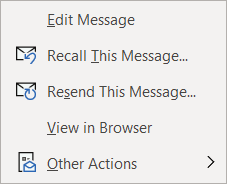
    Our first tip could really help save the day if you miss-send an email, did you know you can actually recall an email? Just open the email you want to send and navigate to the Recall message box in Outlook.Message tab on the ribbon, click on the Action button and then click on Recall Email, if the recipient hasn’t opened the email yet it will be recalled and you can try again.


    The second one is all about efficiency. If you have a certain type of message you send routinely, you can save that message as a template for easy use. Go to File > Save As > Outlook Template to save the template. Then when you’re ready to use it again click on Items > Choose Form > User Templates and select the template you saved. You can also go to the Message tab on the ribbon and click on View Templates to view and create simple templates without formatting to use.

    If you have a long email thread you have been replying to and are finding yourself hunting through your inbox for all the links in the chain to remember what has already been said, our third tip will really help you out. If you go to View > Show as Conversation on the Ribbon all of the messages in that thread will be displayed under the most current email.

    Number four was even new to us until recently, if you hit Ctrl + Shift + N in Outlook it will pull up a sticky note function you can move around. That way if you need to take some notes as you’re parsing through your email that will be conveniently available to you, no pen and paper necessary.Outlook sticky note box.

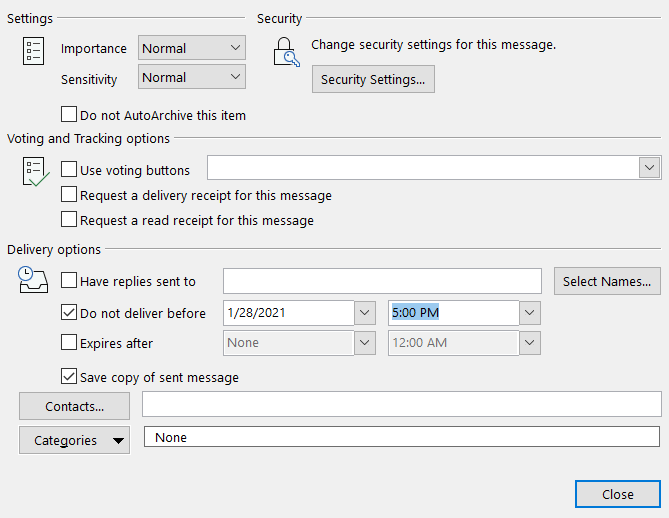
    Our fifth tip is all about timing. If you know there’s an email you need to send out by a certain time, why not avoid the stress and worry that you may forget and schedule it while it’s top of mind? If you go to Options > Delay Delivery > Do not deliver before you can schedule the email to be sent at the exact time and day you want it to be. This is a great option for reminder type emails that you send regularly as well.

    Lastly as a bonus, here’s a list of our top 10 Outlook shortcuts that will simply make navigating Outlook easier:

    1. Create a New Message: Ctrl + Shift M
    2. Insert a File: Alt+N, A, F
    3. Send a Message: Alt + S
    4. Search for An Item: Ctrl + E or F3
    5. Reply to a Message: Alt+H, R, P
    6. Go to Your Calendar: Ctrl+2
    7. Check for New Messages: Ctrl+M or F9
    8. Go to the Home Tab: Alt+H
    9. Go to the Send/Receive Tab: Alt+J, S
    10. Forward a Message: Alt+ H, F, W

    If your office could use some assistance navigating Microsoft 365 we’re here to help, at Valley Techlogic we consider ourselves experts when it comes to Microsoft and Windows based products and can make recommendations to your business. Visit our calendar page here to schedule a consultation to learn more.

    Looking for more to read? We suggest these tech articles from the last week.

    This article was powered by Valley TechLogic, an IT provider in Atwater, CA. You can find more information at https://www.valleytechlogic.com/ or on Facebook at https://www.facebook.com/valleytechlogic/ . Follow us on Twitter at https://x.com/valleytechlogic.

  • Starlink is bringing super-fast internet to rural communities; what are your internet provider options?

    Starlink is bringing super-fast internet to rural communities; what are your internet provider options?

    Starlink has been a hot button topic this week: Elon Musk’s new satellite internet company is bringing fast internet speeds to many rural communities who have had very few options up until now.

    It can seem strange to think about if you reside in an urban area where cable internet has been available since the early 2000s. The fact is many communities are still burdened with DSL connections whose max capabilities may be as low as 0.8 Mbps (a far cry from the 100+ Mbps cable speeds we’re all used to).

    On speeds that slow downloading a video can take as long as an hour. Starlink will change all that for many people as well as adding another contender in a mostly monopolized marketplace. Even in large cities, there are often not more than one or two viable options available.

    Starlink features a rather hefty setup cost for home users at $499, but the $99 a month is competitively priced in our opinion. There are some concerns from people in the astronomy field what effect thousands of new satellites introduced to our skies will do (see this article for more information on that).

    Cable companies are already feeling the pinch as many people are “cutting the cord” in favor of streaming services that allow them to pick and choose what they want to watch at will. With more competition in the marketplace, how will they rise to meet the demand for faster internet in more places?

    One thing we can look to is more work done on improving degrading cable infrastructure; many other developed nations have access to high speed fiber internet for a fraction of what we pay here in the states. In South Korea for instance 1 Gbit/s internet is priced as low as $20 for most households. That’s an internet speed 79 times the average speed here in the US for a fraction of what we pay.

    Google has also risen as an internet provider in many large cities, providing gigabit internet for around $70 a month. This is comparable to the average cost of a cable internet subscription where your speeds will probably be 100-250 Mbps.

    Business class users have long had a different standard of internet access, with faster speeds available to them than are advertised to home users. Your IT team may have a dedicated support person they talk to or if you work with an IT support company, they may have better leads for you when it comes to your business’s internet.

    With small business internet plans you can expect better support, as well as a static IP address. A static IP grants you the benefit of faster connectivity speeds as well as a more secure and stable connection. It also gives you the ability to remote connect to your business’s computers, in addition to reliable geolocation data. With a static IP you can connect to your office devices from anywhere, allowing you to work on the go.

    Enterprise internet offers even more benefits. Known variously as Metro Ethernet, MPLS, or Dedicated Internet Access, enterprise internet service allows for point-to-point and point-to-multipoint internet connections. That means your business will be directly connected to a metro ethernet hub which will equal greatly increased bandwidth, redundancy, and reliability. This is often used on a larger (often metropolitan, hence the term “metro” ethernet) scale, connecting employees in different office locations to one network.

    Navigating which internet solution to use is just one part of the puzzle. Networking can be a complex task and setting up a secure network is a major bulwark against having a large-scale cyber security event cripple your business. If you own a business located in the Central Valley and need help navigating the rapidly evolving landscape of business Internet connectivity, Valley Tech Logic is here to help.

    Looking for more to read? We suggest these tech articles from the last week.

    This article was powered by Valley TechLogic, an IT provider in Atwater, CA. You can find more information at https://www.valleytechlogic.com/ or on Facebook at https://www.facebook.com/valleytechlogic/ . Follow us on Twitter at https://x.com/valleytechlogic.

    Looking for IT Services in Fresno, Modesto, Stockton, Ceres, Atwater, Merced, Visalia or Lodi? We cover all these areas and more!


  • Tech Scalpers and How to Get What You’re Looking For

    Tech Scalpers and How to Get What You’re Looking For

    We’ve all experienced it at some point, you’re looking to buy something that was just released, perhaps as a Christmas gift or just for yourself and can’t find it in the regular channels. You know where you can find it? eBay or some other reseller site – usually for an inflated price.

    Those who enjoy gaming are experiencing it right now. Trying to find the NVidia RTX 3080 card? Gone. Microsoft’s Xbox Series X and Series S as well as Sony PlayStation 5 buyers had a similarly frustrating time trying to get their pre-orders in. Nintendo has been accused for years of “artificial” shortages.

    Is it a lack of stock or is the demand really that great? How much of it is resellers swooping in, buying up all the stock and reselling it for artificially inflated pricing?

    What should you do if the item you’re looking for is out of stock, and how do you avoid being one of many who won’t get their hands on the tech item they’re looking for?

    One thing that appears to be new is the advent of items targeted by bots to buy up all the product for resellers. To say they have an unfair advantage when it comes to making a purchase quickly is an understatement.

    It’s clear more needs to be done to combat the unfairness of scalpers swooping in, and buying limits need to be more strictly enforced on tech items. What are some ways you can still get what you’re looking for anyways?

    1. Be aware of the sales date and be on the website early, websites will often crash in the wake of a launch but most retailers have queuing systems in place so the earlier you’re on there, the more likely you’ll be able to get what you’re looking for.
    2. As a general rule, do NOT refresh your page when you’re in a queue. If you refresh the page most times you will be moved to the back of the queue (it’s the same as getting out of line).
    3. Figure out which retailers are going to have the item you’re looking for and queue up for multiple sites to give yourself a better chance. Just be sure to jump off the additional ones once you’ve purchased your item.
    4. If it seems like your order didn’t go through, don’t despair. Many times, an order that looks like it didn’t go through actually did. Keep this in mind if you go to try and buy it again.
    5. If you did miss the item, instead of buying it from a reseller (and thereby validating the practice) find out when the next launch date it. For popular items it’s probably sooner than you think.

    NVidia, Microsoft and Sony could take a page from companies like Apple who seem to have the buying process down. Apple has scaled up their production for every new launch and those who want their products have no trouble buying them with ease. Nothing is more frustrating to a potential buyer than to have cash in hand ready to buy and end up leaving empty handed.

    They may find if they don’t solve these stock issues more aggressively, that these same buyers will move on to different products.

    Looking for more to read? We suggest these tech articles from the last week.

    This article was powered by Valley TechLogic, an IT provider in Atwater, CA. You can find more information at https://www.valleytechlogic.com/ or on Facebook at https://www.facebook.com/valleytechlogic/ . Follow us on Twitter at https://x.com/valleytechlogic.

    Looking for IT Services in Fresno, Modesto, Stockton, Ceres, Atwater, Merced, Visalia or Lodi? We cover all these areas and more!

  • Our Top 3 Picks for Password Managers

    Our Top 3 Picks for Password Managers

    The topic of 2 factor authentication (2FA) comes up A LOT. You’re probably already aware a password manager is the easiest place to start and will even make using your devices more convenient. However, this space is so loaded with choices now you may not know where to start.

    We’ve written a lot about what makes for a good password but what should you look for in a password manager?

    It depends on what your goal is. All password managers will help you with password safety, things like not re-using passwords and having stronger passwords because you won’t have dozens to remember.

    Some password managers only store your database locally, meaning it’s only on your own machine. The benefit of this is you’re in charge of your own security. The downside is if the device is lost or compromised, your database may be lost as well.

    There are also cloud storage password managers, meaning the password manager company will store your password database for you. We think for most users this is the better choice, however you are trusting your data to that company.

    So, what are our picks for password managers that are convenient to use but also have a good track record?

    1. LastPassThis is no brainer; we use this one! It’s free, straightforward, and compatible with many different browsers – even across Mac, Windows and Linux. They also offer 1 GB of secure document storage, meaning everything you need securely store will also be conveniently at your fingertips.
    2. 1Password1Password is a great mobile option. It began as an Apple centric product but has since branched out to include iOS, Android, Windows and ChromeOS. An extra bonus feature is it can act as an authentication app for programs like Google Authenticator. We also like its travel mode option, which allows you to delete sensitive data with one click while you travel and then restore it when you’re back home.
    3. DashlaneOur final pick is Dashlane. Dashlane is the newest of this bunch but they have a lot of slick features, including Dark Web reporting. The free version is somewhat limited but if you pay a low cost of $4.99 a month you unlock a host of features, including a free VPN and the ability to sync between devices. They also let you choose whether you want to store your database on your device or locally.

    One more thing, while your browser can somewhat perform as a password manager, that’s really not what it’s meant for. Browsers focus most of their development on being a better browser, not being a better password manager. Also the passwords they generate are not much better than “password” or “123456” (the most popular passwords 7 years running).

    Storing your passwords in a secure password manager is one of the best and easiest ways to improve your security online, so no matter which password manager you go with you’re making the smart choice.

    Looking for more to read? We suggest these tech articles from the last week.

    This article was powered by Valley TechLogic, an IT provider in Atwater, CA. You can find more information at https://www.valleytechlogic.com/ or on Facebook at https://www.facebook.com/valleytechlogic/ . Follow us on Twitter at https://x.com/valleytechlogic.

    Looking for IT Services in Fresno, Modesto, Stockton, Ceres, Atwater, Merced, Visalia or Lodi? We cover all these areas and more!

  • Is Your Internet Provider Keeping You Safe?

    Is Your Internet Provider Keeping You Safe?

    In terms of internet security, we often think of what we as individuals can do, like good password security or not opening email attachments. Or what companies who hold our data can do, like notifying us of a breach or having their own measures in place to avoid one in the first place. When it comes to our internet providers, we often think about the internet speeds they provide us and having consistent uptime.

    What about security though? What measures are in places (or not) to keep us safe while using the very thing that connects us all together?

    At the beginning of April, sites like Facebook and Google came to a grinding halt for hours. It wasn’t a hack or a bug, it was a problem with the internet data routing standard known as Border Gateway Protocol, or BGP.

    BGP disruptions usually happen by accident, but they can also be caused by large-scale spying or data interception. Denial of service attacks can be another culprit.

    BGP is like the map the internet uses to connect everything. All our traffic is routed through gateways to various hubs around the world. Or it should be that straightforward. In reality, every ISP provider can decide which routes to take, and not all of them are good.

    Cloudflare, who specializes in Internet Security among other things, has launched the website ISBGPSafeYet. Using this website will test your ISP by offering a legitimate route and an invalid route to load two pages.

    If it catches the invalid route and only loads the page offered by the legitimate route, then your ISP has BGP protections in place. If it loads both they fail.

    While we can’t change the problems with BGP overnight, public awareness is always a good thing. If your ISP fails the test, reach out to them and give them your opinion! Together we can make the internet a safer place for us all to use.

    This article was powered by Valley TechLogic, an IT provider in Atwater, CA. You can find more information at https://www.valleytechlogic.com/ or on Facebook at https://www.facebook.com/valleytechlogic/ . Follow us on Twitter at https://x.com/valleytechlogic.

  • 10 Tips for Staying Safe Online When Working from Home

    Woman working at desk

    In light of the ongoing health crisis many of us are placed in the unusual position of working from home. While you may have concerns about keeping up your usual level of productivity and being able to communicate effectively with your coworkers while working in separate places there may be one issue flying under the radar, how do you stay safe online while working from home?

    It’s unfortunately not a given, in many work places you have an IT team that maintains (or should!) a high level of security for your office computers and network. These same measures are not in place on your home network or on your home computer.

    With so many of us working from home hackers may be seeing this as an opportunity to access your company’s private data via unsecured personal computers and home networks. These 10 tips will prevent this from happening.

    1. Don’t reuse passwords. If you’re able to choose your own work passwords it’s important they’re varied, if hackers get access to one of your accounts and you use the same password for everything then they have access to all of them.
    2. Practice good password safety. It’s imperative that passwords for your work accounts follow good password safety practices. Hackers may be able to use your work accounts to access the rest of your company’s data. If you set your own password make sure it follows the rules of 16 characters in length, mixing characters and avoiding dictionary words if possible.
      Also destroy any written copies of your password, real life phishing exists! Use a password manager like LastPass instead.
    3. Secure your home network. It’s shocking how many home networks don’t have a password at all, or if they do it’s a single word with no mixed characters or even your router’s default password.
      This is not a good idea! Hackers can use your network to access your home machine, and from there it may be game over. Like the tip above practice good password safety when it comes to your router’s password.
    4. Enable 2-factor authentication if it’s available to you. Many laptops these days feature security measures such as facial recognition or fingerprint readers that will help keep your device safe. Don’t forget to enable the same feature on your phone!
    5. Speaking of 2-factor authentication. You may find that your workplace uses 2-factor authentication to secure the applications you use on a daily basis to do your job, if they don’t bring it up! This will further prevent people from accessing your company data.
    6. Install updates. At work your IT team is probably installing updates for you, on your home device you’re responsible for doing so. In general, you shouldn’t be ignoring updates but while accessing your company accounts it’s even more important.
    7. Practice good online safety. The security measures enabled on your company network may prevent a total takeover in the case of someone accidentally downloading malware, this is not so at home.
      Don’t open attachments from senders you don’t know. Be careful which websites you visit, and always have your firewall enabled!
    8. Be careful with public networks. During this time, it might be tempting to get out and at least work outside at a café or somewhere with public Wi-Fi. However, this public Wi-Fi may leave your machine vulnerable, especially if you’re not practicing some of the safety measures above.
    9. Make sure your work is backed up. You’ll probably need some help from your IT team for this one but ensure the work you’re doing is backed up to your office servers or saved in some way. Recovering lost data from your home machine alone may be more difficult.
    10. Last but not least, use an anti-virus software. Find out which anti-virus software your company IT team recommends, or if you need a recommendation reach out to us. It’s extremely important for staying safe online.

    We hope these tips help. For those not working remotely or for tips on staying safe while in public right now, we recommend referring to the CDC Website for the most up to date information: https://www.cdc.gov/coronavirus/2019-ncov/index.html

    This article was powered by Valley TechLogic, an IT provider in Atwater, CA. You can visit us on Facebook at https://www.facebook.com/valleytechlogic/ . Follow us on Twitter at https://twitter.com/valleytechlogic.

  • The Dirty Loophole That Lets Insurance Companies Refuse to Cover a Cybercrime Theft in Your Business

    The Dirty Loophole That Lets Insurance Companies Refuse to Cover a Cybercrime Theft in Your Business

    As hacking hit the headlines in the last few years — most recently the global hack in May that targeted companies both large and small — insurance policies to protect businesses against damage and lawsuits have become a very lucrative business indeed. Your company may already have cyber insurance, and that’s a good thing. But that doesn’t mean that you don’t have a job to do — or that the insurance will cover you no matter what.

    When you buy a car, you get the warranty. But in order to keep that warranty valid, you have to perform regular maintenance at regularly scheduled times. If you neglect the car, and something fails, the warranty won’t cover it. You didn’t do your job, and the warranty only covers cars that have been taken care of.

    Cyber insurance works the same way. If your company’s IT team isn’t keeping systems patched and up to date, taking active measures to prevent ransomware and other cybercrime attacks, and backing everything up in duplicate, it’s a lot like neglecting to maintain that car. And when something bad happens, like a cyber attack, the cyber insurance policy won’t be able to help you, just as a warranty policy won’t cover a neglected car.

    Check out this real life policy exclusion we recently uncovered, which doesn’t cover damages “arising out of or resulting from the failure to, within a reasonable period of time, install customary software product updates and releases, or apply customary security-related software patches, to computers and other components of computer systems.” If your cyber insurance policy has a clause like that — and we guarantee that it does — then you’re only going to be able to collect if you take reasonable steps to prevent the crime in the first place.

    That doesn’t just mean you will have to pay a ransom out of pocket, by the way. If your security breach leaves client and partner data vulnerable, you could be sued for failing to protect that data. When your cyber insurance policy is voided because of IT security negligence, you won’t be covered against legal damages, either. This is not the kind of position you want to be in.

    All of this is not to say that you shouldn’t have cyber insurance, or that it’s not going to pay out in the case of an unfortunate cyber event. It’s just a reminder that your job doesn’t end when you sign that insurance policy. You still have to make a reasonable effort to keep your systems secure — an effort you should be making anyway.