Tag: microsoft

  • Windows 365 has been announced, and it could change workplaces as we know it.

    Windows 365 has been announced, and it could change workplaces as we know it.

    On July 14, 2021, Microsoft held their annual Inspire summit, a conference for Microsoft partners to be given inside information about what the year ahead will look like in the world of Microsoft products and how they can leverage changes and features for their clients.

    This year’s event issued in some big changes, all aimed at what Microsoft has dubbed the “Hybrid Workplace”. It’s clear Microsoft is betting that remote work is here to stay, at least partially.

    While Teams and it’s various new and exciting integrations seemed to take center stage in the event offerings, we want to talk about another massive announcement – Windows 365.

    Microsoft is going all in on cloud computing with Windows 365, and while it won’t be replacing Azure Virtual Desktop which will still be a staple in enterprise applications especially where security is especially crucial – it will offer extreme flexibility for businesses with a remote or hybrid workforce.

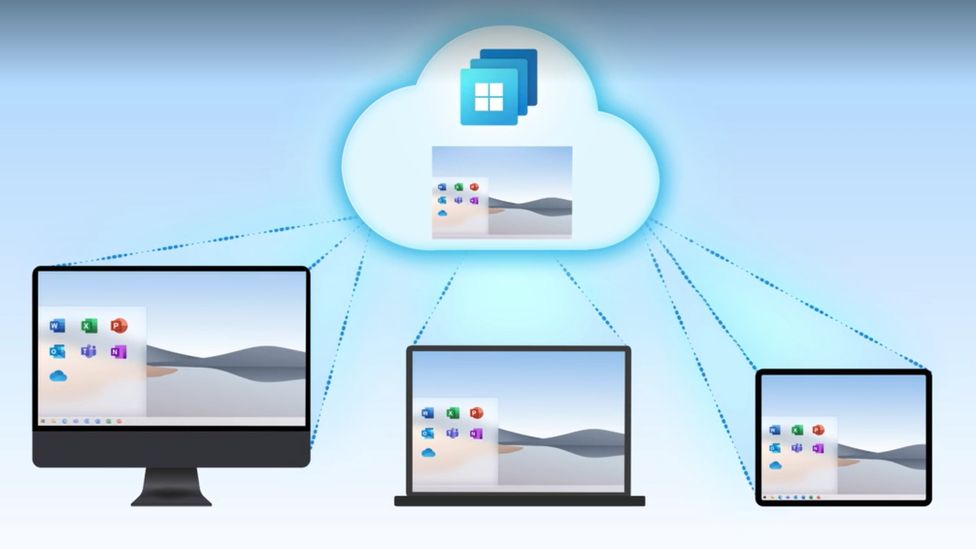
    Windows 365 Will Work On Any Device

    In the product demo we attended we were shown Windows 365 machines will be capable of lightning-fast data speeds across Microsoft’s networks. Users will also be given the ability to adapt the virtual computer on the fly from an easy to use and navigate interface that let’s you manage all of your active Windows 365 subscriptions.

    They will even offer recommendations based on the usage on these virtual desktops. For example, if one user is always running out of RAM you can perform the upgrade right then and there, instantly.

    The models pricing will be based on use and the virtual computers specs, but pricing hasn’t been made available yet. These virtual desktops will even have the option of including all of Microsoft 365’s product offerings such as Outlook, Excel, Word and more.

    The most intriguing part Isn’t just the functionality of these desktops, which looks impressive. It’s the flexibility of just where and how you use them.

    Windows 365 can purportedly be used across devices, that means not just laptops and desktops but even smart phones and tablets. You can use the web client but there’s also a browser option which could be a game changer for those with slow or unreliable internet connection speeds.

    If you think security features are limited to Azure Virtual Desktop you would also be wrong, Windows 365 will have two factor authentication built in and allow you to tie the virtual machine instance to the user’s phone. When they go to log in they will be prompted to allow the login via the registered phone. This is a necessary aspect for business’s who have been struggling to implement cybersecurity features in their business, especially when it comes to their remote workforce.

    Their Windows 365 virtual desktop will also be cross platform and save the user’s instance. If your employee is working from home three days a week and from the office two days a week, they can use their virtual desktop to remain on track because their work will be saved and ready to go no matter where they are logging in from.

    At Valley Techlogic we have long been a proponent of cloud computing and have implemented creative cloud solutions for our clients. We are excited to see where Windows 365 is going and to have the chance to bring this offering to our customers.

    Are you looking to implement Windows 365 or other cloud offerings such as backups in your business? Valley Techlogic is a dedicated Microsoft partner, and creator of the triple layer backup program TechVault. Schedule a consultation today to learn more.

    Looking for more to read? We suggest these tech articles from the last week.

    This article was powered by Valley TechLogic, an IT service provider in Atwater, CA. You can find more information at https://www.valleytechlogic.com/ or on Facebook at https://www.facebook.com/valleytechlogic/ . Follow us on Twitter at https://x.com/valleytechlogic.

  • Windows 11 system requirements – Will your computer be able to run it?

    Windows 11 system requirements – Will your computer be able to run it?

    Continuing our talking points about Windows 11 (which was officially announced June 24th of this year), we would be remiss to not talk about one very important thing – will your computer be able to run it?

    We know for business owners this question is even more loaded as you consider not only your personal machine(s) but also those of your employees. The initial system requirements looked pretty steep, requiring an 8th Gen processor and other specifications that would have phased out a lot of machines that are perhaps not even very old.

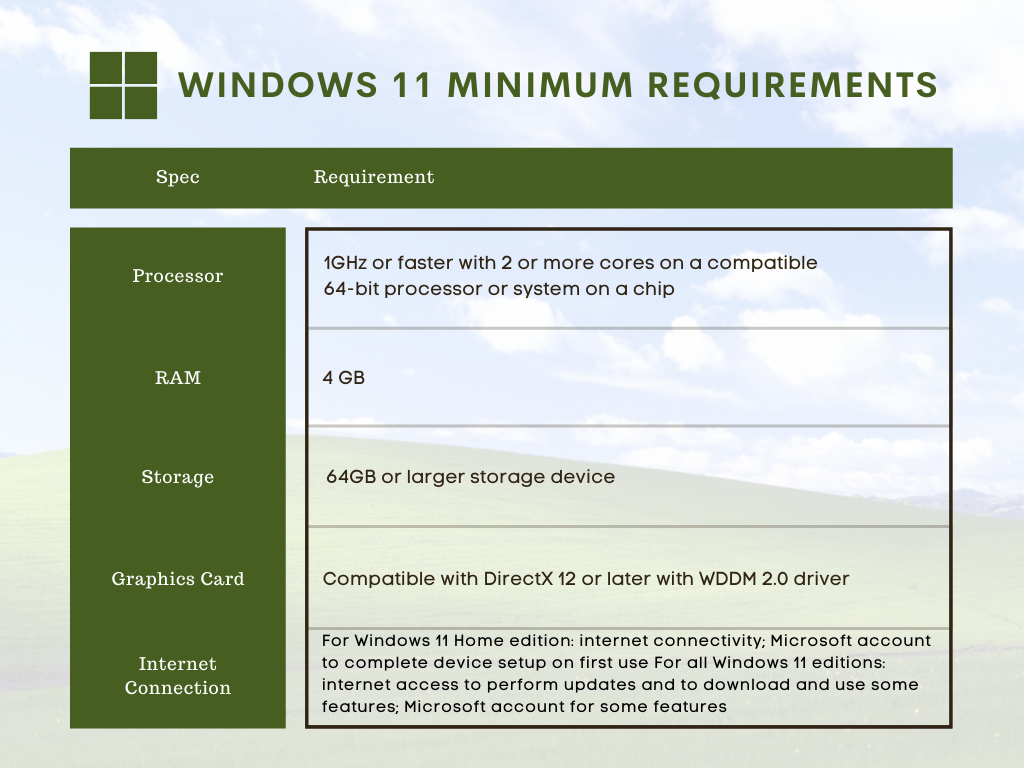
    However, Microsoft has since retracted their initially stated requirements in favor of a more modest range of specs that may still leave some very old machines out of the running but for anyone who’s replaced their computer in the last several years (which we recommend anyways) you should be fine. You can see the requirements in the chart below.

    However, minimum requirements are just one piece of the puzzle. By those markers most computers built in the last 5 years can run Windows 11, but what specs would allow it to run well and allow you to have access to the full benefit of all of the new features? Not only that, as we demand more of our computers we really need to consider optimizing them for our current usage.

    For instance, if you frequently are running out of storage space, or if having a lot of tabs open really bogs down your machine, you may find that the enhanced strain caused by a more demanding operating system could make using your machine a hassle to use. Or even just plain unusable.

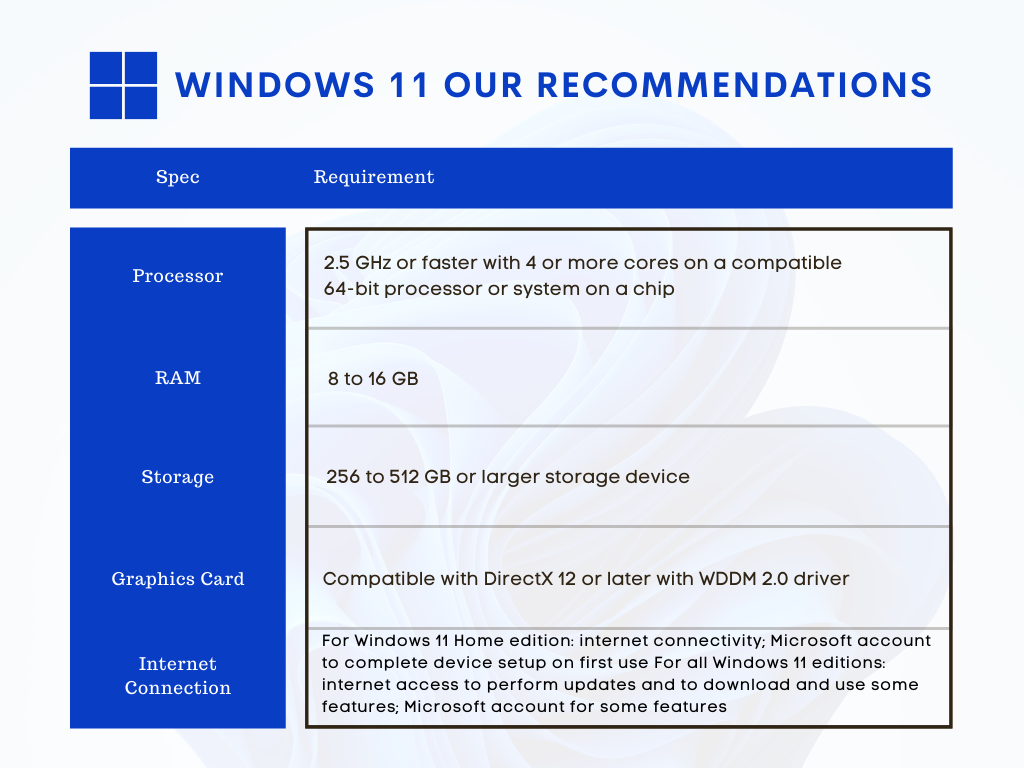
    We decided to list out our recommendations for system requirements that would most benefit when upgraded to Windows 11.

    Windows 11 Our Recommendations

    As you can see some requirements mirrored those set by Microsoft, but we boosted the recommended storage space considerably and also the RAM. When it comes to RAM we really recommend clients lean towards the higher end of the spectrum, 16 GB would be a better option for future proofing your device in our opinion.

    The same goes for the processor, 4 cores is really a bare minimum requirement for a device that runs smoothly and helps you complete your tasks (no matter how demanding).

    Minimum system specs should never be seen as the best option when assessing what level of device will fit your needs, they’re just the base mark software companies must set when considering older devices on the market. The minimum requirements lets consumers know whether what they already have will work with their software.

    Microsoft also has a tool for easily checking to see if your device is ready for Windows 11, PC Health Check, however as of writing it’s currently down as they make changes to it to be in line with the current recommendations they recently set.

    Windows 11 will not be out until later this year and these recommendations may change yet again as they gather data from the version they currently have out in early access. We feel confident our recommendations will hold up and continue to serve as a viable option for anyone in the market for a new PC or laptop.

    If you’re considering upgrading the machines in your business to make them “Windows 11 ready”, we can help. We’re a Microsoft partner and specialize in helping our clients manage their Windows applications and devices on top of a host of other IT services we provide. You can learn more through a free consultation here.

    Looking for more to read? We suggest these tech articles from the last week.

    This article was powered by Valley TechLogic, an IT service provider in Atwater, CA. You can find more information at https://www.valleytechlogic.com/ or on Facebook at https://www.facebook.com/valleytechlogic/ . Follow us on Twitter at https://x.com/valleytechlogic.

  • On June 24th, 2021 Microsoft introduced Windows 11, a free upgrade to Windows 10

    On June 24th, 2021 Microsoft introduced Windows 11, a free upgrade to Windows 10

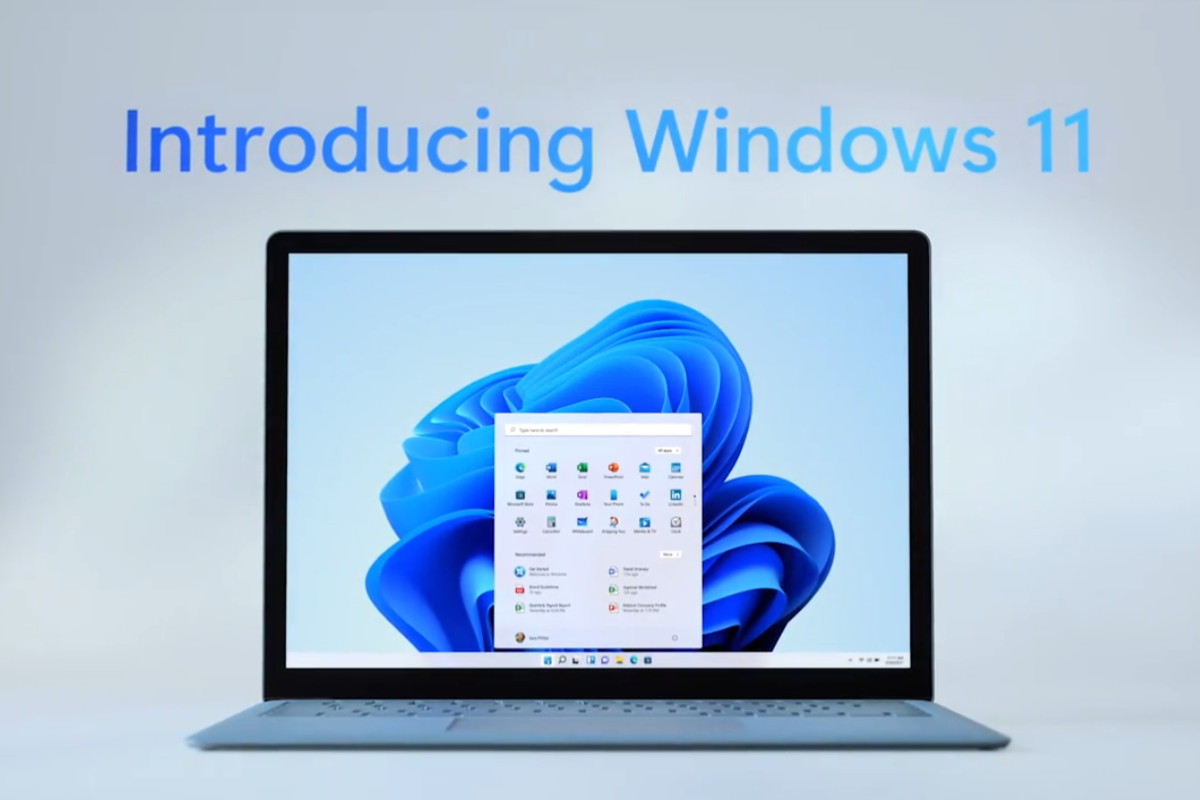
    Yesterday, June 24th 2021 Microsoft unveiled Windows 11. While they struggled to get the live stream going (it went down several times during the unveiling) Windows 11 itself still had an impressive range of features, many of which we think will shake the PC industry as we know it.

    To start, they revealed that Windows 11 will be faster than past versions and updates will be 40% smaller. These features are a nod to what came later in the stream in our opinion. Faster and more agile seems to be the name of the game with Windows 11.

    Windows 11 will have many user adaptive features, including window “snapping” that will allow users to arrange their desktop environment exactly how they like. They showcased grids that had even 4 or 5 squares of varying sizes. If you dock your laptop to a second monitor then remove it, it will even “remember” your setup when you plug it back in.

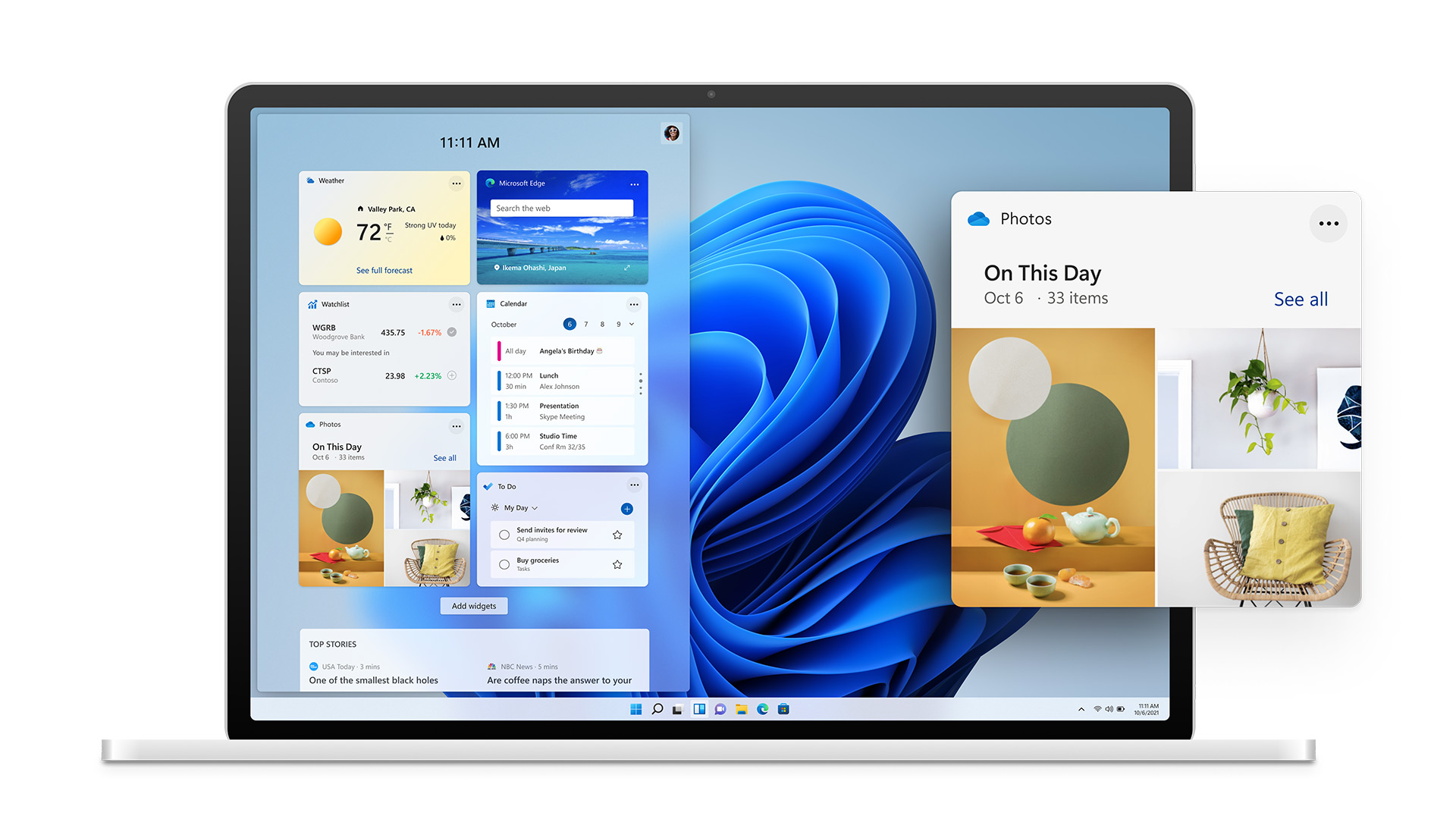
    Also, in the same vein is the new widgets feature that will show users a custom set of data specific to them and how they’re using their device. If you’re sensing that Microsoft is aiming to bridge the gap between PC and mobile devices with Windows 11, you wouldn’t be wrong. With it’s slick appearance widgets seem to be a much improved version of the the “Interest feature” that was released to Windows 10 in April.

    Windows 11 Widgets

    Speaking of bridging the gap between PC and mobile devices, one of the biggest ways Microsoft is aiming to do that is by allowing Android applications to downloaded and used on Windows 11 PCs. We plan to do a deep dive on this later on when more is known, but Android applications will be available in the Microsoft store powered by Amazon’s Appstore.

    The combined efforts of these two tech behemoths seems like a move squarely aimed at taking a piece of Google’s mobile pie – and a large pie at that with the Android phone market making up 72% of the market share as of 2021.

    Converting mobile users to PC seems to have been a concerted effort of Microsoft for a while now and it will be interesting to see what effort merging their various services together (Xbox will also be more accessible through Windows 11 with the addition of Xbox Game Pass for PC being expanded upon) will have on those efforts.

    They also plan on making the Microsoft store more accessible for developers, who if they bring their own eCommerce solution will not even have to share a cut with Microsoft.

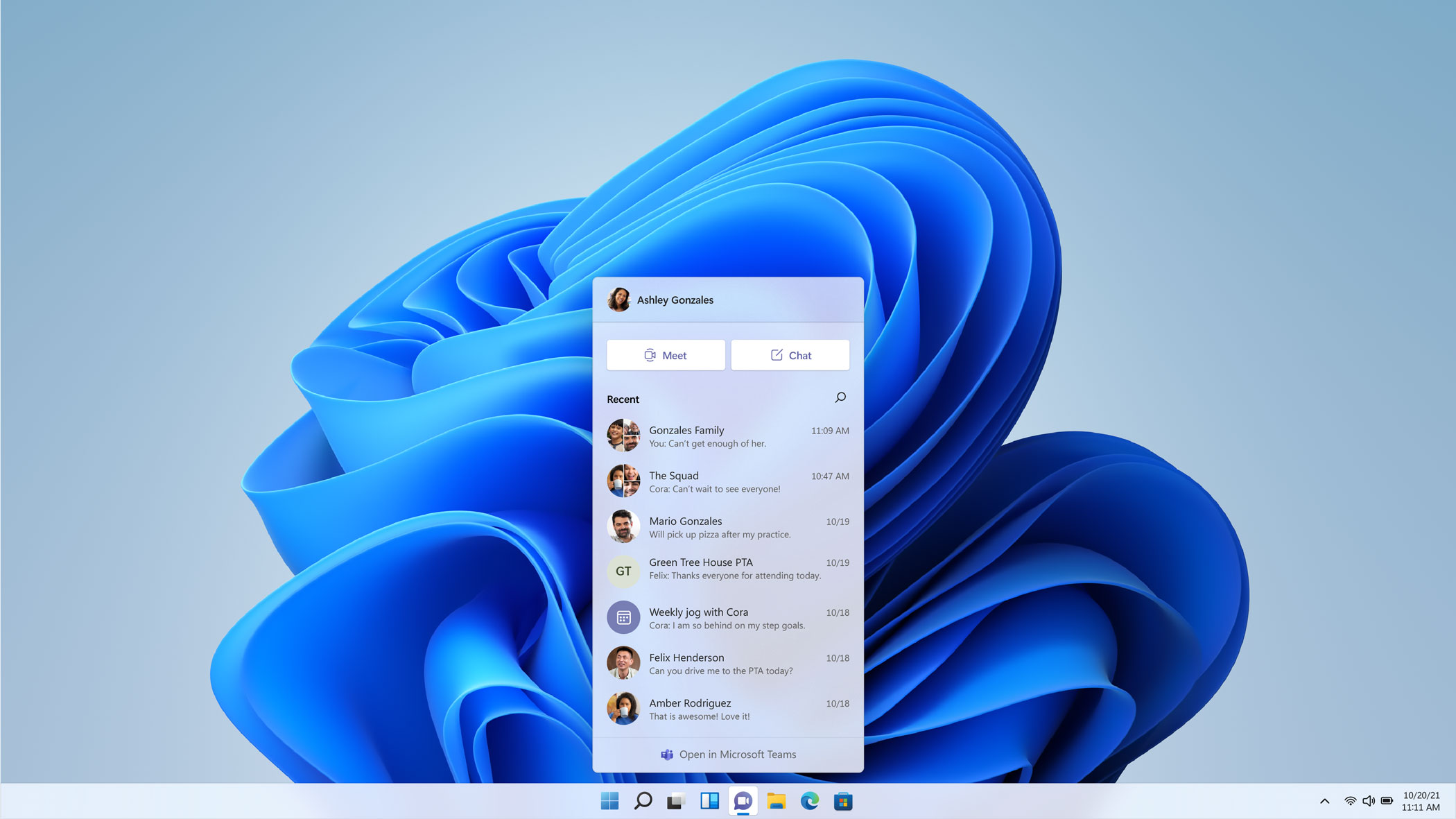
    We haven’t even touched on Microsoft 11’s appearance, which seems much sleeker and perhaps slight Apple-esque with the slim task bar with centered icons. One of those center icons was a built in Microphone mute button, which Microsoft used as a segue to announce Teams as a built in Windows 11 integration.

    Microsoft Teams Windows 11

    With that we only assume Microsoft is moving away from Skype and trying to make a move that again takes aim at a competitor, namely Zoom. Teams will even work across non-Microsoft platforms including iOS. We’re eager to see what features are added to Teams as not too much was showcased in this demo.

    There’s not currently a release date set for Windows 11 other than later this year, but the speculation is it will be released sometime in October which would fall in line with Microsoft’s typical major update release schedule.

    We’ll be following this topic closely, as a Microsoft partner new Window’s releases can be both an exciting yet daunting prospect for our customers. If your business needs assistance in getting your office “Windows 11 ready”, we can help. Schedule a free consultation here.

    Looking for more to read? We suggest these tech articles from the last week.

    This article was powered by Valley TechLogic, an IT provider in Atwater, CA. You can find more information at https://www.valleytechlogic.com/ or on Facebook at https://www.facebook.com/valleytechlogic/ . Follow us on Twitter at https://x.com/valleytechlogic.
  • Windows 10 End of Life is Coming, and It’s Sooner Than You Think

    Windows 10 End of Life is Coming, and It’s Sooner Than You Think

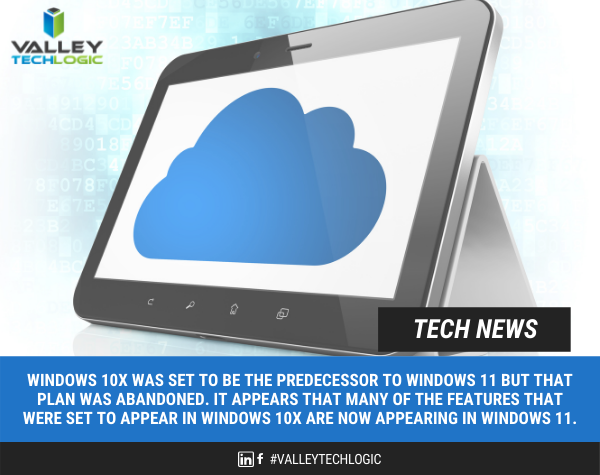
    While Windows 11 (code name Sun Valley) hasn’t officially been introduced to the public, it’s created enough of a stir that the topic of Windows 10 support ending has been pushed to the forefront of the tech news cycle. Windows 10 will officially end mainstream support on October 14, 2025.

    Back in 2015 it was circled around that Microsoft 10 would be the “last Windows release”, indicating Windows would follow the route of Apple and just continuously update this version in perpetuity. We would have said that was unlikely back then and it seems we would have been right.

    While the comment that initiated that rumor can be tied back to one Microsoft employee, Microsoft didn’t exactly dismiss the notion at the time. They have been moving forward since then into the “as a service” model, especially with their service Microsoft 365 replacing Office 365 as it was known.

    Most of us can remember a time when you paid a one-time fee to use the Office suite of software, but Microsoft has fully moved to a subscription model only under Microsoft 365. “As a service” is basically the de facto model in tech at this point, with Adobe also being another example (remember when you could just buy Photoshop?).

    Businesses like Google always operated under an “as a service” model. So, it makes us question if the roll out of Windows 11 will look the same as past releases.

    Especially for businesses, instead of pricey one-time licensing fees will we be looking at a monthly charge potentially? And how would that work when Windows 11 eventually went end of life?

    Tech News #13

    Microsoft has operated under two models for end of life so far, fixed and what they now call the modern lifecycle. Under the fixed lifecycle there weren’t really too many restrictions for support, as long as you kept your version up to date you would receive some level of support for 10 years.

    Now, they operate on a regular update cycle. With a feature update usually arriving in October, a year end update in November and a mid-year update in June or July. While you can expect regular updates between those dates, major feature updates are now condensed.

    Customers are encouraged to perform at least one of these updates a year to stay current. Failing to update with one of these major releases may make your version ineligible for next year’s releases.

    More news about Windows 11 may be arriving next week in an event announced by Microsoft, you can attend the live stream here on June 24th at 11 AM Eastern Time. We’re looking forward to summarizing the details of this event in next weeks blog.

    Beyond Windows 10 for PCs, there will probably be a significant update to Windows Server as well. Server updates tend to happen more often, with Windows Server 2022 following just 3 years after Windows Server 2019 (it’s been in preview since March of this year).

    If your business needs help navigating the ever-changing landscape of Windows or if you’re trying to figure out how to get outdated, unsupported versions back to mainstream support, we’re here for you. Valley Techlogic is a Microsoft Partner and we’re experts when it comes helping businesses manage their Microsoft products, whether it’s Windows or Microsoft 365. Connect with us today to learn more.

    Looking for more to read? We suggest these tech articles from the last week.

    This article was powered by Valley TechLogic, an IT provider in Atwater, CA. You can find more information at https://www.valleytechlogic.com/ or on Facebook at https://www.facebook.com/valleytechlogic/ . Follow us on Twitter at https://x.com/valleytechlogic.
  • What to Do When a Service You Use is Down; 5 Tips on How to Survive a Tech Outage

    What to Do When a Service You Use is Down; 5 Tips on How to Survive a Tech Outage

    If you were using any Microsoft products on Monday (March 15th) you may have been party to the outage that took down services such as Office 365 and Teams worldwide.

    The outage was caused by an Azure authentication error (you can learn more here) and lasted roughly 14 hours. Whether you experienced this particular outage or not we have all experienced an outage that took out a tech service that is critical to doing our job or supporting the systems we use every day.

    Here are our top 5 tips to surviving a tech outage that is impacting your business:

    1. First of all, don’t panic. Outages are normal in the tech world, and sometimes even necessary if it’s a planned downtime event. Usually planned events will occur at times that are less inconvenient for most workplaces (late at night typically), and you will probably get some kind of notice, so you know to expect it.

    2. Determine that the outage is outside of your control. If a service is down, it’s a good idea to determine whether it’s on your end or truly due to the service provider. If it’s a popular well-known service (such as in the Microsoft case) you can usually check Google as an outage will be news. Another good place to check is their social media pages to see if there’s any mention of the outage by their team; Twitter especially seems to be the place many businesses convey outage news.

    3. If you’ve come to the conclusion it’s not on your end, reach out to their customer service. They may be swamped if it’s a large outage but if it’s just something to do with your particular instance they can probably assist you in getting back up. If you have a technology service provider you work with they can help manage this task for you.

    4. Reach out to your tech team if you have one. If you have an in-house tech team or a technology service provider behind your business, they can troubleshoot the outage for you and determine next best steps to getting your services back up.

    5. Check the post-outage documentation. It often helps to know why an outage occurred, especially if it was due to an update that may have changed things within the service.

    Outages are a good case in point for having a tech team behind your business, they can help navigate the issue for you and if your case does need to be escalated, they will know exactly who to contact.

    If you’re on your own trying and to Google fixes it can often lead you down a rabbit hole where the recommendations may not even be relevant to your particular instance.

    In general, we don’t recommend trying to navigate severe issues on your own, especially if the affected program host critical data or systems for your business. The “fix” you try may be worse than the problem that was causing the outage in the first place.


    If you have been looking for a team that can support your business in navigating tech outages and more, Valley Techlogic is a seasoned technical service provider and we have plans that can fit every business. You can learn more by booking a free consultation here.

    Looking for more to read? We suggest these tech articles from the last week.

    This article was powered by Valley TechLogic, an IT provider in Atwater, CA. You can find more information at https://www.valleytechlogic.com/ or on Facebook at https://www.facebook.com/valleytechlogic/ . Follow us on Twitter at https://x.com/valleytechlogic.
  • Our Top 3 Ways to Get MORE from Your Business’s Technology

    Our Top 3 Ways to Get MORE from Your Business’s Technology

    Most of us rely heavily on technology to accomplish our goals, whether it be at work or at home. Computers have made so many things in life more accessible, from learning to banking to downtime (though too much idle scrolling is the antithesis of productivity).

    But have you ever stopped to think if you’re really getting the most from the technology Tech News Graphicyou use? Often we get stuck in a rut and don’t really explore what else may be out there. Your favorite tried and true software or add on has never let you down, right?

    There’s nothing wrong with using things you know and love, and most importantly trust. Any new addition to your stack should be vetted thoroughly. Especially software applications, if it looks sketchy or seems to be too good to be true then it probably is.

    So, what are the 3 things we as a technology provider recommend when it comes to getting more productivity and convenience from the technology you use every day?

    1. The first is built right into your Windows 10 operating system. With Windows 10 you can create multiple desktops with the Task View setting. Hitting the Windows Key + Tab will bring up the menu and from there you can go about creating an unlimited number of Windows Virtual Desktops (or at least as many as your RAM will support). You can organize your day through these virtual desktops, having one for work and one for your lunchbreak.
    2. Make use of the virtual calendars available to you. Whether it be through Google or Outlook, or even a source such as Calendly which makes it easy to schedule with clients and even sends text message reminders. Virtual calendars can help you organize your week, month or even year. The popup reminders will make sure you don’t miss an important meeting or event.
    3. We will always recommend utilizing automatic backups. OneDrive is built in to Windows and comes with 5 GBs of free storage. For just $2 a month you can bump that up to 50 GBs, we think it’s a small price to pay for the piece of mind it provides. If you’re working with a technology provider your backups should be one of their main priorities. Having a thoughtful and thorough backup program in place can mean the difference between getting back to work quicly and losing it all in a disaster recovery situation.

    On top of these ways to get more productivity and usefulness out of your technology, your technology provider can also help you understand the benefit and scope of the tools they are providing for your business.

    They will probably have their own stack of software they recommend and may even have tools they themselves use that they can recommend for you and your staff. It’s a good idea to have an understanding of the systems that power your business and keep it running smoothly.

    It’s our belief that transparent processes and thorough reporting helps our clients make informed choices within their business. If you would like some recommendations on tools that may help increase the usefulness of your technology, we’d be happy to help.

    Looking for more to read? We suggest these tech articles from the last week.

    This article was powered by Valley TechLogic, an IT provider in Atwater, CA. You can find more information at https://www.valleytechlogic.com/ or on Facebook at https://www.facebook.com/valleytechlogic/ . Follow us on Twitter at https://x.com/valleytechlogic.
  • Our Top 5 Favorite Outlook Tricks & Tips as a Technology Provider

    Our Top 5 Favorite Outlook Tricks & Tips as a Technology Provider

    As a technology provider we’re well versed in supporting the Microsoft suite of products, and Outlook especially is a business staple. Whether you have made a one-time purchase with Office 2019 or are using the subscription model plan with Microsoft 365, both products include Teams, Outlook, OnePoint, SharePoint and Word. In today’s article we will be focusing especially on Outlook and providing you with tips that will make using it that much easier.

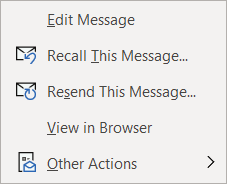
    Our first tip could really help save the day if you miss-send an email, did you know you can actually recall an email? Just open the email you want to send and navigate to the Recall message box in Outlook.Message tab on the ribbon, click on the Action button and then click on Recall Email, if the recipient hasn’t opened the email yet it will be recalled and you can try again.

    The second one is all about efficiency. If you have a certain type of message you send routinely, you can save that message as a template for easy use. Go to File > Save As > Outlook Template to save the template. Then when you’re ready to use it again click on Items > Choose Form > User Templates and select the template you saved. You can also go to the Message tab on the ribbon and click on View Templates to view and create simple templates without formatting to use.

    If you have a long email thread you have been replying to and are finding yourself hunting through your inbox for all the links in the chain to remember what has already been said, our third tip will really help you out. If you go to View > Show as Conversation on the Ribbon all of the messages in that thread will be displayed under the most current email.

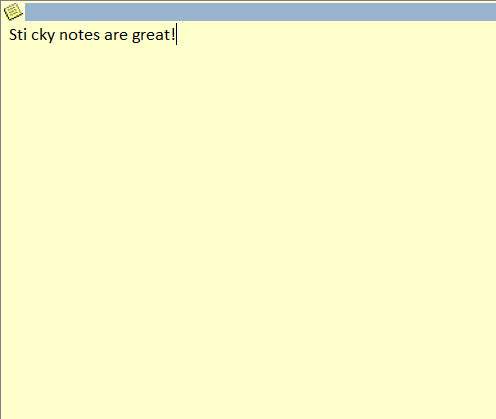
    Number four was even new to us until recently, if you hit Ctrl + Shift + N in Outlook it will pull up a sticky note function you can move around. That way if you need to take some notes as you’re parsing through your email that will be conveniently available to you, no pen and paper necessary.Outlook sticky note box.

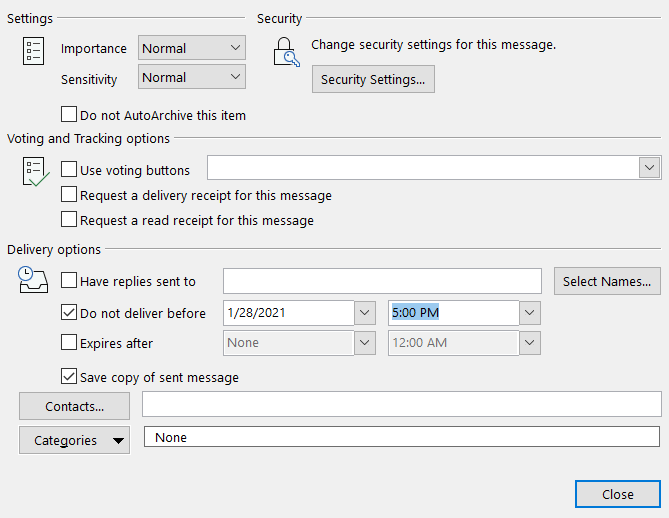
    Our fifth tip is all about timing. If you know there’s an email you need to send out by a certain time, why not avoid the stress and worry that you may forget and schedule it while it’s top of mind? If you go to Options > Delay Delivery > Do not deliver before you can schedule the email to be sent at the exact time and day you want it to be. This is a great option for reminder type emails that you send regularly as well.

    Lastly as a bonus, here’s a list of our top 10 Outlook shortcuts that will simply make navigating Outlook easier:

    1. Create a New Message: Ctrl + Shift M
    2. Insert a File: Alt+N, A, F
    3. Send a Message: Alt + S
    4. Search for An Item: Ctrl + E or F3
    5. Reply to a Message: Alt+H, R, P
    6. Go to Your Calendar: Ctrl+2
    7. Check for New Messages: Ctrl+M or F9
    8. Go to the Home Tab: Alt+H
    9. Go to the Send/Receive Tab: Alt+J, S
    10. Forward a Message: Alt+ H, F, W

    If your office could use some assistance navigating Microsoft 365 we’re here to help, at Valley Techlogic we consider ourselves experts when it comes to Microsoft and Windows based products and can make recommendations to your business. Visit our calendar page here to schedule a consultation to learn more.

    Looking for more to read? We suggest these tech articles from the last week.

    This article was powered by Valley TechLogic, an IT provider in Atwater, CA. You can find more information at https://www.valleytechlogic.com/ or on Facebook at https://www.facebook.com/valleytechlogic/ . Follow us on Twitter at https://x.com/valleytechlogic.
  • The Solar Winds Rabbit Hole: What’s happened and what’s next?

    The Solar Winds Rabbit Hole: What’s happened and what’s next?

    In most situations where a massive hack or breach has occurred, trying to get a handle on what has been compromised or even what is still compromised can be a challenge.

    It’s unfortunately been our experience that in most cases things almost end up being worse than they initially look. Hackers are smart and if they can remain in your systems for a long time, they can get more to either use against you in a ransomware attempt or even leave breadcrumb behind to get back in your systems and hit you again.

    This is why we will always say prevention is key, but sometimes despite your very best efforts a breach occurs. We think this is certainly what has happened in the case of the massive Solar Winds breach that is still being unraveled weeks later.

    CyberSecurity NewsEven detection’s put in place by the NSA failed to detect this hack in time, and as of this week Microsoft was even included in it as it’s been exposed that some of their source code was revealed in the breach.

    Hackers grow more and more sophisticated by the day and it requires a full-scale team effort to prevent your business from either an attack aimed at it specifically, or as the case has been with Microsoft, being looped into a breach that’s occurring to a vendor you may use.

    Attacks from foreign bodies aren’t even very rare, international hacker networks are taking a growing lead in cyberwarfare. While most of these attacks are acts of espionage, if the payoff is lucrative enough hackers will strike anywhere.

    It’s unknown what the real damage from the Solar Winds hack will end up being, or what if anything will come from the exposure of Microsoft source code, but we think this should serve as a wakeup call to anyone who doesn’t take the topic of cybersecurity seriously.

    Here are some things you can begin to do to make your business more secure in 2021.

    1. Have a Hardware Firewall like SonicWall. A hardware firewall makes it easier to have universal rules for your whole network versus having to configure rules for each device.
    2. Enable Core Isolation and Trusted Platform Module (TPM) on your Windows 10 Devices. These protocols will work in tandem to help stop malware and ransomware on your Windows 10 Devices.
    3. Also Enable Group Policy Settings with the Group Policy Editor. With group policy settings you can stop employees from doing things like opening attachments or random .exe files. You can also use group policy to prevent unknown USB devices from being used on work devices. Basically, group policy can prevent a lot of the activities that lead to ransomware or malware in the first place.
    4. Use Next Level Multi-Factor Authentication with a Hardware Key. We believe strongly in Multi-Factor Authentication (MFA) and the next step to that could be introducing the use of hardware keys to your business, a hardware key is a token that won’t allow you to unlock a device without it. Most hardware keys will also work in conjunction with software MFA like LastPass.
    5. You should Vet your Vendors, Even the “Bigger” Ones. As this Solar Winds breach has shown us, big or small a breach can happen to anyone. While you’re working on handling cybersecurity on your end you should also question the vendors you use as to what their cybersecurity policies are and what their plan is if a breach were to occur.

    This is by no means an exhaustive list but like we usually say, starting is a great first step. If you’d like an information packet of the Cyber Security services Valley Techlogic can provide, reach out to us today! Our comprehensive Cyber Security plan addresses all these topics and many more.

    Looking for more to read? We suggest these tech articles from the last week.

    This article was powered by Valley TechLogic, an IT provider in Atwater, CA. You can find more information at https://www.valleytechlogic.com/ or on Facebook at https://www.facebook.com/valleytechlogic/ . Follow us on Twitter at https://x.com/valleytechlogic.

    Looking for IT Services in Fresno, Modesto, Stockton, Ceres, Atwater, Merced, Visalia or Lodi? We cover all these areas and more!

  • Tech Scalpers and How to Get What You’re Looking For

    Tech Scalpers and How to Get What You’re Looking For

    We’ve all experienced it at some point, you’re looking to buy something that was just released, perhaps as a Christmas gift or just for yourself and can’t find it in the regular channels. You know where you can find it? eBay or some other reseller site – usually for an inflated price.

    Those who enjoy gaming are experiencing it right now. Trying to find the NVidia RTX 3080 card? Gone. Microsoft’s Xbox Series X and Series S as well as Sony PlayStation 5 buyers had a similarly frustrating time trying to get their pre-orders in. Nintendo has been accused for years of “artificial” shortages.

    Is it a lack of stock or is the demand really that great? How much of it is resellers swooping in, buying up all the stock and reselling it for artificially inflated pricing?

    What should you do if the item you’re looking for is out of stock, and how do you avoid being one of many who won’t get their hands on the tech item they’re looking for?

    One thing that appears to be new is the advent of items targeted by bots to buy up all the product for resellers. To say they have an unfair advantage when it comes to making a purchase quickly is an understatement.

    It’s clear more needs to be done to combat the unfairness of scalpers swooping in, and buying limits need to be more strictly enforced on tech items. What are some ways you can still get what you’re looking for anyways?

    1. Be aware of the sales date and be on the website early, websites will often crash in the wake of a launch but most retailers have queuing systems in place so the earlier you’re on there, the more likely you’ll be able to get what you’re looking for.
    2. As a general rule, do NOT refresh your page when you’re in a queue. If you refresh the page most times you will be moved to the back of the queue (it’s the same as getting out of line).
    3. Figure out which retailers are going to have the item you’re looking for and queue up for multiple sites to give yourself a better chance. Just be sure to jump off the additional ones once you’ve purchased your item.
    4. If it seems like your order didn’t go through, don’t despair. Many times, an order that looks like it didn’t go through actually did. Keep this in mind if you go to try and buy it again.
    5. If you did miss the item, instead of buying it from a reseller (and thereby validating the practice) find out when the next launch date it. For popular items it’s probably sooner than you think.

    NVidia, Microsoft and Sony could take a page from companies like Apple who seem to have the buying process down. Apple has scaled up their production for every new launch and those who want their products have no trouble buying them with ease. Nothing is more frustrating to a potential buyer than to have cash in hand ready to buy and end up leaving empty handed.

    They may find if they don’t solve these stock issues more aggressively, that these same buyers will move on to different products.

    Looking for more to read? We suggest these tech articles from the last week.

    This article was powered by Valley TechLogic, an IT provider in Atwater, CA. You can find more information at https://www.valleytechlogic.com/ or on Facebook at https://www.facebook.com/valleytechlogic/ . Follow us on Twitter at https://x.com/valleytechlogic.
    Looking for IT Services in Fresno, Modesto, Stockton, Ceres, Atwater, Merced, Visalia or Lodi? We cover all these areas and more!

  • Microsoft Teams is changing, can it catch up to Zoom in popularity?

    Microsoft Teams is changing, can it catch up to Zoom in popularity?

    There’s no question that Zoom is a behemoth in the video call making space, from its massive growth back in March to the re-energized vigor as schools across the nation are using it to conduct virtual lessons now in August. Zoom has a commanding 42.8% of the web conferencing market and it doesn’t seem like they’re losing any steam.

    Platforms such as Google, Microsoft and Cisco are trying to re-invent their web conferencing platforms to capture more of that lucrative pie. Today’s article is going to focus on the changes coming to Microsoft Teams as well as its existing features and evaluate whether it might be the better platform for your business.

    Microsoft Teams was released in 2017, it came 6 years off the massive acquisition of Skype by Microsoft (the once popular video chat software now languishes, a shadow of its former glory). Teams solved Microsoft’s problem with Skype being P2P (Peer to Peer) and gave a business facing option to all the companies already using their Office 365 platform.

    Before Zooms rising popularity Microsoft’s main competitor in this space was Google, with Google Hangouts being another popular option in the video conferencing space (now called Google Meet). Google is still an excellent choice, especially for companies who use the Google suite primarily within their businesses. Where Google falters in our eyes may be their habit of constantly pursuing new targets versus improving upon existing services (see the Google Graveyard for more of what we mean).

    Zoom has taken over the market mostly for it’s easy of use, you don’t even need to download it. Also, with zero cost to entry and a paired down UI even those who are less tech savvy can find their way around using it. If you want to set up a meeting with someone all you have to do is send them a link and you’ll be good to go.

    So why would a company want to switch to Teams? Microsoft Teams comes out ahead in the collaboration space, a one-off Zoom meeting is great for external meetings (say a sales call with a potential client) but for meeting with your in-house staff Teams is really the better option.

    Both have scaled up the number of users you can have on a call (100 in the paid for version of Zoom, 5000 on Teams). Both have a good chat system and the privacy enhancing benefit of blocking out your background (although we’d argue Teams does this a little better).

    Credit: Microsoft

    Where Teams comes out ahead for internal use is its integration with Office 365. When you create a new team of users to work collaboratively on the platform, it will create shared versions of One Point, Share Point and Plan. You can also have separate channels so you can easily distinguish who is working on what and organize your work more effectively.

    On top of that, Microsoft is now allowing Teams to have integrations with other applications, including Zoom. Allowing third party applications on the platform could further expand their popularity and allows third party designers to bring new solutions and tools that will greatly expand its usability.

    Microsoft is even allowing users to log into Teams with a personal account as well, encouraging people to use the platform for calls with family and friends. At a time when video conferencing is so crucial to staying connected, it doesn’t hurt to have more options.

    Microsoft Teams is a robust answer to the question of conducting office collaboration and Zoom is the quick and easy option for an impromptu meeting on the fly for colleagues and prospects alike. In our mind when it comes down to which is better for your business between Zoom or Teams, the answer may very well be both.

    Looking for more to read? We suggest these tech articles from the last week.

    This article was powered by Valley TechLogic, an IT provider in Atwater, CA. You can find more information at https://www.valleytechlogic.com/ or on Facebook at https://www.facebook.com/valleytechlogic/ . Follow us on Twitter at https://x.com/valleytechlogic.

    Looking for IT Services in Fresno, Modesto, Stockton, Ceres, Atwater, Merced, Visalia or Lodi? We cover all these areas and more!