Tag: windows

  • Our first look at Teams 2.0

    Our first look at Teams 2.0

    As we mentioned in our last post, Windows 11 is coming and with its announcement also came with the announcement of what’s being dubbed “Teams 2.0”.

    In preview builds right now appearance wise Teams 2.0 is very similar to the Teams you’re used to using. It has the same minimalistic UI you’re used to. However, one change is you can now switch light, dark and high contrast mode. This is a customization feature found in other video conferencing software now brought to Teams to make the program more user friendly and inclusive.

    Speaking of customization, you can also shrink your Teams windows exactly how you like now instead of simply shrinking the window down horizontally only. This will allow users to integrate a Teams window as they’re setting up their workstations for the day. The application can also “click” into place, fitting the size of the square or rectangle the user has left for it.

    Under the hood you’ll find that Teams 2.0 is much lighter than your existing Teams applications. While this is an early build of the program it’s interesting to note and holds true to Microsoft’s promise of making Windows 11 lighter in every fashion. Many video chat programs are memory hogs for older machines and a more agile chat client would be welcome for those as well as lighter duty laptops with less memory capacity.

    You can also quickly invite users with a link with Teams 2.0, allowing users to hold meetings more on the fly without having to schedule something through the Outlook calendar. This is one benefit found in Zoom that we think Microsoft is wise to integrate into Teams to broaden their appeal.

    Another change is you can now find users by their phone number or by syncing your contacts with Outlook and Skype. It’s clear with Windows 11 the goal is to have Teams be the de facto video chat choice and adding the ability to lookup friends and family will greatly extend the use of Teams outside workplaces.

    Although we still expect workplaces to be the primary use of Teams and we’re looking forward to more changes aimed at catering to the workforce marketplace beyond the scaled down client size (though don’t get us wrong, we definitely approve of that benefit). In the current preview builds video chat and voice chat are disabled so we’re unable to comment on that functionality at this time.

    This is still very early on in the process, and we anticipate more changes to come not just for Teams 2.0 but also Microsoft 11 as a whole.
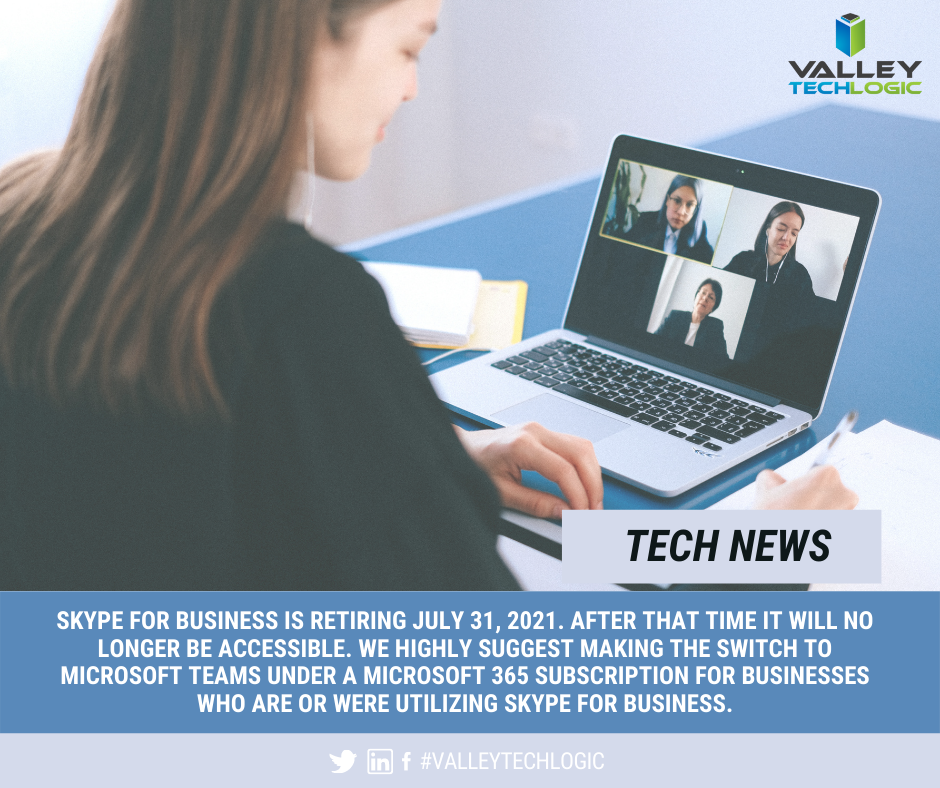
    Skype for Business is Ending News

    In fact, it’s already been announced that the web client version will be released for preview soon, improved PowerPoint integration and also the ability to utilize multiple user accounts under a single client. Microsoft is a flurry of activity as they gear up for the fall release of Windows 11.

    Users currently on Windows 10 are already receiving patches aimed at getting their computers Windows 11 ready. As we noted in a previous blog Windows 11 will be a free upgrade to users already on Windows 10.

    Still on Windows 7 or 8 in your office? It’s still possible to upgrade to Windows 10 either for free or for a small $99 upgrade fee. This is going to much less than Windows 11 will be retailing for at launch and a 50% discount on the Windows 10 Pro retail cost. Windows 7 ended extended support in January of last year and Windows 8 will be soon as well. It’s not a good idea to remain on an operating system no longer supported by Microsoft and can leave your business much more vulnerable to cyber security attacks.

    If you need assistance upgrading the machines in your office so that they’re Windows 10 or 11 ready, reach out to us here.

    Looking for more to read? We suggest these tech articles from the last week.

    This article was powered by Valley TechLogic, an IT service provider in Atwater, CA. You can find more information at https://www.valleytechlogic.com/ or on Facebook at https://www.facebook.com/valleytechlogic/ . Follow us on Twitter at https://x.com/valleytechlogic.


  • Our Top 3 Ways to Get MORE from Your Business’s Technology

    Our Top 3 Ways to Get MORE from Your Business’s Technology

    Most of us rely heavily on technology to accomplish our goals, whether it be at work or at home. Computers have made so many things in life more accessible, from learning to banking to downtime (though too much idle scrolling is the antithesis of productivity).

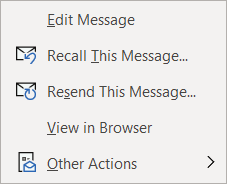
    But have you ever stopped to think if you’re really getting the most from the technology Tech News Graphicyou use? Often we get stuck in a rut and don’t really explore what else may be out there. Your favorite tried and true software or add on has never let you down, right?

    There’s nothing wrong with using things you know and love, and most importantly trust. Any new addition to your stack should be vetted thoroughly. Especially software applications, if it looks sketchy or seems to be too good to be true then it probably is.

    So, what are the 3 things we as a technology provider recommend when it comes to getting more productivity and convenience from the technology you use every day?

    1. The first is built right into your Windows 10 operating system. With Windows 10 you can create multiple desktops with the Task View setting. Hitting the Windows Key + Tab will bring up the menu and from there you can go about creating an unlimited number of Windows Virtual Desktops (or at least as many as your RAM will support). You can organize your day through these virtual desktops, having one for work and one for your lunchbreak.
    2. Make use of the virtual calendars available to you. Whether it be through Google or Outlook, or even a source such as Calendly which makes it easy to schedule with clients and even sends text message reminders. Virtual calendars can help you organize your week, month or even year. The popup reminders will make sure you don’t miss an important meeting or event.
    3. We will always recommend utilizing automatic backups. OneDrive is built in to Windows and comes with 5 GBs of free storage. For just $2 a month you can bump that up to 50 GBs, we think it’s a small price to pay for the piece of mind it provides. If you’re working with a technology provider your backups should be one of their main priorities. Having a thoughtful and thorough backup program in place can mean the difference between getting back to work quicly and losing it all in a disaster recovery situation.

    On top of these ways to get more productivity and usefulness out of your technology, your technology provider can also help you understand the benefit and scope of the tools they are providing for your business.

    They will probably have their own stack of software they recommend and may even have tools they themselves use that they can recommend for you and your staff. It’s a good idea to have an understanding of the systems that power your business and keep it running smoothly.

    It’s our belief that transparent processes and thorough reporting helps our clients make informed choices within their business. If you would like some recommendations on tools that may help increase the usefulness of your technology, we’d be happy to help.

    Looking for more to read? We suggest these tech articles from the last week.

    This article was powered by Valley TechLogic, an IT provider in Atwater, CA. You can find more information at https://www.valleytechlogic.com/ or on Facebook at https://www.facebook.com/valleytechlogic/ . Follow us on Twitter at https://x.com/valleytechlogic.

  • Our Top 5 Favorite Outlook Tricks & Tips as a Technology Provider

    Our Top 5 Favorite Outlook Tricks & Tips as a Technology Provider

    As a technology provider we’re well versed in supporting the Microsoft suite of products, and Outlook especially is a business staple. Whether you have made a one-time purchase with Office 2019 or are using the subscription model plan with Microsoft 365, both products include Teams, Outlook, OnePoint, SharePoint and Word. In today’s article we will be focusing especially on Outlook and providing you with tips that will make using it that much easier.

    Our first tip could really help save the day if you miss-send an email, did you know you can actually recall an email? Just open the email you want to send and navigate to the Recall message box in Outlook.Message tab on the ribbon, click on the Action button and then click on Recall Email, if the recipient hasn’t opened the email yet it will be recalled and you can try again.


    The second one is all about efficiency. If you have a certain type of message you send routinely, you can save that message as a template for easy use. Go to File > Save As > Outlook Template to save the template. Then when you’re ready to use it again click on Items > Choose Form > User Templates and select the template you saved. You can also go to the Message tab on the ribbon and click on View Templates to view and create simple templates without formatting to use.

    If you have a long email thread you have been replying to and are finding yourself hunting through your inbox for all the links in the chain to remember what has already been said, our third tip will really help you out. If you go to View > Show as Conversation on the Ribbon all of the messages in that thread will be displayed under the most current email.

    Number four was even new to us until recently, if you hit Ctrl + Shift + N in Outlook it will pull up a sticky note function you can move around. That way if you need to take some notes as you’re parsing through your email that will be conveniently available to you, no pen and paper necessary.Outlook sticky note box.

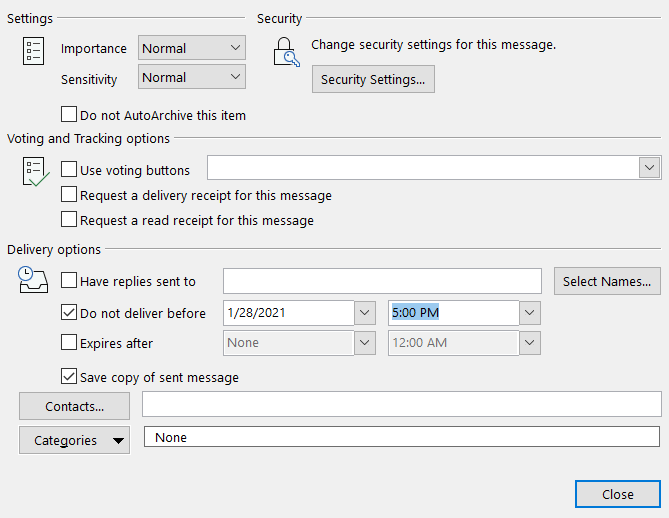
    Our fifth tip is all about timing. If you know there’s an email you need to send out by a certain time, why not avoid the stress and worry that you may forget and schedule it while it’s top of mind? If you go to Options > Delay Delivery > Do not deliver before you can schedule the email to be sent at the exact time and day you want it to be. This is a great option for reminder type emails that you send regularly as well.

    Lastly as a bonus, here’s a list of our top 10 Outlook shortcuts that will simply make navigating Outlook easier:

    1. Create a New Message: Ctrl + Shift M
    2. Insert a File: Alt+N, A, F
    3. Send a Message: Alt + S
    4. Search for An Item: Ctrl + E or F3
    5. Reply to a Message: Alt+H, R, P
    6. Go to Your Calendar: Ctrl+2
    7. Check for New Messages: Ctrl+M or F9
    8. Go to the Home Tab: Alt+H
    9. Go to the Send/Receive Tab: Alt+J, S
    10. Forward a Message: Alt+ H, F, W

    If your office could use some assistance navigating Microsoft 365 we’re here to help, at Valley Techlogic we consider ourselves experts when it comes to Microsoft and Windows based products and can make recommendations to your business. Visit our calendar page here to schedule a consultation to learn more.

    Looking for more to read? We suggest these tech articles from the last week.

    This article was powered by Valley TechLogic, an IT provider in Atwater, CA. You can find more information at https://www.valleytechlogic.com/ or on Facebook at https://www.facebook.com/valleytechlogic/ . Follow us on Twitter at https://x.com/valleytechlogic.

  • Ransomware and Small Businesses: Why Some of Them Just Pay It

    Ransomware and Small Businesses: Why Some of Them Just Pay It


    One of the biggest misconceptions among small business owners is that their company is too small to be the target of many cyber crime events – including ransomware. Statistically, this couldn’t be further from the truth.

    In 2019 205,280 businesses submitted files that were victim to a ransomware attack, and 71% of those attacks were aimed at small to medium sized businesses. The average payout was $41,198, but many payments are significantly higher. Could your business withstand losing a lump sum of money right now?

    Luckily for many businesses the use of prevention tools and having a proactive tech team means you won’t have to, but what if you’re not so lucky? Why do some businesses just pay the ransomware?

    For many businesses their computer systems are directly tied to their day to day operations. So, if your files are being held by a hacker (or many times a group of hackers) you’re basically shut down. As a business you require your day to day operations to remain sustainable, but for many the margin for sustainability and being out of business is razor thin.

    This means their business won’t survive an extended downtime while they wait for authorities to try to get their files back (if they ever do). So, they just pay the ransom.

    Another scenario is if you’re in a sector where client confidentiality is paramount (think healthcare or finance), then the leaking of those details and the fines incurred will also put you out of business.

    When it comes to ransomware the best method of protection is prevention. This means making sure your computers remain up to date – as of this posting there is a dangerous worm targeting Windows machines that haven’t been updated (learn more here.) It also means having a comprehensive security suite protecting all the machines attached to your network (even mobile ones!).

    Finally, the best means of protection is having a good IT team backing your business – and backing up your important files! Your tech team will often be able to restore from backup if you DO get hit by ransomware despite having the other methods of protection in place. Their backup could literally save your business.

    If you’re in the Central Valley and don’t feel 100% confident your business will be protected in the event of a ransomware attack, reach out to us today.

    This article was powered by Valley TechLogic, an IT provider in Atwater, CA. You can find more information at https://www.valleytechlogic.com/ or on Facebook at https://www.facebook.com/valleytechlogic/ . Follow us on Twitter at https://x.com/valleytechlogic.

    Looking for IT Services in Fresno, Modesto, Stockton, Ceres, Atwater, Merced, Visalia or Lodi? We cover all these areas and more!

  • Windows 7 End of Life: Upgrade your existing machine or start fresh?

    A laptop upgraded windows.January 14th, 2020 looms ever closer and you may be scrambling for a solution to one problem: Does it make sense to upgrade your existing machine or purchase a new one?

    I can’t say for certain which one is the better option for you or your business, but one thing is for certain, remaining on Windows 7 after support ends is a dangerously ill-advised idea.

    Windows 10 released July 29, 2015, so chances are if your machine is still running Windows 7 it’s older than the 3 years I personally recommend a machine be replaced by. We know this is not always feasible so here are the minimum specs we recommend for an upgrade to Windows 10:

    • In my experience your machine will need at least 8 GBs of ram to run Windows 10 relatively smoothly, but ideally it will have at least 16 GBs at this point in time so it has enough power to run the operating system and all the processes you may use day to day.
      Something else to consider is whether your ram is soldered (very common in laptops), if it is an upgrade will not be possible.
    • Your CPU is something else to consider when upgrading or buying, here at Valley TechLogic we recommend Intel CPU’s and more specifically at least Core i-5 or Core i-7, both will run Windows 10 effectively but Core i-7 will be much more future proof.
    • A Solid State Drive, many older machines still use highly failure prone mechanical hard drives. A solid state drive will be less prone to hardware failure and it loads much faster. On average solid state drives load 5 to 20 times faster than a mechanical drive.
    • You may also need to purchase the Windows 10 license, at the present time that will run you $199.99 for a Pro license (what we recommend in a business setting).
    • There also may be a cost to having these upgrades performed for you if you don’t currently have an all encompassing Managed IT Plan in place (learn more here). This cost can really add up if you own a business with more than one outdated machine.

    Depending on your situation the costs associated with upgrading an existing machine may not make sense in the long run. Purchasing a new machine is an investment, and when done thoughtfully it will last many years into the future.

    It’s also possible to transfer your existing computer files from the old machine to the new one – even system settings – making the switch painless.

    Here at Valley Techlogic we work with our customers to come up with a solution that makes sense for their business, whether they’re upgrading existing computers with new hardware or helping them purchase a new one through our affiliates.

    We work to minimize downtime and through our comprehensive Managed IT Department plan upgrading is a covered project. If you’re in the Central Valley reach out today to see if we can help you with this end of life event, or any other IT projects you may have coming up.

    This article was powered by Valley TechLogic, an IT provider in Atwater, CA. You can visit us on Facebook at https://www.facebook.com/valleytechlogic/ . Follow us on Twitter at https://www.twitter.com/valleytechlogic .