Category: Windows

Windows

  • Why you SHOULD upgrade to Windows 11, but not necessarily Windows Server 2022

    Why you SHOULD upgrade to Windows 11, but not necessarily Windows Server 2022

    It feels like Windows 11 news is everywhere at the moment following the official announcement on June 24th. We covered that announcement in our post found here.

    More details will continue to be released as we move toward the estimated fall release of Windows 11. It’s going to be a free upgrade for Windows 10 users, and we think making the move to Windows 11 will be a smart choice for most customers so long as they’re running newer hardware (which to be fair is a big caveat). We’ll be covering the hardware required for Windows 11 in next weeks post as it’s an ongoing situation.

    In this week’s article we want to cover servers instead, and specifically whether Windows 2022 will be the smart choice for business’s when it’s officially released. It’s been out for preview for Azure Virtual Machines since March of this year, but the commercial release is estimated for later this year. It’s seems it will closely coincide with the estimated release of Windows 11.

    That’s pretty much where the similarities between the two operating systems ends. Servers are a different beast both in their hardware requirements and their intention.

    Many very small businesses get by without a physical server and by just relying on cloud backups for their data. There are some downsides to that, we talk more about moving to the cloud in this article.

    If you already have a server (or even more than one) in place for your business though you may have an understanding of the undertaking that is upgrading your Windows Server version. It’s not quite as cut and dry as it is with upgrading your desktop version of Windows, which is usually just a few clicks of the mouse.

    There are usually vendor considerations in place with a Windows Server upgrade. Some clients even have proprietary software that will not work with an updated version of Windows Server that necessitates having a plan in place to mitigate the issues that come from having an older version, many of those cyber security related.

    We’ve made a chart that shows the risk level with various versions of Windows Server as you move out from their End of Life date as well as from their Extended Support date.
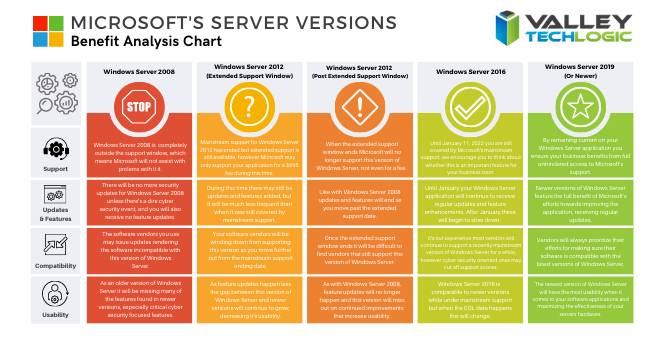
    Windows Server Chart Small

    It’s a good idea to keep as current as you can but we don’t necessarily advocate for jumping onto the newest server version immediately. Like we said there are vendor considerations and also the compatibility with software you use in your business, it can take a while for developers to create patches and drivers that make the usability of the newest version of Windows Server the same as what you’re used to.

    Also, like with the desktop version of Windows there are hardware considerations. Upgrading server hardware is always a significant expense for your business and can result in significant downtime. We help our clients mitigate this downtime but it’s still a consideration especially if you’re navigating this topic without a good IT team behind your business.

    We would never discourage anyone from upgrading when the time is right, aging hardware that fails suddenly can also result in significant downtime, much longer than an upgrade would take before you reached that point. We recommend reaching out to an IT professional and having them run diagnostics on your current server as that will help you make an informed choice.

    If you find yourself trying to navigate this topic and other IT service related topics, Valley Techlogic can help. As a Windows partner, we’re well versed in everything Windows and have navigated even the most complicated server setups. Like we mentioned, we even help clients mitigate downtime when it comes to performing necessary upgrades. You can reach us for a consultation here to get started.

    Looking for more to read? We suggest these tech articles from the last week.

    This article was powered by Valley TechLogic, an IT provider in Atwater, CA. You can find more information at https://www.valleytechlogic.com/ or on Facebook at https://www.facebook.com/valleytechlogic/ . Follow us on Twitter at https://x.com/valleytechlogic.
  • On June 24th, 2021 Microsoft introduced Windows 11, a free upgrade to Windows 10

    On June 24th, 2021 Microsoft introduced Windows 11, a free upgrade to Windows 10

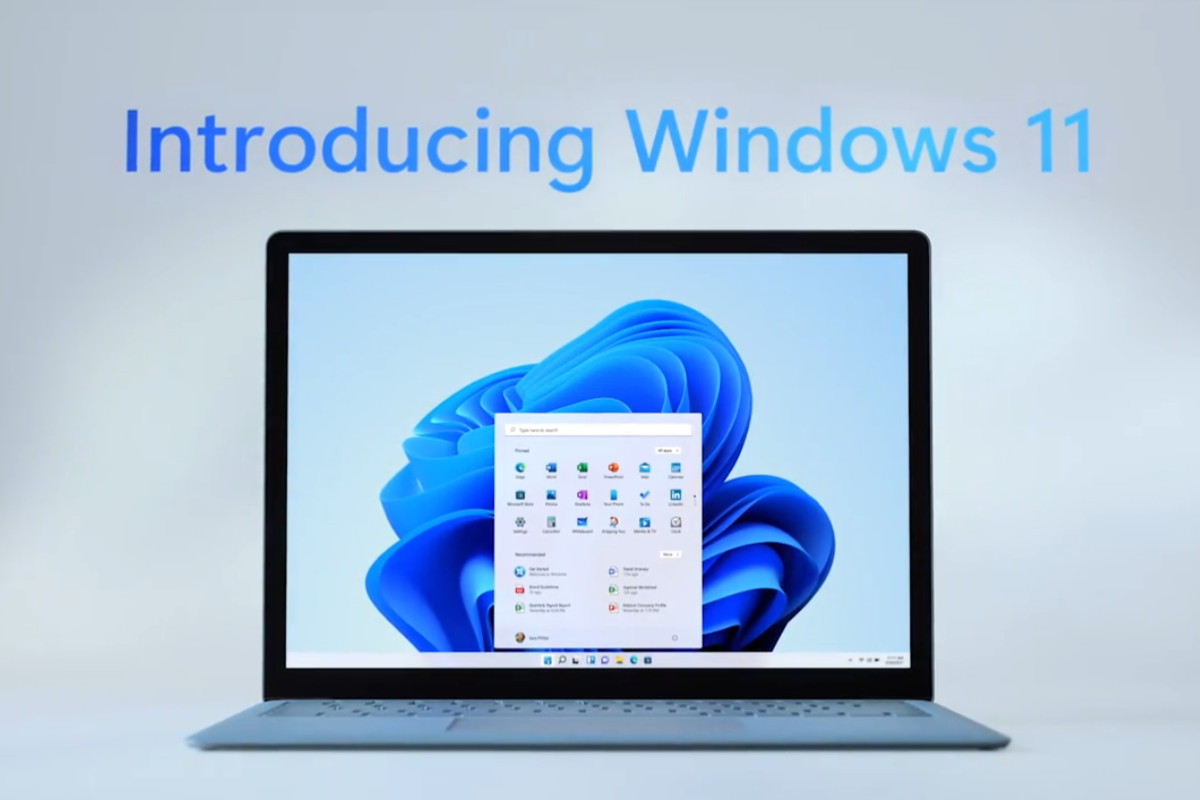
    Yesterday, June 24th 2021 Microsoft unveiled Windows 11. While they struggled to get the live stream going (it went down several times during the unveiling) Windows 11 itself still had an impressive range of features, many of which we think will shake the PC industry as we know it.

    To start, they revealed that Windows 11 will be faster than past versions and updates will be 40% smaller. These features are a nod to what came later in the stream in our opinion. Faster and more agile seems to be the name of the game with Windows 11.

    Windows 11 will have many user adaptive features, including window “snapping” that will allow users to arrange their desktop environment exactly how they like. They showcased grids that had even 4 or 5 squares of varying sizes. If you dock your laptop to a second monitor then remove it, it will even “remember” your setup when you plug it back in.

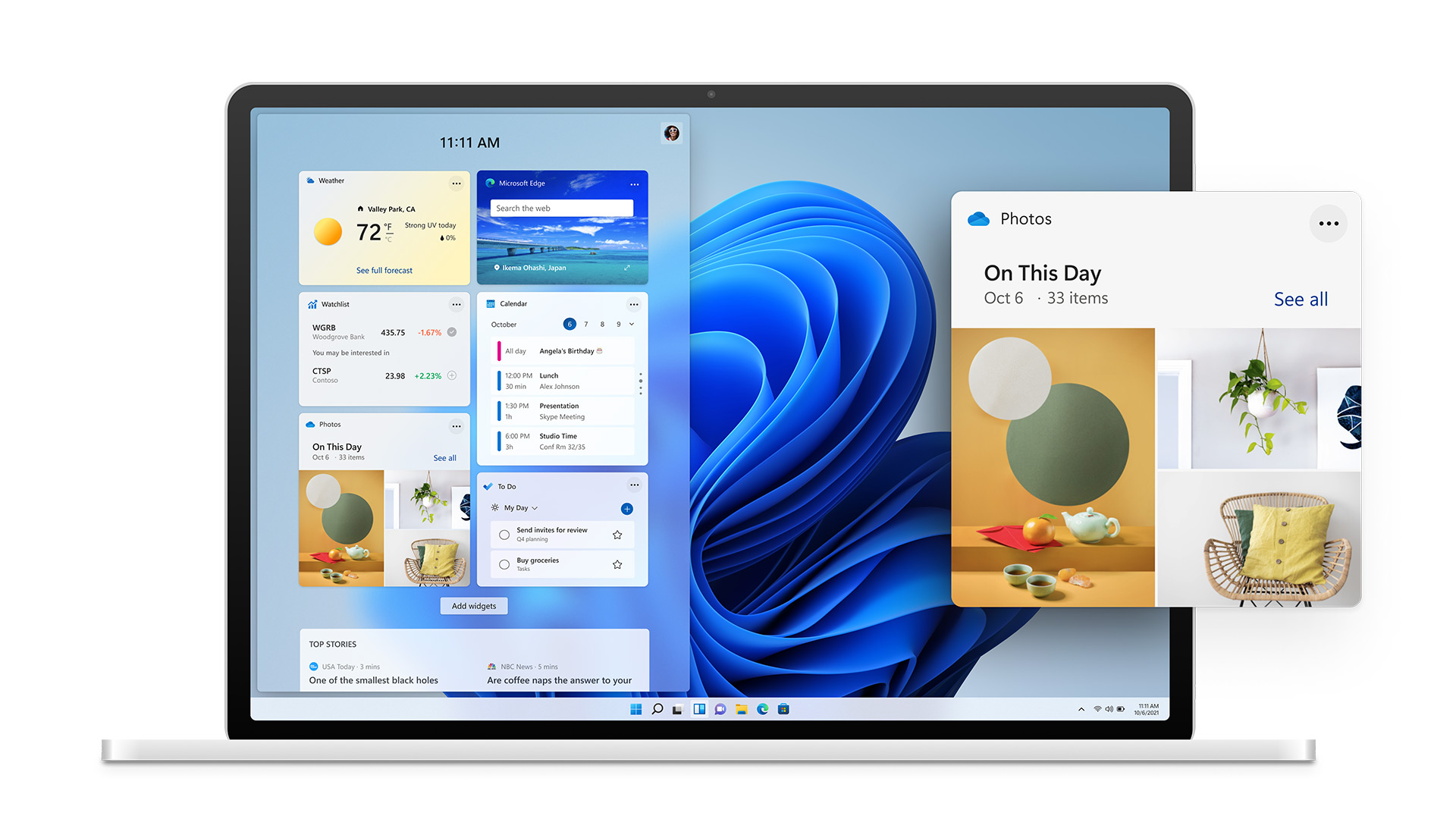
    Also, in the same vein is the new widgets feature that will show users a custom set of data specific to them and how they’re using their device. If you’re sensing that Microsoft is aiming to bridge the gap between PC and mobile devices with Windows 11, you wouldn’t be wrong. With it’s slick appearance widgets seem to be a much improved version of the the “Interest feature” that was released to Windows 10 in April.

    Windows 11 Widgets

    Speaking of bridging the gap between PC and mobile devices, one of the biggest ways Microsoft is aiming to do that is by allowing Android applications to downloaded and used on Windows 11 PCs. We plan to do a deep dive on this later on when more is known, but Android applications will be available in the Microsoft store powered by Amazon’s Appstore.

    The combined efforts of these two tech behemoths seems like a move squarely aimed at taking a piece of Google’s mobile pie – and a large pie at that with the Android phone market making up 72% of the market share as of 2021.

    Converting mobile users to PC seems to have been a concerted effort of Microsoft for a while now and it will be interesting to see what effort merging their various services together (Xbox will also be more accessible through Windows 11 with the addition of Xbox Game Pass for PC being expanded upon) will have on those efforts.

    They also plan on making the Microsoft store more accessible for developers, who if they bring their own eCommerce solution will not even have to share a cut with Microsoft.

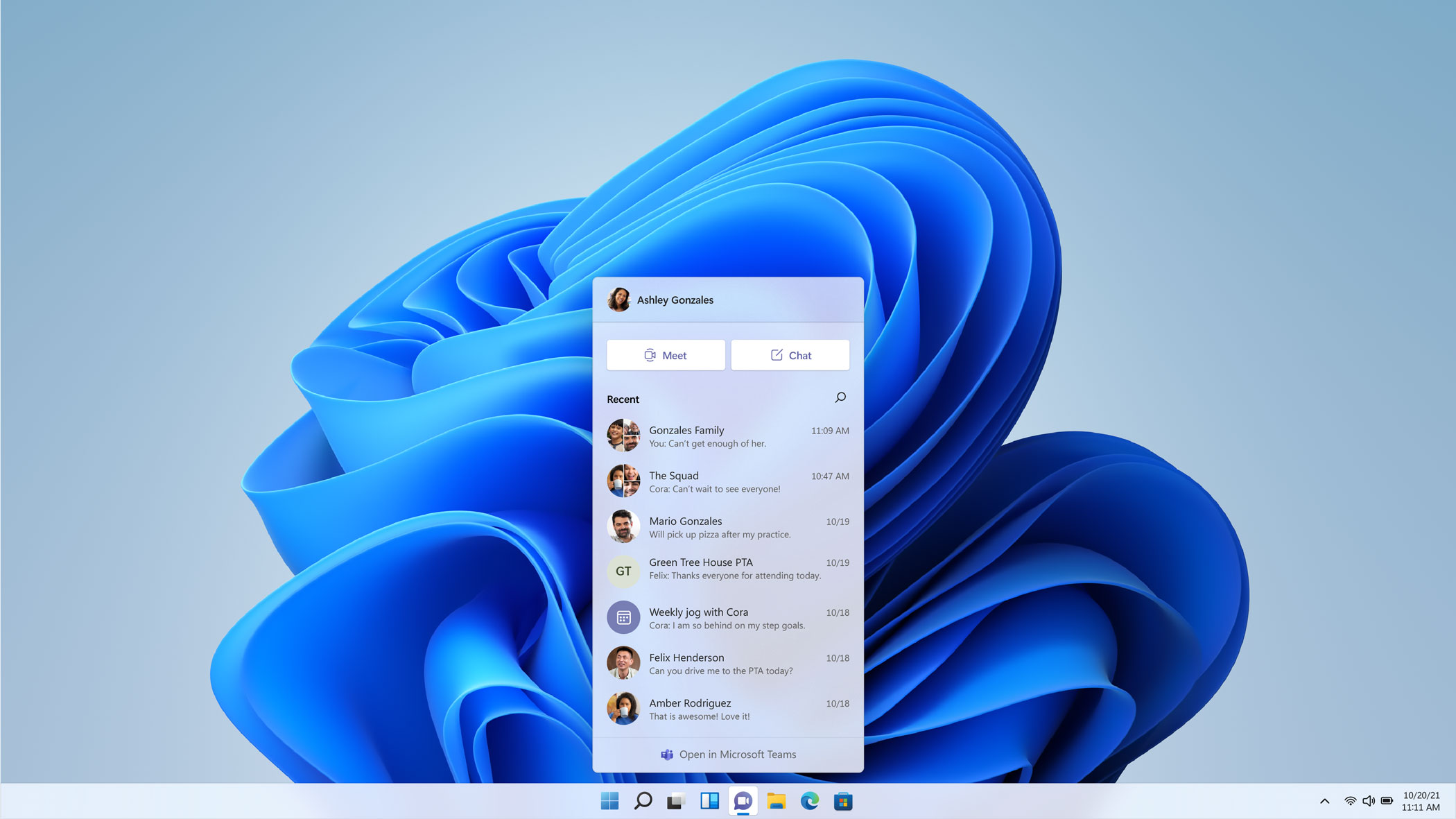
    We haven’t even touched on Microsoft 11’s appearance, which seems much sleeker and perhaps slight Apple-esque with the slim task bar with centered icons. One of those center icons was a built in Microphone mute button, which Microsoft used as a segue to announce Teams as a built in Windows 11 integration.

    Microsoft Teams Windows 11

    With that we only assume Microsoft is moving away from Skype and trying to make a move that again takes aim at a competitor, namely Zoom. Teams will even work across non-Microsoft platforms including iOS. We’re eager to see what features are added to Teams as not too much was showcased in this demo.

    There’s not currently a release date set for Windows 11 other than later this year, but the speculation is it will be released sometime in October which would fall in line with Microsoft’s typical major update release schedule.

    We’ll be following this topic closely, as a Microsoft partner new Window’s releases can be both an exciting yet daunting prospect for our customers. If your business needs assistance in getting your office “Windows 11 ready”, we can help. Schedule a free consultation here.

    Looking for more to read? We suggest these tech articles from the last week.

    This article was powered by Valley TechLogic, an IT provider in Atwater, CA. You can find more information at https://www.valleytechlogic.com/ or on Facebook at https://www.facebook.com/valleytechlogic/ . Follow us on Twitter at https://x.com/valleytechlogic.
  • 10 Tips for Staying Safe Online When Working from Home

    Woman working at desk

    In light of the ongoing health crisis many of us are placed in the unusual position of working from home. While you may have concerns about keeping up your usual level of productivity and being able to communicate effectively with your coworkers while working in separate places there may be one issue flying under the radar, how do you stay safe online while working from home?

    It’s unfortunately not a given, in many work places you have an IT team that maintains (or should!) a high level of security for your office computers and network. These same measures are not in place on your home network or on your home computer.

    With so many of us working from home hackers may be seeing this as an opportunity to access your company’s private data via unsecured personal computers and home networks. These 10 tips will prevent this from happening.

    1. Don’t reuse passwords. If you’re able to choose your own work passwords it’s important they’re varied, if hackers get access to one of your accounts and you use the same password for everything then they have access to all of them.
    2. Practice good password safety. It’s imperative that passwords for your work accounts follow good password safety practices. Hackers may be able to use your work accounts to access the rest of your company’s data. If you set your own password make sure it follows the rules of 16 characters in length, mixing characters and avoiding dictionary words if possible.
      Also destroy any written copies of your password, real life phishing exists! Use a password manager like LastPass instead.
    3. Secure your home network. It’s shocking how many home networks don’t have a password at all, or if they do it’s a single word with no mixed characters or even your router’s default password.
      This is not a good idea! Hackers can use your network to access your home machine, and from there it may be game over. Like the tip above practice good password safety when it comes to your router’s password.
    4. Enable 2-factor authentication if it’s available to you. Many laptops these days feature security measures such as facial recognition or fingerprint readers that will help keep your device safe. Don’t forget to enable the same feature on your phone!
    5. Speaking of 2-factor authentication. You may find that your workplace uses 2-factor authentication to secure the applications you use on a daily basis to do your job, if they don’t bring it up! This will further prevent people from accessing your company data.
    6. Install updates. At work your IT team is probably installing updates for you, on your home device you’re responsible for doing so. In general, you shouldn’t be ignoring updates but while accessing your company accounts it’s even more important.
    7. Practice good online safety. The security measures enabled on your company network may prevent a total takeover in the case of someone accidentally downloading malware, this is not so at home.
      Don’t open attachments from senders you don’t know. Be careful which websites you visit, and always have your firewall enabled!
    8. Be careful with public networks. During this time, it might be tempting to get out and at least work outside at a café or somewhere with public Wi-Fi. However, this public Wi-Fi may leave your machine vulnerable, especially if you’re not practicing some of the safety measures above.
    9. Make sure your work is backed up. You’ll probably need some help from your IT team for this one but ensure the work you’re doing is backed up to your office servers or saved in some way. Recovering lost data from your home machine alone may be more difficult.
    10. Last but not least, use an anti-virus software. Find out which anti-virus software your company IT team recommends, or if you need a recommendation reach out to us. It’s extremely important for staying safe online.

    We hope these tips help. For those not working remotely or for tips on staying safe while in public right now, we recommend referring to the CDC Website for the most up to date information: https://www.cdc.gov/coronavirus/2019-ncov/index.html

    This article was powered by Valley TechLogic, an IT provider in Atwater, CA. You can visit us on Facebook at https://www.facebook.com/valleytechlogic/ . Follow us on Twitter at https://twitter.com/valleytechlogic.

  • Windows 7 End of Life: Upgrade your existing machine or start fresh?

    A laptop upgraded windows.January 14th, 2020 looms ever closer and you may be scrambling for a solution to one problem: Does it make sense to upgrade your existing machine or purchase a new one?


    I can’t say for certain which one is the better option for you or your business, but one thing is for certain, remaining on Windows 7 after support ends is a dangerously ill-advised idea.

    Windows 10 released July 29, 2015, so chances are if your machine is still running Windows 7 it’s older than the 3 years I personally recommend a machine be replaced by. We know this is not always feasible so here are the minimum specs we recommend for an upgrade to Windows 10:

    • In my experience your machine will need at least 8 GBs of ram to run Windows 10 relatively smoothly, but ideally it will have at least 16 GBs at this point in time so it has enough power to run the operating system and all the processes you may use day to day.
      Something else to consider is whether your ram is soldered (very common in laptops), if it is an upgrade will not be possible.
    • Your CPU is something else to consider when upgrading or buying, here at Valley TechLogic we recommend Intel CPU’s and more specifically at least Core i-5 or Core i-7, both will run Windows 10 effectively but Core i-7 will be much more future proof.
    • A Solid State Drive, many older machines still use highly failure prone mechanical hard drives. A solid state drive will be less prone to hardware failure and it loads much faster. On average solid state drives load 5 to 20 times faster than a mechanical drive.
    • You may also need to purchase the Windows 10 license, at the present time that will run you $199.99 for a Pro license (what we recommend in a business setting).
    • There also may be a cost to having these upgrades performed for you if you don’t currently have an all encompassing Managed IT Plan in place (learn more here). This cost can really add up if you own a business with more than one outdated machine.

    Depending on your situation the costs associated with upgrading an existing machine may not make sense in the long run. Purchasing a new machine is an investment, and when done thoughtfully it will last many years into the future.

    It’s also possible to transfer your existing computer files from the old machine to the new one – even system settings – making the switch painless.

    Here at Valley Techlogic we work with our customers to come up with a solution that makes sense for their business, whether they’re upgrading existing computers with new hardware or helping them purchase a new one through our affiliates.

    We work to minimize downtime and through our comprehensive Managed IT Department plan upgrading is a covered project. If you’re in the Central Valley reach out today to see if we can help you with this end of life event, or any other IT projects you may have coming up.

    This article was powered by Valley TechLogic, an IT provider in Atwater, CA. You can visit us on Facebook at https://www.facebook.com/valleytechlogic/ . Follow us on Twitter at https://www.twitter.com/valleytechlogic .

  • Window’s 7 EOL of Life Is Coming Soon, But There’s Still Time to Prepare

    14th on a Calendar
    The January 14th is almost here.

    January 14, 2020 will be here in less than three short months, and there are probably many out there that haven’t prepared to make the switch off Windows 7 (or Windows Server 2008 which also ends support on the same day). In fact, an estimated 32.8% of all PCs running Windows are still running Windows 7.

    We know it can seem like a hassle to upgrade and you may be thinking what’s the harm in leaving my computer as is? We’d like to explain why that’s a bad idea and simple steps you can take to make the migration off Windows 7 easier.

    If you stay on Windows 7 after support ends your PC will still work, but it will be more vulnerable to malware and other security risks. Regular Windows updates provide crucial protection to exploits that may especially exploit vulnerabilities in your operating system or programs run by that operating system.

    Hackers may also choose to target those who have decided to stay with Windows 7 after January 14th. You may find yourself up creek without a paddle if something happens to your PC after Windows support ends.

    It doesn’t have to be this way though, making the switch from Windows 7 will probably not be as difficult as you may be expecting. In fact, a Windows 7 client upgrade may take an hour – or less – if your computer has a solid state drive (SSD).

    If you have an older mechanical drive it may take a bit longer, but it is probably not the multi-day event you may have been expecting.

    You shouldn’t attempt an update from Windows 7 to Windows 10 without a backup, and this is an excellent time to review your backup plan in general (especially if you don’t have one!). You most likely will not lose any files though and should find yourself up and running the same day with a brand new and more secure operating system.

    We’d like to take the time to note that migration from Windows 2008 server to newer editions of Windows server is a more complicated process that should not be attempted without professional help.

    If you own or work for a business in Central California, Valley TechLogic can assist you with this task. Reach out to us today at 209-357-3121.

    This article was powered by Valley TechLogic, an IT provider in Atwater, CA. You can also reach us on Facebook at https://www.facebook.com/valleytechlogic/ or on Twitter at https://www.twitter.com/valleytechlogic.

  • Is your business prepared for Windows 7 end-of-life? What are your options?

    Is your business prepared for Windows 7 end-of-life? What are your options?

    All software comes with a predefined life cycle, at the end of which developers will no longer provide support for it. Despite being released nine years ago, Windows 7 still powers around a third of all computers used in the workplace. When mainstream support for the operating system ended in 2009, Microsoft offered extended support for business users — but only until January 2020, so there’s not much time left to upgrade.

    While it’s tempting to continue using a soon-to-be-deprecated software that seems to be working fine, doing so leaves users open to serious security breaches. Once Microsoft stops releasing security updates for Windows 7, it’s just a matter of time before hackers start exploiting the stragglers, like they did with Windows XP after it was retired.

    Fortunately, there are many options for those who have yet to upgrade.

    #1. Sign up for extended security updates

    For larger businesses with hundreds or even thousands of computers, swapping over to a new operating system can be enormously expensive and time-consuming. At the same time, trying to rush the process can leave your operations open to serious disruption. For those who are still keen to keep using Windows 7, Microsoft has provided Extended Security Updates, which will be available until January 2023 — a further three years after extended support expires. But the program does come at a cost of $50 per user per year, increasing to $200 in the final year.

    #2. Upgrade to Windows 10

    Windows 8 and 8.1 suffered from low popularity and poor feedback, which is why many users have been reluctant to upgrade to Windows 10. It only finally overtook Windows 7 as the world’s most popular operating system earlier this year. However, while Windows 10 is by no means a perfect solution (there’s no such thing), it’s often hailed as the “last” edition of Windows in that it is provided as a continuously updated service. In other words, updates are streamlined and mandatory, thus finally eliminating concerns around obsolescence.

    #3. Switch over to macOS

    Apple’s products have often been considered exclusively consumer-facing, but recent years have seen a substantial uptake of iPhones and Macintoshes in the workplace, too. Although switching to macOS requires changing your hardware, it does come with the benefits of low maintenance, industry-standard design, and excellent usability. They are expensive and lack strong compatibility with Windows and other PC operating systems, but for many users, the pros far outweigh the cons.

    #4. Choose a Linux distribution

    Despite having the lion’s share of the desktop operating system market, Microsoft Windows isn’t the only solution worth considering. Linux is by far the most popular alternative, and it’s the only open-source operating system that has made a substantial market impact. However, while there are dozens of highly configurable Linux distributions to choose from, it still has a reputation for being primarily focused on the enthusiast sector. Nonetheless, Linux still powers many data centers and server systems, thanks to its high security and customizability.

    #5. Migrate to the cloud

    An increasingly popular alternative does away with desktop-side software entirely, but instead runs virtual machines hosted in the cloud. These machines can run almost any operating system you want, while the physical device in front of you provides only a barebones system like ChromeOS to access the internet and manage connectivity protocols. With all your data and applications stored in the cloud, you can enjoy much greater flexibility and scalability while avoiding the constant threat of technological obsolescence.

    Valley Techlogic provides technology support and expertise you can depend on. Call us today to get the solutions you need.