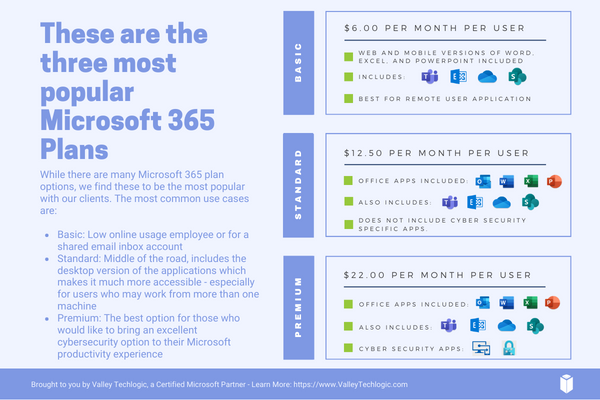
Microsoft Outlook is a feature found in their Office line of software and can be used standalone or as part of your overall Microsoft 365 subscription package. It can be used as a mobile app, a desktop app or even within your browser and has many competitive features that make managing your business’s email easier such as tie ins to your Microsoft calendar automatically (including the ability to schedule Teams meetings right from Outlook) and automatic access to OneDrive to make sending files you’re actively working on more convenient.
Beyond those core features though we have our top 10 tips and tricks you may not be aware of for making using Microsoft Outlook even easier to use.
- Organize Your Inbox with Folders and Categories: You probably knew you could create folders, but did you know you can also use color-coded categories to keep your inbox organized? Color coding makes it easier to sort through emails in your inbox at a glance.
- Set Up Email Signatures: Create a professional email signature with your contact information and company logo. There are even tools that integrate with Outlook to create a professional looking signature that will always be present on your outgoing emails. At Valley Techlogic we use (and recommend) Exclaimer.
- Use Email Templates: Did you know you can create email templates in Outlook? If you have an email message you send frequently to clients or prospects you can create a template to easily send it on the fly, just get the email ready one more time than navigate to File > Save As and in the Save as type list you’ll see the option for “Outlook Template”. Simply name the template and then it will always be right at your fingertips for future use.
- Integrate with Other Apps: It’s probably a given but we highly recommend connecting Outlook with other Microsoft Office apps (like OneNote, Teams, and SharePoint) for seamless productivity.
- Sync Across Devices: You should also make sure your Outlook is synced across all your devices for easy access to your emails and calendar on the go.
- Use Mail Merge for Bulk Emails: Use the Mail Merge feature to send personalized bulk emails to multiple recipients, to start navigating to Mailings> Start Mail Merge > E-mail Messages and select the template you want to use. From there you can set up your mailing list (if you don’t have one saved you can create one as you set up your mail merge). Mail merge is an excellent way to send marketing and promotion emails or updates to your customers without needing to send dozens of individual emails and without the use of a CRM (Customer Relationship Management tool).
- Set Out of Office Replies: Going on vacation? Configure automatic replies when you are out of the office. Just navigate to File > Automatic Replies to set one up for your desired dates.
- Use the Calendar Efficiently: You probably know you can schedule meetings and set reminders with your Outlook calendar, but did you know you can also share your calendar with colleagues? Just right click on your calendar and select “Share Calendar” and choose the person you’d like to share it with, it’s as easy as that.
- Utilize Quick Steps: Set up Quick Steps to automate repetitive tasks, like moving emails to a folder or creating a new meeting request. You can find it by selecting Home in the top tool bar and it will be towards the right end of the bar labeled Quick Steps. From there you can customize the steps you would like Outlook to complete automatically on your behalf.
- Archive Old Emails: Use the Archive feature to keep your inbox clutter-free without deleting important emails. You just select the emails you’d like to Archive and right click to send them to the Archive folder, thereby cleaning up your inbox but keeping them available just in case.
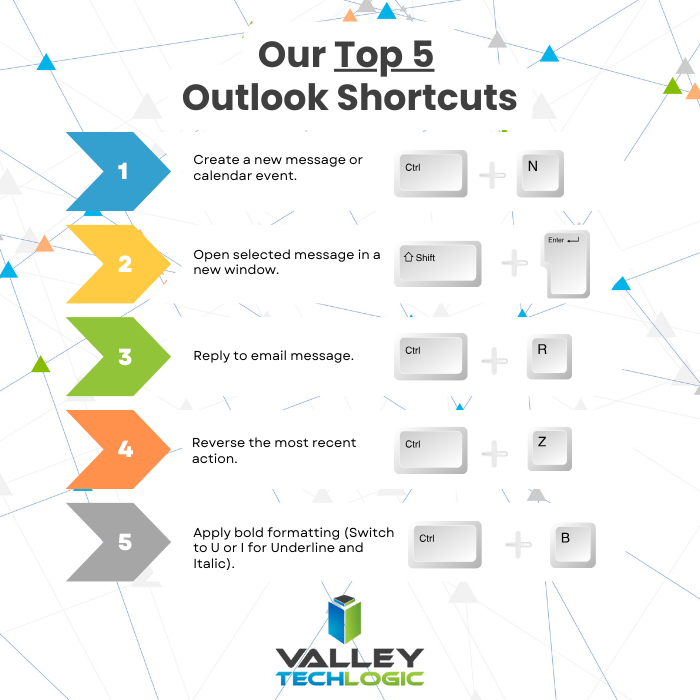
These aren’t our only Microsoft Outlook tips, we also wanted to share our top 5 Outlook shortcuts in the graphic below.
Do you need assistance in getting the most out of Microsoft Outlook or your Microsoft 365 subscriptions? Valley Techlogic is a certified Microsoft partner and we’re experts in all things Microsoft and Windows related. Learn more with a free consultation today.
Looking for more to read? We suggest these other articles from our site.
-
Six Ways Continuous Monitoring Keeps You a Step Ahead in Your Cyber Security Efforts
-
You have cloud backups for your business, but are you wasting money on storage you don’t need? 5 ways to tidy up your cloud storage
-
Apple releases their new M4 chip and it’s getting rave reviews, also considering the benefits of Apple vs Microsoft for your office
-
Are you sure you can count on your data backups? 5 ways to confirm your backups are working (and avoid the 37% data backup failure rate)
This article was powered by Valley Techlogic, leading provider of trouble free IT services for businesses in California including Merced, Fresno, Stockton & More. You can find more information at https://www.valleytechlogic.com/ or on Facebook at https://www.facebook.com/valleytechlogic/ . Follow us on Twitter at https://x.com/valleytechlogic and LinkedIn at https://www.linkedin.com/company/valley-techlogic-inc/.