Last year we had an article on our top picks for 2-factor authentication and we’ve touched on what makes a good password before. We thought it would be a good idea to refresh our advice on this topic and combine our tips into one easy to revisit guide.
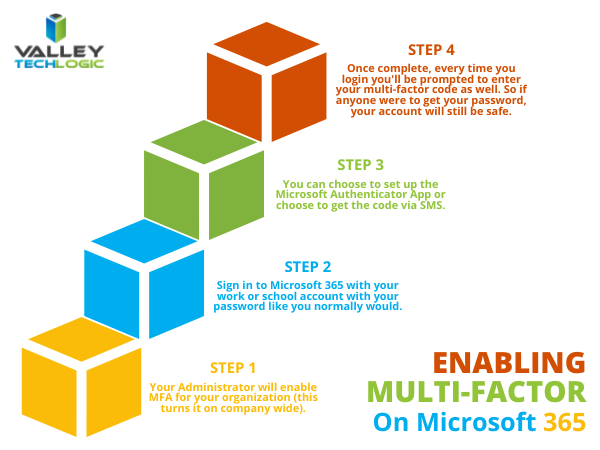
One thing that we surprising haven’t recommended often before but would like to now is implementing Microsoft 365 2-factor authentication on your account. We utilize Microsoft products heavily in our business and we find many of our clients are the same, Microsoft software solutions are deeply woven into their day-to-day business activities. You can find our quick guide to implementing it in last week’s article here.
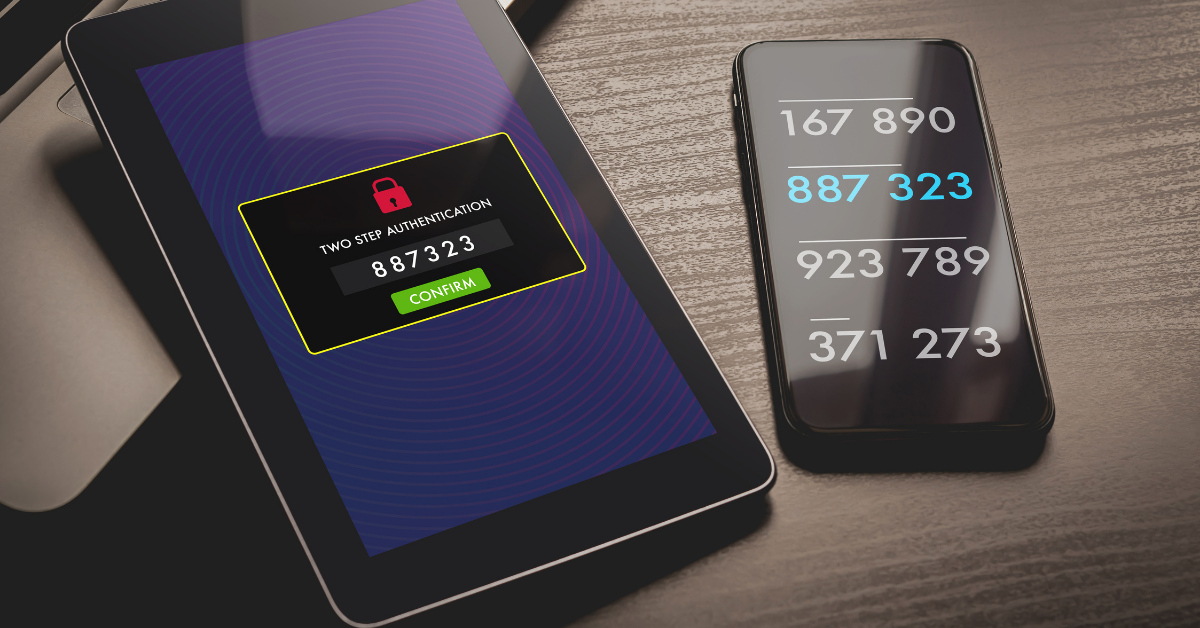
We’ve also touched on how implementing 2-factor on your Google account could decrease your odds of your account being hacked by half. In many cases it really is as easy as implementing the built in 2-factor settings in the accounts you utilize and you may not even need to install a 2-factor authentication software, you can simply have the codes texted to your mobile device.
Since this is a guide though we still want to give you a recommendation on that though, for us we’ve utilized Microsoft’s authenticator program for the most part. We also found that Google’s Authenticator and Authy’s Authenticator mobile apps are very easy to use as well.
It can be a little more convenient to have the 2-factor codes in one place, so you don’t have to request a code be texted every time you login (especially if you have a lot of different login’s you use throughout your workday).
You may be asking yourself at this point, what’s wrong with just my plain old password? You may have typing it in down to muscle memory and you don’t have to retrieve a code from anywhere. Well, this chart on how long it can take a crack a password based on specific criteria will tell you why:
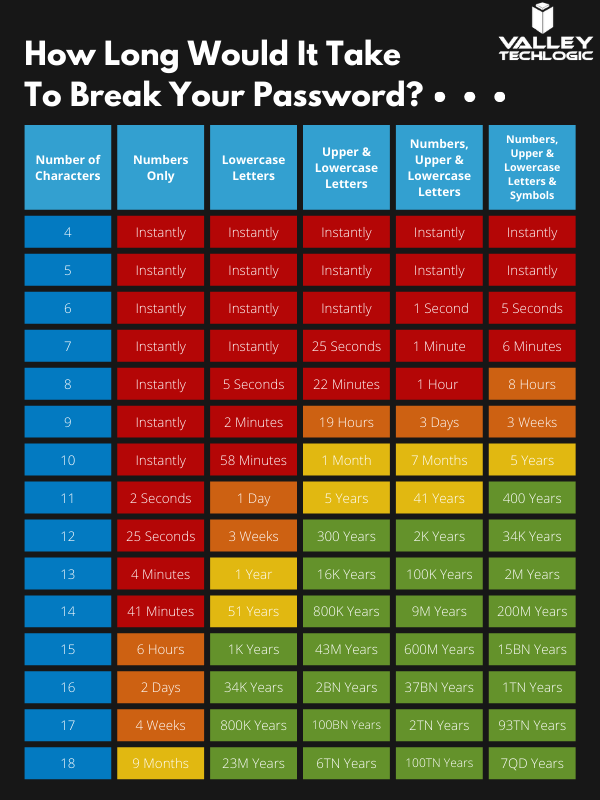
Of course, the more complex your password is the greater the difficulty in cracking it, that brings us to our next bit of advice – utilize a password manager and have stronger (and varied) passwords.
Across the board for Valley Techlogic our employees are using LastPass, we like that it’s cross device and cross platform and enjoy the warnings and alerts it gives us if a password has been possibly compromised or if we’re trying to reuse a password we’ve used before.
However, any reputable password manager is going to be a big improvement over reusing simple passwords or trying to remember complicated ones.
Even with a password manager, your passwords being compromised online is the main reason you should consider enabling 2-factor or multi-factor on your accounts. You can have strong varied passwords and your passwords may be leaked due a breach that’s outside your control. Webpages are hacked all the time, and if your banking password is part of a data breach it can then become available to bad actors on the dark web.
With 2-factor enabled however, it won’t matter if they have your password as they would still need your authenticator program or your mobile device to login to the account. We think it’s worth the (very slight) inconvenience of a few seconds to have that level of security.
If you’re security conscious and want to go even further, you can also use a security token to lock your device (highly recommended for sensitive work devices). That means the device is useless without the security token to be able to unlock it.
Enabling multi-factor authentication across your business uniformly can be an uphill battle, but it is one we have experience with here at Valley Techlogic. As security regulations increase, this simple change will make a huge difference in your cybersecurity compliance level. Learn more today with a quick consultation.
Looking for more to read? We suggest these other articles from our site.
-
10 things you can do today (yes today) to make your business’s network safer
-
Cyber Insurance – What you can do to ensure your business will be covered in 2022
-
AWS had an outage this week that took out many top websites and is causing delivery issues for Amazon
-
Microsoft 365 pricing changes are coming in 2022, and we have the details
This article was powered by Valley TechLogic, an IT service provider in Atwater, CA. You can find more information at https://www.valleytechlogic.com/ or on Facebook at https://www.facebook.com/valleytechlogic/ . Follow us on Twitter at https://x.com/valleytechlogic.