Tag: internet safety

  • As you’re doing your holiday shopping online this year be aware of “malvertising”

    As you’re doing your holiday shopping online this year be aware of “malvertising”

    Malicious online ads or “malvertising” is on the rise, and no time is more ripe for online scamming then the busiest shopping season of the year.

    Malvertising is a cyberattack that involves bad actors injecting malicious code into online ads. These ads will appear from a Google search to be a genuine website, but when users click on the ad they are falling into the attackers trap.

    There are several variations on the scam, with some only intending to steal your payment information and others go so far as to try where others get you to download a malicious program and infect your entire computer. They can then use your device to scam people you know or add it to an online botnet user list to carry out other nefarious attacks.

    It can be difficult to defend against this type of attack because these attackers go to great pains to set up a legitimate looking storefront and credible looking ad. These types of ads are even found on major search engines such as Google.

    There are a few ways you can protect yourself though, here are our five recommendations:

    1. Use a Trusted Ad Blocker
    • Install a reputable ad blocker, such as uBlock Origin or AdBlock Plus, to block potentially harmful ads. Ad blockers prevent many ads from being displayed, reducing exposure to malicious ones.
    1. Enable Browser Security Features
    • Keep Your Browser Updated: Ensure your web browser is updated to the latest version, as updates often patch vulnerabilities.
    • Enable Pop-Up Blocking: Most modern browsers have built-in pop-up blockers to prevent intrusive ads.
    • Turn On Safe Browsing: Enable security settings like Google Chrome’s Safe Browsing to get warnings about dangerous sites.
    1. Use Security Software
    • Install and maintain robust antivirus or anti-malware software that includes web protection. Programs like Malwarebytes or Bitdefender can detect and block threats from malvertising.
    1. Be Wary of Suspicious Ads
    • Avoid clicking on ads, especially those offering deals that seem too good to be true, free prizes, or urgent requests to “update” software. Even legitimate-looking ads can redirect you to malicious sites.
    1. Browse Securely
    • Use HTTPS: Stick to websites with HTTPS encryption. These are generally more secure and less likely to host malicious ads.
    • Sandbox or Virtual Environment: For extra protection, use a sandboxed browser session (like in a virtual machine) for risky browsing activities.

    Cyber security protections are a key piece of the services provided by Valley Techlogic under our technology support plans, at no additional cost. For the holidays we’re also offering a free device for new customers, take advantage of great service and a great holiday offer, partner with Valley Techlogic today.

    Looking for more to read? We suggest these other articles from our site.

    This article was powered by Valley Techlogic, leading provider of trouble free IT services for businesses in California including Merced, Fresno, Stockton & More. You can find more information at https://www.valleytechlogic.com/ or on Facebook at https://www.facebook.com/valleytechlogic/ . Follow us on Twitter at https://x.com/valleytechlogic and LinkedIn at https://www.linkedin.com/company/valley-techlogic-inc/.

  • Back to school? 9 cyber safety tips for school devices and more

    Back to school? 9 cyber safety tips for school devices and more

    August and September are big back to school months in the United States and while you’re prepping your children’s backpack for their return with pencils and markers it’s also worth taking the time to go over safety tips for utilizing the internet.

    Schools have become more and more steeped in their usage of technology rather than pen and paper course work, however they may not have the bandwidth to monitor how those devices are used 100% of the time. School IT will do the best they can to bridge the gap but it’s still up to us as parents to make sure our children have the tools they need to safely navigate our interconnected world.

    Whether your schools have handed down iPads, Chromebooks or something else these 9 tips are worth noting as your children get ready for their first day of school:

    1. Does the device have content filtering? While most schools will implement strong content filtering as part of their device roll out plan to prevent students from viewing inappropriate content, it’s still worth reviewing on your own end and reporting if there are any flaws to it with your school’s administration.
    2. Does your child take their mobile phone to school? If your children have a mobile device they bring to school, we recommend taking the same measures you would with your own device and ensuring the lockscreen is enabled. A child is more likely to lose a device and the same rules apply with them as adults in protecting personal data that could be exposed via an unsecured phone.
    3. Also be wary of theft. Theft happens in schools and an unattended phone or laptop could make an appealing target, make sure they know their devices should be with them or in a secure location at all times.
    4. Strong passwords matter for kids too. It’s also not too early to get them started with a good password manager (and useful for you as a parent in maintaining access to your online children’s accounts). Here are our top 3 password manager recommendations.
    5. So do updates. Again, as with your own devices, you should be making sure their devices are up to date on current software or firmware updates. Kids will not be as thorough in investigating something they’re interested in before downloading it (especially with online games). Automatic updates are a must for children’s devices.
    6. Cyber bullying is another consideration. The Global Cybersecurity Forum has found that 72% of children worldwide have been exposed to one type of online cyber threat or bullying.
    7. Children should be aware of online scammers too. If your child is old enough to have access to an email account (to setup a mobile phone you often have to setup an email too) or even if they just have access to text messaging, it’s a good thing to go over the fact that online scams exist and what to look out for.
    8. Kids need backups too. Especially for middle and high school age students, saving their work may not be a given and losing it could be devastating (or at least will feel that way). If multi-page reports are a factor in your child’s life it’s worth making sure they’re writing them on software that will automatically save the draft, such as Microsoft’s Word or Google Docs. Both of these options save your progress as you write automatically.
    9. Teach your children what to share (and what not to share) online. Social media can be a tricky thing to navigate even for adults but for children there are additional safety concerns. If your teen has reached the age that they’re asking to or have already created a social media account, it’s worth reviewing what information they’ve made available on it and checking it continuously. We recommend making sure your teen’s online accounts are made private and they know not to share things like their location or other PII (Personally Identifiable Information) on the web.

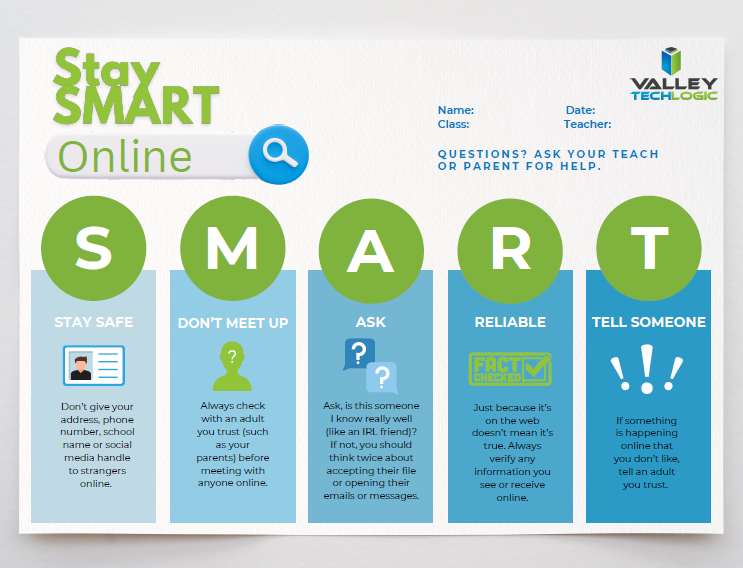
    For parents and educators alike, we recommend following the SMART rules when it comes to online safety for your children and students. See and save the flyer below.

    Stay SMART Flyer VTL 2024

    Valley Techlogic is a technology service provider located in California and we have experience working with a range of businesses (including educational institutions) in support of their technology goals. Learn more with a consultation today.

    Looking for more to read? We suggest these other articles from our site.

    This article was powered by Valley Techlogic, leading provider of trouble free IT services for businesses in California including Merced, Fresno, Stockton & More. You can find more information at https://www.valleytechlogic.com/ or on Facebook at https://www.facebook.com/valleytechlogic/ . Follow us on Twitter at https://x.com/valleytechlogic and LinkedIn at https://www.linkedin.com/company/valley-techlogic-inc/.

  • Summer is Here and with it Comes Vacations – Our Top 10 Travel Tech Tips

    Summer is Here and with it Comes Vacations – Our Top 10 Travel Tech Tips

    As we approach Fourth of July weekend, reduced COVID era restrictions have made travel feasible (and desirable) for many across the US for the first time since spring 2020. We all might be a little rusty when it comes to internet safety on the go or maybe you’re looking for tech tips that will make traveling easier? Well, we have you covered.

    Traveling and using your devices away from your home or office network carries some risks. Here are 5 things you should do before you travel to protect your devices.

    1. While traveling sometimes you can’t avoid using a public network, but one good way to protect your device is to make sure it’s been fully updated. That way it will be slightly safer when using less secure networks (although it’s still a good idea to avoid it if you can).
    2. Another good bit of advice is to make sure you have strong passwords, and to have a password manager setup and ready to go on the device you’ll be traveling with.
    3. One tool for traveling and using risky public networks is to enable a VPN, a VPN will help shield your data.
    4. You should also avoid logging into websites that contain important data, like your email or banking website on a public network.
    5. Finally, another good tip if you haven’t done so already is to set up “Find My Phone” on your mobile device. This will allow you to remotely wipe your mobile phone if you were to lose it while traveling (or possibly even find it if it’s still nearby).

    If you’re already on the road or away from home, we also have these 5 tips for making your travel easier with technology:

    1. Power banks are a must have while on the go, having a fully charged power bank on you will make sure you can charge your phone if the battery is low while you’re out and about.
    2. RFID blocking bags can help protect your personal information from intrusive scanning, especially for things like your credit card.
    3. Save pictures you take with your mobile phone automatically to the cloud with a service like Google Photos or Amazon Photos (the pricing for these products is very reasonable as well).
    4. A tip specifically for iPhone users, you can update friends and family on your airline travels just by texting them the airline and flight information. Texting “American Airlines 425” will allow them to tap and automatically see a flight tracker with the flight information. Handy!
    5. Looking for more legroom in your return flight home? Search SeatGuru to find the best seat on a particular flight.

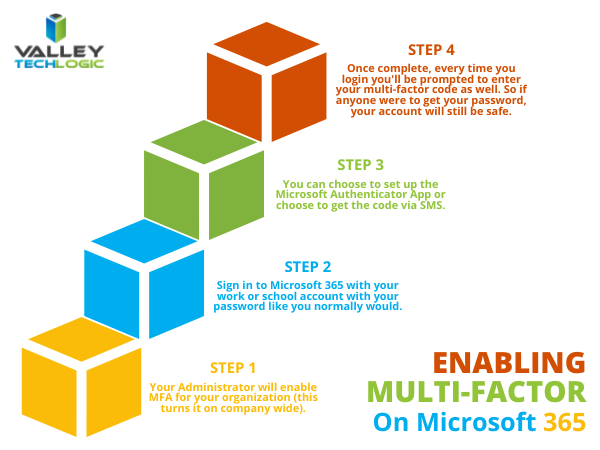
    Company travel is a different can of worms, especially when it comes to securing your office devices while on the road. At a minimum, we recommend enabling 2-factor or multi-factor authentication for company devices – especially those that are used on the go. For Microsoft 365 users, it’s easy to setup multi-factor authentication. Here are the steps:

    Enabling MFA on Microsoft 365

    If your office needs help setting up multi-factor authentication for remote and traveling employees, Valley Techlogic would be happy to assist. Tell us more in a quick consultation.

    Looking for more to read? We suggest these other articles from our site.

    This article was powered by Valley TechLogic, an IT service provider in Atwater, CA. You can find more information at https://www.valleytechlogic.com/ or on Facebook at https://www.facebook.com/valleytechlogic/ . Follow us on Twitter at https://x.com/valleytechlogic.