Tag: microsoft teams

  • Make the Most of Your Microsoft 365 Subscriptions: 7 Productivity Hacks You Might Be Missing

    Make the Most of Your Microsoft 365 Subscriptions: 7 Productivity Hacks You Might Be Missing

    Microsoft 365 is packed with powerful tools designed to help businesses stay productive, collaborative, and organized—but many users barely scratch the surface of what’s available. If you’re only using Microsoft 365 for email and basic file storage, you’re likely leaving a lot of value on the table.

    Here are 7 productivity hacks to help you get the most out of your Microsoft 365 subscription:

    1. Use Microsoft Search to Navigate Faster

    Microsoft Search is a powerful, built-in tool across Outlook, OneDrive, SharePoint, and Teams that helps you quickly find emails, files, conversations, and even people in your organization. Instead of digging through folders or threads, type a keyword into the search bar—Microsoft Search will pull relevant results instantly from across all connected apps.

    Pro Tip: You can even search using natural language—like “files shared by John last week”—to find what you need faster.

    1. Streamline Repetitive Tasks with Power Automate

    Power Automate (formerly Microsoft Flow) lets you create custom workflows between apps to save time and reduce manual work. You can automate common tasks like saving email attachments to OneDrive, posting Teams alerts when a SharePoint list is updated, or sending approval requests.

    Example: Set up a flow to automatically notify your team in Teams when a new file is uploaded to a project folder.

    1. Collaborate in Real-Time with Co-Authoring

    Microsoft 365 makes real-time collaboration seamless. Whether you’re in Word, Excel, or PowerPoint, multiple users can work on a document at the same time. Changes are saved automatically and version history lets you review or restore earlier versions with ease.

    Bonus: Use @mentions in comments to get a colleague’s attention instantly.

    1. Organize Your Thoughts with OneNote

    OneNote is the hidden gem of Microsoft 365. Use it to capture meeting notes, brainstorming ideas, project plans, and more. Notebooks are searchable, can be shared across your team, and sync across all your devices.

    Use Case: Create a shared notebook for your team to store agendas, meeting recaps, and to-do lists in one central place.

    1. Turn Emails into Tasks with Microsoft To Do and Outlook Integration

    If your inbox is your to-do list, Microsoft To Do can help bring order to the chaos. With seamless integration into Outlook, you can flag emails to automatically turn them into actionable tasks.

    Tip: Use the My Day feature in To Do to focus only on what you need to accomplish today.

    1. Secure Your Data with Built-In Tools

    Microsoft 365 comes with strong security features that are often underused. Data Loss Prevention (DLP), sensitivity labels, and multi-factor authentication (MFA) can all help keep your data protected without requiring advanced setup.

    Security Tip: Admins should regularly review security and compliance reports in the Microsoft 365 Security Center to stay ahead of potential issues.

    1. Integrate Third-Party Apps into Teams

    Microsoft Teams isn’t just for chat and video calls—it’s a hub for productivity. You can integrate hundreds of apps directly into your Teams channels, from project management tools like Trello and Asana to CRM systems and custom Power Apps.

    Efficiency Hack: Pin your most-used apps to the sidebar for easy access during daily work.

    Whether you’re a power user or just getting started, Microsoft 365 has tools to help you work smarter—not harder. With a little exploration and some setup, you can automate workflows, improve collaboration, and protect your data—all within the apps you already use.

    Need help unlocking Microsoft 365’s full potential for your team? Contact Valley Techlogic today and let’s optimize your digital workspace together.

    Looking for more to read? We suggest these other articles from our site.

    This article was powered by Valley Techlogic, leading provider of trouble free IT services for businesses in California including Merced, Fresno, Stockton & More. You can find more information at https://www.valleytechlogic.com/ or on Facebook at https://www.facebook.com/valleytechlogic/ . Follow us on X at https://x.com/valleytechlogic and LinkedIn at https://www.linkedin.com/company/valley-techlogic-inc/.

  • Once the king of voice chat on the web, Skype is shutting down May 5th, 2025

    Once the king of voice chat on the web, Skype is shutting down May 5th, 2025

    Microsoft is no stranger to acquiring programs only to later shut them down (though they pale in comparison to Google’s own graveyard of acquisitions) and now Skype will be the latest casualty with a shutdown date of May 5th, 2025 being officially set.

    Skype, once the leader of online telecommunications and one of the original online video chat programs, began operating in 2022. Skype, which was a shortening of the original project name “Sky peer-to-peer” skyrocketed into popularity in the early 2000’s reaching 100 million users in 2006.

    After a tumultuous fall out with the early founders and buy outs that included eBay, Skype was sold to Microsoft in 2011 for $8.5 billion. Microsoft quickly integrated Skype into their Office platform but with the release of Microsoft Teams in 2017 the writing was on the wall for Skype as to which Microsoft based communications platform would succeed in the long run.

    Skype failed to keep up with competitors during the pandemic when video chat use was at an all time high due to restrictions on in-person activities. Zoom, WhatsApp, Facetime and even Teams itself performed better in the same space – it’s been reported in 2023 just 36 million people still used Skype daily compared to it’s peak of 300 million users which mirrors Teams current daily active users.

    So it makes sense that Microsoft is shuttering Skype in favor of Teams here in 2025, but for those that are new to Microsoft Teams or even those that have already made the switch, what benefits are available that puts it above other communications programs still competing in the space?

    1. Integration with Microsoft 365: Teams naturally integrates very well with Microsoft 365, from booking a Teams meeting right from your Outlook client to creating groups that have a shared SharePoint folder that allows users to share files while they’re chatting about them in real time. If you’re a Microsoft 365 subscriber you’re leaving features on the table if Team is not your communications platform of choice.
    2. Robust Team Collaboration Features: Unlike competitors like Zoom, which is mainly a video conferencing tool, Teams offers extensive team collaboration features like persistent chat, threaded conversations, shared workspaces, and built-in task management with Microsoft Planner and To-Do.
    3. Better Security and Compliance: Teams benefits from Microsoft’s enterprise-grade security, including end-to-end encryption, multi-factor authentication, and compliance with industry standards like HIPAA, GDPR, and ISO 27001.
    4. Unified Communication Hub: Microsoft Teams combines chat, video conferencing, file sharing, and project collaboration in one platform which will not be found in the competition which are largely standalone programs.
    5. Better Pricing for Enterprises: For businesses already using Microsoft 365, Teams is included at no extra cost, making it a more cost-effective solution. Other platforms may charge an arm and a leg for enterprise features such as longer meetings or hosting larger groups.

    Unifying communication in your company can be a game changer when it comes to making sure everyone is on the same page. Whether you’re looking to implement Microsoft Teams or optimize your existing communication tools, Valley Techlogic’s expert IT solutions can help you streamline collaboration, enhance productivity, and keep your business connected—anytime, anywhere. Reach out today for a consultation.

    Looking for more to read? We suggest these other articles from our site.

    This article was powered by Valley Techlogic, leading provider of trouble free IT services for businesses in California including Merced, Fresno, Stockton & More. You can find more information at https://www.valleytechlogic.com/ or on Facebook at https://www.facebook.com/valleytechlogic/ . Follow us on X at https://x.com/valleytechlogic and LinkedIn at https://www.linkedin.com/company/valley-techlogic-inc/.

  • Looking to up your online platform game? These 5 tools will help you run your online business better

    Looking to up your online platform game? These 5 tools will help you run your online business better

    If you’re running a business in 2023 you know that having an online presence is often the key to growth (and if you need advice on that we’ve written about it before), but how much of your workflow is presently in the digital workspace?

    We still see plenty of businesses that are still working off pen and paper, eschewing digital files for a wall of file cabinets and communicating via fax rather than email (did you know that you can receive fax via email now)?

    There’s nothing wrong with being old school, but it can slow down the kind of progress you’re hoping to make with your business. Nowadays, people expect an instantaneous response to their questions or concerns and if you’re not used to communicating that way it can cause them to look for a service that will, and automation can cement workflows that would otherwise be hit or miss when left up to an individual (like your marketing efforts via email).

    In a nutshell, it’s a good idea to bring as much of your business into the digital world as you possibly can. That doesn’t mean you can’t keep the techniques that helped you build your client base in the first place – but throwing a modern digital spin on them may help you reach more clients AND impress them.

    So, what are the five tools you should be looking into when it comes to upping your technological game?

    1. First there are marketing tools, such as a CRM (Customer Relationship Management). Beyond being a handy client database, many CRMs provide automated processes for tracking activities with those clients (such as phone calls or emails). It’s also a collaborative tool for your employees, if your employee Susan is wondering if Client A was called last week, she can just check the CRM rather than ask everyone in the office.
    2. Website building tools are also another great option for expanding your business, especially if you don’t currently have a website. It doesn’t have to be a complicated or expensive process, depending on your needs it could be as simple as a one page informational that includes items like your location, hours, and contact information. Making sure your business can be found in a web search is an important part of attracting new customers.
    3. If you’re still handling paper checks for all of your transactions and are left waiting for payments to come in the mail, we ask – why? Online payment processing options have grown dramatically, and they could not be easier to use, for you OR your clients. We think it’s always a good idea to give people more options to give you their money as well.
    4. Branding for your business doesn’t have to be complicated. If you have a company logo that’s really all you need to get started using tools like Canva or Adobe Express. There are many pre-loaded templates for you to use to advertise your business, you just add your logo and download to post on your social media pages (we’ve written about improving your social media presence as well).
    5. Communication tools are another big area you can improve your business technologically, not just with your clients but with your employees as well. Online meetings grew in popularity in the last few years, and we think they’re still an excellent way to keep in touch with clients who might otherwise not want to expend the time or effort on an in-person meeting. You can also use chat programs to touch base with employees without interrupting their workflow with a phone call or visit to their office. We use Microsoft Teams here at Valley Techlogic but there are many great and versatile options available now.

    Of course, the best way to improve your business’ technological prowess is to engage with a technical provider that can knows the ins and outs of today’s modern technology and can best support your efforts to grow your business. That’s where Valley Techlogic comes in.

    Interested in learning more? Schedule a consultation with us today.

    Looking for more to read? We suggest these other articles from our site.

    This article was powered by Valley Techlogic, an IT service provider in Atwater, CA. You can find more information at https://www.valleytechlogic.com/ or on Facebook at https://www.facebook.com/valleytechlogic/ . Follow us on Twitter at https://x.com/valleytechlogic.

  • Microsoft 365 pricing changes are coming in 2022, and we have the details

    Microsoft 365 pricing changes are coming in 2022, and we have the details

    Microsoft has had a busy year in 2021. With the release of Windows 11 and it’s continued roll out to more and more eligible users, as well as the quieter release of Windows Server 2022 in August. It looks like they’re not slowing down in 2022.

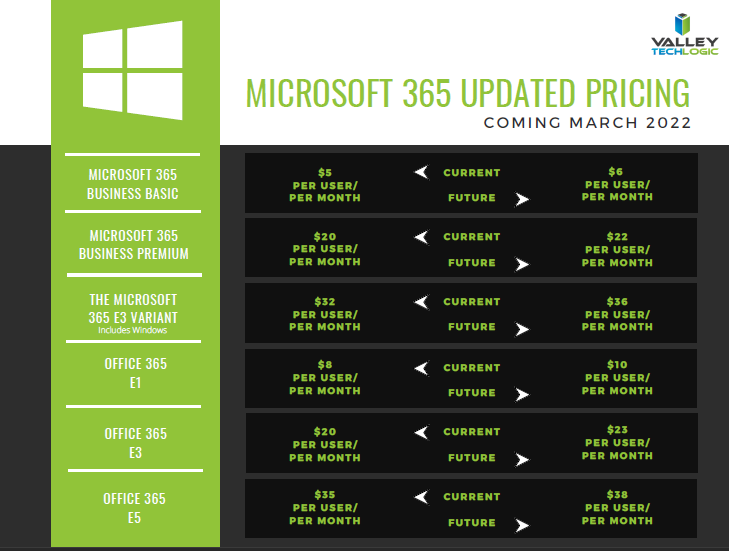
    We’ve been notified as a Microsoft partner there will be price increases across the board for their powerful suite of office software, Microsoft 365 expected in March 2022.

    While it’s never fun to have an unexpected increase to your overall IT spend, we think Microsoft 365 is still well worth it even at the increased cost. There are also some items that will be rolled into the new subscription model that will absorb some of the price increase while increasing the usability of your Microsoft 365 subscription.

    First, here’s a chart we’ve created that you can save for your records that outlines the expected price increases. These prices may change between now and March but as of writing these are the prices that have been communicated to us by Microsoft directly. We also included the subscription models that are not going to be increased in March. We also want to note the consumer and educational models of Microsoft 365 will not be experiencing a price increase next year.

    Small Version of the Pricing Chart
    Click for the full size version.

    Now, we promised we’d talk about some of the items that are now going to be rolled into your Microsoft 365 subscription that previously had their own cost. One of those items is the ability to call in via Teams. Previously, calling in via Teams was $4 per line but as Microsoft moves to make Teams more accessible for businesses and users alike, they’re now including it in your normal subscription cost.

    This means if you have employees who are out and about during a company meeting, they can still easily call in and participate. It also opens up the opportunity to use Teams for your prospects and clients, even if they don’t currently have it installed. This year we even switched to Teams across the board ourselves and haven’t looked back. We’ve found the call quality and reliability to be phenomenal.

    Some security features will also be rolled into some of the earlier tiers of Microsoft 365 when they were previously featured à la carte. The security and compliance features found in your Microsoft 365 subscription really amount to pennies on the dollar when you consider how expensive it would be to establish the same security stack outside of Microsoft, and it would be less tailored for your own Microsoft use experience to boot.

    These security features include data loss prevention (DLP) for email and documents, as well as encryption for email (we all know email is one of the most common points of entry for bad actors). Microsoft Endpoint Manager has been a critical tool for all of the business’s that now find themselves managing a remote workforce.

    Overall, while a price increase was inevitable, we’re excited to see what new features will be rolled out in 2022 and beyond. If your office is not yet setup with a Microsoft 365 subscription, that’s one of the items we help our clients manage. If you’d like to learn how Valley Techlogic can help your business with Microsoft products and more, click here.

    Looking for more to read? We suggest these other articles from our site.

    This article was powered by Valley TechLogic, adns, n IT service provider in Atwater, CA. You can find more information at https://www.valleytechlogic.com/ or on Facebook at https://www.facebook.com/valleytechlogic/ . Follow us on Twitter at https://x.com/valleytechlogic.

  • On June 24th, 2021 Microsoft introduced Windows 11, a free upgrade to Windows 10

    On June 24th, 2021 Microsoft introduced Windows 11, a free upgrade to Windows 10

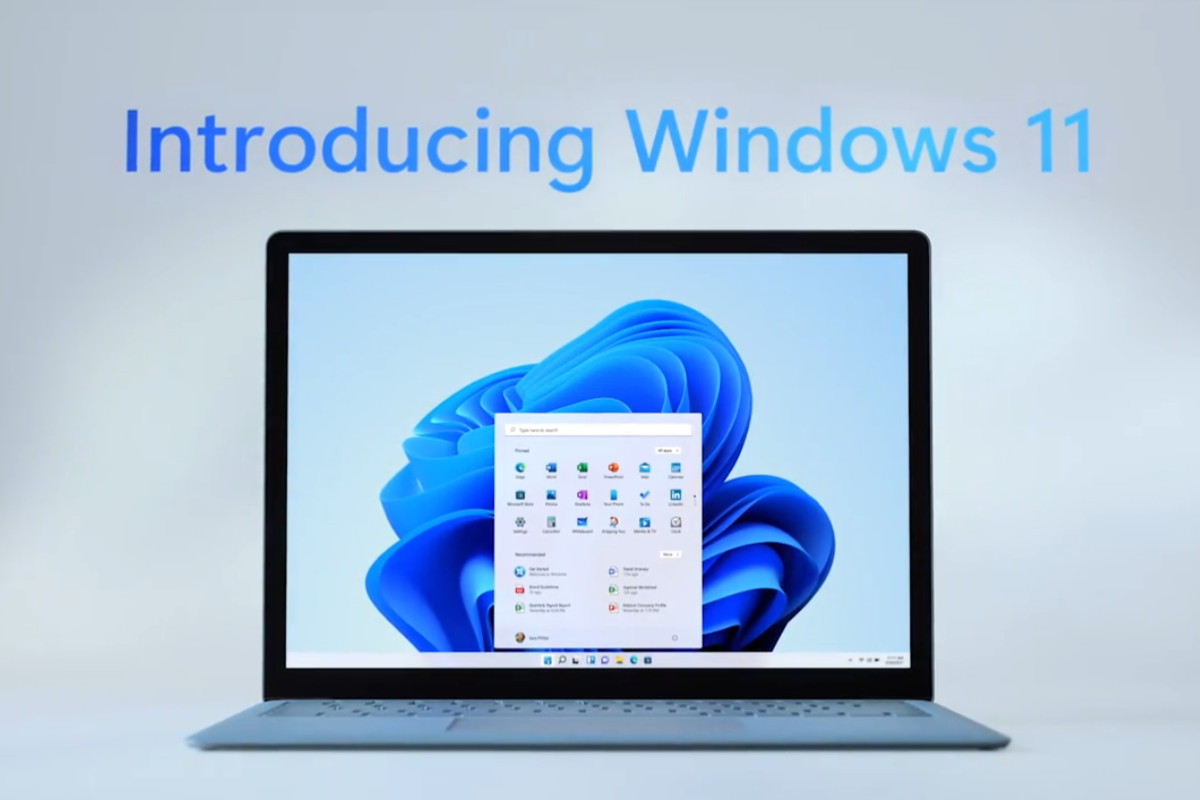
    Yesterday, June 24th 2021 Microsoft unveiled Windows 11. While they struggled to get the live stream going (it went down several times during the unveiling) Windows 11 itself still had an impressive range of features, many of which we think will shake the PC industry as we know it.

    To start, they revealed that Windows 11 will be faster than past versions and updates will be 40% smaller. These features are a nod to what came later in the stream in our opinion. Faster and more agile seems to be the name of the game with Windows 11.

    Windows 11 will have many user adaptive features, including window “snapping” that will allow users to arrange their desktop environment exactly how they like. They showcased grids that had even 4 or 5 squares of varying sizes. If you dock your laptop to a second monitor then remove it, it will even “remember” your setup when you plug it back in.

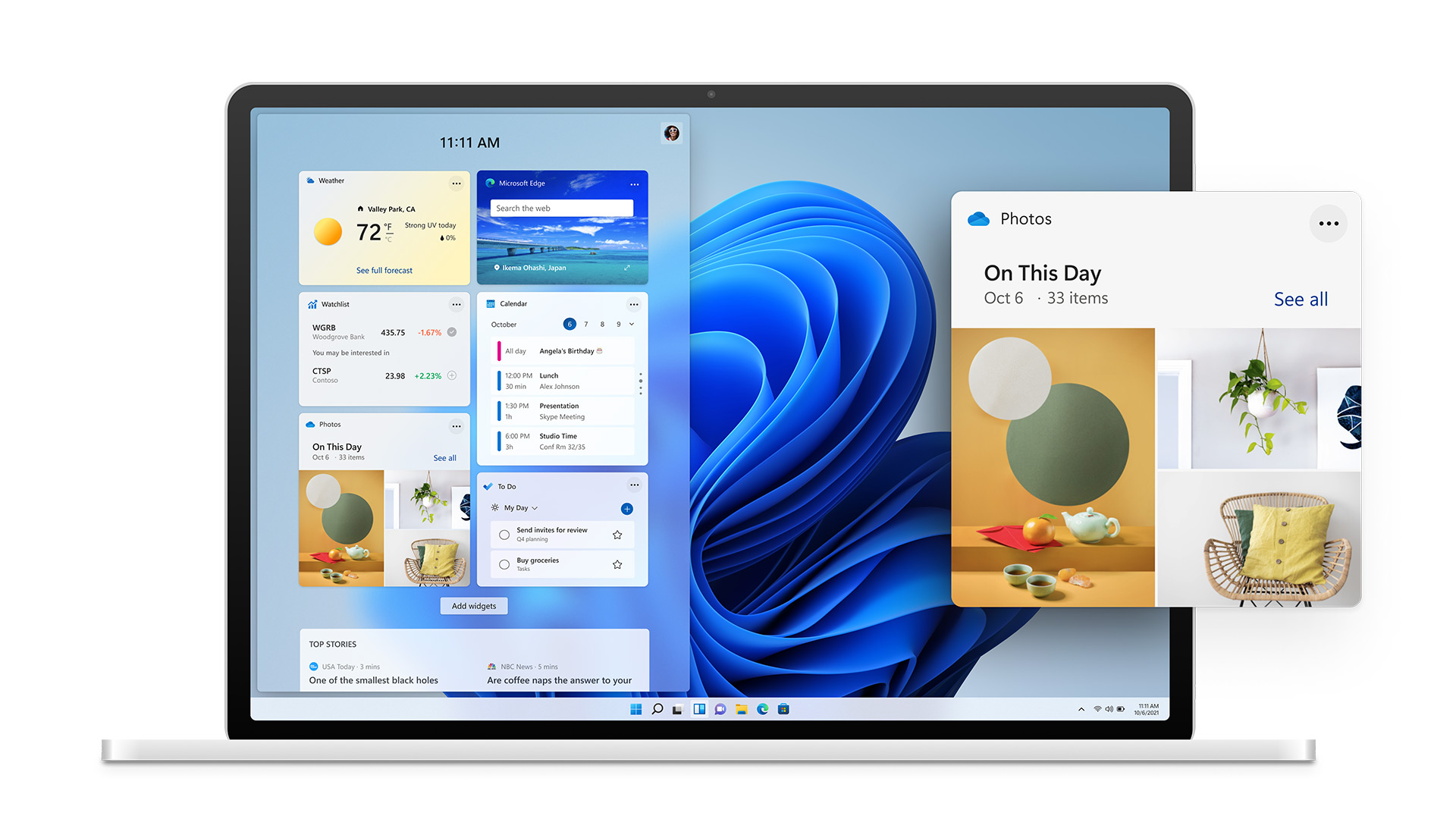
    Also, in the same vein is the new widgets feature that will show users a custom set of data specific to them and how they’re using their device. If you’re sensing that Microsoft is aiming to bridge the gap between PC and mobile devices with Windows 11, you wouldn’t be wrong. With it’s slick appearance widgets seem to be a much improved version of the the “Interest feature” that was released to Windows 10 in April.

    Windows 11 Widgets

    Speaking of bridging the gap between PC and mobile devices, one of the biggest ways Microsoft is aiming to do that is by allowing Android applications to downloaded and used on Windows 11 PCs. We plan to do a deep dive on this later on when more is known, but Android applications will be available in the Microsoft store powered by Amazon’s Appstore.

    The combined efforts of these two tech behemoths seems like a move squarely aimed at taking a piece of Google’s mobile pie – and a large pie at that with the Android phone market making up 72% of the market share as of 2021.

    Converting mobile users to PC seems to have been a concerted effort of Microsoft for a while now and it will be interesting to see what effort merging their various services together (Xbox will also be more accessible through Windows 11 with the addition of Xbox Game Pass for PC being expanded upon) will have on those efforts.

    They also plan on making the Microsoft store more accessible for developers, who if they bring their own eCommerce solution will not even have to share a cut with Microsoft.

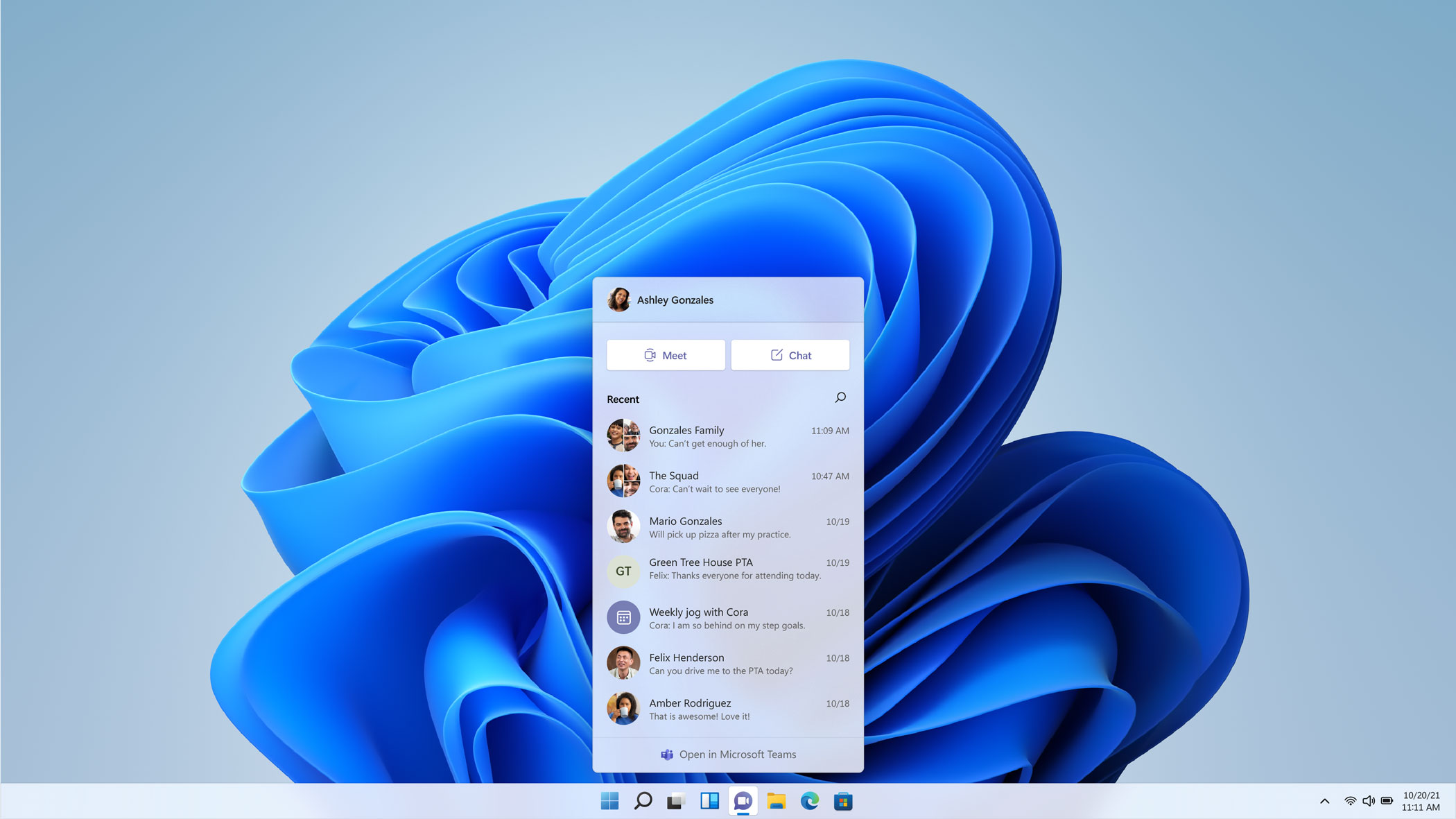
    We haven’t even touched on Microsoft 11’s appearance, which seems much sleeker and perhaps slight Apple-esque with the slim task bar with centered icons. One of those center icons was a built in Microphone mute button, which Microsoft used as a segue to announce Teams as a built in Windows 11 integration.

    Microsoft Teams Windows 11

    With that we only assume Microsoft is moving away from Skype and trying to make a move that again takes aim at a competitor, namely Zoom. Teams will even work across non-Microsoft platforms including iOS. We’re eager to see what features are added to Teams as not too much was showcased in this demo.

    There’s not currently a release date set for Windows 11 other than later this year, but the speculation is it will be released sometime in October which would fall in line with Microsoft’s typical major update release schedule.

    We’ll be following this topic closely, as a Microsoft partner new Window’s releases can be both an exciting yet daunting prospect for our customers. If your business needs assistance in getting your office “Windows 11 ready”, we can help. Schedule a free consultation here.

    Looking for more to read? We suggest these tech articles from the last week.

    This article was powered by Valley TechLogic, an IT provider in Atwater, CA. You can find more information at https://www.valleytechlogic.com/ or on Facebook at https://www.facebook.com/valleytechlogic/ . Follow us on Twitter at https://x.com/valleytechlogic.

  • Our Top 5 Favorite Outlook Tricks & Tips as a Technology Provider

    Our Top 5 Favorite Outlook Tricks & Tips as a Technology Provider

    As a technology provider we’re well versed in supporting the Microsoft suite of products, and Outlook especially is a business staple. Whether you have made a one-time purchase with Office 2019 or are using the subscription model plan with Microsoft 365, both products include Teams, Outlook, OnePoint, SharePoint and Word. In today’s article we will be focusing especially on Outlook and providing you with tips that will make using it that much easier.

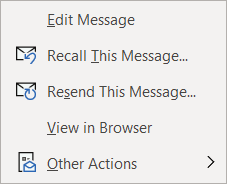
    Our first tip could really help save the day if you miss-send an email, did you know you can actually recall an email? Just open the email you want to send and navigate to the Recall message box in Outlook.Message tab on the ribbon, click on the Action button and then click on Recall Email, if the recipient hasn’t opened the email yet it will be recalled and you can try again.


    The second one is all about efficiency. If you have a certain type of message you send routinely, you can save that message as a template for easy use. Go to File > Save As > Outlook Template to save the template. Then when you’re ready to use it again click on Items > Choose Form > User Templates and select the template you saved. You can also go to the Message tab on the ribbon and click on View Templates to view and create simple templates without formatting to use.

    If you have a long email thread you have been replying to and are finding yourself hunting through your inbox for all the links in the chain to remember what has already been said, our third tip will really help you out. If you go to View > Show as Conversation on the Ribbon all of the messages in that thread will be displayed under the most current email.

    Number four was even new to us until recently, if you hit Ctrl + Shift + N in Outlook it will pull up a sticky note function you can move around. That way if you need to take some notes as you’re parsing through your email that will be conveniently available to you, no pen and paper necessary.Outlook sticky note box.

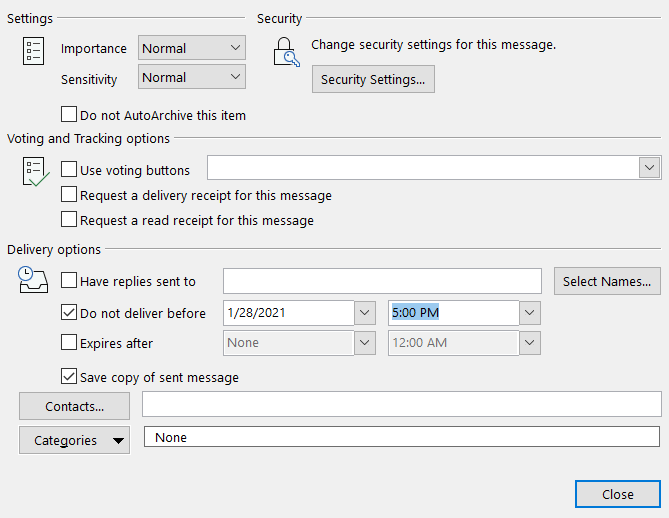
    Our fifth tip is all about timing. If you know there’s an email you need to send out by a certain time, why not avoid the stress and worry that you may forget and schedule it while it’s top of mind? If you go to Options > Delay Delivery > Do not deliver before you can schedule the email to be sent at the exact time and day you want it to be. This is a great option for reminder type emails that you send regularly as well.

    Lastly as a bonus, here’s a list of our top 10 Outlook shortcuts that will simply make navigating Outlook easier:

    1. Create a New Message: Ctrl + Shift M
    2. Insert a File: Alt+N, A, F
    3. Send a Message: Alt + S
    4. Search for An Item: Ctrl + E or F3
    5. Reply to a Message: Alt+H, R, P
    6. Go to Your Calendar: Ctrl+2
    7. Check for New Messages: Ctrl+M or F9
    8. Go to the Home Tab: Alt+H
    9. Go to the Send/Receive Tab: Alt+J, S
    10. Forward a Message: Alt+ H, F, W

    If your office could use some assistance navigating Microsoft 365 we’re here to help, at Valley Techlogic we consider ourselves experts when it comes to Microsoft and Windows based products and can make recommendations to your business. Visit our calendar page here to schedule a consultation to learn more.

    Looking for more to read? We suggest these tech articles from the last week.

    This article was powered by Valley TechLogic, an IT provider in Atwater, CA. You can find more information at https://www.valleytechlogic.com/ or on Facebook at https://www.facebook.com/valleytechlogic/ . Follow us on Twitter at https://x.com/valleytechlogic.

  • Microsoft Teams is changing, can it catch up to Zoom in popularity?

    Microsoft Teams is changing, can it catch up to Zoom in popularity?

    There’s no question that Zoom is a behemoth in the video call making space, from its massive growth back in March to the re-energized vigor as schools across the nation are using it to conduct virtual lessons now in August. Zoom has a commanding 42.8% of the web conferencing market and it doesn’t seem like they’re losing any steam.

    Platforms such as Google, Microsoft and Cisco are trying to re-invent their web conferencing platforms to capture more of that lucrative pie. Today’s article is going to focus on the changes coming to Microsoft Teams as well as its existing features and evaluate whether it might be the better platform for your business.

    Microsoft Teams was released in 2017, it came 6 years off the massive acquisition of Skype by Microsoft (the once popular video chat software now languishes, a shadow of its former glory). Teams solved Microsoft’s problem with Skype being P2P (Peer to Peer) and gave a business facing option to all the companies already using their Office 365 platform.

    Before Zooms rising popularity Microsoft’s main competitor in this space was Google, with Google Hangouts being another popular option in the video conferencing space (now called Google Meet). Google is still an excellent choice, especially for companies who use the Google suite primarily within their businesses. Where Google falters in our eyes may be their habit of constantly pursuing new targets versus improving upon existing services (see the Google Graveyard for more of what we mean).

    Zoom has taken over the market mostly for it’s easy of use, you don’t even need to download it. Also, with zero cost to entry and a paired down UI even those who are less tech savvy can find their way around using it. If you want to set up a meeting with someone all you have to do is send them a link and you’ll be good to go.

    So why would a company want to switch to Teams? Microsoft Teams comes out ahead in the collaboration space, a one-off Zoom meeting is great for external meetings (say a sales call with a potential client) but for meeting with your in-house staff Teams is really the better option.

    Both have scaled up the number of users you can have on a call (100 in the paid for version of Zoom, 5000 on Teams). Both have a good chat system and the privacy enhancing benefit of blocking out your background (although we’d argue Teams does this a little better).

    Credit: Microsoft

    Where Teams comes out ahead for internal use is its integration with Office 365. When you create a new team of users to work collaboratively on the platform, it will create shared versions of One Point, Share Point and Plan. You can also have separate channels so you can easily distinguish who is working on what and organize your work more effectively.

    On top of that, Microsoft is now allowing Teams to have integrations with other applications, including Zoom. Allowing third party applications on the platform could further expand their popularity and allows third party designers to bring new solutions and tools that will greatly expand its usability.

    Microsoft is even allowing users to log into Teams with a personal account as well, encouraging people to use the platform for calls with family and friends. At a time when video conferencing is so crucial to staying connected, it doesn’t hurt to have more options.

    Microsoft Teams is a robust answer to the question of conducting office collaboration and Zoom is the quick and easy option for an impromptu meeting on the fly for colleagues and prospects alike. In our mind when it comes down to which is better for your business between Zoom or Teams, the answer may very well be both.

    Looking for more to read? We suggest these tech articles from the last week.

    This article was powered by Valley TechLogic, an IT provider in Atwater, CA. You can find more information at https://www.valleytechlogic.com/ or on Facebook at https://www.facebook.com/valleytechlogic/ . Follow us on Twitter at https://x.com/valleytechlogic.

    Looking for IT Services in Fresno, Modesto, Stockton, Ceres, Atwater, Merced, Visalia or Lodi? We cover all these areas and more!