Tag: windows server 2012 r2

  • Windows Server 2012 R2 End of Life is just a couple months away, are you ready?

    Windows Server 2012 R2 End of Life is just a couple months away, are you ready?

    Windows Server 2012 and Windows Server 2012 R2 are quickly approaching their End-of-Life date of October 10, 2023. This is just over 2 short months away and in the world of data migration (especially as it relates to servers) that doesn’t give you a lot of time if you’re still using this operating system in your business.

    If you’re not in the loop you may be wondering what the big deal is with letting it lapse, it’ll still work right? Well yes and no. The timing of this End-of-Life event coincides with when Microsoft usually does their biggest feature and security updates for the year (typically October).

    This means that those still using Windows Server 2012 will miss out on these updates, and all future updates to come unless you sign up for extended support (at a cost) and even then, that will only provide you with some security updates, there will be no future feature updates for Windows Server 2012.

    You may be on the fence because you aren’t sure if you want to continue using an on-premises server or make the move to the cloud. We actually wrote a detailed article on this topic before and how it relates to the pros and cons of moving to the cloud or remaining with an on-premises server. You can find that article here.

    If you are planning on trying to upgrade soon, we have a couple of steps we can recommend as you prepare:

    1. Decide which operating system you’ll be upgrading to. Typically we recommend upgrading to the most current operating system to give you the longest span of time before an upgrade will be needed again, however depending on your hardware or even specific software you use in your business this may not be feasible. We suggest having your server evaluated to determine which upgrade makes sense (or if an upgrade is even possible.
    2. If you discover your server can’t be upgraded, you’ll need to make plans for a new system. If you have an older server (over 5 years) you’ll need to determine whether an upgrade to the most recent version of Windows Server is even possible. If it’s not, you’ll have to pivot to purchasing a new system instead. There are many benefits to upgrading to a new server and an IT provider like us can help you narrow down your choices based on your business’s needs.
    3. Decide whether a clean installation is possible. If most of the data on your server is backed up elsewhere, for example if you have duplicate copies of your data in the cloud (which we highly recommend) then you can do a clean install without having to worry about the data already on the device.
    4. If a clean installation is not possible, you will need to do a migration. A migration is a slower process of updating your server to the latest version. If you’ve ever upgraded the operating system on your computer, you can probably relate as it’s similar just much longer and with more potential pitfalls. We only recommend a migration be attempted by a qualified IT technician.
    5. Plan for the future now. Scrambling to figure out what to do when an End-of-Life event for your device is coming up is stressful and fortunately, avoidable. Modern versions of Windows Server can perform what’s called an “In-place upgrade” which means an upgrade can occur with very little downtime or stress. Staying on top of your Microsoft and Windows updates and upgrades will mean you have the most secure version of their systems available and much less chance of a catastrophic failure occurring on your devices.

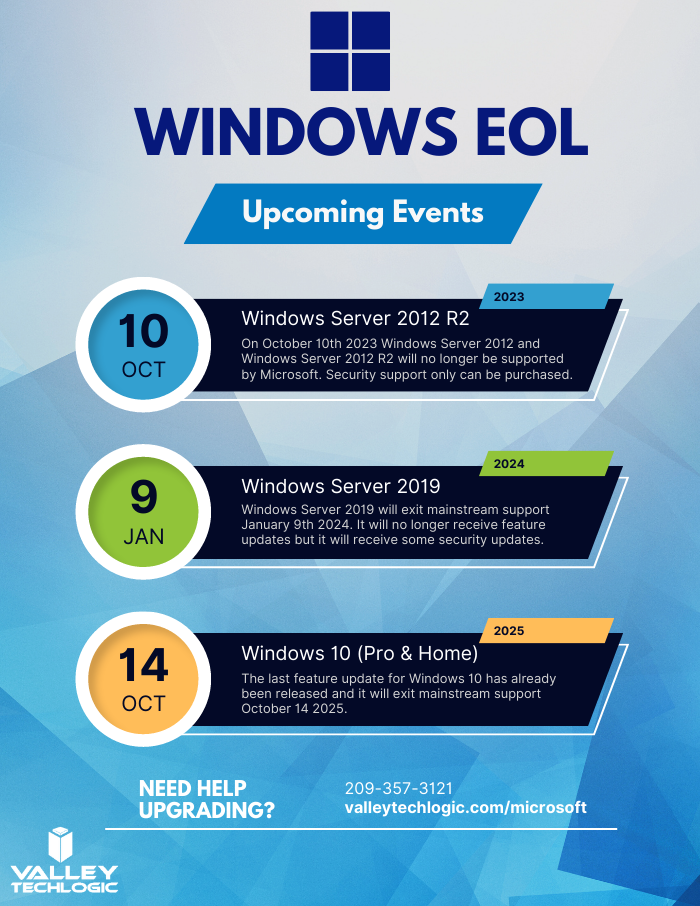
    To help with your planning for Microsoft’s upcoming End-of-Life events, we’ve created this chart with the latest dates to keep track of.
    If you need assistance with upgrading your Windows Server 2012 or Windows Server 2012 R2 device, or have questions about Microsoft products in general, Valley Techlogic can help. We are long time Microsoft partners, and our technicians have a wealth of experience in supporting Windows devices and navigating Microsofts offerings. Schedule an appointment today to learn more.

    Looking for more to read? We suggest these other articles from our site.

    This article was powered by Valley Techlogic, an IT service provider in Atwater, CA. You can find more information at https://www.valleytechlogic.com/ or on Facebook at https://www.facebook.com/valleytechlogic/ . Follow us on Twitter at https://x.com/valleytechlogic.

  • Support will end for Windows Server 2012 in October 2023, pros and cons of upgrading, replacing, or transitioning to the cloud

    Support will end for Windows Server 2012 in October 2023, pros and cons of upgrading, replacing, or transitioning to the cloud

    As promised continuing off the back of last weeks article on Steam ending support for Windows 7 and 8 we wanted to talk about the real elephant in the room for businesses coming up this year, Windows Server 2012 end of life date which will occur October 10th, 2023.

    On that date extended support for Windows Server 2012 will end. So, what does that mean for you? In general, we’ve seen that Windows products no longer receiving support from Microsoft have in an increased risk of cyber threats as hackers launch targeted attacks on these devices. In some cases Microsoft has stepped in to release patches in especially severe cases but it’s not a good idea to count on that.

    You can also expect your vendors will end support for Windows Server 2012 in October if they haven’t already, and it also will cause your business to fall out alignment with compliance to agencies like HIPAA or PCI and others. Without vendor or Microsoft assistance it may be difficult to receive support for these devices if they suddenly fail as well.

    All in all, there’s no good reason to do nothing with this news but many of our clients wonder when it’s time to upgrade, replace or even abandon the notion of an on-premises server altogether by moving their data to the cloud.

    There’s no easy answer to this question, we do have one quick suggestion though if October comes around and you’re still debating your options. If it’s possible to take the “walled garden” approach to any device running an outdated version of Windows, we highly suggest it. What this means is getting to a place where you prevent the device from accessing the internet and only access it with other devices via a firewall or some other means of protection. This will allow you to have a little bandwidth to stretch out making a plan to upgrade, replace or remove it.

    If you do feel like you’re reading to make a decision but need some assistance on which way to go, we do have five tips for when it’s time to replace a server:

    1. Warranty: Warranty is a big concern with servers, most servers have a useful life of 5 years though some manufacturers will offer extended renewals (not generally past 7 years though). Replacing hardware in a server is similar to replacing components of a vehicle, it can add up fast.
    2. Slow Running: If your server is a slog to work with, updating the operating system to a newer addition is not going to improve it.
    3. Expired OS: Having an expired operating system is a good reason to replace the server especially if the operating system was relatively new when the server was purchased.
    4. Storage Capacity: Storage capacity and solid state drive technology continues to improve each year, if you have a server with older hard drives or very small hard drives compared to modern standards it may make sense to start fresh with a new server vs trying to transition new drives into the old one.
    5. Software Requirements: If your software requirements have changed since the server was purchased and your old server can’t run your line of business software either well or at all, that’s a good reason to upgrade to a newer server.

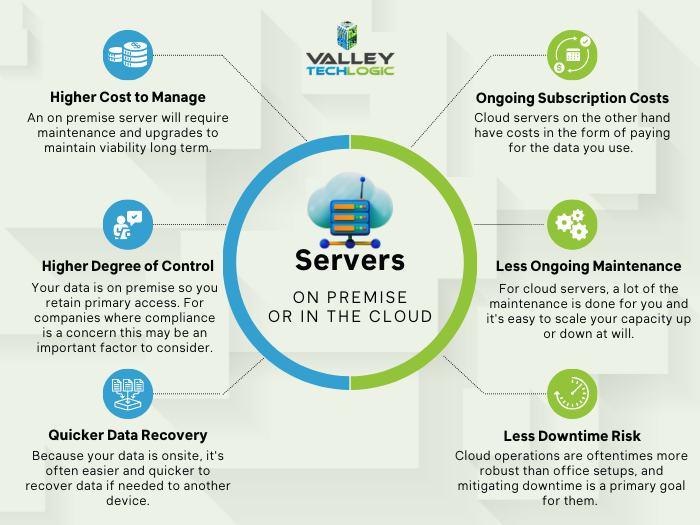
    If you answered no to all of the above then it might be worth considering whether upgrading to a supported Windows server is an option for you. We recommend leaving this task up to the professionals, upgrading a server is not the same as upgrading a laptop or desktop device. If the answer to any of the above questions was yes, then we highly recommend replacing, but should you replace your physical server or switch to the cloud? See our chart below for guidance:

    Cloud or On Premise Server? Still need more help with your Windows Server 2012? Valley Techlogic has been a Microsoft partner since 2004 and we’re experts in all things Windows. Reach out today for a consultation.

    Looking for more to read? We suggest these other articles from our site.

    This article was powered by Valley Techlogic, an IT service provider in Atwater, CA. You can find more information at https://www.valleytechlogic.com/ or on Facebook at https://www.facebook.com/valleytechlogic/ . Follow us on Twitter at https://x.com/valleytechlogic.

  • Windows Server 2012 and Server 2012 R2 are approaching end-of-life, what should you do?

    Windows Server 2012 and Server 2012 R2 are approaching end-of-life, what should you do?

    Upgrading your personal computer with the latest Windows can come with some challenges and hesitancy due to changes that are made to every new consumer and business version of Windows for personal computers.

    UI changes and increased specifications both come to the forefront for our customers when making these changes, but for servers that decision process feels even more fraught with danger.

    On October 9th, 2023, Windows Server 2012 and 2012 R2 will be in their end-of-life. What this means is it will no longer be a primarily supported product by Microsoft, who understandably needs to focus their time and energy supporting more current products. What it means for customers still utilizing Windows Server 2012 (or 2012 R2) is that their servers may not receive crucial support updates that often prevent things like your server malfunctioning, software working as intended, or even security updates.

    With just under a year to go that gives you time to consider your options when upgrading to a more current software, or if it makes sense to pay for extended support through Microsoft.

    The Extended Security Updates (or ESU) program does not include any feature updates, the only updates your server will receive will be security updates only, and to expand on that further that will only be important or critical security updates.

    This may mean your server is still vulnerable to intrusion although much less so than devices going unpatched. Often times a device ending support is a green light to hackers to begin working on breaching these older devices now that they’re less secure.

    That problem is not unique to Microsoft either, even smaller devices such as routers or switches can fall under end-of-life and no longer receive critical security patches. Just look at the recent Cisco zero-day security announcement and their stance. They will not be patching the outdated routers to prevent security intrusion; the expectation is that customers that own those routers will need to upgrade to ensure their business is safe.

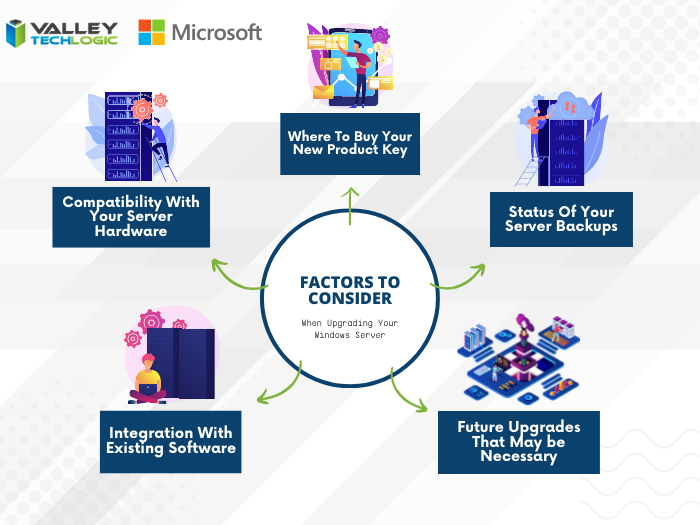
    There are some factors to consider however when it comes to upgrading your Windows serve, see our chart below:

    Five Considerations to Take When Replacing Your Windows Server

    The chart assumes an ideal scenario of either performing the update on a newly purchased server or taking the server offline temporarily. Performing an in-place Windows Server update can be risky and is best left for the professionals to decide whether it’s possible in each unique scenario.

    Purchasing a new server if your current server is too out of date to run the current version of Windows Server is tricky as well, there are more factors to consider with a machine that supports your entire business than with a device that’s only utilized by one or two employees.

    It’s also important no matter which avenue you take that you’ve properly backed up the existing server, if something were to go wrong not having that backup could mean losing all of your data. Which in many cases, is a catastrophic event.

    If we haven’t convinced you yet we’ll say it plainly, this is not a job that should be attempted by someone who’s just “computer savvy”. Upgrading your server requires an expert’s knowledge to execute in a timely manner and without losing your company data. Valley Techlogic can be that expert hand, learn more today with a free consultation.

    Looking for more to read? We suggest these other articles from our site.

    This article was powered by Valley Techlogic, an IT service provider in Atwater, CA. You can find more information at https://www.valleytechlogic.com/ or on Facebook at https://www.facebook.com/valleytechlogic/ . Follow us on Twitter at https://x.com/valleytechlogic.