We’ve had articles in the past about why you should consider making the move from on-premises to the cloud, but we’ve never specifically addressed which provider you should consider when making this move.
For many, AWS (Amazon Web Services) and Azure are the main players that they look to when making the jump the cloud. Brand recognition is obviously there for both choices, as well as a history of impeccable uptime. Uptime is a very important factor, obviously you want your data to be available when and how you need it, but there are more things to consider.
First, let’s look at the players. AWS has been around since 2006 and offers a “pay as you go” model, which means you pay only for the data you actually use. Many of us are familiar with the webstore Amazon, and you’d probably be surprised to learn AWS is a much bigger venture for Amazon, with 74% of their profit coming from AWS.
Azure was launched in 2010 and is also pay as you go. However, how they differ is that Azure actually lets users access their data through a virtual machine on a Virtual Hard Desk (VHD). This means their interface is slightly more user friendly from the start. For a similar interface in AWS you must rent an EC2 (their version of a virtual machine). EC2 is more customizable but Azures Virtual Machine may more easily work with existing Cloud computing tools.
Both are similar in that they offer scalable storage solutions; however, their object size restrictions vary slightly, with AWS having a 5 TB object size limit and Azure having a 4.75 TB limit. For most of our customers this would be a very negligible difference, however.
Both do an excellent job of securing your data, in AWS you customize your security settings on setup. With Azure, they use Microsoft’s Cloud Defender services which are similar to the Windows Defender services you probably already utilize.
AWS has a dashboard that may be easier to use if it’s your first-time using cloud services when it comes to looking for documentation on how to use the service. Where Azure has them beat though is that Azure keeps all of your user account and information in one place. So, depending on which kind of information you’re looking for, you may prefer one over the other.
If customizing your cloud experience via code is something you’re after, you probably want to stick with AWS. Through their SageMaker system you can utilize their artificial intelligence (AI) tools to develop a very specific and unique experience when it comes to tracking data, making modifications, and applying updates.
Azure on the other hand has opted for a “Codeless” interface, even someone with zero coding knowledge can drag and drop pieces to customize their cloud’s AI interface.
Of course, from a base level you can look at what operating system these are compatible with. AWS is more compatible with Linux while Azure offers compatibility through .net with Linux, Windows and MacOS.
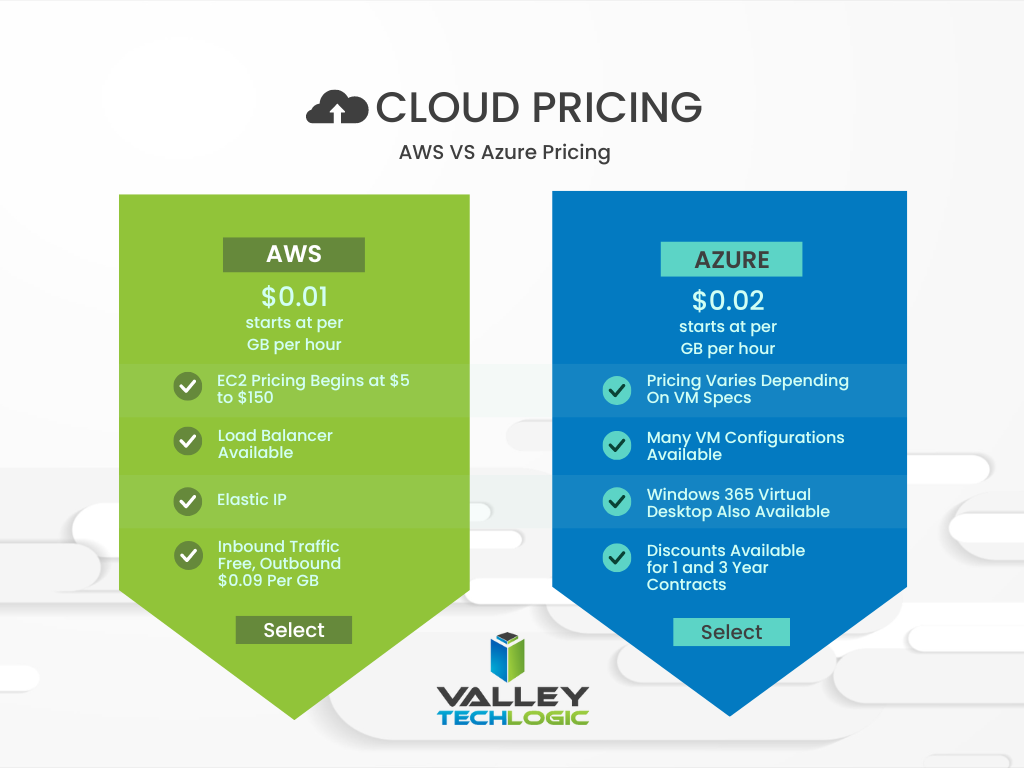
In a nutshell, these two cloud behemoths are more alike than different but there are some factors that depending on your particular business sector or goals may lead you to shift one way or the other. We also want to spend a moment addressing a pricing breakdown for both AWS and Azure. You can see their pricing models in the chart below. We also want to note that both provide a free introductory period so you can test their services before committing to a plan.
 Are you considering a move to the cloud and aren’t sure which provider to go with, or even how to make it happen? Valley Techlogic can help. We’re experts in cloud computing and have managed many customer cloud migrations. Reach out today to schedule a free consultation.
Looking for more to read? We suggest these other articles from our site.
-
RAID Arrays Explained, What is it and do you need one?
-
Reddit experienced a major outage yesterday, and our 5 tips for what to say to customers when your website goes down
-
BYOD (Bring Your Own Device) in the workplace, 5 policies to have in place for 2023
-
5 Ways to Establish your Business Presence Online
This article was powered by Valley Techlogic, an IT service provider in Atwater, CA. You can find more information at https://www.valleytechlogic.com/ or on Facebook at https://www.facebook.com/valleytechlogic/ . Follow us on Twitter at https://x.com/valleytechlogic.