

Tag: end of life

  • With Windows 11 out now, how many people are still using Windows 7?

    With Windows 11 out now, how many people are still using Windows 7?

    Windows 11 arrived this year to a somewhat muted response that mostly can be attributed to a tempered rollout – many machines that would have been eligible for a Windows software upgrade in the past were deemed not eligible for the enhanced requirements found in Windows 11. The end-of-life date for Windows 10 is still a way off (October 14, 2025) but a surprising number of people are still using Windows 7 which had it’s end of life event over two years ago now, on January 14th, 2020.
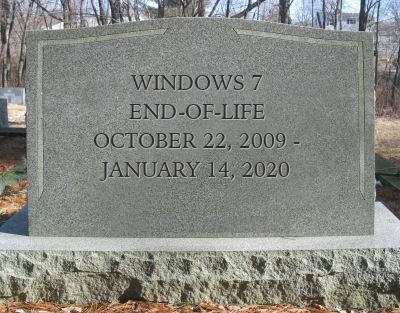
    Microsoft 7 EOL Tombstone

    However, according to GlobalStats Windows 7 still has an almost 12% operating market share. While many of those are probably unused machines that still equates to a large percentage of Windows 7 users over 2 years past it’s end of life date.

    When an operating system is discontinued by Microsoft that means they stop providing support and updates for it, including security updates that protect users from ongoing threats. Even the FBI has strongly warned against continuing to use Windows 7 as it can make you an easy target for cybercrime.

    It can be challenging to move away from a system you know well and at this point upgrading probably means also purchasing new hardware, which during the microchip shortages exacerbated by the pandemic could be no small task (or expense). However, there are deals to be had on hardware now in 2022.

    It can be also difficult to find software that’s supported on an older operating system as updates are made to make them compatible with the latest generation of operating systems.

    We know that for some of our clients it’s actually the reverse, they’re utilizing a line of business software that no longer is being maintained or updated by the provider, but it still functions for their business. The caveat being they must use it on an older machine that hasn’t been updated.

    There are several inherent risks to this, including the first one being that that machine is an obvious choice as a threat vector for would be bad actors. The tenuous relationship between that software and the hardware that deploys it is also ripe for failure the longer you wait to replace it. Securing older hardware to be able to continue to use a discontinued line of business software will also be a significant challenge as time goes on.

    We’ve touched on comfort and convenience between prime motivation to continue using an unsupported operating system, but there’s also the technology challenge of deploying new hardware and software within your business. A major rollout is best left to the experts who can smoothly retrieve the data from your devices and help you make the transition to newer hardware.

    At Valley Techlogic, we can even help you with procuring that hardware and making the best software choices for your business. This includes servers as well. Here is a list of the next 5 Windows end-of-life dates that you should be keeping an eye out for.
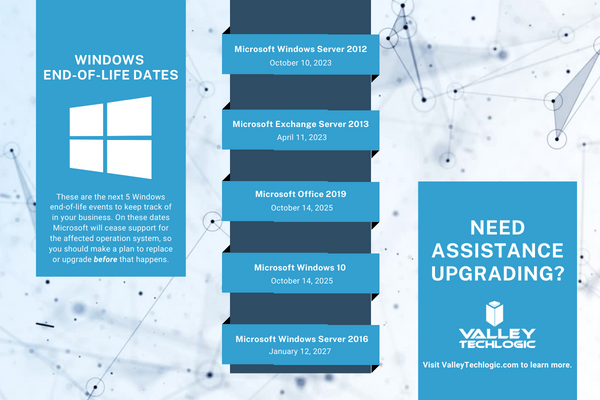
    Microsoft EOL Dates That Are Coming Up

    If for some reason you just can’t part with an outdated operating system at this time, here are three tips that will make it slightly safer until you are able to replace those devices:

    1. Make using an anti-virus and firewall a priority. This won’t offer you complete protection as many threats will seek to undermine the unsecured status of the device, but it’s better than being completely unsecured.
    2. Login to important accounts from another device if possible. We would not suggest logging into sites such as your banking website from a device this far out of date from updates.
    3. Utilize network-based mitigation strategies. This is again not foolproof strategy but separating your Windows 7 or other end-of-life devices from the rest of network will offer a slight buffer in the event the device(s) are compromised.

    Need assistance migrating away from devices that have reached their end-of-life date? Valley Techlogic can help, we’re a certified Microsoft partner and experts in all things Windows. Reach out to us today for a quick consultation to learn more.

    Looking for more to read? We suggest these other articles from our site.

    This article was powered by Valley Techlogic, an IT service provider in Atwater, CA. You can find more information at https://www.valleytechlogic.com/ or on Facebook at https://www.facebook.com/valleytechlogic/ . Follow us on Twitter at https://x.com/valleytechlogic.

  • 10 things you can do today (yes today) to make your business’s network safer

    10 things you can do today (yes today) to make your business’s network safer

    There’s an onslaught of information aimed at internet safety and most of it lets be honest, falls on deaf ears.

    Most people online today feel like they’re technology savvy enough to avoid the scams out there (unfortunately at least 1 out of 6 are wrong) and even if you acknowledge tech falls outside your scope of expertise you’re still at risk.

    The good news is we have a list of 10 things you can do today even if you’re technologically challenged that will make a major impact on the network safety in your office.

    1. Confirm your backups are working. Backups are one of your best defenses against ransomware, especially if you have an archival copy which is a backup copy that’s made once and then tucked away until you need it (usually behind layers of security, like with our TechVault solution).
    2. Security awareness training for you and your employees. When we know better, we do better. Many security awareness training programs are implemented in bite size doses that are easy to squeeze into your day. It’s easier to avoid a phishing scam if you’ve seen the obvious examples through training.
    3. Speaking of phishing scams, don’t open suspicious emails. We’ve talked a lot about this topic including how to spot a phishing email, but email scams are one of the top ways hackers can infiltrate your network.
    4. Upgrade software that’s reached End of Life (EoL). If your office computers are still on Windows 7 it’s definitely time for an upgrade and technically you can still upgrade to Windows 10 for free. While other upgrades may not be free, it’s still a good idea to get rid of software that’s no longer being supported by the vendor.
    5. You should also make sure all the software you need to stay safe online is installed on your devices. Programs can go missing or just not be reinstalled if a computer needs to be wiped for whatever reason, you should make sure important software such as anti-virus detection is installed on all of your office computers.
    6. While you’re at it, it’s time to serious think about Multi-Factor Authentication. We always hear a collective groan when this topic comes up, but password managers have become much easier to use and can even make logging into the various sites you use to work easier. Here are our top picks.
    7. Remove any devices you’re no longer using from your network. Besides being a waste of electricity, devices connected to your network that aren’t being used can be vessels for infiltration if they’re not being kept up to date via patching etc. Get rid of them!
    8. Have a plan for reporting suspicious activity. Do your employees know what to do if they receive a suspicious email or their computers acting “funny”? Having a plan documented somewhere (even if the only advice is “Contact our IT service team”) can mean a cyber threat event is recorded and dealt with instead of just ignored because they didn’t know what to do.
    9. Have an office password policy guide as well. It’s a good idea to have a guide for passwords available to your employees, especially if it covers what not to do such as having your phone number or any other PII (Personal Identifying Information) as your password.
    10. Know when to ask for help. This list is a good place to start but if your business has no IT help now (or possibly worse, inadequate help) it’s a good idea to call in the experts. Calling Valley Techlogic for a free consultation is another step you can take today to improve the safety of your office network.

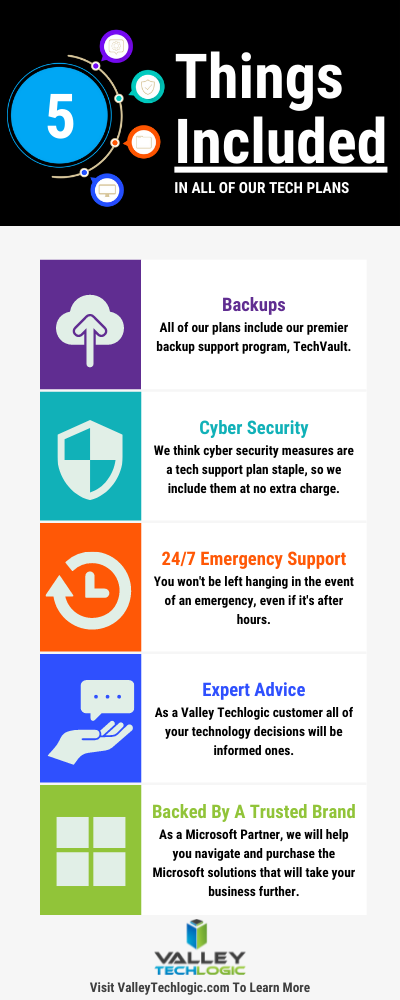
    Here are 5 things all Valley Techlogic Plans includes:

    5 Things Included in Valley Techlogic Plans

    Want to learn more? Reach out today for a free consultation and learn how Valley Techlogic can specifically support your business’s technology.

    Looking for more to read? We suggest these other articles from our site.

    This article was powered by Valley TechLogic, an IT service provider in Atwater, CA. You can find more information at https://www.valleytechlogic.com/ or on Facebook at https://www.facebook.com/valleytechlogic/ . Follow us on Twitter at https://x.com/valleytechlogic.

  • Our first look at Teams 2.0

    Our first look at Teams 2.0

    As we mentioned in our last post, Windows 11 is coming and with its announcement also came with the announcement of what’s being dubbed “Teams 2.0”.

    In preview builds right now appearance wise Teams 2.0 is very similar to the Teams you’re used to using. It has the same minimalistic UI you’re used to. However, one change is you can now switch light, dark and high contrast mode. This is a customization feature found in other video conferencing software now brought to Teams to make the program more user friendly and inclusive.

    Speaking of customization, you can also shrink your Teams windows exactly how you like now instead of simply shrinking the window down horizontally only. This will allow users to integrate a Teams window as they’re setting up their workstations for the day. The application can also “click” into place, fitting the size of the square or rectangle the user has left for it.

    Under the hood you’ll find that Teams 2.0 is much lighter than your existing Teams applications. While this is an early build of the program it’s interesting to note and holds true to Microsoft’s promise of making Windows 11 lighter in every fashion. Many video chat programs are memory hogs for older machines and a more agile chat client would be welcome for those as well as lighter duty laptops with less memory capacity.

    You can also quickly invite users with a link with Teams 2.0, allowing users to hold meetings more on the fly without having to schedule something through the Outlook calendar. This is one benefit found in Zoom that we think Microsoft is wise to integrate into Teams to broaden their appeal.

    Another change is you can now find users by their phone number or by syncing your contacts with Outlook and Skype. It’s clear with Windows 11 the goal is to have Teams be the de facto video chat choice and adding the ability to lookup friends and family will greatly extend the use of Teams outside workplaces.

    Although we still expect workplaces to be the primary use of Teams and we’re looking forward to more changes aimed at catering to the workforce marketplace beyond the scaled down client size (though don’t get us wrong, we definitely approve of that benefit). In the current preview builds video chat and voice chat are disabled so we’re unable to comment on that functionality at this time.

    This is still very early on in the process, and we anticipate more changes to come not just for Teams 2.0 but also Microsoft 11 as a whole.

    Skype for Business is Ending News

    In fact, it’s already been announced that the web client version will be released for preview soon, improved PowerPoint integration and also the ability to utilize multiple user accounts under a single client. Microsoft is a flurry of activity as they gear up for the fall release of Windows 11.

    Users currently on Windows 10 are already receiving patches aimed at getting their computers Windows 11 ready. As we noted in a previous blog Windows 11 will be a free upgrade to users already on Windows 10.

    Still on Windows 7 or 8 in your office? It’s still possible to upgrade to Windows 10 either for free or for a small $99 upgrade fee. This is going to much less than Windows 11 will be retailing for at launch and a 50% discount on the Windows 10 Pro retail cost. Windows 7 ended extended support in January of last year and Windows 8 will be soon as well. It’s not a good idea to remain on an operating system no longer supported by Microsoft and can leave your business much more vulnerable to cyber security attacks.

    If you need assistance upgrading the machines in your office so that they’re Windows 10 or 11 ready, reach out to us here.

    Looking for more to read? We suggest these tech articles from the last week.

    This article was powered by Valley TechLogic, an IT service provider in Atwater, CA. You can find more information at https://www.valleytechlogic.com/ or on Facebook at https://www.facebook.com/valleytechlogic/ . Follow us on Twitter at https://x.com/valleytechlogic.

  • Routers and Their Safety – How to Easily Improve Your Network

    Routers and Their Safety – How to Easily Improve Your Network

    It was recently reported by ZDnet (https://www.zdnet.com/article/unpatched-vulnerability-identified-in-79-netgear-router-models/) that 79 Netgear routers from as far back at 2007 and across 758 different firmware versions had an unpatched vulnerability that would let a hacker take over the device remotely.

    We rely on routers as our literal gateway to the internet – so how can you be sure the one you’re using is safe? Also, how can you keep it that way?

    As the above article has shown one of the ways is just to be cognizant of news regarding the devices you use. An emergency patch was issued, and a more permanent patch is planned for later this month. Even if you normally shy away from the nitty gritty technical aspects of any news cycle it’s a good idea to keep an eye out for news regarding your specific devices.

    It’s always a good idea to keep up to date on patches for all your devices. In the case of routers these normally come in the form of firmware updates.

    This may seem intimidating but here are the steps for making sure your routers firmware is up to date.

    1. Type your routers IP address into the search bar of your preferred web browser to access it’s web portal. It’s usually on the box or even on the router itself, it can also be found here (https://whatsmyrouterip.com).
    2. Enter your username and password. If this is your first-time logging in again the information can usually be found on the router itself. This is also a good time to change the password!
    3. Locate the firmware or update tab. The location may vary depending on which model router you have, referring to the instructions of your router is probably a good idea.
    4. Go to your router manufacture’s website to find the firmware update file. You can usually find it by searching for your routers model on their site.
    5. Download the update and apply it through the router’s web portal. Again, the router’s web portal is found by it’s IP address.
    6. Reboot the router to ensure the update is applied.

    By following these steps, you can be sure your router has the most up to date software version and is the most protected from bugs and malware.

    What if you can’t find a firmware update for your router? If it’s a newer model there may not be one out yet, however if your router is on the older side it may have reached it’s end of life. Every brand is different, Cisco for example has a policy of supporting routers on the software side for 3 years and the hardware side for 5 years.

    Most technical companies will provide advance notice if they have a product reaching end of life. It’s a good idea to keep track of this information for all your devices, as a device that’s not receiving regular updates may be less safe to use on the internet.

    This article was powered by Valley TechLogic, an IT provider in Atwater, CA. You can find more information at https://www.valleytechlogic.com/ or on Facebook at https://www.facebook.com/valleytechlogic/ . Follow us on Twitter at https://x.com/valleytechlogic.

    Looking for IT Services in Fresno, Modesto, Stockton, Ceres, Atwater, Merced, Visalia or Lodi? We cover all these areas and more!