Tag: backup plan

  • Missing file? Don’t panic, 5 recovery tips for Windows devices

    Missing file? Don’t panic, 5 recovery tips for Windows devices

    I know this has happened to me before, I have a new Word document I’ve created sitting open (maybe I’m actively working on it) I mean to save it somewhere and I just don’t.

    Another scenario, someone requests an Excel spreadsheet I’d done some editing on and when I go to look for it, it’s nowhere to be found.

    Panic ensues, but then I remember Windows 10 (and 11) devices have a number of different ways of finding and retrieving lost documents – especially those that were created in the Office suite of software. Before trying any of these steps we suggest checking your recycle bin first just in case it was accidentally deleted.

    The easiest way (and possibly most obvious) is to just click the little magnifying glass on your taskbar and just search for what you can remember about the file name or the file contents. Windows search system is pretty powerful, and your search may end here. An extra tip for narrowing your options, up at the top of the search window you can narrow the options by type, such as Applications or Documents.

    If you tried searching for the document and came up empty, the next place you should look is the most recent files section in the document application you’re working with. In both Excel and Word you can find this section by going to the upper left hand section of the navigation panel and hitting the “File” button. From there you go to “Open”. In this section you’ll see all your most recent files.

    The recover unsaved documents button is here to save the day.

    If you strike out there don’t exit out yet, this is where tip number three comes in. At the bottom of this section, you may see a “Recover Unsaved Documents” button. Clicking that will bring up any documents that were closed without being saved and hopefully your missing document is found in this section because it starts to get a little trickier by step four and requires a bit of luck.

    If you have backups enabled on your computer you can follow these steps by first clicking the “Start” button followed by “Control Panel,” “System Maintenance” and then “Backup and Restore.” Once the backup has been restored, you can search it for your missing file.

    The final place to look is your temporary files folder, usually something like C:\Users\Owner\AppData\Local\Microsoft\Office\UnsavedFiles but individual file paths may vary.

    If you’re a Microsoft 365 OneDrive user you have a bonus recovery step available, you can try creating a file with the same name and file type as the missing document. After you’ve created the new file, select Properties, select the Previous Versions tab, and then hopefully a version appears there that you can restore.

    After trying all these steps if your wayward document is still missing, it may be time to call in the experts. Data recovery is a big part of what we do at Valley Techlogic, and to make sure our clients never have to go through the headache and stress of losing their very important documents and data backups are a core feature of all of our plans.

    Here’s an our backup program in a nutshell which we consider the gold standard for businesses:

    Click to learn more about TechVault.

    Want to learn more? Visit our calendar page to book a consultation.

    Looking for more to read? We suggest these other articles from our site.

    This article was powered by Valley Techlogic, an IT service provider in Atwater, CA. You can find more information at https://www.valleytechlogic.com/ or on Facebook at https://www.facebook.com/valleytechlogic/ . Follow us on Twitter at https://x.com/valleytechlogic.


  • How to best utilize and organize OneDrive, the free cloud storage included with your Microsoft 365 subscription

    How to best utilize and organize OneDrive, the free cloud storage included with your Microsoft 365 subscription

    We find with our clients we find they’re often unaware they have a personal cloud storage solution right at their fingers tips and included for free with their Microsoft 365 subscription, OneDrive.

    Every Microsoft 365 business subscription user will have 1 TB of storage space free with their Microsoft 365 subscription. If you have an IT provider managing your Microsoft 365 subscriptions they probably have set this up to backup certain folders by default, usually your documents, pictures and desktop folders.

    These folders will automatically be synchronized to the cloud, so it provides excellent protection if one of your company devices is lost, stolen or breaks. It’s also a good cybersecurity measure to have your company workstations backed up in someway so if there’s ever a cybersecurity attack that effects your office, not all of your files will be lost.

    On that note, Microsoft does operate on what they call a “shared responsibility” model, so if your Microsoft account is compromised as well you may still lose those files even if they were backed up (which is why we always recommend enabling 2-Factor Authentication, Microsoft makes it easy).

    If OneDrive is successfully enabled on a device you’ll see a little blue cloud icon on your task bar, that when you hover over will tell you the status of your backup (it should say your files are up to date).

    Clicking on the blue cloud will allow you a glimpse at what files have been backed up recently, as well as a quick way to access the OneDrive folder located on your computer as well as the one that’s found online.

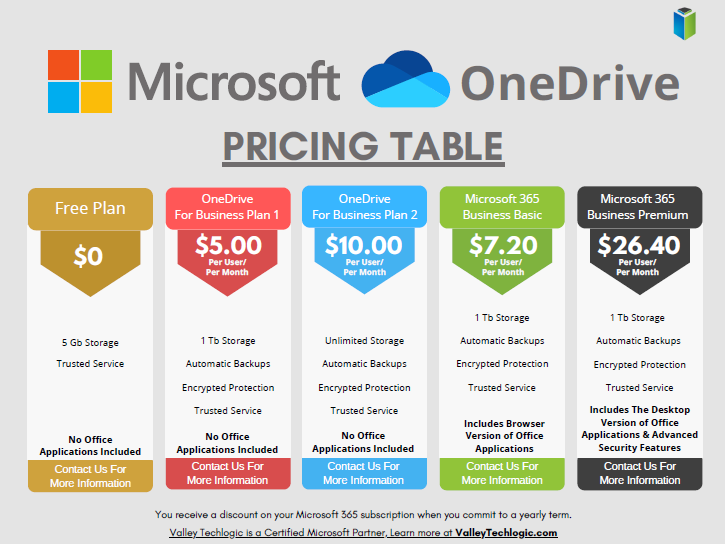
    1 Terabyte of storage is plenty for most users, but if you’re a heavy data user or someone in charge of most of the documentation for your office you may need more. Microsoft offers OneDrive plans outside of the 1 TB you receive for free as a Microsoft 365 user, see our chart below:

    Also, if you just want to try the service out but you’re not yet a Microsoft 365 user, you can either purchase a OneDrive subscription outside of the Microsoft 365 service (though we wouldn’t necessarily recommend it, Microsoft 365 is a better value) or you can test drive the service with their completely free 5 gigabyte storage option.

    5 GB is not a lot of storage these days but if you’re wanting to see if the service would be a good fit for you, it’s plenty for a good test run.

    Once you have your OneDrive set up, you might be thinking about how you’re going to organize it. Luckily, for the folders you back up any pre-existing folder organization you have will be backed up as well. If you have a sub-folder inside your Documents folder labeled “Mikes Important Files 8/20/2019” that same sub-folder will exist in your OneDrive.

    Besides that, here are 5 fast and easy folder organization tips:

    1. Don’t let files languish in your Downloads folder. I’m guilty of this myself, you’re busy and files you receive from colleagues or make just never make it out of their origination folder. It’s a good habit as you go to organization your new OneDrive space to sort things as they come in.
    2. Organize things by project or by date. When you’re looking for work and documents around a certain task or event, sorting by the date or by project is a good system to easily find them again. I’m in favor of by project myself.
    3. Use descriptive names, there’s nothing worse than trying to find a specific receipt if all your receipts from that store have the exact same name. Rename files so they’re easy to find.
    4. While sorting things when they come in is a good idea, even the best intentions fail when we get busy. Set up a time once a week to sort anything that gets left behind.
    5. Don’t make a folder for every single thing. You don’t want the solution to become worse than the problem. Group up items where you can (this is another vote in favor of sorting by project).

    If you need help with your businesses Microsoft 365 subscription and OneDrive, or just for tackling the topic of backups once and for all – Valley Techlogic is here for you. We even have our own backup solution for servers, TechVault. Learn more with a quick consultation today.

    Looking for more to read? We suggest these other articles from our site.

    This article was powered by Valley Techlogic, an IT service provider in Atwater, CA. You can find more information at https://www.valleytechlogic.com/ or on Facebook at https://www.facebook.com/valleytechlogic/ . Follow us on Twitter at https://x.com/valleytechlogic.