Tag: office 365

  • Which Microsoft 365 subscription is right for you in 2024?

    Which Microsoft 365 subscription is right for you in 2024?

    Microsoft cemented its place in businesses with their productivity software suite Office in the 1990’s, combining many existing tools such as Word and Excel and PowerPoint under one umbrella and making it clear that Microsoft was not just it’s operating system Windows but a source for businesses looking to consolidate their work under one platform and expand their tech capabilities as computers became more ubiquitous in modern workspaces.

    Now running your business without utilizing Outlook, Word, Excel, Powerpoint and Sharepoint is unthinkable for many office’s, even today’s article was composed in a Word document before being posted here for your reading (and as we’ve mentioned before, we’re long time Microsoft partners here at Valley Techlogic).

    The landscape for Office has changed since the 90’s, Microsoft has been part of the growing trend to move away from steep one-time software purchases in favor of ongoing subscription models (with ongoing benefits). While it may seem like a better idea to buy your software one time and keep it forever, it’s rarely that simple.

    Software, like hardware, is on a timeline the moment it’s released. Companies will usually offer support for their software for a set number of years and then it will reach a point where they discontinue it in favor of new offerings. Technology is always improving and supporting outdated software is not cost effective for technology companies and risky from a cybersecurity point of view. New software will have the benefit of having protections against modern day threats that older, often buggier software will not have.

    With a subscription model, you are paying over time to constantly receive the latest and greatest offerings available. It’s more expensive overall when compared to paying a one time cost and using something for several years, but in turn for that added expense Microsoft in particular has offered many benefits to their subscription that you cannot get with a stand alone Office software purchase.

    Here are the benefits found for each of the three most popular Microsoft 365 subscription types, Microsoft 365 Business Basic, Microsoft 365 Business Standard & Microsoft 365 Business Premium.

    1. Microsoft 365 Business Basic: Microsoft 365 Business Basic is Microsoft’s no frills, low cost offering that is perfect for employees who may not be using a computer as often. This subscription type will get them an Outlook email and web versions of Word, Excel and more (so they can still be in the loop on what’s going on in your office) but if you have someone who’s not glued to a desk or are a part-time employee, this level of subscription is our recommendation. Microsoft 365 Business Basic started at $7.20 a month per user.
    2. Microsoft 365 Business Standard: Standard is truly the middle option; it includes the desktop versions of Office software but it’s missing out on the additional cyber security protections found under premium (which we believe are an excellent value). For your average employee Standard is a good option. Microsoft 365 Business Standard started at $15 a month per user.
    3. Microsoft 365 Business Premium: Microsoft 365 Business Premium is we believe, the best value when it comes to Microsoft’s subscription-based offerings. Not only do you get the all the benefits of Office but you also get superior cyber security detection delivered right to your device that’s constantly being updated to keep up with new threats with all the power of Microsoft behind it. It’s an excellent companion piece to your current cybersecurity protections and we believe this subscription is a must have for your management and C-suite level employees. Microsoft 365 Business Premium starts at $26.40 a month per user.

    Also, it’s important to note that Microsoft does offer a discount if you choose to enroll in an annual plan.

    As we mentioned, Valley Techlogic is experts in all things Microsoft and Windows, and we have been a Microsoft partner since 2004. If you would like assistance in choosing the right Microsoft 365 plan for your office, we’d be more than happy to assist. Schedule a consultation with us today.

    Looking for more to read? We suggest these other articles from our site.

    This article was powered by Valley Techlogic, an IT service provider in Atwater, CA. You can find more information at https://www.valleytechlogic.com/ or on Facebook at https://www.facebook.com/valleytechlogic/ . Follow us on Twitter at https://x.com/valleytechlogic.

  • 10 Microsoft 365 tools you need to take advantage of TODAY

    10 Microsoft 365 tools you need to take advantage of TODAY

    Most of our clients are Microsoft 365 customers and enjoy the tools and applications they receive through their Microsoft 365 subscription. Many of these same clients were long time Office customers and were already familiar with the software benefits – such as Word, Office, Outlook, Powerpoint and Excel. These are staple products in the business community and chances are if you’ve been in business long enough you’ve had some exposure to them throughout your career.

    We have had clients who miss the days when Office was a standalone product only. While you still can purchase Office 2021 for a one-time fee, many have to weigh the value of a pretty substantial upfront cost when purchasing for many employees for a product that will at some point expire vs the subscription model that is now favored by many software companies. This is a discussion onto itself, but in a nutshell many clients choose to go with a Microsoft 365 subscription.

    There is an obvious benefit to doing so right off the bat if you choose to go with Microsoft 365 Business Premium, the security benefits of this plan are well known and touted throughout the technology industry as being the crème de la crème of security suites for Windows machines.

    However, there are many benefits to your Microsoft 365 subscription that many users are not even aware of. Microsoft 365 is much more than just an Office subscription – your plan comes with business utility programs that can make organizing and running your business better.

    Here are 10 tools you can take advantage of TODAY if you have a Microsoft 365 subscription:

    1. Microsoft OneNote: OneNote is Microsoft’s digital notetaking app, it’s a step way above NotePad with the ability to organize multiple notes (with colored tabs) and collaborate and share your notes with other.
    2. Microsoft Intune: Intune allows you to control and manage all of the Microsoft endpoints within your business from one place. This one might need an IT pro when it comes to setup and management but once you get it going it really can simplify many IT tasks for your team.
    3. Microsoft Forms: Did you know that you can create surveys, quizzes and polls with a Microsoft product? You can with forms, you can even export the data to Excel and share the forms you create on your website or social media platforms.
    4. Microsoft List: With Microsoft 365 you don’t have to go off platform when it comes to managing even the somewhat more mundane aspects of your business, Microsoft Lists is Microsoft’s solution for keeping track of well, everything. Also just like with Forms you’re able to export these lists to Excel with a click of a button.
    5. Microsoft Bookings: Microsoft Bookings is Microsoft solutions to having a public calendar where clients or colleagues can book a meeting with you, and it’s tied right to your Outlook calendar. Another benefit of Bookings is it can be added to your website for prospective clients to book time with you and eliminating the cost of an outside calendar application.
    6. Microsoft To Do: If you or your employees struggle with staying on task, Microsoft To Do is the solution for you. You can plan out your days in advance and Microsoft To Do will be your one stop place for keeping things on track.
    7. Microsoft Viva: Microsoft Viva is an addition to Microsoft Teams that adds a lot of functionality not usually found in a chat program, Microsoft Viva is a multi-faceted platform but in a nutshell it allows you to set goals for your business, provide training to your employees and see insights into their workday, as well as offering them to provide feedback to you all in the Teams application they already use.
    8. Microsoft Streams: If you already use Teams for your video conference calls then you’re familiar with how reliable Microsoft is when it comes to video streaming. Microsoft Stream takes that a step further and allows you to broadcast video outside your organization with up to 1000 participants.
    9. Microsoft Power BI: Microsoft Power BI provides a snapshot of your business’s data in the form of charts and graphs, so you can see how the data your business creates evolves and changes over time.
    10. Microsoft Planner: Finally, we bring it all home with Microsoft Planner, it’s exactly what you would expect it to be a simple visual tool for planning out meetings, business goals, marketing pitches and more all found at your fingertips with your Microsoft 365 subscription.

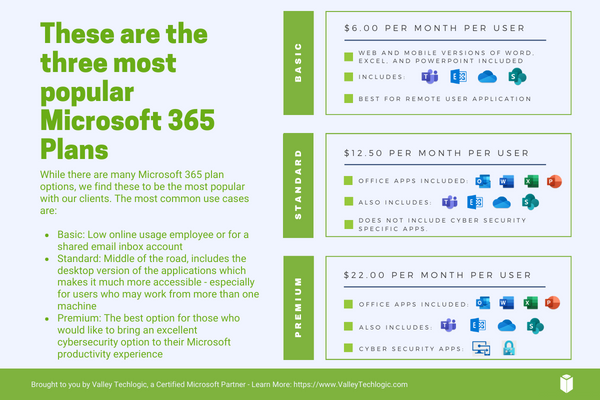
    Of course, if you’re considering signing up for Microsoft 365, you do have to take the cost into account. Here are the costs for the most popular plans (these costs factor in a discount for committing to an annual subscription, the costs are approximately 20% higher when you choose a monthly term).

    Interested in learning more about Microsoft 365? Valley Techlogic is a Microsoft partner, and we can walk you through the process of buying and making the most of your new subscription. Learn more today with a consultation.

    Looking for more to read? We suggest these other articles from our site.

    This article was powered by Valley Techlogic, an IT service provider in Atwater, CA. You can find more information at https://www.valleytechlogic.com/ or on Facebook at https://www.facebook.com/valleytechlogic/ . Follow us on Twitter at https://x.com/valleytechlogic.

  • Microsoft 365 pricing changes are coming in 2022, and we have the details

    Microsoft 365 pricing changes are coming in 2022, and we have the details

    Microsoft has had a busy year in 2021. With the release of Windows 11 and it’s continued roll out to more and more eligible users, as well as the quieter release of Windows Server 2022 in August. It looks like they’re not slowing down in 2022.

    We’ve been notified as a Microsoft partner there will be price increases across the board for their powerful suite of office software, Microsoft 365 expected in March 2022.

    While it’s never fun to have an unexpected increase to your overall IT spend, we think Microsoft 365 is still well worth it even at the increased cost. There are also some items that will be rolled into the new subscription model that will absorb some of the price increase while increasing the usability of your Microsoft 365 subscription.

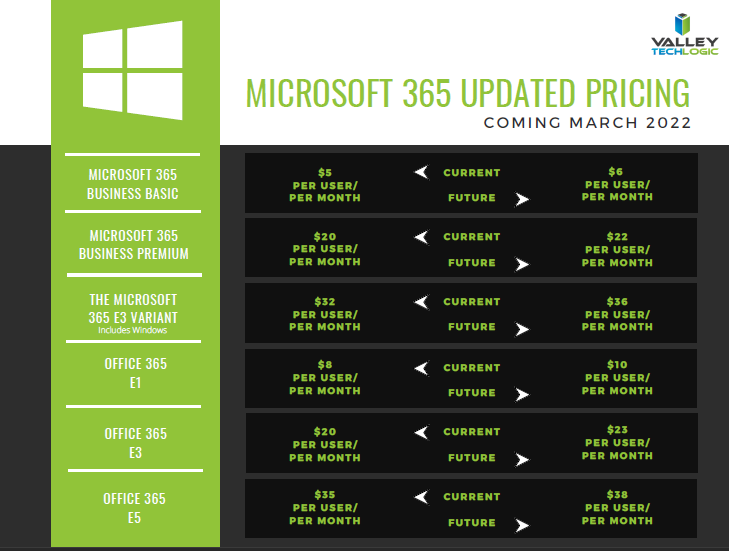
    First, here’s a chart we’ve created that you can save for your records that outlines the expected price increases. These prices may change between now and March but as of writing these are the prices that have been communicated to us by Microsoft directly. We also included the subscription models that are not going to be increased in March. We also want to note the consumer and educational models of Microsoft 365 will not be experiencing a price increase next year.

    Small Version of the Pricing Chart
    Click for the full size version.

    Now, we promised we’d talk about some of the items that are now going to be rolled into your Microsoft 365 subscription that previously had their own cost. One of those items is the ability to call in via Teams. Previously, calling in via Teams was $4 per line but as Microsoft moves to make Teams more accessible for businesses and users alike, they’re now including it in your normal subscription cost.

    This means if you have employees who are out and about during a company meeting, they can still easily call in and participate. It also opens up the opportunity to use Teams for your prospects and clients, even if they don’t currently have it installed. This year we even switched to Teams across the board ourselves and haven’t looked back. We’ve found the call quality and reliability to be phenomenal.

    Some security features will also be rolled into some of the earlier tiers of Microsoft 365 when they were previously featured à la carte. The security and compliance features found in your Microsoft 365 subscription really amount to pennies on the dollar when you consider how expensive it would be to establish the same security stack outside of Microsoft, and it would be less tailored for your own Microsoft use experience to boot.

    These security features include data loss prevention (DLP) for email and documents, as well as encryption for email (we all know email is one of the most common points of entry for bad actors). Microsoft Endpoint Manager has been a critical tool for all of the business’s that now find themselves managing a remote workforce.

    Overall, while a price increase was inevitable, we’re excited to see what new features will be rolled out in 2022 and beyond. If your office is not yet setup with a Microsoft 365 subscription, that’s one of the items we help our clients manage. If you’d like to learn how Valley Techlogic can help your business with Microsoft products and more, click here.

    Looking for more to read? We suggest these other articles from our site.

    This article was powered by Valley TechLogic, adns, n IT service provider in Atwater, CA. You can find more information at https://www.valleytechlogic.com/ or on Facebook at https://www.facebook.com/valleytechlogic/ . Follow us on Twitter at https://x.com/valleytechlogic.
  • Microsoft 365 and Office 365 prices are going up, when and by how much?

    Microsoft 365 and Office 365 prices are going up, when and by how much?

    We’ve been on a roll lately discussing the changes and products being rolled out by Microsoft this year, primarily Windows 11 which should be launched this fall. Last week Microsoft announced a price increase to their ubiquitous business products, Microsoft 365 and Office 365.

    Office has been a business staple since it’s launch in 1989 (although Word predated the Office grouping of products quite a bit, launching in 1983). The original launch set was Word, Excel and Powerpoint but the product line up has exploded since then including other must-have features such as Outlook, Teams, OneDrive and more. For many business users the Office suite of products is their go to collaboration and productivity center.

    Microsoft 365 was announced in 2017 and aimed to take things up a notch and out of just the business productivity center of activity, bringing many Windows specific cyber security features to the table as well as expanding the usability for remote employees.

    It also expanded the ease at which IT administrators can manage their office’s users in a Windows centric environment. The outcome was an all-in-one platform for business users especially that brought functionality, safety and security, and collaborative work processes together in unison all for one easy to budget for monthly fee.

    But as with many online services, fee increases are to be expected (remember when Netflix was just $7.99 a month for the standard package?). Microsoft however has bucked this trend for quite a while, pricing has been the same since Office 365 was launched in 2011.

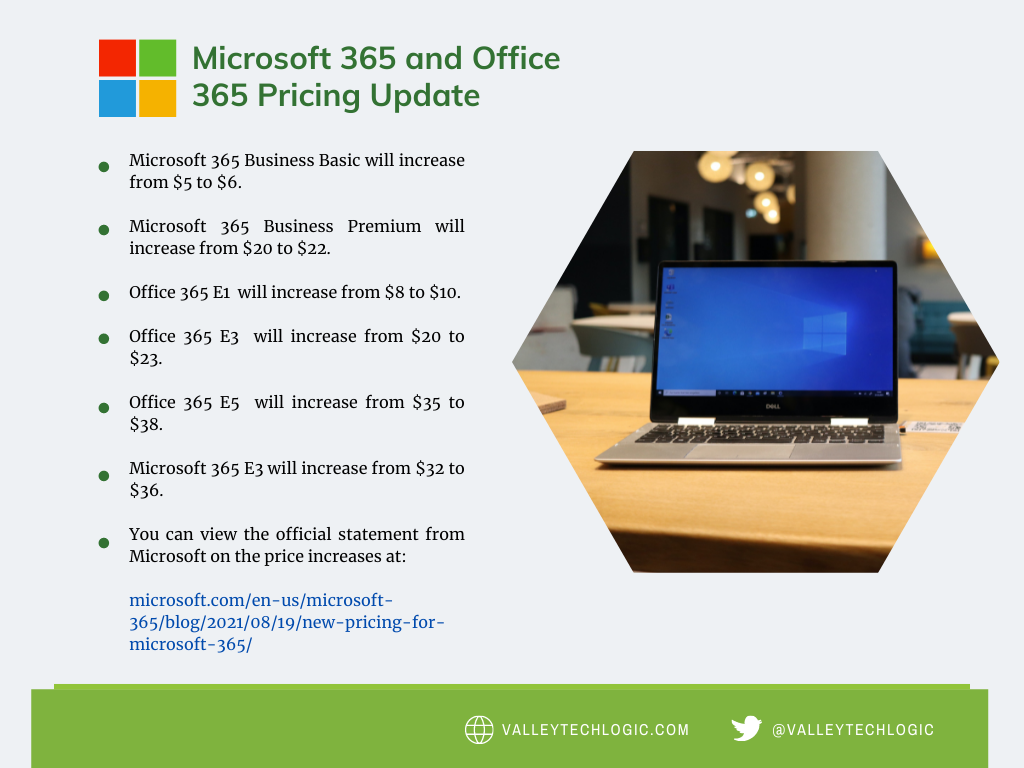
    In that time, they’ve added untold value in the way of product innovation all for no increased monthly fee, so this price increase is both expected and possibly overdue. It’s also expected to be just a few dollars more for each product category, so you won’t need to worry about a drastic price hike. Have a look at our chart below to see what to expect.

    Microsoft Price Increase Chart

    As you can see the price increases are moderate and shouldn’t result in a drastically higher overall IT bill for most users. If you’re in the education sector you won’t have a price increase at all, and consumer products will also stay the same price at this time. These price increases are expected to go into effect March 1, 2022.

    One thing that’s worth mentioning is the program Microsoft has for non-profits, if you own or operate a non-profit organization you can receive your Microsoft products at a deeply discounted rate. This includes Microsoft 365 and Office 365 subscriptions. We have helped our non-profit clients navigate this in the past to great success, if you’re a non-profit in the Central Valley area feel free to reach out to us for more information.

    We also assist businesses with their questions when it comes to the Microsoft line or products or their Windows desktop and server machines, we’re a long time Microsoft partner and consider ourselves experts when it comes to navigating even the most complex setups. We even include the subscriptions we discussed in today’s article within our all-inclusive plans to reduce our customers IT spending to one easy to read monthly bill. Find out more today.

    Looking for more to read? We suggest these tech articles from the last week.

    This article was powered by Valley TechLogic, an IT service provider in Atwater, CA. You can find more information at https://www.valleytechlogic.com/ or on Facebook at https://www.facebook.com/valleytechlogic/ . Follow us on Twitter at https://x.com/valleytechlogic.

  • What to Do When a Service You Use is Down; 5 Tips on How to Survive a Tech Outage

    What to Do When a Service You Use is Down; 5 Tips on How to Survive a Tech Outage

    If you were using any Microsoft products on Monday (March 15th) you may have been party to the outage that took down services such as Office 365 and Teams worldwide.

    The outage was caused by an Azure authentication error (you can learn more here) and lasted roughly 14 hours. Whether you experienced this particular outage or not we have all experienced an outage that took out a tech service that is critical to doing our job or supporting the systems we use every day.

    Here are our top 5 tips to surviving a tech outage that is impacting your business:

    1. First of all, don’t panic. Outages are normal in the tech world, and sometimes even necessary if it’s a planned downtime event. Usually planned events will occur at times that are less inconvenient for most workplaces (late at night typically), and you will probably get some kind of notice, so you know to expect it.

    2. Determine that the outage is outside of your control. If a service is down, it’s a good idea to determine whether it’s on your end or truly due to the service provider. If it’s a popular well-known service (such as in the Microsoft case) you can usually check Google as an outage will be news. Another good place to check is their social media pages to see if there’s any mention of the outage by their team; Twitter especially seems to be the place many businesses convey outage news.

    3. If you’ve come to the conclusion it’s not on your end, reach out to their customer service. They may be swamped if it’s a large outage but if it’s just something to do with your particular instance they can probably assist you in getting back up. If you have a technology service provider you work with they can help manage this task for you.

    4. Reach out to your tech team if you have one. If you have an in-house tech team or a technology service provider behind your business, they can troubleshoot the outage for you and determine next best steps to getting your services back up.

    5. Check the post-outage documentation. It often helps to know why an outage occurred, especially if it was due to an update that may have changed things within the service.

    Outages are a good case in point for having a tech team behind your business, they can help navigate the issue for you and if your case does need to be escalated, they will know exactly who to contact.

    If you’re on your own trying and to Google fixes it can often lead you down a rabbit hole where the recommendations may not even be relevant to your particular instance.

    In general, we don’t recommend trying to navigate severe issues on your own, especially if the affected program host critical data or systems for your business. The “fix” you try may be worse than the problem that was causing the outage in the first place.


    If you have been looking for a team that can support your business in navigating tech outages and more, Valley Techlogic is a seasoned technical service provider and we have plans that can fit every business. You can learn more by booking a free consultation here.

    Looking for more to read? We suggest these tech articles from the last week.

    This article was powered by Valley TechLogic, an IT provider in Atwater, CA. You can find more information at https://www.valleytechlogic.com/ or on Facebook at https://www.facebook.com/valleytechlogic/ . Follow us on Twitter at https://x.com/valleytechlogic.
  • Our Top 5 Favorite Outlook Tricks & Tips as a Technology Provider

    Our Top 5 Favorite Outlook Tricks & Tips as a Technology Provider

    As a technology provider we’re well versed in supporting the Microsoft suite of products, and Outlook especially is a business staple. Whether you have made a one-time purchase with Office 2019 or are using the subscription model plan with Microsoft 365, both products include Teams, Outlook, OnePoint, SharePoint and Word. In today’s article we will be focusing especially on Outlook and providing you with tips that will make using it that much easier.

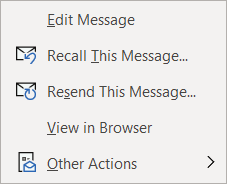
    Our first tip could really help save the day if you miss-send an email, did you know you can actually recall an email? Just open the email you want to send and navigate to the Recall message box in Outlook.Message tab on the ribbon, click on the Action button and then click on Recall Email, if the recipient hasn’t opened the email yet it will be recalled and you can try again.

    The second one is all about efficiency. If you have a certain type of message you send routinely, you can save that message as a template for easy use. Go to File > Save As > Outlook Template to save the template. Then when you’re ready to use it again click on Items > Choose Form > User Templates and select the template you saved. You can also go to the Message tab on the ribbon and click on View Templates to view and create simple templates without formatting to use.

    If you have a long email thread you have been replying to and are finding yourself hunting through your inbox for all the links in the chain to remember what has already been said, our third tip will really help you out. If you go to View > Show as Conversation on the Ribbon all of the messages in that thread will be displayed under the most current email.

    Number four was even new to us until recently, if you hit Ctrl + Shift + N in Outlook it will pull up a sticky note function you can move around. That way if you need to take some notes as you’re parsing through your email that will be conveniently available to you, no pen and paper necessary.Outlook sticky note box.

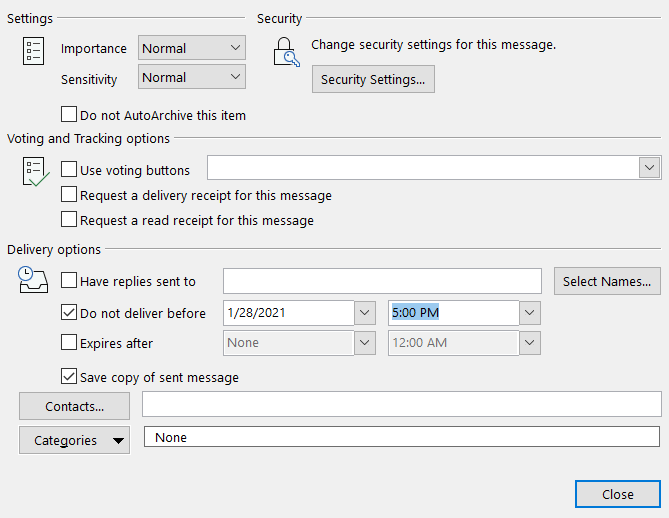
    Our fifth tip is all about timing. If you know there’s an email you need to send out by a certain time, why not avoid the stress and worry that you may forget and schedule it while it’s top of mind? If you go to Options > Delay Delivery > Do not deliver before you can schedule the email to be sent at the exact time and day you want it to be. This is a great option for reminder type emails that you send regularly as well.

    Lastly as a bonus, here’s a list of our top 10 Outlook shortcuts that will simply make navigating Outlook easier:

    1. Create a New Message: Ctrl + Shift M
    2. Insert a File: Alt+N, A, F
    3. Send a Message: Alt + S
    4. Search for An Item: Ctrl + E or F3
    5. Reply to a Message: Alt+H, R, P
    6. Go to Your Calendar: Ctrl+2
    7. Check for New Messages: Ctrl+M or F9
    8. Go to the Home Tab: Alt+H
    9. Go to the Send/Receive Tab: Alt+J, S
    10. Forward a Message: Alt+ H, F, W

    If your office could use some assistance navigating Microsoft 365 we’re here to help, at Valley Techlogic we consider ourselves experts when it comes to Microsoft and Windows based products and can make recommendations to your business. Visit our calendar page here to schedule a consultation to learn more.

    Looking for more to read? We suggest these tech articles from the last week.

    This article was powered by Valley TechLogic, an IT provider in Atwater, CA. You can find more information at https://www.valleytechlogic.com/ or on Facebook at https://www.facebook.com/valleytechlogic/ . Follow us on Twitter at https://x.com/valleytechlogic.