Tag: onedrive

  • 5 ways to organize your Microsoft 365 files to maximize your productivity this year

    5 ways to organize your Microsoft 365 files to maximize your productivity this year

    If you’re a Microsoft 365 subscriber – or considering it to utilize tools like Word, Excel, PowerPoint and more in your business – you may not be taking advantage of all of the features it has to offer.

    These features include ways to help organize your files and corral your workload under one umbrella, which is useful with the deluge of information many of us are processing each day in the course of performing our job duties.

    Here are five ways to utilize Microsoft 365 to organize your files day to day:

    1. Use OneDrive for Personal Storage – Store and organize personal work files in OneDrive, using folders and tags for easy retrieval. OneDrive also allows for automatic backup and syncing across devices.
    2. Leverage SharePoint for Team Collaboration – Store shared files in SharePoint libraries, where teams can access, edit, and co-author documents with version control and permission settings.
    3. Utilize Microsoft Teams for File Organization – Upload and manage files directly in Microsoft Teams under specific channels, ensuring that relevant documents are easily accessible to team members.
    4. Tag and Search with Microsoft Search – Use metadata, tags, and keywords in file names to make documents easier to find using Microsoft Search across OneDrive, SharePoint, and Teams.
    5. Automate File Organization with Power Automate – Set up workflows that automatically sort, move, or categorize files based on specific triggers (e.g., when a file is uploaded, it moves to a designated folder).

    OneDrive in particular can be very helpful in extending your computers storage and organizing files to share throughout your company and can replace more insecure methods like DropBox or emailing directly. OneDrive can even be purchased as a standalone subscription if you’re not sure about making the switch to Microsoft 365 yet (though we highly recommend it).
    Also, if exploring AI as a tool to increase productivity is one of your 2025 goals, Microsoft’s Copilot and OneDrive work together seamlessly to help you with your automatic file organization goals. Copilot can make suggestions on how you should organize your files based on their content, usage and collaboration history.

    It also gives you a hand with searching for files in a way that’s more intuitive than your average Windows file search function. You can ask it something like “Show me the files I worked on last week” instead of trying to remember specific file names for example.

    Valley Techlogic has been partnering with Microsoft for more than 20 years and we’re experts in providing businesses with cohesive solutions that help them maximize their technology investments, including subscriptions like Microsoft 365. Schedule a consultation with us today to learn more.

    Looking for more to read? We suggest these other articles from our site.

    This article was powered by Valley Techlogic, leading provider of trouble free IT services for businesses in California including Merced, Fresno, Stockton & More. You can find more information at https://www.valleytechlogic.com/ or on Facebook at https://www.facebook.com/valleytechlogic/ . Follow us on X at https://x.com/valleytechlogic and LinkedIn at https://www.linkedin.com/company/valley-techlogic-inc/.

  • Data breached? 5 ways to reduce the impact on your business.

    Data breached? 5 ways to reduce the impact on your business.

    We’ve posted a lot of articles on how to avoid a data breach (here are a couple of recent ones for you to review if one hasn’t happened to you so far and you’d like to keep it that way).

    Unfortunately, we fear that if you’ve reached this article you may be part of the growing number of business owners whose data has been breached (in 2020 there were 700,000 attacks on small businesses with damages exceeding $2.8 Billion).

    Data breach severity varies widely, from an employee email being temporarily hacked all the way to having your backups infiltrated and locked for a ransom – and even if you pay the ransom you still might not recover your data.

    So if you’ve experienced a significant data breach and wondered what you could have done to have a better outcome, or even if you’re in the midst of one now what should you do?

    Here are our top five tips for reducing your data breach costs (now or in the future):

    1. Damage Control – Turn to the pros (like us) when it comes to recovering your data in the event of a breach, they will have access to tools that could recover data that will otherwise be lost if decryption efforts fail in the hands of someone who doesn’t know what they’re doing. Bottom line, know who you’re going to call in an emergency and don’t be afraid to get their help sooner rather than later.
    2. Downtime Mitigation – Downtime is one of the most expensive elements of a data breach, if you don’t already have a disaster recovery plan a previous breach can highlight exactly what needs to be a priority in your business if your data is unavailable. Also, a team like Valley Techlogic can help you create a disaster recovery plan.
    3. Turn to Your Vendors – Your vendors may have some methods for assisting you in the event of a data breach. For example Microsoft has a shared responsibility model for data but if you have Microsoft 365 and use OneDrive, some of that data may still be safe on their end and accessible to you (once your devices have been cleared and are safe to use).
    4. Be Transparent – If your business is very customer facing, an outage in your business caused by a data breach may be very obvious to them. We don’t recommend trying to hide the fact that a breach has happened but instead being transparent about what happened and what you did to fix it, and how you plan to prevent it in the future.
    5. Cyber Prepared – The best way to recover financially from a data breach is to have cyber insurance in place before the attack happens, while it may be too late for a past breach you can prevent future financial loss by using our guide to reviewing and obtaining cyber security insurance here.

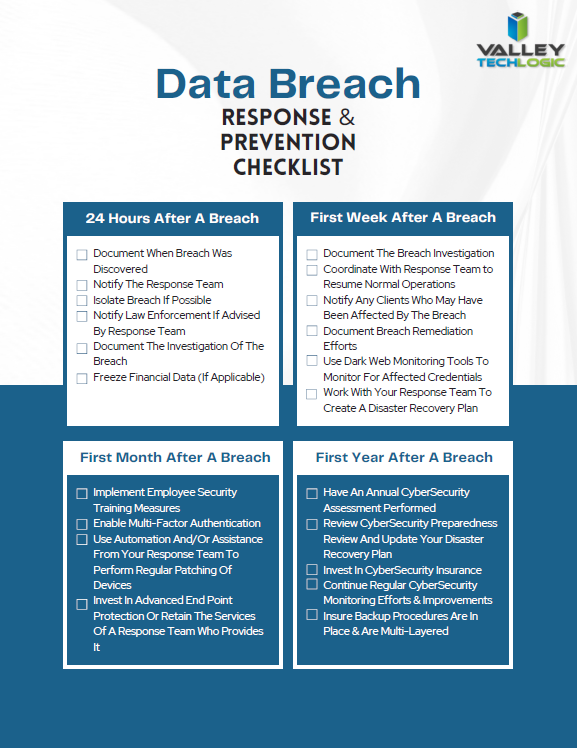
    Of course, an ounce of prevention is worth a pound of cure unfortunately when it comes to cybersecurity attacks. We would be remiss not to offer a few tips on preventing a data breach specifically. You can grab this checklist to make sure these items are covered to prevent future data breaches:

    Click to download the full size version.

    If you’re currently dealing with a data breach or have dealt with one in the past and want to prevent future breaches, Valley Techlogic can help. We are experts in cybersecurity and use industry best practices to provide the best security coverage for our customers that is also cyber insurance compliant. Learn more with a consultation today.

    Looking for more to read? We suggest these other articles from our site.

    This article was powered by Valley Techlogic, an IT service provider in Atwater, CA. You can find more information at https://www.valleytechlogic.com/ or on Facebook at https://www.facebook.com/valleytechlogic/ . Follow us on Twitter at https://x.com/valleytechlogic.

  • How to best utilize and organize OneDrive, the free cloud storage included with your Microsoft 365 subscription

    How to best utilize and organize OneDrive, the free cloud storage included with your Microsoft 365 subscription

    We find with our clients we find they’re often unaware they have a personal cloud storage solution right at their fingers tips and included for free with their Microsoft 365 subscription, OneDrive.

    Every Microsoft 365 business subscription user will have 1 TB of storage space free with their Microsoft 365 subscription. If you have an IT provider managing your Microsoft 365 subscriptions they probably have set this up to backup certain folders by default, usually your documents, pictures and desktop folders.

    These folders will automatically be synchronized to the cloud, so it provides excellent protection if one of your company devices is lost, stolen or breaks. It’s also a good cybersecurity measure to have your company workstations backed up in someway so if there’s ever a cybersecurity attack that effects your office, not all of your files will be lost.

    On that note, Microsoft does operate on what they call a “shared responsibility” model, so if your Microsoft account is compromised as well you may still lose those files even if they were backed up (which is why we always recommend enabling 2-Factor Authentication, Microsoft makes it easy).

    If OneDrive is successfully enabled on a device you’ll see a little blue cloud icon on your task bar, that when you hover over will tell you the status of your backup (it should say your files are up to date).

    Clicking on the blue cloud will allow you a glimpse at what files have been backed up recently, as well as a quick way to access the OneDrive folder located on your computer as well as the one that’s found online.

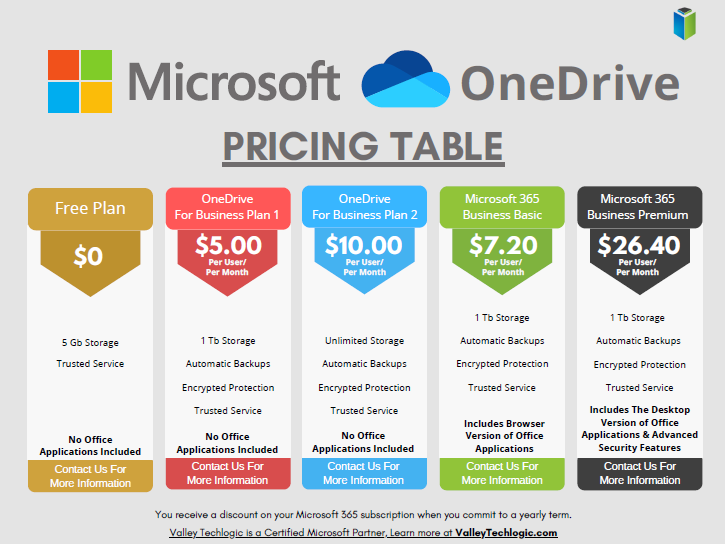
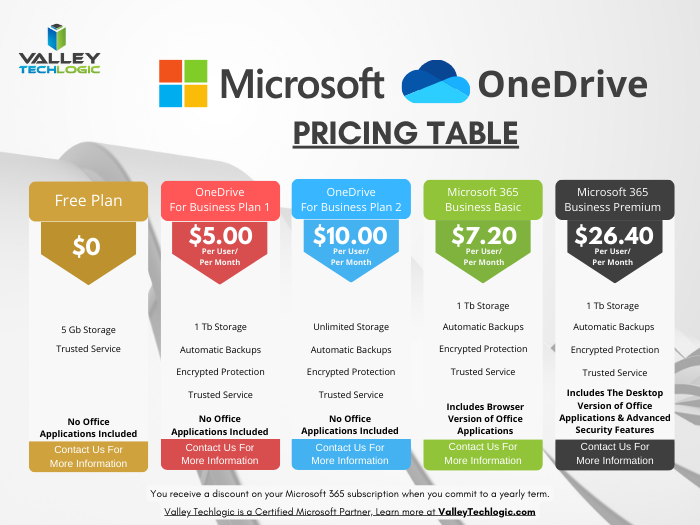
    1 Terabyte of storage is plenty for most users, but if you’re a heavy data user or someone in charge of most of the documentation for your office you may need more. Microsoft offers OneDrive plans outside of the 1 TB you receive for free as a Microsoft 365 user, see our chart below:

    Also, if you just want to try the service out but you’re not yet a Microsoft 365 user, you can either purchase a OneDrive subscription outside of the Microsoft 365 service (though we wouldn’t necessarily recommend it, Microsoft 365 is a better value) or you can test drive the service with their completely free 5 gigabyte storage option.

    5 GB is not a lot of storage these days but if you’re wanting to see if the service would be a good fit for you, it’s plenty for a good test run.

    Once you have your OneDrive set up, you might be thinking about how you’re going to organize it. Luckily, for the folders you back up any pre-existing folder organization you have will be backed up as well. If you have a sub-folder inside your Documents folder labeled “Mikes Important Files 8/20/2019” that same sub-folder will exist in your OneDrive.

    Besides that, here are 5 fast and easy folder organization tips:

    1. Don’t let files languish in your Downloads folder. I’m guilty of this myself, you’re busy and files you receive from colleagues or make just never make it out of their origination folder. It’s a good habit as you go to organization your new OneDrive space to sort things as they come in.
    2. Organize things by project or by date. When you’re looking for work and documents around a certain task or event, sorting by the date or by project is a good system to easily find them again. I’m in favor of by project myself.
    3. Use descriptive names, there’s nothing worse than trying to find a specific receipt if all your receipts from that store have the exact same name. Rename files so they’re easy to find.
    4. While sorting things when they come in is a good idea, even the best intentions fail when we get busy. Set up a time once a week to sort anything that gets left behind.
    5. Don’t make a folder for every single thing. You don’t want the solution to become worse than the problem. Group up items where you can (this is another vote in favor of sorting by project).

    If you need help with your businesses Microsoft 365 subscription and OneDrive, or just for tackling the topic of backups once and for all – Valley Techlogic is here for you. We even have our own backup solution for servers, TechVault. Learn more with a quick consultation today.

    Looking for more to read? We suggest these other articles from our site.

    This article was powered by Valley Techlogic, an IT service provider in Atwater, CA. You can find more information at https://www.valleytechlogic.com/ or on Facebook at https://www.facebook.com/valleytechlogic/ . Follow us on Twitter at https://x.com/valleytechlogic.