Category: Hardware

Hardware

  • Planning a tech refresh ahead of the Windows 10 support ending? Here are our six best strategies

    Planning a tech refresh ahead of the Windows 10 support ending? Here are our six best strategies

    Microsoft officially announced that support for Windows 10 will end on October 14, 2025. While that may sound far away, businesses that rely on Windows 10 across their devices need to start planning now. Waiting until the last minute can mean rushed decisions, unexpected costs, and potential downtime, which is something no organization wants.

    At Valley Techlogic, we’ve helped countless Central Valley businesses through smooth technology transitions, and we know how important it is to plan ahead. If your company is still running Windows 10, here are our six best strategies for preparing your tech refresh.

    1. Take Inventory of Your Current Environment

    Start by identifying which machines are still running Windows 10 and which may already be compatible with Windows 11. This step helps you avoid unnecessary purchases and ensures you only upgrade what’s needed. An inventory audit can also uncover outdated hardware, unsupported software, or security gaps.

    1. Evaluate Hardware Readiness

    Not every device that runs Windows 10 will support Windows 11. Requirements like TPM 2.0 and specific processor generations may prevent older PCs from upgrading. If your business has hardware that won’t make the cut, it’s best to plan replacements now, rather than scrambling in 2025.

    1. Budget and Phase Your Refresh

    Replacing or upgrading multiple devices at once can be expensive. By starting early, you can phase in new equipment over time, spreading out costs and minimizing disruption.

    1. Consider Cloud and Virtualization Options

    For some businesses, moving workloads to the cloud or implementing virtual desktops can reduce reliance on on-site hardware. Utilizing a service like Windows 365 (a cloud PC option) could be a more cost-effective solution than replacing every PC.

    1. Strengthen Security Along the Way

    End of support also means no more security updates from Microsoft. That makes staying on Windows 10 after October 2025 a serious risk. As you refresh your devices, it’s also a good time to review your company’s cyber security landscape, from endpoint protection and email security to backups and multi-factor authentication.

    1. Partner With an IT Provider for a Smooth Transition

    Technology refreshes are complex, especially when tied to a major operating system change. An experienced partner like Valley Techlogic can guide you through the process, ensuring you select the right devices, configure them correctly, and migrate your data without downtime.

    Don’t Wait Until October. The sooner you start planning your Windows 10 exit, the smoother your business will transition. Whether it’s a phased rollout of new PCs, upgrading to Windows 11, or exploring cloud options, Valley Techlogic can help your business stay secure, productive, and ahead of the curve.

    Are you ready to start your tech refresh plan? Contact Valley Techlogic for a free consultation today and let’s make your upgrade stress-free.

    Looking for more to read? We suggest these other articles from our site.

    This article was powered by Valley Techlogic, leading provider of trouble free IT services for businesses in California including Merced, Fresno, Stockton & More. You can find more information at https://www.valleytechlogic.com/ or on Facebook at https://www.facebook.com/valleytechlogic/ . Follow us on X at https://x.com/valleytechlogic and LinkedIn at https://www.linkedin.com/company/valley-techlogic-inc/.


  • “Windows 95 would be an upgrade” the state of technology in US aviation and the danger of outdated technology in your business

    “Windows 95 would be an upgrade” the state of technology in US aviation and the danger of outdated technology in your business

    As a technology provider it’s a red flag for us when we see clients holding onto older technologies, even computers with Windows 7 in 2025 can pose a significant security risk and in general are ticking time bombs waiting to go kaput spontaneously in the middle of a busy work day. Nothing in life lasts forever and this is especially true with business computer hardware that’s been put through it’s paces with our day in and day out workloads.

    Against all odd, the FAA (Federal Aviation Administration) has held onto older tech – including computers still running Windows 95 or even Windows 3.1 and floppy disks still floating around the office containing pertinent information.

    This has come to the forefront of news cycles as we have seen instances of the devastating consequences of air traffic control issues gone awry, including the helicopter crash that occurred in Hoboken, NJ earlier this year that has now prompted the city to sue the FAA.

    The Government Accountability Office also noted recently that the platforms used to manage air traffic control were “unsustainable” or “potentially unsustainable”. Not only because the systems used feature aging hardware well past its prime, but also because the employees who know how to use it are retiring and much the knowledge of how to get these systems to perform adequately despite their age is leaving with them.

    We can’t say whether the current status of the FAA and the scrutiny they’re facing is entirely due aging technology systems, but it does introduce an element of doubt in the public perception when a system intended to manage the (on average) 45,000 flights per day hasn’t been keeping up with significant advancements in technology since the 90’s.

    Doubt is never something you want to encourage in your customers mindset, so even for clients who’s day to day operations involve something significantly less life-or-death than keeping our planes in the air, keeping up with the latest advancements in technology is still important.

    Here are four risks to keeping older technology in your business:

    1. Security Vulnerabilities
      Legacy systems often lack current security patches, making them prime targets for cyberattacks, data breaches, and malware infections.
    2. Reduced Productivity
      Old hardware and software can be slow, incompatible with modern tools, and prone to crashes—leading to employee frustration and workflow disruptions.
    3. Higher Maintenance Costs
      Outdated systems often require more frequent repairs and custom support, increasing IT expenses and downtime.
    4. Lack of Compliance
      Older technology may not meet current industry or regulatory compliance standards, putting the business at legal and financial risk.

    Ready to address the outdated technology in your business? Valley Techlogic can help you every step of the way – from procurement to deployment. Learn more today with a consultation.

    Looking for more to read? We suggest these other articles from our site.

    This article was powered by Valley Techlogic, leading provider of trouble free IT services for businesses in California including Merced, Fresno, Stockton & More. You can find more information at https://www.valleytechlogic.com/ or on Facebook at https://www.facebook.com/valleytechlogic/ . Follow us on X at https://x.com/valleytechlogic and LinkedIn at https://www.linkedin.com/company/valley-techlogic-inc/.

  • Is physical security a priority for 2025? Our recommendations for choosing security cameras for any scenario

    Is physical security a priority for 2025? Our recommendations for choosing security cameras for any scenario

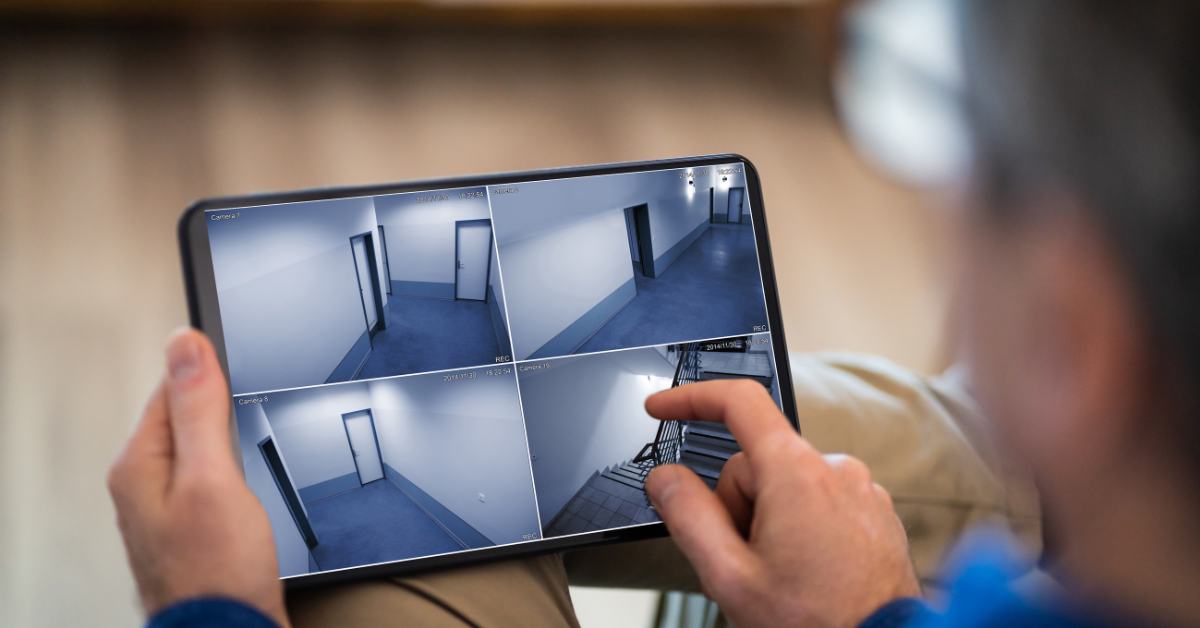
    As an IT service provider, digital security is a big focus for our business. However, it’s important to also plan for physical security when it comes to protecting your business’s technology and data. Especially in spear phishing attacks (which are attacks targeting a specific individual) there is no better treasure trove of data than a device used by someone with considerable access to company data.

    Physical theft can still present a cyber security risk which is why even cyber security frameworks such as NIST cover physical security as a topic. As such, we have a dedicated team that addresses physical security including the installation and maintenance of security camera systems.

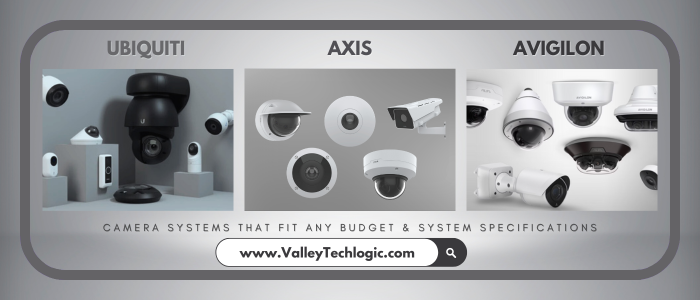
    We have several vendors we work with, with a range of prices to fit any budget. Below are the Good, Better, Best options for security camera systems with Valley Techlogic.

    Beyond choosing a brand, there’s also considerations for the types of cameras to select for your particular business. There is no one size fits all, all three of our preferred vendors have a range of products that can cover different scenarios. Such as low light options, cameras that can capture license plates, cameras packed with AI features such as searching for specific objects or individuals, low profile cameras and more.

    Below our 10 questions you should ask when reaching out for a quote for cameras:

    1. What are the primary goals for installing the system? Is it for theft prevention, monitoring employee activity, or ensuring customer safety? Clearly defining your goals helps narrow down the system features you need.
    2. What type of cameras will you need for your location? Dome, bullet, PTZ (pan-tilt-zoom), or hidden cameras? Different camera types suit different needs and locations.
    3. What resolution and image quality do the cameras provide? Does the system offer high-definition (HD) or 4K resolution? Clear image quality is crucial for identifying details like faces and license plates.
    4. Is the system scalable? Can you add more cameras or integrate with other security features as your business grows? Can you use them in tandem with existing cameras?
    5. What is the storage capacity and method? Does the system use local storage (DVR/NVR) or cloud storage? How long can recordings be retained, and what are the costs?
    6. Does the system have remote access capabilities? Can you monitor cameras in real-time from a mobile app or web browser? How secure is remote access?
    7. What are the power and connectivity requirements? Are the cameras wired, wireless, or PoE (Power over Ethernet)? How reliable is the system’s connectivity?
    8. Does the system include advanced features? Features like motion detection, night vision, facial recognition, or AI-based analytics can greatly enhance functionality.
    9. What is the total cost of ownership? Consider upfront costs, installation, maintenance, subscription fees for cloud services, and potential upgrades.
    10. What support and warranty are included? Is there a warranty on the cameras and system components? What is the availability and quality of customer support?

    If you’re considering a security camera system in 2025, Valley Techlogic can assist. Our technicians have experience recommending cameras to perfectly meet your needs and we also provide expert installation services. Reach out today to learn more.

    Looking for more to read? We suggest these other articles from our site.

    This article was powered by Valley Techlogic, leading provider of trouble free IT services for businesses in California including Merced, Fresno, Stockton & More. You can find more information at https://www.valleytechlogic.com/ or on Facebook at https://www.facebook.com/valleytechlogic/ . Follow us on Twitter at https://x.com/valleytechlogic and LinkedIn at https://www.linkedin.com/company/valley-techlogic-inc/.

  • When is the best time to buy a new laptop? Plus our top laptop picks by category for 2024

    When is the best time to buy a new laptop? Plus our top laptop picks by category for 2024

    With Amazon’s Prime Day starting next Tuesday we know a lot of people will be interested in taking advantage of any laptop sales the e-commerce giant will have available to refresh an older device or bump up to better hardware, but is this the best time to buy a new laptop?

    There are actually several times throughout the year we see laptop (and devices in general) sales spike, including:

    1. Back-to-School Season (July to September): Retailers often offer discounts to attract students and parents preparing for the school year.
    2. Holiday Sales (November to December): Black Friday (the day after Thanksgiving) and Cyber Monday (the Monday after Thanksgiving) offer significant discounts. Christmas and New Year sales can also be a good time to find deals.
    3. New Model Releases: New laptop models are usually released in the spring (April to June) and fall (September to November). Purchasing a laptop just before or right after new models are released can lead to discounts on older models.
    4. End of Financial Quarters: Retailers and manufacturers may offer discounts at the end of March, June, September, and December to meet sales targets.
    5. Annual Tech Events: Pay attention to major tech events like CES (Consumer Electronics Show) in January. After such events, you might see price drops on older models.

    For Windows devices in particular, we often see a lot of new releases coming around in October when Windows big feature updates for the year typically drops (and if you’re still on Windows 10 which reaches end of life October of next year, this is a great time to upgrade to a Windows 11 or Windows 11 ready device).

    For our personal laptop recommendations, we’re both a Lenovo and Dell partner and recommend the following from each brand, first from Lenovo:

    1. Best 2-in-1: The Lenovo Yoga 7 functions in both laptop and tablet mode and is a great option for creative roles with it’s built in stylus and faster processor.
    2. Best Daily Driver: The Lenovo ThinkPad is an all-around great day to day model with long battery life and rugged components (especially if you spend a little more for the T series models).
    3. Best Workhorse: The Lenovo X1 Carbon is designed with business use in mind and the hardware can be upgraded for even the most demanding load with options for more RAM, faster processors and high powered video cards that will make this laptop work as hard as you do.

    If Dell is your favored brand we have a couple of recommendations for them as well:

    1. Best 2-in-1: In the 2-in-1 category from Dell we have the Dell Latitude, Dell even one ups Lenovo with the ability to fully go tablet mode and remove the keyboard entirely while keeping the same impressive performance capabilities.
    2. Best Workstation: The Dell Precision is Dell’s daily work model, with the focus spent here on providing just enough power to complete all your daily tasks and in whatever form factor you prefer (this model ranges from a travel sized 14 inches up to 17 inches for better viewing capabilities).

    While these are just some of our recommendations in a nutshell, Valley Techlogic clients receive the benefits of our procurement services which include helping them select a device that’s perfect for them and their workflow down to the smallest detail. If you would like to know how Valley Techlogic can assist you with making hardware choices for your business and more, schedule a consultation with us today.

    Looking for more to read? We suggest these other articles from our site.

    This article was powered by Valley Techlogic, leading provider of trouble free IT services for businesses in California including Merced, Fresno, Stockton & More. You can find more information at https://www.valleytechlogic.com/ or on Facebook at https://www.facebook.com/valleytechlogic/ . Follow us on Twitter at https://x.com/valleytechlogic and LinkedIn at https://www.linkedin.com/company/valley-techlogic-inc/.

  • Apple releases their new M4 chip and it’s getting rave reviews, also considering the benefits of Apple vs Microsoft for your office

    Apple releases their new M4 chip and it’s getting rave reviews, also considering the benefits of Apple vs Microsoft for your office

    As a Microsoft partner we have to be honest, we don’t usually recommend Apple products to our clients. For us as an IT service provider the more cohesive a client’s hardware stack is the easier it is for us to recommend a concentric approach to your services. When all devices are from the same vendor and of a similar age and specifications you can take the same approach to managing them across the board.

    However, that ease is only slightly advantageous on our end, the truth is it’s better to meet a clients needs for supplying their employees with the right device for their workflow than trying to have everyone on the same type of device across the board just to make managing them slightly easier.

    For some businesses that means having more powerful devices for certain admin employees with a heavy workflow, having tiny devices for interns and those who aren’t using a computer very often, laptops for those on the go very frequently, and Apple products for those who depend on certain Apple software to do their day-to-day job (often those in creative fields) or those who just prefer the Apple UI to the Windows UI.

    With the roll out of this new M4 chip we will see broader applications for those who need a small device that still packs a big punch, while it’s currently only available on the iPad we are certain we will see lighter, faster laptops sporting this new chip soon.

    The benchmarks currently available for this chip are impressive as well, with it coming in at being a 50% increase in performance over their M2 chips and outpacing Intel’s own current top CPU, the Intel Core Ultra 7 155H while using only one fourth of the power according to reports.

    So not only will the devices sporting this chip be faster, but they will also likely have improved battery life over the competition as well.

    Of course, price is another consideration especially when trying to budget for an office, with the 11-inch iPad coming in at a starting price of $999 we anticipate laptops using this new technology will be on the spendy side as well. This is of course not unheard of when buying new tech though and something we often see with new graphics cards, new CPU’s from other makers, etc. If you want the latest in greatest in technology, you will have to be prepared to pay for it.

    According to Bloomberg reporter Mark Gurman, the first M4 MacBook Pro could launch around the end of 2024. He anticipates we won’t see a full roll out of the new product line until early 2025.

    If outfitting your office with devices that meet your employee’s needs, upgrading older devices, or just evaluating your hardware stack is something you’re considering, Valley Techlogic is able to help.

    As you can see, procurement assistance is one of the services we offer to our customers at no additional cost. Reach out today and learn more about how we can assist you in bringing your office into greater technological productivity in 2024.

    Looking for more to read? We suggest these other articles from our site.

    This article was powered by Valley Techlogic, an IT service provider in Atwater, CA. You can find more information at https://www.valleytechlogic.com/ or on Facebook at https://www.facebook.com/valleytechlogic/ . Follow us on Twitter at https://x.com/valleytechlogic.

  • In the market for a new laptop? Take these 5 factors into consideration

    In the market for a new laptop? Take these 5 factors into consideration

    With Windows 10 approaching end of life in 2025, it’s putting a lot of people in the market for a new Windows 11 capable device.

    A work laptop’s size, type of screen, keyboard, and trackpad are just a few of the personal variables that go into choosing one. But certain factors are more important than others when it comes to choosing the right specifications for your professional laptop. The type of work you do and how you approach it will determine which kind of laptop is best for you; there are lightweight models that are good for simple tasks and robust, graphics-intensive versions that are great for graphic design or multitasking.

    These are the top five factors that we think are most crucial when using your laptop for work:

    Battery Life: Battery life might not be a major concern for people who use their laptops mostly at desks. However, battery life becomes a critical factor to take into account if mobility is necessary for your profession. It’s crucial to remember that better specs are frequently associated with lower battery life. It can be more sensible to go with a lighter, less powerful laptop if your tasks are simple but yet need mobility.

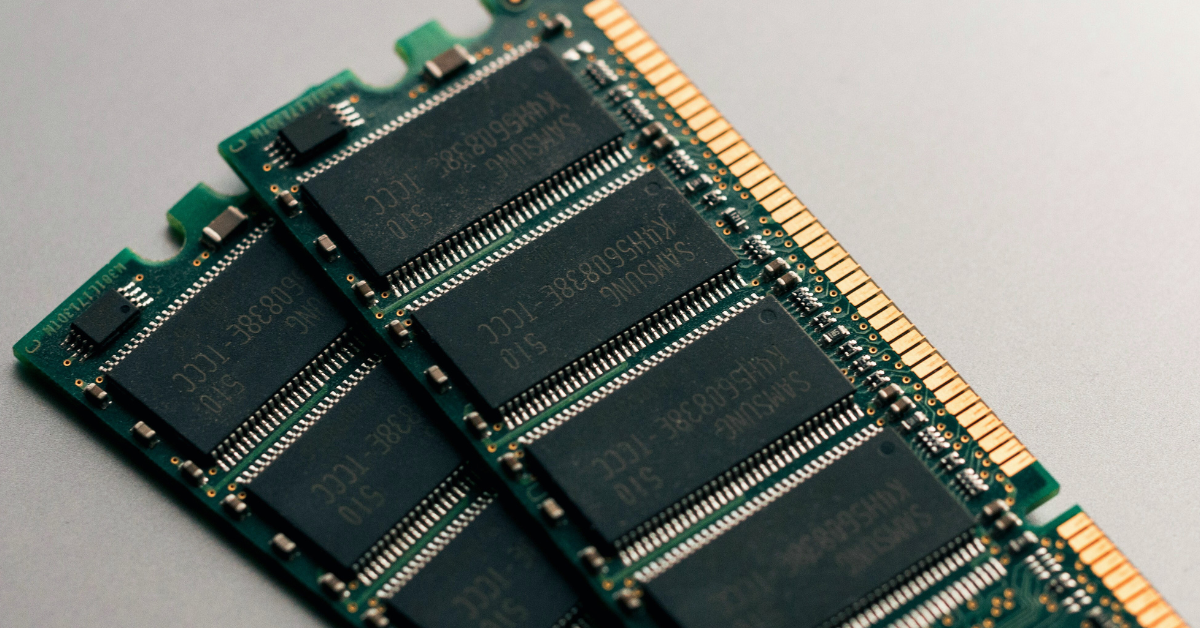
    RAM/Memory: For work laptops, we advise having at least 16 GB of RAM (or the option to upgrade). Reducing memory could cause problems with performance because Windows uses a lot of memory, especially for heavy users. For very low usage, 8 GB could be plenty, while 16 or 32 GB is better for heavier workloads.

    Storage: Choosing a larger storage capacity is advised because Windows takes some of the available storage during installation. 500 GB might be plenty for light users, but most users should strive for at least 1 TB.

    Video Card: A high-quality video card is essential for graphic-intensive tasks like graphic design and video editing, not only for gaming. A good video card is crucial when choosing a professional laptop if these are duties you perform as part of your workflow. Gamers’ laptops are frequently equipped with excellent video cards and screens making them a good choice even for non-gaming purposes.

    CPU: When purchasing a laptop, the CPU’s quality is quite important. Greater capability for managing numerous browser tabs or running programs simultaneously is correlated with a more powerful CPU. If you find yourself multi-tasking for work, you will need to look for a powerful CPU.

    For organizations purchasing laptops for multiple users, customization can be challenging. Valley Techlogic offers expert recommendations tailored to meet your workforce’s needs while considering budget constraints. Through our procurement services, we have partnerships with major vendors like Dell, Lenovo, and HP, providing a wider range of choices than typically available in physical stores.

    Valley Techlogic also offers installation services to assist with setting up new equipment and ensuring it’s ready for your employees.

    Discover more about our procurement services by scheduling a consultation here and you can learn more about our procurement services here.

    Looking for more to read? We suggest these other articles from our site.

    This article was powered by Valley Techlogic, an IT service provider in Atwater, CA. You can find more information at https://www.valleytechlogic.com/ or on Facebook at https://www.facebook.com/valleytechlogic/ . Follow us on Twitter at https://x.com/valleytechlogic.

  • Keep running out of disk space? Here are our solutions.

    Keep running out of disk space? Here are our solutions.

    Have you been getting a low disk space error on your Windows device? This means your computer is out of space to download new files or even apply crucial updates. There are some obvious solutions to the problem and not some not obvious solutions that will help you solve the problem in the long term.

    The first obvious solution is to delete files you no longer need. If your SSD or hard drive is on the smaller side this can be easier said than done. It’s important to remember a Windows installation typically takes up 90 GBs of space, so if you’re only working with 250 GBs that’s nearly half your drive space utilized off the bat. We often recommend customers keep this in mind when they’re shopping for a new computer.

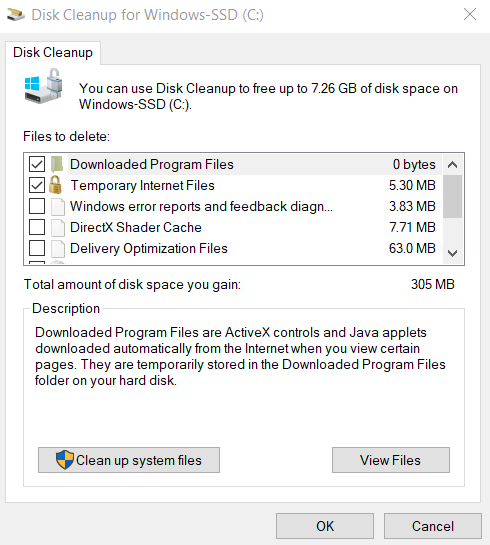
    The second obvious solution is to clear your computer of junk files, such as temporary files or cookies. You can do this quickly by searching for “Disk Cleanup” in the search bar on your task bar or by hitting Windows Key + R and typing “cleanmgr” in the box that comes up. Then you select the drive you wish to clean (typically C). The temporary files folder should already be selected but you can choose to clean up more folders if you would like (Recycle Bin is often another good choice for reclaim space).

    This is an example of what the Disc Cleanup tool can do.

    The third option, which may be a little trickier depending on the type of device you have, is to add additional storage. For a desktop computer with additional drive bays, it can be relatively easy to have an extra SSD installed though you may require assistance in pairing it with your computer. Laptops often have their storage soldered, meaning an upgrade is not possible, however this can vary and it’s best to leave this up to a professional.

    Some of the not so obvious solutions are:

    1. For Microsoft 365 users, you actually have access to 1 TB of personal storage through OneDrive. This means you can move some of your files to your OneDrive storage while clearing up space on your personal computer. Even free users have access to 5 GBs of personal space. We created an article on how to best utilize your OneDrive storage here.
    2. Transfer large files to an external drive. While less convenient then having the drive built into your device, external drives are quite affordable and can work in a pinch to give you the space you need while evaluating whether more permanent storage remedies are available.
    3. Verify your drive is actually full. Some viruses and malware can either fill up your device with bogus files or trigger this error, so it’s best to have an IT professional evaluate your device if you’re getting a “Low Disk Space” error when you know you should have adequate space available.

    If you do have low disk space, you may be wondering how often the error will pop up for you. It depends on just how much space you have left. Windows typically issues 3 warnings.

    1. At 200 MBs remaining the error will show up once for 10 seconds.
    2. At 80 MBs remaining the error will show up every 4 hours for 30 seconds.
    3. At 50 MBs remaining the error will show up at every 5 minutes for 30 seconds, obviously by this point it’s crucial the issue be addressed.

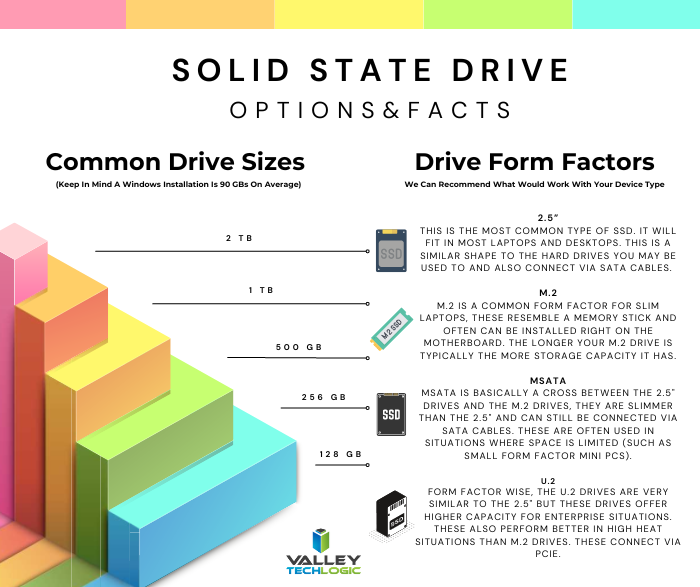
    If you’ve reached this point and decided it’s a good idea to replace or add storage to your device, you may be wondering what to buy. For laptops and desktops, we really recommend SSDs over hard drives. Hard drives contain a physical component (a disk that spins) and this part can break down with use and leave you in the lurch. Even with SSDs though there is high end and low end. We’ve broken down some of this information in the chart below.

    Need more advice on purchasing storage for your business? Valley Techlogic are procurement experts, our sales team can work with you to choose the right storage options for your business and our technical team can manage your installation. Learn more about Valley Techlogic’s procurement services here or schedule a consultation today.

    Looking for more to read? We suggest these other articles from our site.

    This article was powered by Valley Techlogic, an IT service provider in Atwater, CA. You can find more information at https://www.valleytechlogic.com/ or on Facebook at https://www.facebook.com/valleytechlogic/ . Follow us on Twitter at https://x.com/valleytechlogic.

  • Need a new work laptop? Here are five features to focus on

    Need a new work laptop? Here are five features to focus on

    Selecting a new work device is a personal choice, there are factors a lot of buyers focus on. Sizing, screen type, track pad feel or material, keyboard type. All of these peripheral factors that go into choosing the perfect laptop to complete your work on.

    We want to dig specifically into what you should consider when it comes to the specs of your work laptop. What you do and how you do it will greatly affect whether a laptop is the right choice for you, from smaller footprint lower cost models that work perfectly for light duty to robust, graphic and memory intense models that can handle high use scenarios such as graphic design or multi-tasking.

    Here are the five things we consider most important when it comes to the use of your laptop for work.

    1. Battery Life. Battery life may not be as important if you intend to dock your computer at a desk and leave it there primarily. If you need your laptop on the go, however battery life is hugely important and what’s available varies widely. One thing to remember is that higher specs usually correlate to less battery life, so if your job is light duty but on the go it may be better to look for a lighter, less powerful laptop.
    2. RAM/Memory. No matter what we recommend at least 16 GBs in your laptop (or the ability to upgrade). This is because Windows itself uses quite a bit of memory, so if you opt for less memory in your work laptop you may find it struggles to keep up. 8 GBs might be okay for very, very light usage but for heavy users 16 or 32 GBs is preferable.
    3. Storage. Again, because Windows does use up some of the storage available for its installation we want to look for more capacity if possible. For light users 500 GBs is fine, but for most users we would recommend at least 1 TB.
    4. Video Card. When you think video cards you might think gaming, but a good video card is also used by your computer for certain processes, especially graphically intense one. If video editing or graphic design is part of your workflow, we suggest looking for a work laptop with a better video card even if it’s a laptop that’s marketing is aimed at gamers. As a bonus these laptops will usually have a better quality screen as well.
    5. CPU. We can’t overlook the CPU quality In the laptop buying process. More CPU power means more capacity to run programs or have a lot of tabs open in your browser.

    Of course, if you’re buying for many users within your organization, it can be difficult to customize your buying to specific users. At Valley Techlogic we’re able to make recommendations for laptops that will meet the needs of your workforce while also keeping budget in mind.

    Through Valley Techlogic’s procurement services we can help you buy new equipment for your office through our vendors with more choices than are usually offered through their brick-and-mortar presence. We have relationships with Dell, Lenovo, HP and more that we can use to your advantage.

    Valley Techlogic also offers installation services if you need help setting up your new equipment and getting it ready for your employees.

    Learn more about our procurement services today by clicking the banner below to get started, or click here to schedule a consultation.

    Looking for more to read? We suggest these other articles from our site.

    This article was powered by Valley Techlogic, an IT service provider in Atwater, CA. You can find more information at https://www.valleytechlogic.com/ or on Facebook at https://www.facebook.com/valleytechlogic/ . Follow us on Twitter at https://x.com/valleytechlogic.

  • Security Camera Buying Guide for Businesses in 2023

    Security Camera Buying Guide for Businesses in 2023

    We may be alone here, but it seems like the interest in security cameras has climbed over the past year. Perhaps it’s because the technology has vastly improved over the last decade and our clients are ready to swap out slower, inefficient models that capture lackluster video at and are expensive to maintain for newer models that capture crisp clear video and have increased features to make reviewing that video much, much easier.

    If you were unaware, the grainy surveillance footage you’re used to seeing is quickly becoming a thing of the past. If you’re a fan of crime dramas, you may have seen the police officers in those show ask to have a video unrealistically “enhanced” to show the suspects on screen from original footage that starts out barely visible. Now, that sort of technology is in some cases a reality.

    Instead of starting with grainy footage, the cameras we have available for our customers have clear easy to view footage of a wider area than you would have been able to get in the past (meaning less cameras to buy to cover the same square footage). These cameras are also backed by software enhancements that enable you to search through the footage to find a specific time, an object such as a license plate, or even specific people.

    You can learn more about the AVA powered camera systems we offer here. The best thing about the AVA solution is it can pair with your existing cameras, allowing you access to many of these benefits without buying new cameras.

    That brings us to the pros and cons of buying a new camera system for your business:

    • Pro: Enhanced Features, obviously we just spent some time going over the features you’ll stand to gain from a new camera system. Another feature you may not have considered is reduced storage costs; many camera systems now store data in the cloud meaning you will not have to pay for onsite storage (which can add up if you tend to save your footage for a while).
    • Con: Cost, obviously the cost of a new camera system can be quite expensive, but perhaps less than you may think. As technology has grown and cameras have become more ubiquitous, the costs have also dropped.
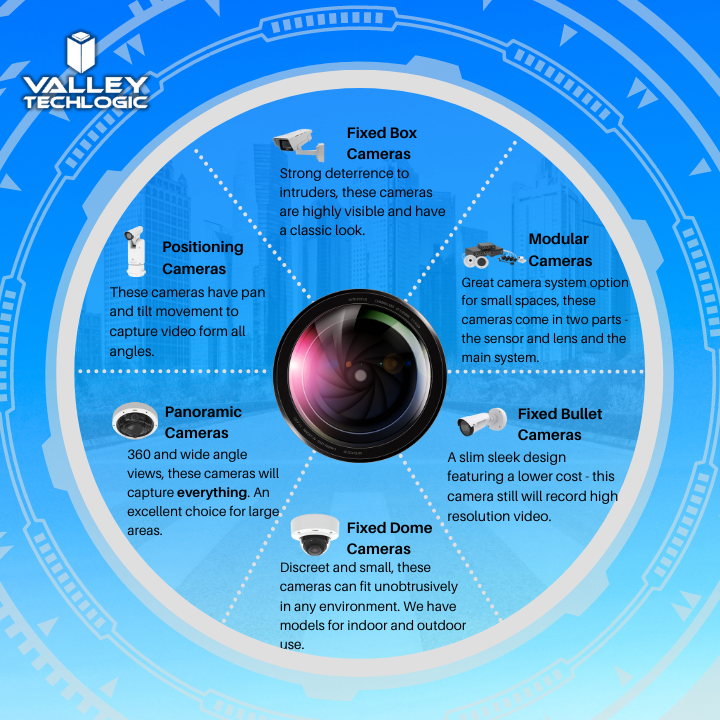
    • Pro: More Options to Fit More Spaces, if you have old school bullet style cameras only you may be surprised at the range of options and styles available now. We still recommend the bullet style for outdoor use as it’s very obvious that a camera is in place to potential intruders, but for in office use a more discreet camera might make more sense (and you can look at our chart on camera styles below).
    • Con: Installation, going through the installation of any kind of equipment can bring up unforeseen issues. Problems with wiring or getting the placement exactly right for the location it’s being placed. There is of course the expense of the installation too, which in some cases can rival the cost of the cameras themselves. Every situation is different and it’s best to have your specific setup reviewed by a technician to get a clear estimate.
    • Pro: Better Able to Work in a Variety of Conditions, older cameras often didn’t handle interference or poor lighting very well. Today’s cameras can adjust for poor lighting or poor visibility and some cameras even offer night vision for poorly lit areas of your building.
    • Con: Software Costs, of course for AI or software backed cameras you will encounter a software cost for utilizing those features. We feel it’s more than worth it considering how much more useful your cameras will be for your business and should be considered part of the cost of maintaining your security in your business.
    • Pro: More Integrations, as our AVA page illustrates, many of today’s camera systems also integrate with sensors that can monitor for odors or liquids, and even specific sounds (such as screaming or a gunshot).
    • Con: There really aren’t any additional cons outside of the expense and going through the installation process, once your new camera system is in place you will wonder how you ever got by without it.

    Here is a brief overview of the types of cameras that are now available on the market:

    While we recommend the AVA solution the most for our clients, we have camera system options for businesses of all shapes and sizes. We would be more than happy to provide a custom estimate for your business, reach out today to schedule a walkthrough with one of our security camera experts.

    Looking for more to read? We suggest these other articles from our site.

    This article was powered by Valley Techlogic, an IT service provider in Atwater, CA. You can find more information at https://www.valleytechlogic.com/ or on Facebook at https://www.facebook.com/valleytechlogic/ . Follow us on Twitter at https://x.com/valleytechlogic.

  • Refurbished versus new, what are your options when it comes to on-premises servers?

    Refurbished versus new, what are your options when it comes to on-premises servers?

    There’s no debate, when it comes to buying an on-premises server for your office it’s a big decision where cost is absolutely a major factor. The word “refurbished” sometimes causes our clients to recoil, we’ve all had bad experiences purchasing refurbished electronics that were DOA (dead on arrival) or perhaps were cosmetically or functionally dubious.

    With servers it’s a little different. Typically, what we see from servers is that one was sent back to the retailer very early on into its life span. Sometimes it’s because the configuration just wasn’t right for the purchaser or because they come from a sector that has very rigorous standards for server replacement (some sectors look to replace servers every 3 years). These servers will still have a lot of life left in them and the big server manufacturers (Dell, IBM, HP etc) will reset them, add some new components, and bring them back up to practically like new conditions.

    If you have a very specific goal in mind for your on-premises server and know you need the latest and greatest hardware components to meet that goal, then we definitely recommend purchasing new. If your goal is to replace an existing aging server or your needs for capacity are more minimal, refurbished is a great option.

    Here are three pluses when buying a new server.

    1. Warranty – New servers will have the longest warranty available; we typically see 5 years being the standard.
    2. Customizable – When you buy a new server you get to customize the hardware and storage, with a refurbished server you’re purchasing what the manufacturer has available.
    3. Modern Features – A new server will have all the latest features, have the highest performance, and be compatible with modern software.

    There also pluses when considering refurbished:

    1. Cost Saving – Of course, the first plus is the cost saving benefits. We often find a refurbished server is substantially less than a new server. You could save as much as 80% compared to buying a new server.
    2. Still Effective – A refurbished server will still be almost as effective as a new server, and for many of our clients there is no noticeable difference between new and refurbished for their use case.
    3. Still Includes a Warranty – While it won’t come with a manufacturer’s warranty, Valley Techlogic offers a 1-year warranty for clients who purchase a refurbished server through us.

    Of course, there are things to consider when doing a server upgrade in general. Here is a chart with the benefits you will receive when replacing an aging on-premises server:

    Another thing to consider is if your current server is compatible with your existing line of office software a refurbished server may be more compatible, sometimes being on the bleeding edge of technology can have its downsides especially when it comes to legacy software.

    You also want to keep in mind that lead times will vary as well, refurbished servers are often more available while a server customized for your business could take longer to get. If your current server is on it’s last leg or has even died, refurbished may not be your best option but your only option.

    There are a lot of things to consider when it comes to buying a server, and Valley Techlogic can help. We not only offer in-house procurement services we also can do an assessment of your specific situation and offer the best buying advice for your business. Reach out today to learn more.

    Looking for more to read? We suggest these other articles from our site.

    This article was powered by Valley Techlogic, an IT service provider in Atwater, CA. You can find more information at https://www.valleytechlogic.com/ or on Facebook at https://www.facebook.com/valleytechlogic/ . Follow us on Twitter at https://x.com/valleytechlogic.