Tag: multifactor authentication

  • Have you heard of zero trust security? Why it should be the standard for small businesses and 3 ways to implement it

    Have you heard of zero trust security? Why it should be the standard for small businesses and 3 ways to implement it

    Explaining cyber security in 2024 means navigating all sorts of buzz words – cybersecurity awareness, data breach, ransomware and malware, endpoint security, threat detection, two-factor and multi-factor authentication, and yes zero trust just to name a very small portion of them.

    We know users feel burnt out on the number of phrases that do represent actual security threats that are thrown at them day to day, as an IT service provider it can be difficult to translate this phrasing into a tangible concern for our clients.

    For example, whose data hasn’t been leaked in a data breach in 2024? Our personal data has become a commodity that most of us have accepted may end up on the internet in ways we can’t anticipate or prevent.

    But that’s not exactly true, with a zero trust environment you can make your business much more resilient to threats and data breaches and it’s not as difficult as you may think.

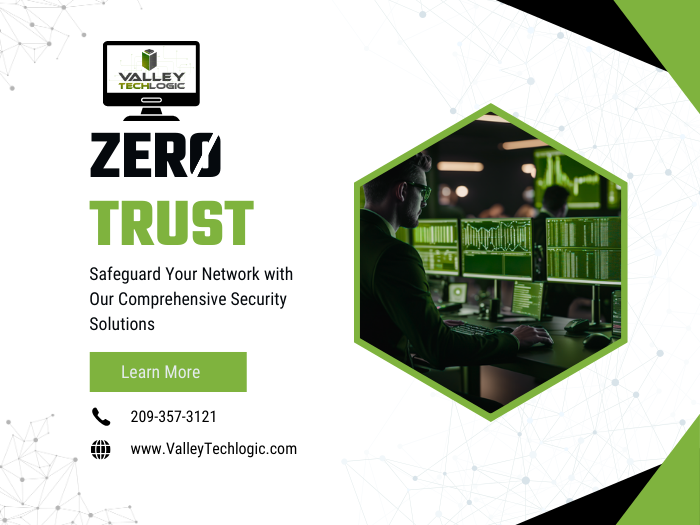
    What is Zero Trust? Zero Trust abandons the idea that everything connected to your work network is safe and instead treats everything as a potential threat, you might be thinking now, why would I want that? It is a more rigorous approach but extremely beneficial, if every device must be individually verified then none of them can act as a trojan horse to your business.

    The key pillars of Zero Trust are:

    • Least Privilege: Users get enough access to do their job, no more no less. We can’t tell you how many situations we’ve encountered where everyone’s computer has admin level privileges, and in a data breach situation that would make any one of those devices an extreme threat to your business.
    • Continuous Verification: It might be kind of irritating at first to check your two-factor application or your phone for a texted code – but the benefits will come in spades should any of your passwords be leaked (only around 50% of users are aware of good password hygiene).
    • Network Segmentation: This one is not too difficult to implement, and your users won’t even notice it, this is just segmenting your network so that say your work computers and other devices are on one network and outside devices (like a visitor’s cellphone) are on something like a guest network. This zero cost fix will mean you have greatly reduced exposure to threats from outside devices.

    Within the pillars it’s easy to see the three steps we would recommend someone start with when setting up a zero trust environment, that is reducing users to having only the level of access tey need, enforcing two factor or multi-factor authentication, and setting up at the very least a guest network.

    When it comes to implementing cyber security standards, the sky is the limit. All of the settings we recommend above really only cost time, but they will benefit your business greatly in the event any kind of breach occurs.

    Limiting the damage that can be done is always the goal when it comes to cyber security, hackers will constantly push at boundaries and find ways to access your systems (yes even if you’re a small business) and with minor improvements you can protect yourself from most major threats.

    Cyber security protection is a cornerstone of our service plans, and whether you’re interested in evolving your cyber security standards to include zero trust strategies or in receiving the benefits of a comprehensive cyber security stack without having to assemble it yourself, Valley Techlogic has you covered. Book a meeting with us today to learn more.
    Looking for more to read? We suggest these other articles from our site.

    This article was powered by Valley Techlogic, leading provider of trouble free IT services for businesses in California including Merced, Fresno, Stockton & More. You can find more information at https://www.valleytechlogic.com/ or on Facebook at https://www.facebook.com/valleytechlogic/ . Follow us on Twitter at https://x.com/valleytechlogic and LinkedIn at https://www.linkedin.com/company/valley-techlogic-inc/.

  • Our how to guide on setting up MFA for your organization’s Microsoft 365

    Our how to guide on setting up MFA for your organization’s Microsoft 365

    In addition to major updates released for Microsoft Windows this month, Microsoft also released their Digital Defense Report for 2023. You can find it here.

    One page in the report caught our eye and that’s the five items you can enable that will block 99% of attacks. At the top of the list is enabling multi-factor (MFA). The other four items are: apply Zero Trust principles, use extended detection response (XDR) and anti-virus/malware, keep your systems up to date and protect your data.

    We’re zeroing in on enabling MFA today as it’s simple to implement (can be done today) and will increase the security of your account tenfold.

    The reason we say this is because the report also outlined that password-based attacks are also up tenfold, from 3 billion attempts per month in 2022 to 30 million per month in 2023. Microsoft says they have blocked an average of 4,000 password attacks per second over the last year. Attacks know many Microsoft users have not enabled MFA and are targeting those users specifically.

    It’s not a manual process either, many of these brute force attempts are being enacted by bots. Cyber criminals set these bots up and let them run, reaping the rewards from the stolen accounts they’re able to access. In addition to that, many credentials are still available on the web for a very low cost.

    We know many people have “breach fatigue”, news of yet another massive breach is not the major news topic it once was. It can feel much different though when it happens to you directly. If you currently re-use passwords for your accounts, it’s highly likely that password has been offered for sale on the web.

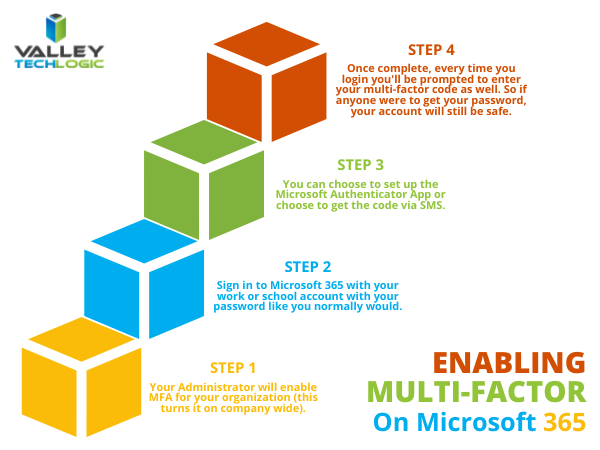
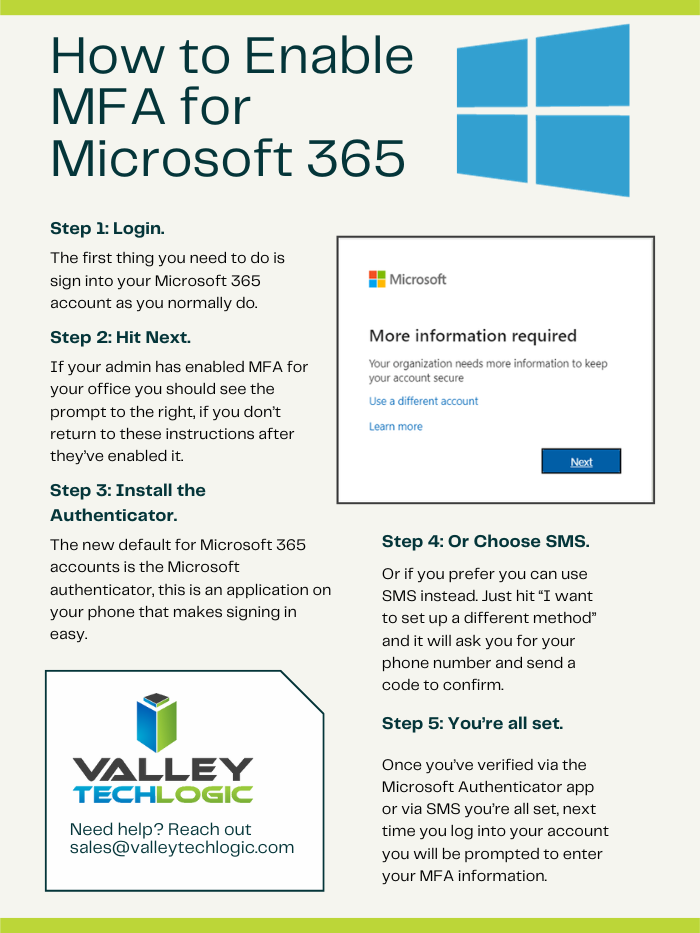
    Enabling MFA is strong protection against these methods and more. See our chart on how to set up MFA for your own Microsoft account.

    As you can see, it’s pretty easy to enable MFA for your own account but did you know you can also set it up from an organizational level to enable it for your employees?

    The steps doing that are as follows:

    1. Navigate to the Microsoft 365 admin center at https://admin.microsoft.com.
    2. Select Show All, then choose the Azure Active Directory Admin Center.
    3. Select Azure Active Directory, Properties, Manage Security defaults.
    4. Under Enable Security defaults, select Yes and then Save.

    Just to note, you must turn off legacy per-user MFA first before enabling global MFA in your organization. You can find that by navigating to Users > Active Users and you should see a tab on this page for multi-factor authentication. On this page should be a list of your users and you want to set each user to MFA disabled. Then you can loop back to our previous instructions and turn on the global MFA instead.

    There are also other global security settings in this section but before testing out different settings we suggest reaching out to your IT provider. MFA is a pretty non-intrusive security setting, but other settings may have unexpected consequences when it comes to you or your employee’s workflow. It’s best to evaluate your security options with a pro.

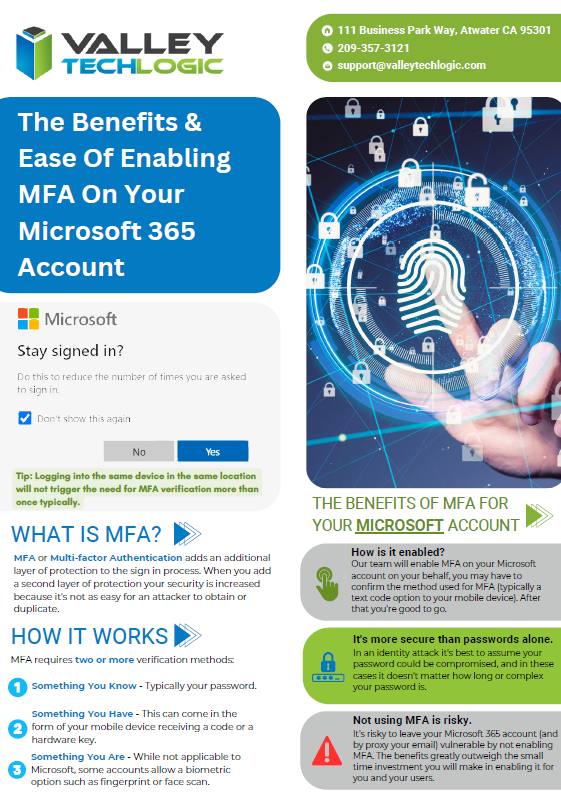
    Don’t have access to an IT pro? Valley Techlogic can assist. We are experts both in the field of cyber of security AND all things Microsoft. See our advertising flyer on our approach to enabling Microsoft 365 MFA for our customers.

    You can schedule a consultation with us today to learn more.

    Looking for more to read? We suggest these other articles from our site.

    This article was powered by Valley Techlogic, an IT service provider in Atwater, CA. You can find more information at https://www.valleytechlogic.com/ or on Facebook at https://www.facebook.com/valleytechlogic/ . Follow us on Twitter at https://x.com/valleytechlogic.

  • Our UPDATED Guide to MFA (Multi-Factor Authentication)

    Our UPDATED Guide to MFA (Multi-Factor Authentication)

    Last year we had an article on our top picks for 2-factor authentication and we’ve touched on what makes a good password before. We thought it would be a good idea to refresh our advice on this topic and combine our tips into one easy to revisit guide.

    One thing that we surprising haven’t recommended often before but would like to now is implementing Microsoft 365 2-factor authentication on your account. We utilize Microsoft products heavily in our business and we find many of our clients are the same, Microsoft software solutions are deeply woven into their day-to-day business activities. You can find our quick guide to implementing it in last week’s article here.

    We’ve also touched on how implementing 2-factor on your Google account could decrease your odds of your account being hacked by half. In many cases it really is as easy as implementing the built in 2-factor settings in the accounts you utilize and you may not even need to install a 2-factor authentication software, you can simply have the codes texted to your mobile device.

    Since this is a guide though we still want to give you a recommendation on that though, for us we’ve utilized Microsoft’s authenticator program for the most part. We also found that Google’s Authenticator and Authy’s Authenticator mobile apps are very easy to use as well.

    It can be a little more convenient to have the 2-factor codes in one place, so you don’t have to request a code be texted every time you login (especially if you have a lot of different login’s you use throughout your workday).

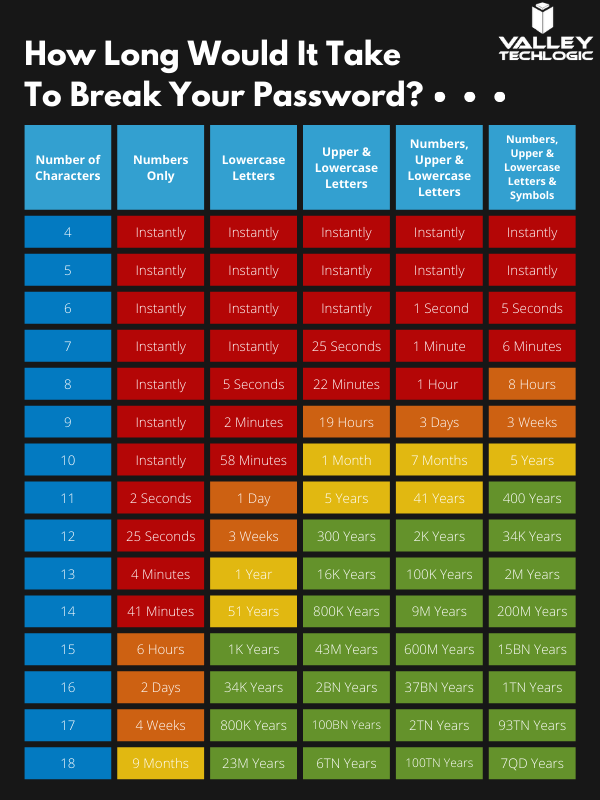
    You may be asking yourself at this point, what’s wrong with just my plain old password? You may have typing it in down to muscle memory and you don’t have to retrieve a code from anywhere. Well, this chart on how long it can take a crack a password based on specific criteria will tell you why:

    How long would it take to break your password?

    Of course, the more complex your password is the greater the difficulty in cracking it, that brings us to our next bit of advice – utilize a password manager and have stronger (and varied) passwords.

    Across the board for Valley Techlogic our employees are using LastPass, we like that it’s cross device and cross platform and enjoy the warnings and alerts it gives us if a password has been possibly compromised or if we’re trying to reuse a password we’ve used before.

    However, any reputable password manager is going to be a big improvement over reusing simple passwords or trying to remember complicated ones.

    Even with a password manager, your passwords being compromised online is the main reason you should consider enabling 2-factor or multi-factor on your accounts. You can have strong varied passwords and your passwords may be leaked due a breach that’s outside your control. Webpages are hacked all the time, and if your banking password is part of a data breach it can then become available to bad actors on the dark web.

    With 2-factor enabled however, it won’t matter if they have your password as they would still need your authenticator program or your mobile device to login to the account. We think it’s worth the (very slight) inconvenience of a few seconds to have that level of security.

    If you’re security conscious and want to go even further, you can also use a security token to lock your device (highly recommended for sensitive work devices). That means the device is useless without the security token to be able to unlock it.

    Enabling multi-factor authentication across your business uniformly can be an uphill battle, but it is one we have experience with here at Valley Techlogic. As security regulations increase, this simple change will make a huge difference in your cybersecurity compliance level. Learn more today with a quick consultation.

    Looking for more to read? We suggest these other articles from our site.

    This article was powered by Valley TechLogic, an IT service provider in Atwater, CA. You can find more information at https://www.valleytechlogic.com/ or on Facebook at https://www.facebook.com/valleytechlogic/ . Follow us on Twitter at https://x.com/valleytechlogic.

  • Summer is Here and with it Comes Vacations – Our Top 10 Travel Tech Tips

    Summer is Here and with it Comes Vacations – Our Top 10 Travel Tech Tips

    As we approach Fourth of July weekend, reduced COVID era restrictions have made travel feasible (and desirable) for many across the US for the first time since spring 2020. We all might be a little rusty when it comes to internet safety on the go or maybe you’re looking for tech tips that will make traveling easier? Well, we have you covered.

    Traveling and using your devices away from your home or office network carries some risks. Here are 5 things you should do before you travel to protect your devices.

    1. While traveling sometimes you can’t avoid using a public network, but one good way to protect your device is to make sure it’s been fully updated. That way it will be slightly safer when using less secure networks (although it’s still a good idea to avoid it if you can).
    2. Another good bit of advice is to make sure you have strong passwords, and to have a password manager setup and ready to go on the device you’ll be traveling with.
    3. One tool for traveling and using risky public networks is to enable a VPN, a VPN will help shield your data.
    4. You should also avoid logging into websites that contain important data, like your email or banking website on a public network.
    5. Finally, another good tip if you haven’t done so already is to set up “Find My Phone” on your mobile device. This will allow you to remotely wipe your mobile phone if you were to lose it while traveling (or possibly even find it if it’s still nearby).

    If you’re already on the road or away from home, we also have these 5 tips for making your travel easier with technology:

    1. Power banks are a must have while on the go, having a fully charged power bank on you will make sure you can charge your phone if the battery is low while you’re out and about.
    2. RFID blocking bags can help protect your personal information from intrusive scanning, especially for things like your credit card.
    3. Save pictures you take with your mobile phone automatically to the cloud with a service like Google Photos or Amazon Photos (the pricing for these products is very reasonable as well).
    4. A tip specifically for iPhone users, you can update friends and family on your airline travels just by texting them the airline and flight information. Texting “American Airlines 425” will allow them to tap and automatically see a flight tracker with the flight information. Handy!
    5. Looking for more legroom in your return flight home? Search SeatGuru to find the best seat on a particular flight.

    Company travel is a different can of worms, especially when it comes to securing your office devices while on the road. At a minimum, we recommend enabling 2-factor or multi-factor authentication for company devices – especially those that are used on the go. For Microsoft 365 users, it’s easy to setup multi-factor authentication. Here are the steps:

    Enabling MFA on Microsoft 365

    If your office needs help setting up multi-factor authentication for remote and traveling employees, Valley Techlogic would be happy to assist. Tell us more in a quick consultation.

    Looking for more to read? We suggest these other articles from our site.

    This article was powered by Valley TechLogic, an IT service provider in Atwater, CA. You can find more information at https://www.valleytechlogic.com/ or on Facebook at https://www.facebook.com/valleytechlogic/ . Follow us on Twitter at https://x.com/valleytechlogic.

  • If you enabled 2-factor authentication on your Google account recently, your odds of being hacked dropped by half

    If you enabled 2-factor authentication on your Google account recently, your odds of being hacked dropped by half

    Google began requiring 2-factor authentication on some user accounts this past year, and while there’s always some inconvenience involved in making that switch the benefits definitely outweigh it.

    Google enrolled 150 million members in the last three months of 2021 in their 2-factor authentication program, and they’ve found that instances of accounts being hacked dropped by half for those users.

    Google utilizes two-step verification, or 2SV which involves having a login challenge beyond a simple password entry. This may be a message in Google’s own authenticator application or a hardware security key depending on user preference.

    Google said in their blog post on the topic, “This decrease speaks volumes to how effective having a second form of verification can be in protecting your data and personal information, turn on 2SV (or we will!), as it makes all the difference in the event your password is compromised.” Indicating Google’s plan to initiate the requirement across the board in the near future.

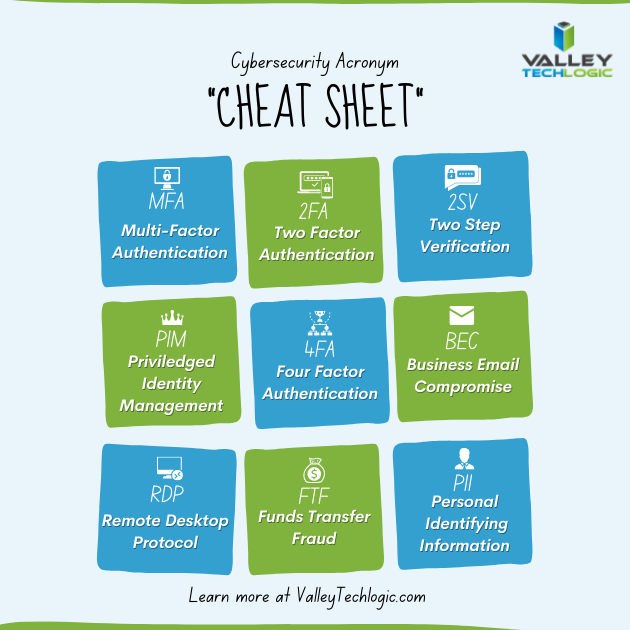
    The hesitancy with users to utilize such an effective security measure seems to stem from inconsistent implementation as well as a general lack of education on the topic. We thought it would be helpful to present this “cheat sheet” on multi-factor authentication and other cybersecurity acronyms.

    Cybersecurity Acronym Cheat SheetWith breaches being ever more common, having that additional step past just a password before a hacker can access your account can make all the difference. A password you use across multiple website (which is also a bad idea) may be leaked without you even being aware of it, and the prompt from a multi-factor authentication application may even be your first clue that your accounts are being accessed by someone other than yourself.

    Google’s own authenticator is found on the Play Store and the Apple App Store and is a solid option, however we suggest users use whatever they feel most comfortable with or whatever is offered by the the websites they frequent (especially for important sites like banking or for work related web portals).

    To add to your security effectiveness, we suggest using a password manager as well so you can work on having more varied passwords – especially for sites that don’t currently offer multi-factor authentication as an option.

    If you’d like tangible security, hardware security keys are a good option and many of them have widespread support for your online accounts such as email, social media, or even your password manager (adding another layer).

    Your devices also probably come with multi-factor security options built in, we’ve been pleased with the implementation of Windows Hello for Windows devices (even when we’re bleary eyed in the early morning, it always seems to recognize us). Fingerprint scanners for mobile devices have also come a long way and is a pretty convenient (and secure) way to keep access to your phone limited to just you.

    If you’re a business owner in the Central Valley and want to embark on the process of enabling multi-factor authentication within your business, Valley Techlogic can help. Our security experts can help you with enabling multi-factor authentication within your business as well help you meet your cybersecurity compliance goals. Reach out to us today to learn more.

    Looking for more to read? We suggest these other articles from our site.

    This article was powered by Valley TechLogic, IT service provider in Atwater, CA. You can find more information at https://www.valleytechlogic.com/ or on Facebook at https://www.facebook.com/valleytechlogic/ . Follow us on Twitter at https://x.com/valleytechlogic.

  • Business Email Compromise (BEC) and Phishing – How Do You Combat It?

    Business Email Compromise (BEC) and Phishing – How Do You Combat It?

    Business email compromise (BEC) and phishing are not new ways to scam, as soon as email rose to popularity as a dominant form of communications scammers saw a lucrative window and took advantage.

    Before we explain how to avoid it we should explain what Business Email Compromise (BEC) is. BEC is when a legitimate business is sent an email that looks like it’s coming from another legitimate business, but it’s not. It’s actually a scammer spoofing that email identity. This is the most popular form of phishing but it’s far from the only version. Scammers can even spoof your own domain, so an email looks like it’s coming from within your own organization.

    How do you combat something so insidious? The top way is training, by training yourself and your employees properly on what to look for then you can avoid these scams which cost people located in the US $57 million last year.

    Here are some of the things we look for when determining is an email is a phishing attempt.

    1. It may contain a generic greeting such as “Hello sir or madam” or “Hi Dear” a company you do business with or a person you know would probably know your name.
    2. The email mentions some kind of fraudulent activity on your account and has a link asking you to confirm your private details to unlock or otherwise reinstate your account. This is a VERY common scam.
    3. The links in the email are NOT from the business the email is purporting to be when you hover over them.
    4. The email may contain spelling errors and sentences that sound strange grammatically.
    5. The logos in the email may be of a poor resolution because these scammers do not have access to the real company assets.
    6. The email is coming from a CEO or President of a large organization and is asking you to wire money in exchange for a lump sum in return later. These emails may not have spelling errors or strange links but ask yourself – would any CEO or President of a large company be asking you to wire them money?

    That last one is key, if all the obvious methods of detection fail you may have to rely on just asking yourself if the request in the email makes sense. If the email looks like it is coming from someone you know personally, reach out to them via phone or in person to ask about it. Most of the time, victims who have had their emails compromised or spoofed have no idea it’s even going on.

    Beyond training on knowing what to look for in a phishing email these are our top 3 things to protect yourself from scams across the board.

    1. Keep the software on your devices completely up to date.
    2. Use Multi-factor or 2 Factor Authentication on your accounts.
    3. Backup your data regularly so on the off chance something happens, you’re covered.

    If you receive an email you suspect is a phishing attempt, the best thing to do is not respond to it and report it. You can report suspected phishing emails to the FTC here.

    For businesses located in the Central Valley, we offer cyber security training as part of our managed service plans (which includes comprehensive training on how to avoid phishing attacks).

    Phishing training available

    Looking for more to read? We suggest these tech articles from the last week.

    This article was powered by Valley TechLogic, an IT provider in Atwater, CA. You can find more information at https://www.valleytechlogic.com/ or on Facebook at https://www.facebook.com/valleytechlogic/ . Follow us on Twitter at https://x.com/valleytechlogic.

    Looking for IT Services in Fresno, Modesto, Stockton, Ceres, Atwater, Merced, Visalia or Lodi? We cover all these areas and more!