
Tag: backup and recovery

  • Western Digital suffers a ransomware attack, with hackers requesting an 8 figure sum and leaking image from internal meeting

    Western Digital suffers a ransomware attack, with hackers requesting an 8 figure sum and leaking image from internal meeting

    Western Digital is a well-known name in the data production and storage industry. Established in 1970, they were one of the original players in the process of making semiconductors and they have a storied history that began with calculator chips, included a bankruptcy as well as being at the forefront of floppy disc creation in the 1980’s to eventually the hard drives they became known for in the 1990’s. Chances are good you have had a Western Digital drive in one of your devices (you may even have one now).

    Despite being leaders in the digital storage industry, they’ve unfortunately proven no one is immune when it comes to ransomware attacks. While this story emerged mid-April (and the attack occurred March 26) we have an update as the hacker group “BlackCat” taunts Western Digital by leaking an internal video conference on the topic just this week. They leaked an image from the meeting on social media coyly dubbing the people included “the finest threat hunters Western Digital has to offer”. A clear mockery of their attempts to remediate the threat thus far.

    The hacker group is clearly trying to up the ante to get the company to fork over the ransom they’ve requested, a sum reportedly coming in at an eye watering 8 figures. For context a typical ransomware payment paid out by a business in Quarter 1 of 2022 was $228, 125. For individuals payouts hover around $6000. In a nutshell, ransomware is a lucrative business for those with unscrupulous motives.

    To make matters worse, it’s been reported that the group BlackCat has access to multiple Western Digital systems. Meaning this attack was well orchestrated and highly effective at not only making their data vulnerable but creating a disruption to all parts of their business. Western Digital has reported requested the services of outside security and forensic experts to try and recover what they can but needless to say this is an expensive lesson for their business both in money and time lost as well as their reputation in the technical industry.

    You would think being a leader in data storage that their backup recovery process would be flawless, unfortunately when hackers gain domain level access even the best laid plans for your data can go out the window. That’s why Valley Techlogic offers a multi-pronged approach to backups.

    Many clients like the idea that all their data is at their fingertips within their on-premises server. The server itself serves as a physical reminder that their data is ready and available when they need it.

    Unfortunately, having your data all in one place is not a good idea. Other than ransomware attacks such as this, it also leaves your business vulnerable if your server fails for whatever reason. We’ve seen it before; many clients aren’t expecting their servers to just give out or for something like a fire or other disaster to affect them and when it happens, they’re left scrambling. The process to recover from scratch is not always guaranteed and even if a recovery is possible, it can take as long as 3 months to get back mostly to where you were. Generally, a 100% recovery is not possible in these instances.

    That’s why at Valley Techlogic our backup solution TechVault is available and used by each of our clients. We have this chart on the benefits of our TechVault solution.
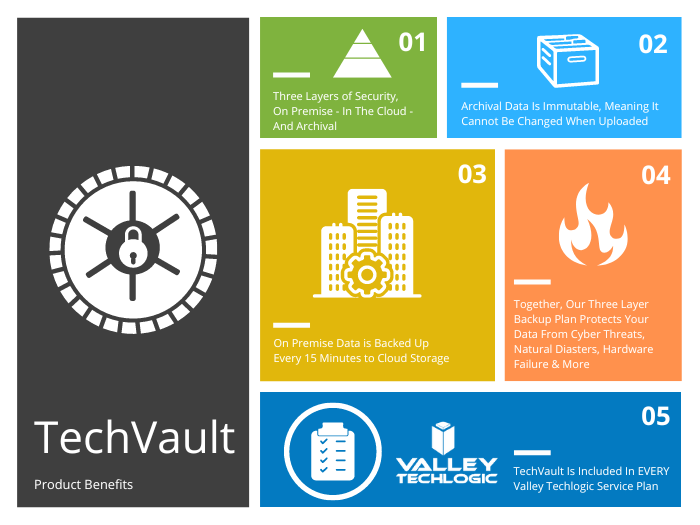
    You can also learn more about it by visiting here. If the Western Digital breach has left you concerned for the safety of your data, or you would just like more information on our backup solution you can request a consultation with our expert sales staff here.

    Looking for more to read? We suggest these other articles from our site.

    This article was powered by Valley Techlogic, an IT service provider in Atwater, CA. You can find more information at https://www.valleytechlogic.com/ or on Facebook at https://www.facebook.com/valleytechlogic/ . Follow us on Twitter at https://x.com/valleytechlogic.


  • Missing file? Don’t panic, 5 recovery tips for Windows devices

    Missing file? Don’t panic, 5 recovery tips for Windows devices

    I know this has happened to me before, I have a new Word document I’ve created sitting open (maybe I’m actively working on it) I mean to save it somewhere and I just don’t.

    Another scenario, someone requests an Excel spreadsheet I’d done some editing on and when I go to look for it, it’s nowhere to be found.

    Panic ensues, but then I remember Windows 10 (and 11) devices have a number of different ways of finding and retrieving lost documents – especially those that were created in the Office suite of software. Before trying any of these steps we suggest checking your recycle bin first just in case it was accidentally deleted.

    The easiest way (and possibly most obvious) is to just click the little magnifying glass on your taskbar and just search for what you can remember about the file name or the file contents. Windows search system is pretty powerful, and your search may end here. An extra tip for narrowing your options, up at the top of the search window you can narrow the options by type, such as Applications or Documents.

    If you tried searching for the document and came up empty, the next place you should look is the most recent files section in the document application you’re working with. In both Excel and Word you can find this section by going to the upper left hand section of the navigation panel and hitting the “File” button. From there you go to “Open”. In this section you’ll see all your most recent files.

    The recover unsaved documents button is here to save the day.

    If you strike out there don’t exit out yet, this is where tip number three comes in. At the bottom of this section, you may see a “Recover Unsaved Documents” button. Clicking that will bring up any documents that were closed without being saved and hopefully your missing document is found in this section because it starts to get a little trickier by step four and requires a bit of luck.

    If you have backups enabled on your computer you can follow these steps by first clicking the “Start” button followed by “Control Panel,” “System Maintenance” and then “Backup and Restore.” Once the backup has been restored, you can search it for your missing file.

    The final place to look is your temporary files folder, usually something like C:\Users\Owner\AppData\Local\Microsoft\Office\UnsavedFiles but individual file paths may vary.

    If you’re a Microsoft 365 OneDrive user you have a bonus recovery step available, you can try creating a file with the same name and file type as the missing document. After you’ve created the new file, select Properties, select the Previous Versions tab, and then hopefully a version appears there that you can restore.

    After trying all these steps if your wayward document is still missing, it may be time to call in the experts. Data recovery is a big part of what we do at Valley Techlogic, and to make sure our clients never have to go through the headache and stress of losing their very important documents and data backups are a core feature of all of our plans.

    Here’s an our backup program in a nutshell which we consider the gold standard for businesses:

    Click to learn more about TechVault.

    Want to learn more? Visit our calendar page to book a consultation.

    Looking for more to read? We suggest these other articles from our site.

    This article was powered by Valley Techlogic, an IT service provider in Atwater, CA. You can find more information at https://www.valleytechlogic.com/ or on Facebook at https://www.facebook.com/valleytechlogic/ . Follow us on Twitter at https://x.com/valleytechlogic.

  • It’s starting to feel like summer and that means rising temperatures and the potential for rolling blackouts – 3 ways to protect your devices during a power outage

    It’s starting to feel like summer and that means rising temperatures and the potential for rolling blackouts – 3 ways to protect your devices during a power outage

    While summer won’t officially start in the Northern Hemisphere until June 21st, Memorial Day week often marks the “unofficial” start of summer for many and May in general is when many states start to see rising temperatures – especially with the effects of climate changes causing record highs across the country.

    For California – and in particular the Central Valley where we’re located – rolling blackouts are a common occurrence as temperatures begin to rise, and these sudden unexpected power outages can damage expensive equipment that’s not properly protected.

    Sometimes power companies will give some notice of when an outage will be occurring in your area and in this case, we recommend unplugging what you can as that’s a surefire way to protect your equipment if an unexpected power surge were to occur.

    However, blackouts are often random and so we recommend the following preventative measures:

    1. Surge Protectors – A quality surge protector is a must have for every device on your office network, and not all surge protectors are created equal. Surge protectors always list a joule rating which tells you how much power they can absorb without failing, for computers we recommend a surge protector with a joule rating of at least a 1000.
    2. UPS (Uninterruptible Power Supply) – Next on the list is a UPS, this is a battery backup for your devices and for your office server in particular a must have item. When choosing a UPS, you want to ask yourself if you’re looking for something with enough power to let you safely turn your device off or if you wanted something that would keep your device online for days in an extended outage. We also created a short guide found below to what else you should look for when choosing a UPS.
    3. Power Generators – Finally power generators could be necessary for certain office scenarios, an automatic standby generator will be a big investment but if it’s mission critical your office power stay intact during a rolling blackout it could be worth it.

    Also here is our guide on what to look for in a UPS:

    UPS Choices Chart

    We’ve been talking about the power side of rolling blackouts and how an electric surge could potentially damage your devices but there’s also another thing to consider, your data.

    If a power outage occurs suddenly, anything that hasn’t been saved could be lost. If you’re a Microsoft 365 customer, you will have the benefit of the short-term backups they provide for your office documents (if you’ve ever had your computer restart while working on something and have experienced the profound relief seeing that “Recovered” documents bar you’ll know what we’re talking about).

    If you’re not a Microsoft 365 customer or you’re worried about data corruption or your service backups failing (or maybe your server Isn’t being backed up at all) we suggest talking to us about what your options are.

    We offer our clients our triple layer backup solution TechVault. Not only will we back up your onsite data, but we will also create a cloud copy that is updated every 15 minutes and an archival copy that is virtually impenetrable to bad actors.

    Want to learn more? Schedule a quick consultation with one of our sales representatives today.

    Looking for more to read? We suggest these other articles from our site.

    This article was powered by Valley TechLogic, an IT service provider in Atwater, CA. You can find more information at https://www.valleytechlogic.com/ or on Facebook at https://www.facebook.com/valleytechlogic/ . Follow us on Twitter at https://x.com/valleytechlogic.