Tag: microsoft 365

  • How to best utilize and organize OneDrive, the free cloud storage included with your Microsoft 365 subscription

    How to best utilize and organize OneDrive, the free cloud storage included with your Microsoft 365 subscription

    We find with our clients we find they’re often unaware they have a personal cloud storage solution right at their fingers tips and included for free with their Microsoft 365 subscription, OneDrive.

    Every Microsoft 365 business subscription user will have 1 TB of storage space free with their Microsoft 365 subscription. If you have an IT provider managing your Microsoft 365 subscriptions they probably have set this up to backup certain folders by default, usually your documents, pictures and desktop folders.

    These folders will automatically be synchronized to the cloud, so it provides excellent protection if one of your company devices is lost, stolen or breaks. It’s also a good cybersecurity measure to have your company workstations backed up in someway so if there’s ever a cybersecurity attack that effects your office, not all of your files will be lost.

    On that note, Microsoft does operate on what they call a “shared responsibility” model, so if your Microsoft account is compromised as well you may still lose those files even if they were backed up (which is why we always recommend enabling 2-Factor Authentication, Microsoft makes it easy).

    If OneDrive is successfully enabled on a device you’ll see a little blue cloud icon on your task bar, that when you hover over will tell you the status of your backup (it should say your files are up to date).
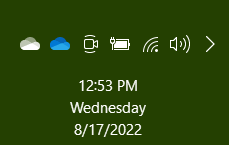
    Clicking on the blue cloud will allow you a glimpse at what files have been backed up recently, as well as a quick way to access the OneDrive folder located on your computer as well as the one that’s found online.

    1 Terabyte of storage is plenty for most users, but if you’re a heavy data user or someone in charge of most of the documentation for your office you may need more. Microsoft offers OneDrive plans outside of the 1 TB you receive for free as a Microsoft 365 user, see our chart below:
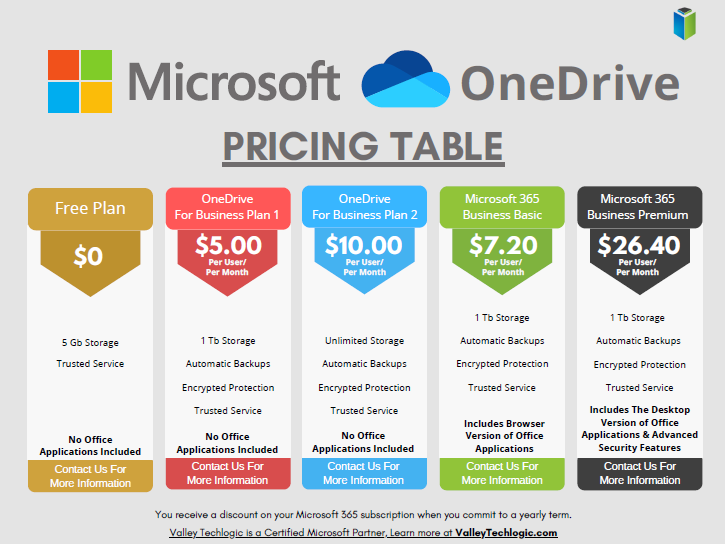
    Also, if you just want to try the service out but you’re not yet a Microsoft 365 user, you can either purchase a OneDrive subscription outside of the Microsoft 365 service (though we wouldn’t necessarily recommend it, Microsoft 365 is a better value) or you can test drive the service with their completely free 5 gigabyte storage option.

    5 GB is not a lot of storage these days but if you’re wanting to see if the service would be a good fit for you, it’s plenty for a good test run.

    Once you have your OneDrive set up, you might be thinking about how you’re going to organize it. Luckily, for the folders you back up any pre-existing folder organization you have will be backed up as well. If you have a sub-folder inside your Documents folder labeled “Mikes Important Files 8/20/2019” that same sub-folder will exist in your OneDrive.

    Besides that, here are 5 fast and easy folder organization tips:

    1. Don’t let files languish in your Downloads folder. I’m guilty of this myself, you’re busy and files you receive from colleagues or make just never make it out of their origination folder. It’s a good habit as you go to organization your new OneDrive space to sort things as they come in.
    2. Organize things by project or by date. When you’re looking for work and documents around a certain task or event, sorting by the date or by project is a good system to easily find them again. I’m in favor of by project myself.
    3. Use descriptive names, there’s nothing worse than trying to find a specific receipt if all your receipts from that store have the exact same name. Rename files so they’re easy to find.
    4. While sorting things when they come in is a good idea, even the best intentions fail when we get busy. Set up a time once a week to sort anything that gets left behind.
    5. Don’t make a folder for every single thing. You don’t want the solution to become worse than the problem. Group up items where you can (this is another vote in favor of sorting by project).

    If you need help with your businesses Microsoft 365 subscription and OneDrive, or just for tackling the topic of backups once and for all – Valley Techlogic is here for you. We even have our own backup solution for servers, TechVault. Learn more with a quick consultation today.

    Looking for more to read? We suggest these other articles from our site.

    This article was powered by Valley Techlogic, an IT service provider in Atwater, CA. You can find more information at https://www.valleytechlogic.com/ or on Facebook at https://www.facebook.com/valleytechlogic/ . Follow us on Twitter at https://x.com/valleytechlogic.

  • This weeks Microsoft outage brought down Teams, Outlook and more for several hours

    This weeks Microsoft outage brought down Teams, Outlook and more for several hours

    In major outage news, this week Microsoft had an outage that lasted over 6 hours and brought down Teams, Outlook and Exchange and more – grinding some workplace activities to a halt until the services came back. The outage affected Microsoft 365 customers worldwide.

    Services resumed yesterday morning although there were residual issues for some customers regarding logins and more. Most of the affected services were the online versions of the product, if you have a desktop accessible version of the Microsoft 365 products you may have noticed less of a disruption (other than Teams being unavailable).

    The cause of the outage was announced on Twitter:

    We’ve determined that a recent deployment contained a broken connection to an internal storage service, which has resulted in impact. We’re working to direct traffic to a healthy service to mitigate impact. Additional information can be found in the admin center under TM402718.

    — Microsoft 365 Status (@MSFT365Status) July 21, 2022

    By afternoon Thursday July 21st the Microsoft service health page (which can be found here) indicated that all services were up and running as usual.

    Valley Techlogic is a Microsoft shop by and large and we’re major proponents of the Microsoft 365 suite of services. As we mentioned, those who currently had a Microsoft 365 plan with access to the desk top versions were, or would have been, less affected by this week’s outage.

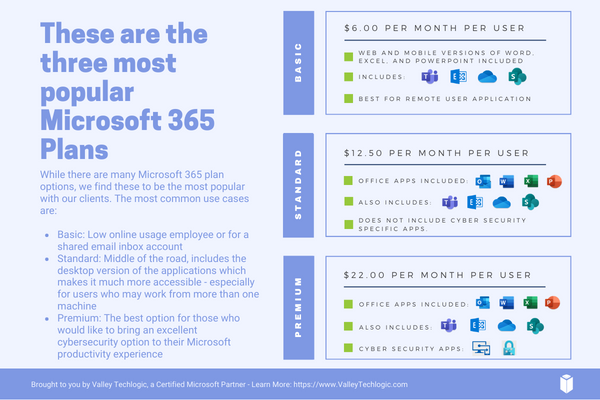
    Here’s a quick guide to the Microsoft 365 plans we recommend to our customers and why in a nutshell (note: this pricing is after discount for an annual commitment).

    Microsoft 365 Plan Chart

    Basic is a good product, but to make the most of your Microsoft 365 subscription plan we generally recommend spending a little more for Standard or Premium. For our security conscious clients in particular, the Premium subscription is an excellent value.

    Microsoft Business Premium comes with advanced cybersecurity protections built into the product, even if you’re not taking any other steps to protect your business from a cyberattack – switching to Microsoft Business Premium will give you major benefits for a very reasonable price (just $22 per user per month).

    Microsoft Business Basic is perfect for an extremely light user experience, say a shared email inbox for a specific billing purpose or for an employee who doesn’t perform many online tasks. For everyone else, we highly recommend upgrading.

    As we mentioned, we’re a Microsoft shop and a certified Microsoft partner and can assist you directly with your Microsoft products, especially choosing a Microsoft 365 subscription that will be the best fit for your business. Learn more today with a quick consultation.

    Looking for more to read? We suggest these other articles from our site.

    This article was powered by Valley Techlogic, an IT service provider in Atwater, CA. You can find more information at https://www.valleytechlogic.com/ or on Facebook at https://www.facebook.com/valleytechlogic/ . Follow us on Twitter at https://x.com/valleytechlogic.
  • Windows 365 and the Pros and Cons of Virtualization in Cloud Computing

    Windows 365 and the Pros and Cons of Virtualization in Cloud Computing

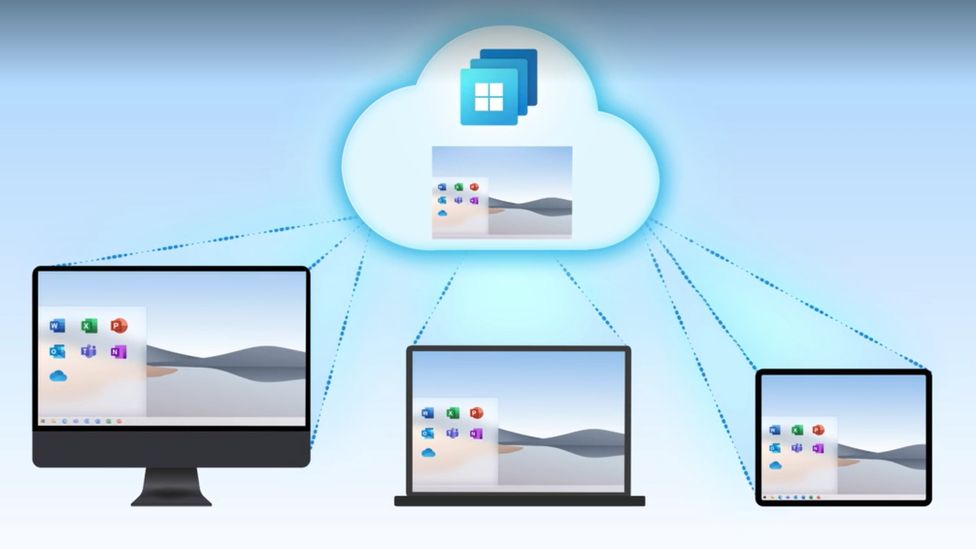
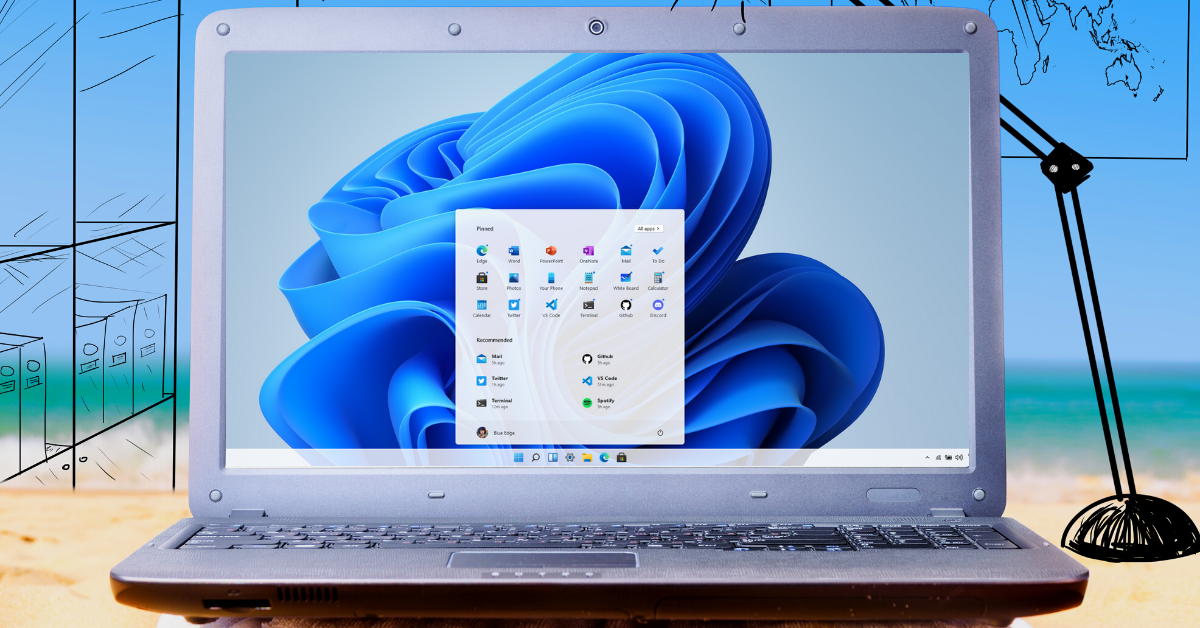
    One of the big announcements that coincided with the news around Windows 11 was the arrival of Windows 365, Microsoft’s new cloud PC product.

    Windows 365 is an easy to use, cross device cloud computing solution. You log into a Windows 10 virtual PC (Windows 11 should be available soon) and it’s already pre-loaded with the Microsoft 365 suite of tools and ready to go.

    The best part is it’s not restricted to whatever device you’re logging into, the Windows 365 instance you log into from work is the same one you can log into from your home device.

    You can even access increased computing power. You can configure a Windows 365 instance that has more processing power than the device you’re logging in from. It also includes one of the main benefits of cloud computing, the ability to easily roll back to a previous instance. Accidentally deleted a file you’ve been working on all day?  Roll back to an earlier instance to easily recover it.

    It’s also beneficial to the security of your business, if you have employees that work from home it can be difficult to manage devices that aren’t under your office network. You can have these employees instead log into their Windows 365 instances and you know that the rules are the same across the board (and that they’re benefitting from the Microsoft 365 advanced security features).

    Pricing for Windows 365 starts at $28 per month for a setup that’s best for low intensity office work all the way up to $162 per month for an 8 Core model with 512 GBs of shortage. Pricing leads us to the discussion of the pros and cons to virtualizing your office.

    5 Pros of Virtualizing Your Office Are:

    1. Increased Availability: As we mentioned, your Windows 365 goes wherever you do. The beauty of the cloud is it’s available everywhere and as most cloud computing products have an uptime guarantee.
    2. Easy to Setup: With Windows 365, many of the applications you use are already preloaded. You can also have your IT team set up the instances ahead of time, so your new employees don’t have to waste a day installing the programs they need to use.
    3. Data Security: This one applies to servers as well but having a cloud backup for both your devices and office server increases your data security through redundancy.
    4. Disaster Recovery: On the same topic, if something happens to the device your employee logs in from or your office server, the data is still safe in the cloud which means little to no downtime.
    5. Efficient: You can apply policies and updates to all of your Windows 365 instances at once, no managing updates one computer at a time.

    The cons you may encounter are:

    1. Start Up Costs: Most of the costs around cloud computing is related to the storage you need, and some of these costs are ongoing. When you buy a device it’s usually a one time purchase, but you also have to think about the costs associated with maintaining the device. With cloud computing, maintenance costs are deferred.
    2. Availability: While most providers have a guaranteed uptime, there can be times where the service is down. Also, your internet connect will matter a great deal when it comes to connecting to your cloud instance. Backups may take longer if you have a poor internet connection at your office.
    3. Limitations: You can spec out any kind of machine you like to fit a specific purpose, but with virtualization you are limited to what’s available and setups for the most common use cases are going to be what’s highly available.

    Here are a few other ways you can use Windows 365 in your business:

    Additional Windows 365 Benefits

    Interested in learning how Valley Techlogic can help your business create a virtualization plan? Learn more today with a quick consultation.

    Looking for more to read? We suggest these other articles from our site.

    This article was powered by Valley TechLogic, an IT service provider in Atwater, CA. You can find more information at https://www.valleytechlogic.com/ or on Facebook at https://www.facebook.com/valleytechlogic/ . Follow us on Twitter at https://x.com/valleytechlogic.
  • Microsoft 365 pricing changes are coming in 2022, and we have the details

    Microsoft 365 pricing changes are coming in 2022, and we have the details

    Microsoft has had a busy year in 2021. With the release of Windows 11 and it’s continued roll out to more and more eligible users, as well as the quieter release of Windows Server 2022 in August. It looks like they’re not slowing down in 2022.

    We’ve been notified as a Microsoft partner there will be price increases across the board for their powerful suite of office software, Microsoft 365 expected in March 2022.

    While it’s never fun to have an unexpected increase to your overall IT spend, we think Microsoft 365 is still well worth it even at the increased cost. There are also some items that will be rolled into the new subscription model that will absorb some of the price increase while increasing the usability of your Microsoft 365 subscription.

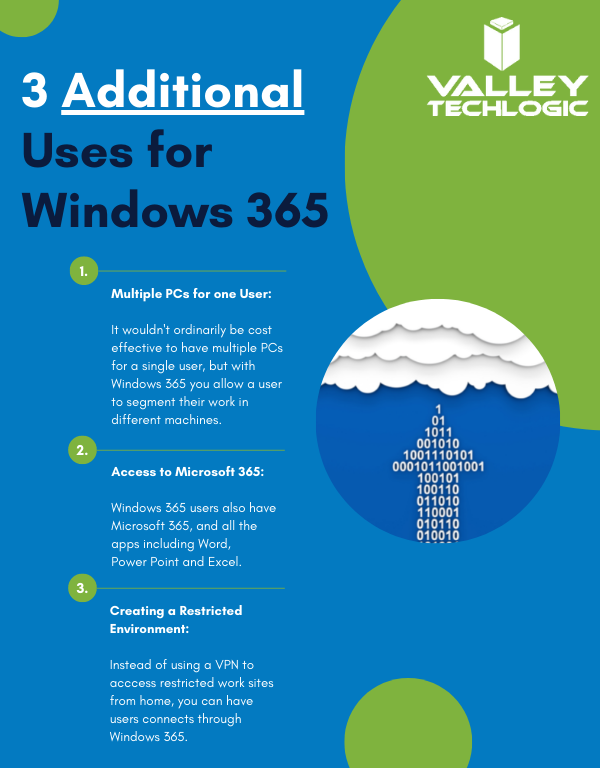
    First, here’s a chart we’ve created that you can save for your records that outlines the expected price increases. These prices may change between now and March but as of writing these are the prices that have been communicated to us by Microsoft directly. We also included the subscription models that are not going to be increased in March. We also want to note the consumer and educational models of Microsoft 365 will not be experiencing a price increase next year.

    Small Version of the Pricing Chart
    Click for the full size version.

    Now, we promised we’d talk about some of the items that are now going to be rolled into your Microsoft 365 subscription that previously had their own cost. One of those items is the ability to call in via Teams. Previously, calling in via Teams was $4 per line but as Microsoft moves to make Teams more accessible for businesses and users alike, they’re now including it in your normal subscription cost.

    This means if you have employees who are out and about during a company meeting, they can still easily call in and participate. It also opens up the opportunity to use Teams for your prospects and clients, even if they don’t currently have it installed. This year we even switched to Teams across the board ourselves and haven’t looked back. We’ve found the call quality and reliability to be phenomenal.

    Some security features will also be rolled into some of the earlier tiers of Microsoft 365 when they were previously featured à la carte. The security and compliance features found in your Microsoft 365 subscription really amount to pennies on the dollar when you consider how expensive it would be to establish the same security stack outside of Microsoft, and it would be less tailored for your own Microsoft use experience to boot.

    These security features include data loss prevention (DLP) for email and documents, as well as encryption for email (we all know email is one of the most common points of entry for bad actors). Microsoft Endpoint Manager has been a critical tool for all of the business’s that now find themselves managing a remote workforce.

    Overall, while a price increase was inevitable, we’re excited to see what new features will be rolled out in 2022 and beyond. If your office is not yet setup with a Microsoft 365 subscription, that’s one of the items we help our clients manage. If you’d like to learn how Valley Techlogic can help your business with Microsoft products and more, click here.

    Looking for more to read? We suggest these other articles from our site.

    This article was powered by Valley TechLogic, adns, n IT service provider in Atwater, CA. You can find more information at https://www.valleytechlogic.com/ or on Facebook at https://www.facebook.com/valleytechlogic/ . Follow us on Twitter at https://x.com/valleytechlogic.

  • Microsoft 365 and Office 365 prices are going up, when and by how much?

    Microsoft 365 and Office 365 prices are going up, when and by how much?

    We’ve been on a roll lately discussing the changes and products being rolled out by Microsoft this year, primarily Windows 11 which should be launched this fall. Last week Microsoft announced a price increase to their ubiquitous business products, Microsoft 365 and Office 365.

    Office has been a business staple since it’s launch in 1989 (although Word predated the Office grouping of products quite a bit, launching in 1983). The original launch set was Word, Excel and Powerpoint but the product line up has exploded since then including other must-have features such as Outlook, Teams, OneDrive and more. For many business users the Office suite of products is their go to collaboration and productivity center.

    Microsoft 365 was announced in 2017 and aimed to take things up a notch and out of just the business productivity center of activity, bringing many Windows specific cyber security features to the table as well as expanding the usability for remote employees.

    It also expanded the ease at which IT administrators can manage their office’s users in a Windows centric environment. The outcome was an all-in-one platform for business users especially that brought functionality, safety and security, and collaborative work processes together in unison all for one easy to budget for monthly fee.

    But as with many online services, fee increases are to be expected (remember when Netflix was just $7.99 a month for the standard package?). Microsoft however has bucked this trend for quite a while, pricing has been the same since Office 365 was launched in 2011.

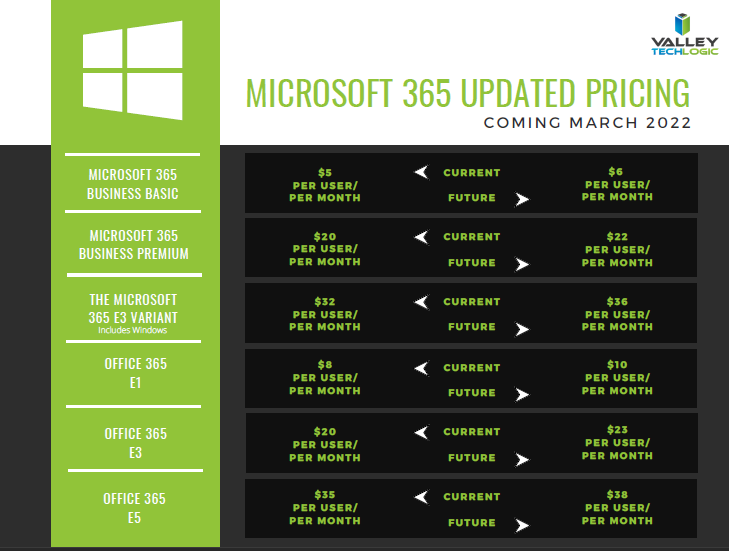
    In that time, they’ve added untold value in the way of product innovation all for no increased monthly fee, so this price increase is both expected and possibly overdue. It’s also expected to be just a few dollars more for each product category, so you won’t need to worry about a drastic price hike. Have a look at our chart below to see what to expect.

    Microsoft Price Increase Chart

    As you can see the price increases are moderate and shouldn’t result in a drastically higher overall IT bill for most users. If you’re in the education sector you won’t have a price increase at all, and consumer products will also stay the same price at this time. These price increases are expected to go into effect March 1, 2022.

    One thing that’s worth mentioning is the program Microsoft has for non-profits, if you own or operate a non-profit organization you can receive your Microsoft products at a deeply discounted rate. This includes Microsoft 365 and Office 365 subscriptions. We have helped our non-profit clients navigate this in the past to great success, if you’re a non-profit in the Central Valley area feel free to reach out to us for more information.

    We also assist businesses with their questions when it comes to the Microsoft line or products or their Windows desktop and server machines, we’re a long time Microsoft partner and consider ourselves experts when it comes to navigating even the most complex setups. We even include the subscriptions we discussed in today’s article within our all-inclusive plans to reduce our customers IT spending to one easy to read monthly bill. Find out more today.

    Looking for more to read? We suggest these tech articles from the last week.

    This article was powered by Valley TechLogic, an IT service provider in Atwater, CA. You can find more information at https://www.valleytechlogic.com/ or on Facebook at https://www.facebook.com/valleytechlogic/ . Follow us on Twitter at https://x.com/valleytechlogic.
  • Our first look at Teams 2.0

    Our first look at Teams 2.0

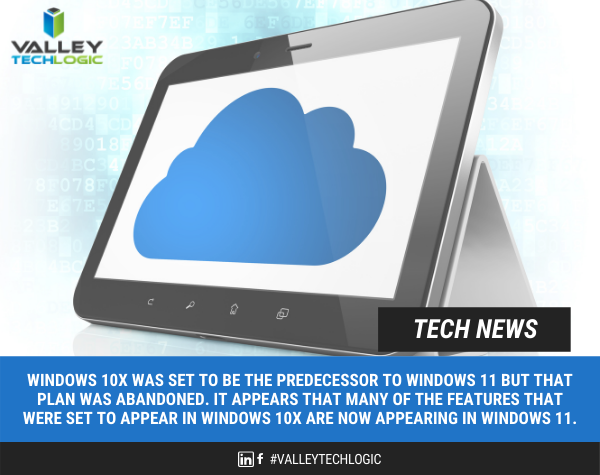
    As we mentioned in our last post, Windows 11 is coming and with its announcement also came with the announcement of what’s being dubbed “Teams 2.0”.

    In preview builds right now appearance wise Teams 2.0 is very similar to the Teams you’re used to using. It has the same minimalistic UI you’re used to. However, one change is you can now switch light, dark and high contrast mode. This is a customization feature found in other video conferencing software now brought to Teams to make the program more user friendly and inclusive.

    Speaking of customization, you can also shrink your Teams windows exactly how you like now instead of simply shrinking the window down horizontally only. This will allow users to integrate a Teams window as they’re setting up their workstations for the day. The application can also “click” into place, fitting the size of the square or rectangle the user has left for it.

    Under the hood you’ll find that Teams 2.0 is much lighter than your existing Teams applications. While this is an early build of the program it’s interesting to note and holds true to Microsoft’s promise of making Windows 11 lighter in every fashion. Many video chat programs are memory hogs for older machines and a more agile chat client would be welcome for those as well as lighter duty laptops with less memory capacity.

    You can also quickly invite users with a link with Teams 2.0, allowing users to hold meetings more on the fly without having to schedule something through the Outlook calendar. This is one benefit found in Zoom that we think Microsoft is wise to integrate into Teams to broaden their appeal.

    Another change is you can now find users by their phone number or by syncing your contacts with Outlook and Skype. It’s clear with Windows 11 the goal is to have Teams be the de facto video chat choice and adding the ability to lookup friends and family will greatly extend the use of Teams outside workplaces.

    Although we still expect workplaces to be the primary use of Teams and we’re looking forward to more changes aimed at catering to the workforce marketplace beyond the scaled down client size (though don’t get us wrong, we definitely approve of that benefit). In the current preview builds video chat and voice chat are disabled so we’re unable to comment on that functionality at this time.

    This is still very early on in the process, and we anticipate more changes to come not just for Teams 2.0 but also Microsoft 11 as a whole.

    Skype for Business is Ending News

    In fact, it’s already been announced that the web client version will be released for preview soon, improved PowerPoint integration and also the ability to utilize multiple user accounts under a single client. Microsoft is a flurry of activity as they gear up for the fall release of Windows 11.

    Users currently on Windows 10 are already receiving patches aimed at getting their computers Windows 11 ready. As we noted in a previous blog Windows 11 will be a free upgrade to users already on Windows 10.

    Still on Windows 7 or 8 in your office? It’s still possible to upgrade to Windows 10 either for free or for a small $99 upgrade fee. This is going to much less than Windows 11 will be retailing for at launch and a 50% discount on the Windows 10 Pro retail cost. Windows 7 ended extended support in January of last year and Windows 8 will be soon as well. It’s not a good idea to remain on an operating system no longer supported by Microsoft and can leave your business much more vulnerable to cyber security attacks.

    If you need assistance upgrading the machines in your office so that they’re Windows 10 or 11 ready, reach out to us here.

    Looking for more to read? We suggest these tech articles from the last week.

    This article was powered by Valley TechLogic, an IT service provider in Atwater, CA. You can find more information at https://www.valleytechlogic.com/ or on Facebook at https://www.facebook.com/valleytechlogic/ . Follow us on Twitter at https://x.com/valleytechlogic.

  • Windows 365 has been announced, and it could change workplaces as we know it.

    Windows 365 has been announced, and it could change workplaces as we know it.

    On July 14, 2021, Microsoft held their annual Inspire summit, a conference for Microsoft partners to be given inside information about what the year ahead will look like in the world of Microsoft products and how they can leverage changes and features for their clients.

    This year’s event issued in some big changes, all aimed at what Microsoft has dubbed the “Hybrid Workplace”. It’s clear Microsoft is betting that remote work is here to stay, at least partially.

    While Teams and it’s various new and exciting integrations seemed to take center stage in the event offerings, we want to talk about another massive announcement – Windows 365.

    Microsoft is going all in on cloud computing with Windows 365, and while it won’t be replacing Azure Virtual Desktop which will still be a staple in enterprise applications especially where security is especially crucial – it will offer extreme flexibility for businesses with a remote or hybrid workforce.

    Windows 365 Will Work On Any Device

    In the product demo we attended we were shown Windows 365 machines will be capable of lightning-fast data speeds across Microsoft’s networks. Users will also be given the ability to adapt the virtual computer on the fly from an easy to use and navigate interface that let’s you manage all of your active Windows 365 subscriptions.

    They will even offer recommendations based on the usage on these virtual desktops. For example, if one user is always running out of RAM you can perform the upgrade right then and there, instantly.

    The models pricing will be based on use and the virtual computers specs, but pricing hasn’t been made available yet. These virtual desktops will even have the option of including all of Microsoft 365’s product offerings such as Outlook, Excel, Word and more.

    The most intriguing part Isn’t just the functionality of these desktops, which looks impressive. It’s the flexibility of just where and how you use them.

    Windows 365 can purportedly be used across devices, that means not just laptops and desktops but even smart phones and tablets. You can use the web client but there’s also a browser option which could be a game changer for those with slow or unreliable internet connection speeds.

    If you think security features are limited to Azure Virtual Desktop you would also be wrong, Windows 365 will have two factor authentication built in and allow you to tie the virtual machine instance to the user’s phone. When they go to log in they will be prompted to allow the login via the registered phone. This is a necessary aspect for business’s who have been struggling to implement cybersecurity features in their business, especially when it comes to their remote workforce.

    Their Windows 365 virtual desktop will also be cross platform and save the user’s instance. If your employee is working from home three days a week and from the office two days a week, they can use their virtual desktop to remain on track because their work will be saved and ready to go no matter where they are logging in from.

    At Valley Techlogic we have long been a proponent of cloud computing and have implemented creative cloud solutions for our clients. We are excited to see where Windows 365 is going and to have the chance to bring this offering to our customers.

    Are you looking to implement Windows 365 or other cloud offerings such as backups in your business? Valley Techlogic is a dedicated Microsoft partner, and creator of the triple layer backup program TechVault. Schedule a consultation today to learn more.

    Looking for more to read? We suggest these tech articles from the last week.

    This article was powered by Valley TechLogic, an IT service provider in Atwater, CA. You can find more information at https://www.valleytechlogic.com/ or on Facebook at https://www.facebook.com/valleytechlogic/ . Follow us on Twitter at https://x.com/valleytechlogic.
  • Windows 10 End of Life is Coming, and It’s Sooner Than You Think

    Windows 10 End of Life is Coming, and It’s Sooner Than You Think

    While Windows 11 (code name Sun Valley) hasn’t officially been introduced to the public, it’s created enough of a stir that the topic of Windows 10 support ending has been pushed to the forefront of the tech news cycle. Windows 10 will officially end mainstream support on October 14, 2025.

    Back in 2015 it was circled around that Microsoft 10 would be the “last Windows release”, indicating Windows would follow the route of Apple and just continuously update this version in perpetuity. We would have said that was unlikely back then and it seems we would have been right.

    While the comment that initiated that rumor can be tied back to one Microsoft employee, Microsoft didn’t exactly dismiss the notion at the time. They have been moving forward since then into the “as a service” model, especially with their service Microsoft 365 replacing Office 365 as it was known.

    Most of us can remember a time when you paid a one-time fee to use the Office suite of software, but Microsoft has fully moved to a subscription model only under Microsoft 365. “As a service” is basically the de facto model in tech at this point, with Adobe also being another example (remember when you could just buy Photoshop?).

    Businesses like Google always operated under an “as a service” model. So, it makes us question if the roll out of Windows 11 will look the same as past releases.

    Especially for businesses, instead of pricey one-time licensing fees will we be looking at a monthly charge potentially? And how would that work when Windows 11 eventually went end of life?

    Tech News #13

    Microsoft has operated under two models for end of life so far, fixed and what they now call the modern lifecycle. Under the fixed lifecycle there weren’t really too many restrictions for support, as long as you kept your version up to date you would receive some level of support for 10 years.

    Now, they operate on a regular update cycle. With a feature update usually arriving in October, a year end update in November and a mid-year update in June or July. While you can expect regular updates between those dates, major feature updates are now condensed.

    Customers are encouraged to perform at least one of these updates a year to stay current. Failing to update with one of these major releases may make your version ineligible for next year’s releases.

    More news about Windows 11 may be arriving next week in an event announced by Microsoft, you can attend the live stream here on June 24th at 11 AM Eastern Time. We’re looking forward to summarizing the details of this event in next weeks blog.

    Beyond Windows 10 for PCs, there will probably be a significant update to Windows Server as well. Server updates tend to happen more often, with Windows Server 2022 following just 3 years after Windows Server 2019 (it’s been in preview since March of this year).

    If your business needs help navigating the ever-changing landscape of Windows or if you’re trying to figure out how to get outdated, unsupported versions back to mainstream support, we’re here for you. Valley Techlogic is a Microsoft Partner and we’re experts when it comes helping businesses manage their Microsoft products, whether it’s Windows or Microsoft 365. Connect with us today to learn more.

    Looking for more to read? We suggest these tech articles from the last week.

    This article was powered by Valley TechLogic, an IT provider in Atwater, CA. You can find more information at https://www.valleytechlogic.com/ or on Facebook at https://www.facebook.com/valleytechlogic/ . Follow us on Twitter at https://x.com/valleytechlogic.
  • Our Top 3 Ways to Get MORE from Your Business’s Technology

    Our Top 3 Ways to Get MORE from Your Business’s Technology

    Most of us rely heavily on technology to accomplish our goals, whether it be at work or at home. Computers have made so many things in life more accessible, from learning to banking to downtime (though too much idle scrolling is the antithesis of productivity).

    But have you ever stopped to think if you’re really getting the most from the technology Tech News Graphicyou use? Often we get stuck in a rut and don’t really explore what else may be out there. Your favorite tried and true software or add on has never let you down, right?

    There’s nothing wrong with using things you know and love, and most importantly trust. Any new addition to your stack should be vetted thoroughly. Especially software applications, if it looks sketchy or seems to be too good to be true then it probably is.

    So, what are the 3 things we as a technology provider recommend when it comes to getting more productivity and convenience from the technology you use every day?

    1. The first is built right into your Windows 10 operating system. With Windows 10 you can create multiple desktops with the Task View setting. Hitting the Windows Key + Tab will bring up the menu and from there you can go about creating an unlimited number of Windows Virtual Desktops (or at least as many as your RAM will support). You can organize your day through these virtual desktops, having one for work and one for your lunchbreak.
    2. Make use of the virtual calendars available to you. Whether it be through Google or Outlook, or even a source such as Calendly which makes it easy to schedule with clients and even sends text message reminders. Virtual calendars can help you organize your week, month or even year. The popup reminders will make sure you don’t miss an important meeting or event.
    3. We will always recommend utilizing automatic backups. OneDrive is built in to Windows and comes with 5 GBs of free storage. For just $2 a month you can bump that up to 50 GBs, we think it’s a small price to pay for the piece of mind it provides. If you’re working with a technology provider your backups should be one of their main priorities. Having a thoughtful and thorough backup program in place can mean the difference between getting back to work quicly and losing it all in a disaster recovery situation.

    On top of these ways to get more productivity and usefulness out of your technology, your technology provider can also help you understand the benefit and scope of the tools they are providing for your business.

    They will probably have their own stack of software they recommend and may even have tools they themselves use that they can recommend for you and your staff. It’s a good idea to have an understanding of the systems that power your business and keep it running smoothly.

    It’s our belief that transparent processes and thorough reporting helps our clients make informed choices within their business. If you would like some recommendations on tools that may help increase the usefulness of your technology, we’d be happy to help.

    Looking for more to read? We suggest these tech articles from the last week.

    This article was powered by Valley TechLogic, an IT provider in Atwater, CA. You can find more information at https://www.valleytechlogic.com/ or on Facebook at https://www.facebook.com/valleytechlogic/ . Follow us on Twitter at https://x.com/valleytechlogic.
  • Our Top 5 Favorite Outlook Tricks & Tips as a Technology Provider

    Our Top 5 Favorite Outlook Tricks & Tips as a Technology Provider

    As a technology provider we’re well versed in supporting the Microsoft suite of products, and Outlook especially is a business staple. Whether you have made a one-time purchase with Office 2019 or are using the subscription model plan with Microsoft 365, both products include Teams, Outlook, OnePoint, SharePoint and Word. In today’s article we will be focusing especially on Outlook and providing you with tips that will make using it that much easier.

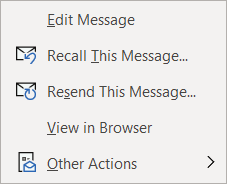
    Our first tip could really help save the day if you miss-send an email, did you know you can actually recall an email? Just open the email you want to send and navigate to the Recall message box in Outlook.Message tab on the ribbon, click on the Action button and then click on Recall Email, if the recipient hasn’t opened the email yet it will be recalled and you can try again.

    The second one is all about efficiency. If you have a certain type of message you send routinely, you can save that message as a template for easy use. Go to File > Save As > Outlook Template to save the template. Then when you’re ready to use it again click on Items > Choose Form > User Templates and select the template you saved. You can also go to the Message tab on the ribbon and click on View Templates to view and create simple templates without formatting to use.

    If you have a long email thread you have been replying to and are finding yourself hunting through your inbox for all the links in the chain to remember what has already been said, our third tip will really help you out. If you go to View > Show as Conversation on the Ribbon all of the messages in that thread will be displayed under the most current email.

    Number four was even new to us until recently, if you hit Ctrl + Shift + N in Outlook it will pull up a sticky note function you can move around. That way if you need to take some notes as you’re parsing through your email that will be conveniently available to you, no pen and paper necessary.Outlook sticky note box.

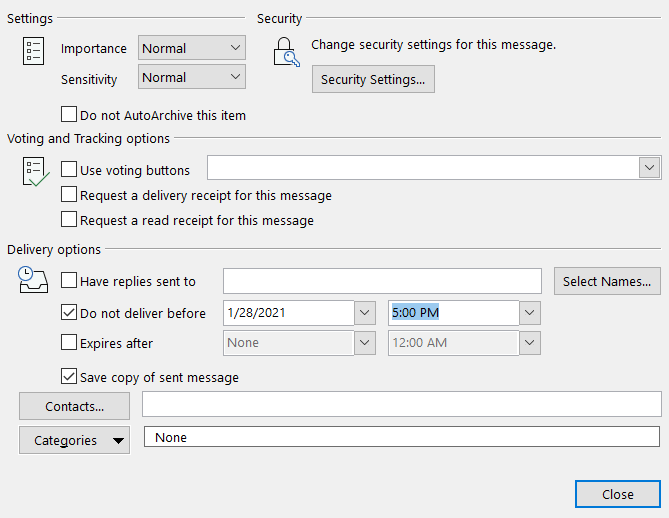
    Our fifth tip is all about timing. If you know there’s an email you need to send out by a certain time, why not avoid the stress and worry that you may forget and schedule it while it’s top of mind? If you go to Options > Delay Delivery > Do not deliver before you can schedule the email to be sent at the exact time and day you want it to be. This is a great option for reminder type emails that you send regularly as well.

    Lastly as a bonus, here’s a list of our top 10 Outlook shortcuts that will simply make navigating Outlook easier:

    1. Create a New Message: Ctrl + Shift M
    2. Insert a File: Alt+N, A, F
    3. Send a Message: Alt + S
    4. Search for An Item: Ctrl + E or F3
    5. Reply to a Message: Alt+H, R, P
    6. Go to Your Calendar: Ctrl+2
    7. Check for New Messages: Ctrl+M or F9
    8. Go to the Home Tab: Alt+H
    9. Go to the Send/Receive Tab: Alt+J, S
    10. Forward a Message: Alt+ H, F, W

    If your office could use some assistance navigating Microsoft 365 we’re here to help, at Valley Techlogic we consider ourselves experts when it comes to Microsoft and Windows based products and can make recommendations to your business. Visit our calendar page here to schedule a consultation to learn more.

    Looking for more to read? We suggest these tech articles from the last week.

    This article was powered by Valley TechLogic, an IT provider in Atwater, CA. You can find more information at https://www.valleytechlogic.com/ or on Facebook at https://www.facebook.com/valleytechlogic/ . Follow us on Twitter at https://x.com/valleytechlogic.