Tag: One drive

  • Data breached? 5 ways to reduce the impact on your business.

    Data breached? 5 ways to reduce the impact on your business.

    We’ve posted a lot of articles on how to avoid a data breach (here are a couple of recent ones for you to review if one hasn’t happened to you so far and you’d like to keep it that way).

    Unfortunately, we fear that if you’ve reached this article you may be part of the growing number of business owners whose data has been breached (in 2020 there were 700,000 attacks on small businesses with damages exceeding $2.8 Billion).

    Data breach severity varies widely, from an employee email being temporarily hacked all the way to having your backups infiltrated and locked for a ransom – and even if you pay the ransom you still might not recover your data.

    So if you’ve experienced a significant data breach and wondered what you could have done to have a better outcome, or even if you’re in the midst of one now what should you do?

    Here are our top five tips for reducing your data breach costs (now or in the future):

    1. Damage Control – Turn to the pros (like us) when it comes to recovering your data in the event of a breach, they will have access to tools that could recover data that will otherwise be lost if decryption efforts fail in the hands of someone who doesn’t know what they’re doing. Bottom line, know who you’re going to call in an emergency and don’t be afraid to get their help sooner rather than later.
    2. Downtime Mitigation – Downtime is one of the most expensive elements of a data breach, if you don’t already have a disaster recovery plan a previous breach can highlight exactly what needs to be a priority in your business if your data is unavailable. Also, a team like Valley Techlogic can help you create a disaster recovery plan.
    3. Turn to Your Vendors – Your vendors may have some methods for assisting you in the event of a data breach. For example Microsoft has a shared responsibility model for data but if you have Microsoft 365 and use OneDrive, some of that data may still be safe on their end and accessible to you (once your devices have been cleared and are safe to use).
    4. Be Transparent – If your business is very customer facing, an outage in your business caused by a data breach may be very obvious to them. We don’t recommend trying to hide the fact that a breach has happened but instead being transparent about what happened and what you did to fix it, and how you plan to prevent it in the future.
    5. Cyber Prepared – The best way to recover financially from a data breach is to have cyber insurance in place before the attack happens, while it may be too late for a past breach you can prevent future financial loss by using our guide to reviewing and obtaining cyber security insurance here.

    Of course, an ounce of prevention is worth a pound of cure unfortunately when it comes to cybersecurity attacks. We would be remiss not to offer a few tips on preventing a data breach specifically. You can grab this checklist to make sure these items are covered to prevent future data breaches:
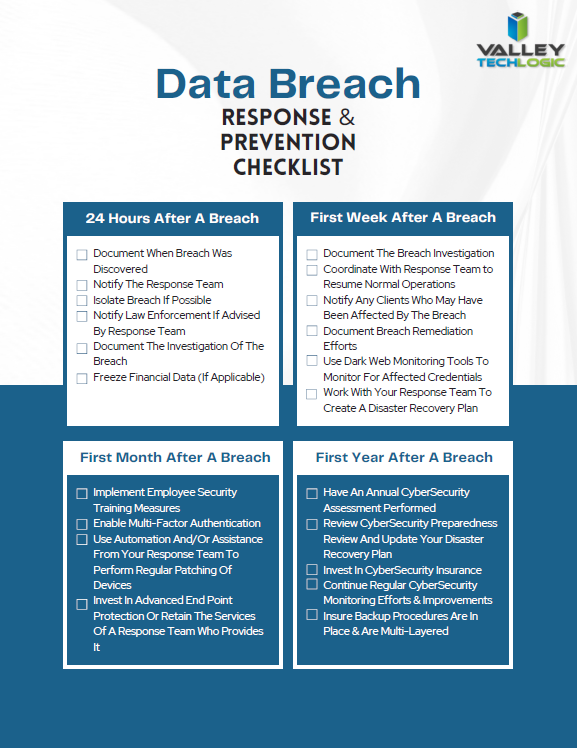
    Click to download the full size version.

    If you’re currently dealing with a data breach or have dealt with one in the past and want to prevent future breaches, Valley Techlogic can help. We are experts in cybersecurity and use industry best practices to provide the best security coverage for our customers that is also cyber insurance compliant. Learn more with a consultation today.

    Looking for more to read? We suggest these other articles from our site.

    This article was powered by Valley Techlogic, an IT service provider in Atwater, CA. You can find more information at https://www.valleytechlogic.com/ or on Facebook at https://www.facebook.com/valleytechlogic/ . Follow us on Twitter at https://x.com/valleytechlogic.


  • How to best utilize and organize OneDrive, the free cloud storage included with your Microsoft 365 subscription

    How to best utilize and organize OneDrive, the free cloud storage included with your Microsoft 365 subscription

    We find with our clients we find they’re often unaware they have a personal cloud storage solution right at their fingers tips and included for free with their Microsoft 365 subscription, OneDrive.

    Every Microsoft 365 business subscription user will have 1 TB of storage space free with their Microsoft 365 subscription. If you have an IT provider managing your Microsoft 365 subscriptions they probably have set this up to backup certain folders by default, usually your documents, pictures and desktop folders.

    These folders will automatically be synchronized to the cloud, so it provides excellent protection if one of your company devices is lost, stolen or breaks. It’s also a good cybersecurity measure to have your company workstations backed up in someway so if there’s ever a cybersecurity attack that effects your office, not all of your files will be lost.

    On that note, Microsoft does operate on what they call a “shared responsibility” model, so if your Microsoft account is compromised as well you may still lose those files even if they were backed up (which is why we always recommend enabling 2-Factor Authentication, Microsoft makes it easy).

    If OneDrive is successfully enabled on a device you’ll see a little blue cloud icon on your task bar, that when you hover over will tell you the status of your backup (it should say your files are up to date).

    Clicking on the blue cloud will allow you a glimpse at what files have been backed up recently, as well as a quick way to access the OneDrive folder located on your computer as well as the one that’s found online.

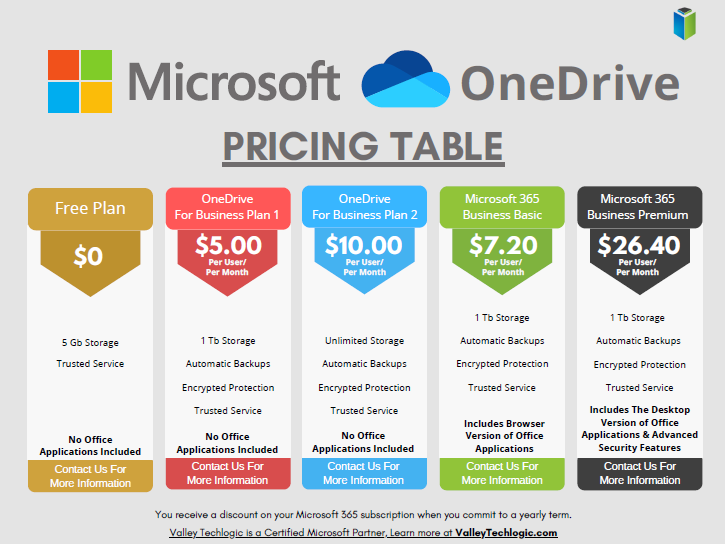
    1 Terabyte of storage is plenty for most users, but if you’re a heavy data user or someone in charge of most of the documentation for your office you may need more. Microsoft offers OneDrive plans outside of the 1 TB you receive for free as a Microsoft 365 user, see our chart below:

    Also, if you just want to try the service out but you’re not yet a Microsoft 365 user, you can either purchase a OneDrive subscription outside of the Microsoft 365 service (though we wouldn’t necessarily recommend it, Microsoft 365 is a better value) or you can test drive the service with their completely free 5 gigabyte storage option.

    5 GB is not a lot of storage these days but if you’re wanting to see if the service would be a good fit for you, it’s plenty for a good test run.

    Once you have your OneDrive set up, you might be thinking about how you’re going to organize it. Luckily, for the folders you back up any pre-existing folder organization you have will be backed up as well. If you have a sub-folder inside your Documents folder labeled “Mikes Important Files 8/20/2019” that same sub-folder will exist in your OneDrive.

    Besides that, here are 5 fast and easy folder organization tips:

    1. Don’t let files languish in your Downloads folder. I’m guilty of this myself, you’re busy and files you receive from colleagues or make just never make it out of their origination folder. It’s a good habit as you go to organization your new OneDrive space to sort things as they come in.
    2. Organize things by project or by date. When you’re looking for work and documents around a certain task or event, sorting by the date or by project is a good system to easily find them again. I’m in favor of by project myself.
    3. Use descriptive names, there’s nothing worse than trying to find a specific receipt if all your receipts from that store have the exact same name. Rename files so they’re easy to find.
    4. While sorting things when they come in is a good idea, even the best intentions fail when we get busy. Set up a time once a week to sort anything that gets left behind.
    5. Don’t make a folder for every single thing. You don’t want the solution to become worse than the problem. Group up items where you can (this is another vote in favor of sorting by project).

    If you need help with your businesses Microsoft 365 subscription and OneDrive, or just for tackling the topic of backups once and for all – Valley Techlogic is here for you. We even have our own backup solution for servers, TechVault. Learn more with a quick consultation today.

    Looking for more to read? We suggest these other articles from our site.

    This article was powered by Valley Techlogic, an IT service provider in Atwater, CA. You can find more information at https://www.valleytechlogic.com/ or on Facebook at https://www.facebook.com/valleytechlogic/ . Follow us on Twitter at https://x.com/valleytechlogic.
  • Your data is safer in the cloud, period.

    Your data is safer in the cloud, period.

    Speaking in absolutes is not usually a good idea, but in the case of data storage we feel the onus is on us to speak plainly – and it’s the plain truth that your data is safer in the cloud.

    It’s natural to be hesitant to move everything into the cloud, especially when it really wasn’t that long ago in the grand scheme of things that all data was stored in filing cabinets. Safely tucked away and (hopefully) properly indexed to be pulled out as needed.

    Sure, we didn’t have to worry about malware with paper files, but theft and natural disasters were the enemy of on premises paper documents. Or just the ravages of time wreaking havoc on plain paper and ink. You also had to make sure to shred important documents and not just trash them lest they fall into the wrong hands.

    With the advent of computers most of our data moved to our personal computers and it greatly elevated our ability to communicate that data to others. Multi-million-dollar transactions can be easily completed by simply emailing a proposal and contract. Billing information, medical documents, all of the private information about an individual or business is often times found online and is available to be pulled up when needed.

    But this ease of information is also it’s downfall. Old fashioned robberies where thieves would break into brick-and-mortar establishments and steal private information to then be used to create false identities and/or use payment details for their own benefit have now been replaced with often a single user attacking a small business’s online accounts. They can dismantle everything that business has built in days or even hours and make recovering difficult or even impossible.

    That’s not even taking to account that a single on-premises server is just as vulnerable to fire or flood damage as your filing cabinet is. A singed or waterlogged hard drive has no more usefulness than the same data contained in a charred or dripping stack of papers.

    Like with many things in life this problem is solved by working together with others, and that’s where cloud data solutions come in. It’s still your data and we, like you, think it should have the same level of accessibility as it does when it’s on your personal computer or even a paper file on your desk.

    With the high-speed internet most of us have in our homes and offices downloading files from the cloud is often a nearly instantaneous click of a button and then you’re working on the file you were last night. Make a mistake a few hours in? Another benefit of the cloud is you can often times roll back to an earlier version.

    The cloud can sound nebulous but it’s not, it’s just using the resources of companies that put their whole stake into safeguarding data. Their existence as a business is in keeping your data safe, companies that fail at that task don’t stay in business long.

    It’s really not that different than utilizing the services of the power company for all of your power, or your local ISP for all of your networking needs. These services work best when they’re maintained by companies that dedicate themselves to the task and can provide a high level of continuity.

    And there are some major players in the game, players that have been in the business of data and even computers themselves as a whole for decades. At Valley Techlogic we greatly utilize the power of Microsoft’s cloud service – One Drive – to collaborate within our business. It’s even paved the way for our remote employees to maintain productivity with the whole team without missing a beat. The default storage capacity is 1 Terabyte (TB) which is more than most users will ever need.

    If our office ever burned down with no one inside, we can state with the utmost confidence it would not affect our ability to do business. Could you say the same?

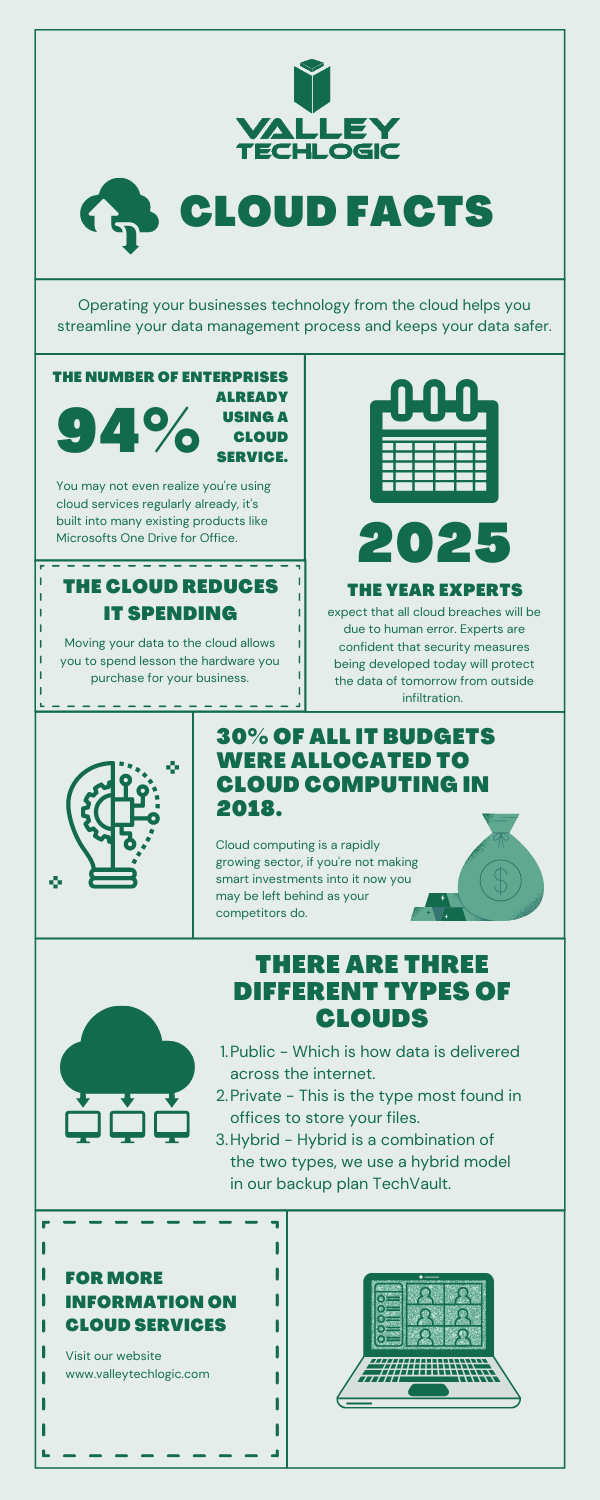
    Cloud Data Facts

    If you’re considering a move to the cloud for your business, we can help. Backups and data recovery solutions are a keystone piece of all of our service plans, learn more today.

    Looking for more to read? We suggest these other articles from our site.

    This article was powered by Valley TechLogic, an IT service provider in Atwater, CA. You can find more information at https://www.valleytechlogic.com/ or on Facebook at https://www.facebook.com/valleytechlogic/ . Follow us on Twitter at https://x.com/valleytechlogic.

  • Our Top 3 Ways to Get MORE from Your Business’s Technology

    Our Top 3 Ways to Get MORE from Your Business’s Technology

    Most of us rely heavily on technology to accomplish our goals, whether it be at work or at home. Computers have made so many things in life more accessible, from learning to banking to downtime (though too much idle scrolling is the antithesis of productivity).

    But have you ever stopped to think if you’re really getting the most from the technology Tech News Graphicyou use? Often we get stuck in a rut and don’t really explore what else may be out there. Your favorite tried and true software or add on has never let you down, right?

    There’s nothing wrong with using things you know and love, and most importantly trust. Any new addition to your stack should be vetted thoroughly. Especially software applications, if it looks sketchy or seems to be too good to be true then it probably is.

    So, what are the 3 things we as a technology provider recommend when it comes to getting more productivity and convenience from the technology you use every day?

    1. The first is built right into your Windows 10 operating system. With Windows 10 you can create multiple desktops with the Task View setting. Hitting the Windows Key + Tab will bring up the menu and from there you can go about creating an unlimited number of Windows Virtual Desktops (or at least as many as your RAM will support). You can organize your day through these virtual desktops, having one for work and one for your lunchbreak.
    2. Make use of the virtual calendars available to you. Whether it be through Google or Outlook, or even a source such as Calendly which makes it easy to schedule with clients and even sends text message reminders. Virtual calendars can help you organize your week, month or even year. The popup reminders will make sure you don’t miss an important meeting or event.
    3. We will always recommend utilizing automatic backups. OneDrive is built in to Windows and comes with 5 GBs of free storage. For just $2 a month you can bump that up to 50 GBs, we think it’s a small price to pay for the piece of mind it provides. If you’re working with a technology provider your backups should be one of their main priorities. Having a thoughtful and thorough backup program in place can mean the difference between getting back to work quicly and losing it all in a disaster recovery situation.

    On top of these ways to get more productivity and usefulness out of your technology, your technology provider can also help you understand the benefit and scope of the tools they are providing for your business.

    They will probably have their own stack of software they recommend and may even have tools they themselves use that they can recommend for you and your staff. It’s a good idea to have an understanding of the systems that power your business and keep it running smoothly.

    It’s our belief that transparent processes and thorough reporting helps our clients make informed choices within their business. If you would like some recommendations on tools that may help increase the usefulness of your technology, we’d be happy to help.

    Looking for more to read? We suggest these tech articles from the last week.

    This article was powered by Valley TechLogic, an IT provider in Atwater, CA. You can find more information at https://www.valleytechlogic.com/ or on Facebook at https://www.facebook.com/valleytechlogic/ . Follow us on Twitter at https://x.com/valleytechlogic.