Author: rory-admin

  • The Rockstar Games data leak and how reputation loss can be one of the costliest aspects of being hacked

    The Rockstar Games data leak and how reputation loss can be one of the costliest aspects of being hacked

    Video game news might fall outside our normal wheelhouse but reporting on cybersecurity events is right up our alley, and this the most recent hack on major game developer Rockstar Games made major news over the weekend so we wanted to chime in with our thoughts.

    The hacker going under the moniker “Tea Pot” released video clips of Rockstar Games unreleased (and previously unannounced) new game, Grand Theft Auto 6. The clips revealed spoilers on the games content and also showcased rougher assets as the game is still in early development, something game publishers don’t ordinarily highlight.

    In a message acknowledging the breach the Rockstar Games Team had this to say:

    Rockstar Games Response to the data leak.

    The hacker returned after releasing the data and sent a message on the GTAForums claiming they wanted to “negotiate a deal” with Rockstar Games, hinting that they had more data to release. Speculation proliferated across the internet that the hacker had somehow obtained some of the games source code.

    With the source code portions of the game could be re-engineered (outside Rockstar Games) and that could even possibly be used to provide at least a semi-playable version. The fallout from that would be devastating as it would steal the developer’s agency in releasing their own content and also reveal trade secrets that could be used to help create knockoff or pirated versions.

    Rockstars parent company, Take-Two, has issued take down notices to social media accounts and Youtube channels broadcasting the stolen footage as work to perform damage control. There will probably be a costly investigation into the origination of the hack and there may even be financial complications beyond that, as investors may question what effect this leak will have on the eventual release of the game.

    This hack is a perfect example of the reputation cost associated with being hacked. Recovering data you need to do your day to day job is one aspect, but you also need to think about data you wouldn’t want released to the public.

    Projects that haven’t been announced yet or information that’s not easily changed (tax information, personal identifying information) are just two factors, but there’s also the release of your customers private data. Many aren’t aware a breach involving client information can even lead to legal ramifications depending on regulatory factors in your sector.

    There’s also your private emails or messages, which could have future business plans, personal information, or other things that could be used by the hackers in a ransomware attempt (or even ongoing blackmail).

    Cybersecurity prevention’s are important but one element that has surged to the forefront of our minds is a recovery tool that’s becoming more difficult to obtain – cybersecurity insurance.

    You can review our comprehensive guide on the topic but here’s a brief chart on what cybersecurity insurance typically covers:

    Click to view the full size version.

    Obtaining coverage can be challenging, the requirements have grown much steeper as cybersecurity attacks become more common place, and that doesn’t look like it’s going to change anytime soon. At Valley Techlogic we have experience in helping clients obtain coverage so if the unthinkable does occur, their business will survive the hit.

    Whether you’re are in the early stages of researching cybersecurity coverage or if you have an application form in front of you, we can be your guide through the process. Schedule a consultation today to learn more.

    Looking for more to read? We suggest these other articles from our site.

    This article was powered by Valley Techlogic, an IT service provider in Atwater, CA. You can find more information at https://www.valleytechlogic.com/ or on Facebook at https://www.facebook.com/valleytechlogic/ . Follow us on Twitter at https://x.com/valleytechlogic.


  • How the “skills gap” is changing the world of IT

    How the “skills gap” is changing the world of IT

    The term “skills gap” has been popping up a lot lately and in a nutshell it’s the refers to the difference between the skills your business needs from its employees and what’s actually available in the marketplace.

    Tech innovations occur so rapidly it would be impossible for any one person to be a master in everything that’s required to maintain the technology in most modern workplaces, there will always be a need to seek out assistance with some component of it whether it be through outsourced help or through automation – or both.

    In a survey by Monster nearly one third of employers agree the skills gap has been growing, and it’s effecting how they’re sourcing and employing candidates. With inflation on the rise employees are also seeking greater compensation for highly in-demand skill sets, which from a budgetary standpoint may be difficult for many employers to grapple with.

    It may be advantageous for employers to offer compensation or incentives to existing employees to increase their existing skillsets or “reskill”. With the many hurdles found in hiring qualified candidates in the current working environment, retention will be a key factor in many businesses being able to stay afloat.

    Automation is another component hiring managers are looking towards, especially in the world of tech.

    1. Backing up data: If you’re a Microsoft 365 customer, backing up your device data is easy with OneDrive.
    2. Email Signature: Still typing your name at the end of every email response? It doesn’t take very long, but across dozens of emails per week it can add up. Setup an email signature in Outlook (with a new email open go to Insert > Signatures) and save that little bit of time with every email.
    3. Paying Bills: Still making manual payments? Why? Setup automatic payments where you can and skip logging in and making that manual payment every month.
    4. Typing Passwords: Not only does typing in a password for everything waste valuable time, it also creates a security risk because an easy to remember password is also potentially an easy to crack password. Try using a password manager like LastPass to create stronger passwords and save time.

    Of course, there are much more advanced automation services available to assist your business, but many will require at least some initial tech know-how or even an on-hand technician available to maintain them.

    The skills gap is also affecting those who rely on short-term technical help to bridge the gap, during a time when it seems like the price of everything is going up so to, is the cost of hiring emergency technical support. Especially when it’s required afterhours.

    If after reading this you’re wondering what your best option is, trying to hire someone or relying on expensive emergency support we do want to provide a third option – outsourced IT.

    We’re not unbiased here, but hiring outsourced IT does have a number of benefits in the current hiring climate that you may not have considered. See the chart below for examples:

    Interested in learning more? Schedule a consultation with us today.

    Looking for more to read? We suggest these other articles from our site.

    This article was powered by Valley Techlogic, an IT service provider in Atwater, CA. You can find more information at https://www.valleytechlogic.com/ or on Facebook at https://www.facebook.com/valleytechlogic/ . Follow us on Twitter at https://x.com/valleytechlogic.
  • Why “DIY” IT is a bad idea as a business owner

    Why “DIY” IT is a bad idea as a business owner

    We get it, handing over any part of your business to someone who’s not you can be stressful and unnerving. You painstakingly grew your business to where it is today. You may still be personally vetting every new member who walks through your door.  Hiring technical staff can be an arduous process so it’s just made sense so far to learn the ropes yourself to keep devices up and running (and as maintained as possible).

    The problem is, you’re one person with a finite amount of time. By the time cracks start to show it’s often too late, things like server failure or a malware attack can cripple your ability to run your day-to-day operations and fixing it may fall outside the scope of your abilities, making it necessary to bring in emergency help (often at a premium).

    If you survived one round of that you may have vowed to find IT help, but even with a clear indicator of why you need it recently at hand it may still seem like a waste of time or money, and you talked yourself out of it. You may have been doing things yourself for years, what are the odds something catastrophic would happen again any time soon?

    Unfortunately, pretty good. As the famous quote by Joyce Brothers goes, “If you change nothing, nothing changes.”

    So, we thought we would give you some food for thought about other reasons (besides potential disaster) you should consider outsourcing your IT:

    1. 24/7 Support: This one’s easy, with a Valley Techlogic service plan 24/7 support emergency support is available to you – at no additional cost and no more late nights for you.
    2. Minimized Downtime: Time is money, and with a service plan from us you will spend less time troubleshooting problems and more time on your business.
    3. Predictability: We utilize best in class software to maintain a consistent technical environment for all of our clients, including managing computer updates, anti-virus software and more.
    4. Risk Prevention: Speaking of anti-virus, our cyber security approach doesn’t just help you recover from a cyber threat – it helps prevent one from happening in the first place.
    5. Scalability: This is a big one if you’ve been doing your own IT. We have service plans to fit both businesses who already have an available IT resource or those who want us to be their primary IT – with flexibility to change if needed

    As you can see, many commonsense features are built into all of our plans, but we do offer customization as far as how much or how little we do for your business. If you would like to remain as the primary IT resource, we have co-managed plans so you can still benefit from our solutions and proactive maintenance while still remaining the lead IT person.

    If after utilizing us for a while you’ve reached a point where you would like us to handle it all, we can then change your plan to our “managed IT department” where we are your go to resource for everything IT, your users can even call us if there’s a problem and we’ll take care of it.

    Whichever plan you choose, you’ll still always be “in the know” thanks to our comprehensive reporting and annual or bi-annual Technology Business Review (TBR) meetings where we go over how things are going and formulate a plan together to continue improving the service to fit your needs.

    Interested in learning more? Schedule a consultation with us today.

    Looking for more to read? We suggest these other articles from our site.

    This article was powered by Valley Techlogic, an IT service provider in Atwater, CA. You can find more information at https://www.valleytechlogic.com/ or on Facebook at https://www.facebook.com/valleytechlogic/ . Follow us on Twitter at https://x.com/valleytechlogic.

  • Missing file? Don’t panic, 5 recovery tips for Windows devices

    Missing file? Don’t panic, 5 recovery tips for Windows devices

    I know this has happened to me before, I have a new Word document I’ve created sitting open (maybe I’m actively working on it) I mean to save it somewhere and I just don’t.

    Another scenario, someone requests an Excel spreadsheet I’d done some editing on and when I go to look for it, it’s nowhere to be found.

    Panic ensues, but then I remember Windows 10 (and 11) devices have a number of different ways of finding and retrieving lost documents – especially those that were created in the Office suite of software. Before trying any of these steps we suggest checking your recycle bin first just in case it was accidentally deleted.

    The easiest way (and possibly most obvious) is to just click the little magnifying glass on your taskbar and just search for what you can remember about the file name or the file contents. Windows search system is pretty powerful, and your search may end here. An extra tip for narrowing your options, up at the top of the search window you can narrow the options by type, such as Applications or Documents.

    If you tried searching for the document and came up empty, the next place you should look is the most recent files section in the document application you’re working with. In both Excel and Word you can find this section by going to the upper left hand section of the navigation panel and hitting the “File” button. From there you go to “Open”. In this section you’ll see all your most recent files.

    The recover unsaved documents button is here to save the day.

    If you strike out there don’t exit out yet, this is where tip number three comes in. At the bottom of this section, you may see a “Recover Unsaved Documents” button. Clicking that will bring up any documents that were closed without being saved and hopefully your missing document is found in this section because it starts to get a little trickier by step four and requires a bit of luck.

    If you have backups enabled on your computer you can follow these steps by first clicking the “Start” button followed by “Control Panel,” “System Maintenance” and then “Backup and Restore.” Once the backup has been restored, you can search it for your missing file.

    The final place to look is your temporary files folder, usually something like C:\Users\Owner\AppData\Local\Microsoft\Office\UnsavedFiles but individual file paths may vary.

    If you’re a Microsoft 365 OneDrive user you have a bonus recovery step available, you can try creating a file with the same name and file type as the missing document. After you’ve created the new file, select Properties, select the Previous Versions tab, and then hopefully a version appears there that you can restore.

    After trying all these steps if your wayward document is still missing, it may be time to call in the experts. Data recovery is a big part of what we do at Valley Techlogic, and to make sure our clients never have to go through the headache and stress of losing their very important documents and data backups are a core feature of all of our plans.

    Here’s an our backup program in a nutshell which we consider the gold standard for businesses:

    Click to learn more about TechVault.

    Want to learn more? Visit our calendar page to book a consultation.

    Looking for more to read? We suggest these other articles from our site.

    This article was powered by Valley Techlogic, an IT service provider in Atwater, CA. You can find more information at https://www.valleytechlogic.com/ or on Facebook at https://www.facebook.com/valleytechlogic/ . Follow us on Twitter at https://x.com/valleytechlogic.
  • Google blocked the largest DDoS attack ever, peaking at 46 million requests per second

    Google blocked the largest DDoS attack ever, peaking at 46 million requests per second

    While it’s just now being reported on, the DDoS attack on Google Cloud occurred on June 1st and lasted for 69 minutes – reaching a peak of 46 million requests per second.

    Source: Google Cloud

    We’ve covered Distributed Denial of Service (DDoS) attacks before in this blog, but the scale of this one is mind boggling. It’s nearly twice the size of Cloudflare DDoS attack from last year around this same time, which peaked at 26 million requests per second (sent from just over 5000 devices).

    If you’re wondering where the devices used in these attacks originate from, the answer in this case is unsecured devices. Specifically compromised Mikrotik routers.

    There’s been a number of articles regarding possible compromises to the Mikrotik brand of router including one instance that involved over 200,000 devices. Many in the security space wondered if there would be a fallout from that and now, we have our answer.

    However, what’s more impressive is not the scale of this attack, but the fact that it was successfully blocked by Google.

    Botnet attacks of this nature are not rare, it’s difficult to say exactly how many attacks occur per day but it has been noted they’re on the rise since the Russian invasion of Ukraine. A botnet is essentially an assembly of compromised devices that are used to attack a target. DDoS attacks are one of the most common uses, but they’re also used for phishing, cryptomining, or to bruteforce passwords just to name a few. The largest botnet ever recorded belonged to Russian BredoLab and consisted of 30,000,000 devices.

    Would be bad actors can even purchase DDoS as a service for as little as $5 per hour which should give you an indication how prevalent and common they are as an attack vector.

    Google blocked this attack by leveraging their Cloud Armor product, a network security service directly aimed at preventing DDoS attacks. If they were looking for a powerful case study for the effectiveness of this product, we can think of no better example then effectively blocking the largest DDoS attack in history (so far).

    Part of blocking a DDoS attack is early detection. DDoS attacks ramp up, if you can detect an incoming flux of peculiar traffic to your network you can block the attack before it’s able to scale up and cripple your network.

    Besides blocking potential attacks, the other side of the coin is not becoming an unwilling participant in a botnet through a compromised device in your home or business.

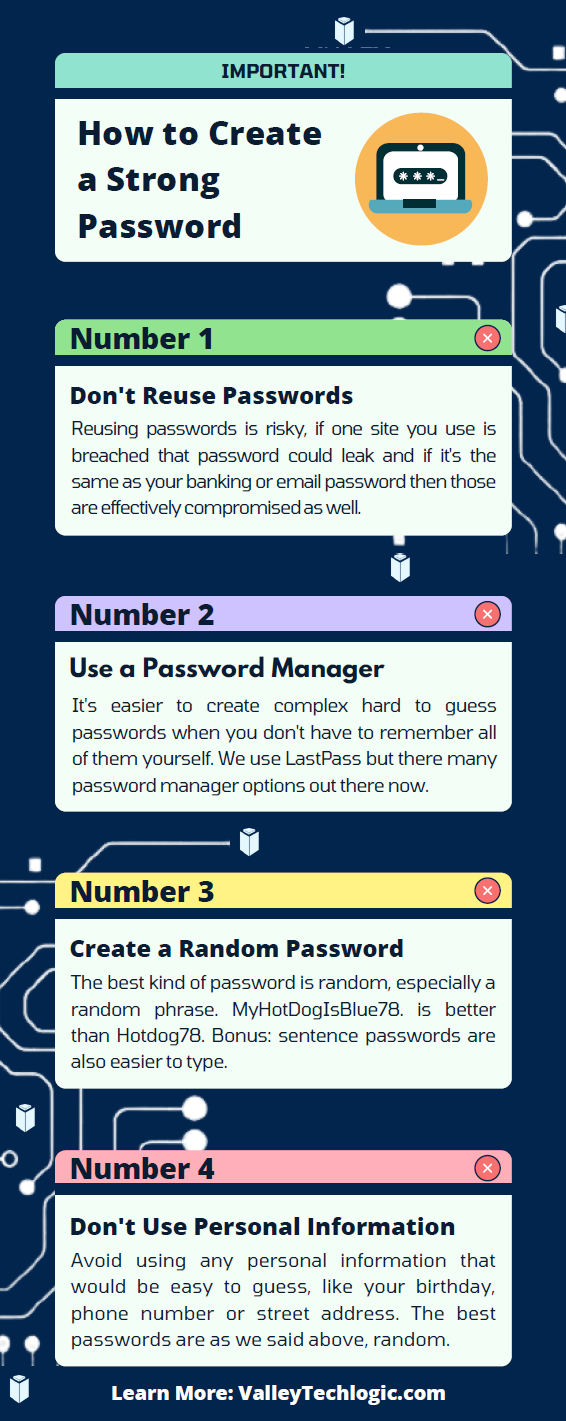
    The sinister part of it is you may not even be aware your device is compromised and it’s not just mobile devices and personal computers that can be affected, even IoT (Internet of Things) devices can be hacked. There are a few things you can do to prevent your devices from being taken over by hackers as we outline in the chart below:

    If your business needs assistance with protecting from any potential attacks or making sure your devices stay uncompromised, Valley Techlogic can help. All of our plans include robust cybersecurity protections at no additional charge, including assisting in your cyber security training goals (after all, human error is the #1 cause of data breaches). Schedule a consultation today to learn more.

    Looking for more to read? We suggest these other articles from our site.

    This article was powered by Valley Techlogic, an IT service provider in Atwater, CA. You can find more information at https://www.valleytechlogic.com/ or on Facebook at https://www.facebook.com/valleytechlogic/ . Follow us on Twitter at https://x.com/valleytechlogic.

  • How to best utilize and organize OneDrive, the free cloud storage included with your Microsoft 365 subscription

    How to best utilize and organize OneDrive, the free cloud storage included with your Microsoft 365 subscription

    We find with our clients we find they’re often unaware they have a personal cloud storage solution right at their fingers tips and included for free with their Microsoft 365 subscription, OneDrive.

    Every Microsoft 365 business subscription user will have 1 TB of storage space free with their Microsoft 365 subscription. If you have an IT provider managing your Microsoft 365 subscriptions they probably have set this up to backup certain folders by default, usually your documents, pictures and desktop folders.

    These folders will automatically be synchronized to the cloud, so it provides excellent protection if one of your company devices is lost, stolen or breaks. It’s also a good cybersecurity measure to have your company workstations backed up in someway so if there’s ever a cybersecurity attack that effects your office, not all of your files will be lost.

    On that note, Microsoft does operate on what they call a “shared responsibility” model, so if your Microsoft account is compromised as well you may still lose those files even if they were backed up (which is why we always recommend enabling 2-Factor Authentication, Microsoft makes it easy).

    If OneDrive is successfully enabled on a device you’ll see a little blue cloud icon on your task bar, that when you hover over will tell you the status of your backup (it should say your files are up to date).

    Clicking on the blue cloud will allow you a glimpse at what files have been backed up recently, as well as a quick way to access the OneDrive folder located on your computer as well as the one that’s found online.

    1 Terabyte of storage is plenty for most users, but if you’re a heavy data user or someone in charge of most of the documentation for your office you may need more. Microsoft offers OneDrive plans outside of the 1 TB you receive for free as a Microsoft 365 user, see our chart below:

    Also, if you just want to try the service out but you’re not yet a Microsoft 365 user, you can either purchase a OneDrive subscription outside of the Microsoft 365 service (though we wouldn’t necessarily recommend it, Microsoft 365 is a better value) or you can test drive the service with their completely free 5 gigabyte storage option.

    5 GB is not a lot of storage these days but if you’re wanting to see if the service would be a good fit for you, it’s plenty for a good test run.

    Once you have your OneDrive set up, you might be thinking about how you’re going to organize it. Luckily, for the folders you back up any pre-existing folder organization you have will be backed up as well. If you have a sub-folder inside your Documents folder labeled “Mikes Important Files 8/20/2019” that same sub-folder will exist in your OneDrive.

    Besides that, here are 5 fast and easy folder organization tips:

    1. Don’t let files languish in your Downloads folder. I’m guilty of this myself, you’re busy and files you receive from colleagues or make just never make it out of their origination folder. It’s a good habit as you go to organization your new OneDrive space to sort things as they come in.
    2. Organize things by project or by date. When you’re looking for work and documents around a certain task or event, sorting by the date or by project is a good system to easily find them again. I’m in favor of by project myself.
    3. Use descriptive names, there’s nothing worse than trying to find a specific receipt if all your receipts from that store have the exact same name. Rename files so they’re easy to find.
    4. While sorting things when they come in is a good idea, even the best intentions fail when we get busy. Set up a time once a week to sort anything that gets left behind.
    5. Don’t make a folder for every single thing. You don’t want the solution to become worse than the problem. Group up items where you can (this is another vote in favor of sorting by project).

    If you need help with your businesses Microsoft 365 subscription and OneDrive, or just for tackling the topic of backups once and for all – Valley Techlogic is here for you. We even have our own backup solution for servers, TechVault. Learn more with a quick consultation today.

    Looking for more to read? We suggest these other articles from our site.

    This article was powered by Valley Techlogic, an IT service provider in Atwater, CA. You can find more information at https://www.valleytechlogic.com/ or on Facebook at https://www.facebook.com/valleytechlogic/ . Follow us on Twitter at https://x.com/valleytechlogic.

  • Winamp is BACK again, and our 3 best Windows media player recommendations

    Winamp is BACK again, and our 3 best Windows media player recommendations

    If you came of age in the 90’s to early 2000’s then you probably have fond memories of Winamp (short for Windows Advanced Multimedia Products).

    Released in 1997 it was the dominant music player for a while on PC, having 3 million downloads by 1998. With fun features such as music visualization and the ability to change “skins” it was one of the most downloaded software for Windows devices for a few years.

    Winamp in 2022
    Winamp looks the same today as it did 20 years.

    Skins and visualizations were just two of the popular “plugin” modules that could be downloaded, it could also be used as a media library and had the ability to add album art to help you sort your music. Remember having a plethora of MP3s on your PC before services like Spotify and Apple Music existed?

    Winamp has passed through a number of owners over the years, with updates stopping in 2013 under parent company AOL as streaming music rose in popularity. It’s now owned by Radionomy and it’s first update in 4 years has just been released to the public.

    Whether it sees success riding a wave of nostalgia during a time when 90s era clothing and branding seems to be making a comeback is yet to be seen, but we were excited to give it a try. Their new website is sleek and modern but we’re happy to report the application still feels the “same as it ever was” (another throwback for you guys).

    If you clicked on this article, you may be wondering what’s available for media players on Windows besides the default – Groove music for well, music and Windows Media Player for video.

    As no muss no fuss options those are fine but there are media players out there that will expand your capabilities, allowing you to stream the same content across multiple devices – even your TV.

    Here are our top 3 picks:

    1. Plex – Plex not only allows you to stream your own media for free across devices, including TV, PC, Android and Apple, they also have on demand content and even live TV.
    2. VLC Media Player – Open source and cross device, this lightweight media player often has support for file types the others fail to play, especially useful for playing subtitles in a variety of languages.
    3. Kodi – Another free media player option, this one is unique in that it works on Raspberry Pi devices, making it a good choice for helping you set up an inexpensive media playing platform for your television even if it’s not a “smart” tv.
    Click to grab the full size version.

    While this topic falls outside our normal wheelhouse we wanted to touch on it and offer our advice on safe picks for media players. It’s always a good idea to do your research when downloading any software. Here is our three-step guide for what you should do with any newly downloaded executable file:While Valley Techlogic can’t help you with your media playing setup at home, we can help you navigate software choices for your business. Set up a consultation with us today to learn more.

    Looking for more to read? We suggest these other articles from our site.

    This article was powered by Valley Techlogic, an IT service provider in Atwater, CA. You can find more information at https://www.valleytechlogic.com/ or on Facebook at https://www.facebook.com/valleytechlogic/ . Follow us on Twitter at https://x.com/valleytechlogic.

  • 5 of the Most Important Cybersecurity Training Topics to Cover with Your Employees

    5 of the Most Important Cybersecurity Training Topics to Cover with Your Employees

    We’ve discussed cybersecurity training before and its importance in preventing the number 1 cause of cybersecurity disasters – human error.

    We offer cybersecurity training as a core feature in our tech care plans, but many topics you can (and should) cover yourself with your employees. There couple be rules that specifically apply to your business sector; like HIPAA for healthcare or CMMC for Department of Defense contractors.

    Maybe you’ve experienced a cybersecurity attack before and after the dust settled you came up with a game plan specifically to prevent it from happening again. If it hasn’t happened to you yet, it’s a mistake to assume it never will. In 2021 42% of businesses experienced a cyberattack. It’s a numbers game most won’t win without preventions in place.

    To start, we want to offer these posters we’ve created on two common cybersecurity threat topics, email and malicious attachments. These posters are free for you to print and brand to use in your office or send as a reminder, and these are two excellent places to start when you’re looking to beef up your office security.

    Click to grab the full size version.
    Click to grab the full size version.

    Here are five more training topics all workplaces should also cover:

    1. Like our posters above, email security and having strict guidelines for attachments and downloads is one key thing to focus on in your cybersecurity training efforts.
    2. It’s also important to provide guidance for internet usage while at work. Many employers try to digitally lock this down, but these efforts are usually met with annoyance and disdain from employees and are often in vain. Instead of arbitrarily trying to block everything with software we suggest having guidance about what’s appropriate for work devices (and what Isn’t). We also suggest noting that even if a website looks legitimate it may not be, so they should be wary of sites that ask you to download something or enter private credentials.
    3. This comes to the next topic which is practicing good safety hygiene with work devices. Three easy steps are: Locking your computer when you walk away, only downloading software from work authorized sites, and keeping your device up to date with patching and software updates. They may need assistance with the third step so it’s a good idea to have your IT provider manage workstations if you’re able to (this is something Valley Techlogic providers for all clients).
    4. The fourth step is protecting company data. If you’re employees have to interact with documents that are confidential in nature you should have rules for the sharing of those documents, as well as a comprehensive plan for backing them up safety.
    5. Finally, you should provide guidance on passwords and multi-factor authentication. Having a rule in your workplace that for work accounts they must have multi-factor enabled (or have your IT team enable it across the board) will drastically improve your office’s online safety. We have guidance for this topic here.

    It can feel overwhelming to have all of these topics to cover with your employees, but we cannot overstate how important it is to cover these topics with your employees, even if you think they’re things they should already “know”.

    At Valley Techlogic we have partnered with a platform that not only provides cybersecurity training resources, but it also allows you the ability to create your own training modules. You can even cover topics that fall outside the cybersecurity spectrum. We can also work with your business to assist you in the creation of these training modules, if you would like to learn more schedule a consultation with our sales manager Annette today!

    Looking for more to read? We suggest these other articles from our site.

    This article was powered by Valley Techlogic, an IT service provider in Atwater, CA. You can find more information at https://www.valleytechlogic.com/ or on Facebook at https://www.facebook.com/valleytechlogic/ . Follow us on Twitter at https://x.com/valleytechlogic.
  • 5 Tips for Conquering Email Spam (and Phishing) in 2022

    We’ve posted on how to spot a phishing email before on this website, but what about just thwarting the attempt before it even reaches your inbox?

    Email filtering is a complex topic, too strict and you miss important emails. Too lax, your inbox is flooded with spam and attempts to scam you. At Valley Techlogic, we feel like we have a good regimen for helping our clients get the emails they need and not the ones they don’t.

    On top of that, email phishing is STILL the biggest security threat to your business. In 2021, 83% of businesses experienced phishing attack attempts and 15 billion spam emails occur every day.

    That’s a lot of attempts to circumvent the security features you have in place within your business, or if you don’t have protections in place (especially highly effective ones like multi-factor authentication) then your business may be a sitting duck. All it takes is one employee clicking on the wrong attachment and you have a major security headache on your hands.

    So, to foil those attempts, here are 5 tips for conquering email spam and preventing phishing attempts at the same time:

    1. Mark spam as spam. One of the easiest ways to see less spam in your inbox is to mark spam as spam, email filters learn from you what you’re looking to see in your inbox. While the most egregious spam will still be filtered out by your email provider for the most part, for sophisticated spam attempts your assistance helps. This also blocks the sender from sending future attempts.
    2. Learn the telltale signs. There 5 easy telltale signs an email is spam or phishing. They are: an unrecognizable sender, requesting personal information, an email that doesn’t match the purported sender, it asks you to take immediate action and/or there are a lot of typos.
    3. Enable more advanced privacy settings. Many email providers have privacy and security settings to provide more advanced protection. See our guide below for enabling these settings for Gmail and Outlook.
    4. For businesses, don’t go with the obvious choice for email. Many of us use just our first name or our first name and a last initial when creating our work emails, while this helps make our emails more memorable and easier to recite, it also opens us up to spam. If you have a spam problem, it might be best to switch things up in this area.
    5. Unsubscribe from mailing lists, especially the ones you didn’t sign up for. Another good way to combat spam in particular is to unsubscribe from mailing lists, there are rules and regulations that say vendors must respect this request or they’re potentially violating their emailing providers terms and conditions.
      Email Security Guide for Gmail and Outlook
      Click to view the full size version.

      Another way to combat spam and phishing emails is through a tool. There are tools that can be built into your browser or email client, many of them use the SLAM method. With this method they check the sender, the links, the attachments, and the message itself to look for telltale signs it’s a spam or phishing email.

    At Valley Techlogic we provide security awareness training – which is another excellent tool for preventing cyberattacks – and an extension for Outlook that includes the training and spam/phishing testing tool right in your inbox to all of our clients.

    We can also offer simulated phishing attempts so you will know if anyone in your organization could use additional training on the topic. Schedule a consultation today to learn more about how we can help you with your business’s email related goals.

    Looking for more to read? We suggest these other articles from our site.

    This article was powered by Valley Techlogic, an IT service provider in Atwater, CA. You can find more information at https://www.valleytechlogic.com/ or on Facebook at https://www.facebook.com/valleytechlogic/ . Follow us on Twitter at https://x.com/valleytechlogic.

  • This weeks Microsoft outage brought down Teams, Outlook and more for several hours

    This weeks Microsoft outage brought down Teams, Outlook and more for several hours

    In major outage news, this week Microsoft had an outage that lasted over 6 hours and brought down Teams, Outlook and Exchange and more – grinding some workplace activities to a halt until the services came back. The outage affected Microsoft 365 customers worldwide.

    Services resumed yesterday morning although there were residual issues for some customers regarding logins and more. Most of the affected services were the online versions of the product, if you have a desktop accessible version of the Microsoft 365 products you may have noticed less of a disruption (other than Teams being unavailable).

    The cause of the outage was announced on Twitter:

    We’ve determined that a recent deployment contained a broken connection to an internal storage service, which has resulted in impact. We’re working to direct traffic to a healthy service to mitigate impact. Additional information can be found in the admin center under TM402718.

    — Microsoft 365 Status (@MSFT365Status) July 21, 2022

    By afternoon Thursday July 21st the Microsoft service health page (which can be found here) indicated that all services were up and running as usual.

    Valley Techlogic is a Microsoft shop by and large and we’re major proponents of the Microsoft 365 suite of services. As we mentioned, those who currently had a Microsoft 365 plan with access to the desk top versions were, or would have been, less affected by this week’s outage.

    Here’s a quick guide to the Microsoft 365 plans we recommend to our customers and why in a nutshell (note: this pricing is after discount for an annual commitment).

    Microsoft 365 Plan Chart

    Basic is a good product, but to make the most of your Microsoft 365 subscription plan we generally recommend spending a little more for Standard or Premium. For our security conscious clients in particular, the Premium subscription is an excellent value.

    Microsoft Business Premium comes with advanced cybersecurity protections built into the product, even if you’re not taking any other steps to protect your business from a cyberattack – switching to Microsoft Business Premium will give you major benefits for a very reasonable price (just $22 per user per month).

    Microsoft Business Basic is perfect for an extremely light user experience, say a shared email inbox for a specific billing purpose or for an employee who doesn’t perform many online tasks. For everyone else, we highly recommend upgrading.

    As we mentioned, we’re a Microsoft shop and a certified Microsoft partner and can assist you directly with your Microsoft products, especially choosing a Microsoft 365 subscription that will be the best fit for your business. Learn more today with a quick consultation.

    Looking for more to read? We suggest these other articles from our site.

    This article was powered by Valley Techlogic, an IT service provider in Atwater, CA. You can find more information at https://www.valleytechlogic.com/ or on Facebook at https://www.facebook.com/valleytechlogic/ . Follow us on Twitter at https://x.com/valleytechlogic.