Tag: microsoft 365

  • Make the Most of Your Microsoft 365 Subscriptions: 7 Productivity Hacks You Might Be Missing

    Make the Most of Your Microsoft 365 Subscriptions: 7 Productivity Hacks You Might Be Missing

    Microsoft 365 is packed with powerful tools designed to help businesses stay productive, collaborative, and organized—but many users barely scratch the surface of what’s available. If you’re only using Microsoft 365 for email and basic file storage, you’re likely leaving a lot of value on the table.

    Here are 7 productivity hacks to help you get the most out of your Microsoft 365 subscription:

    1. Use Microsoft Search to Navigate Faster

    Microsoft Search is a powerful, built-in tool across Outlook, OneDrive, SharePoint, and Teams that helps you quickly find emails, files, conversations, and even people in your organization. Instead of digging through folders or threads, type a keyword into the search bar—Microsoft Search will pull relevant results instantly from across all connected apps.

    Pro Tip: You can even search using natural language—like “files shared by John last week”—to find what you need faster.

    1. Streamline Repetitive Tasks with Power Automate

    Power Automate (formerly Microsoft Flow) lets you create custom workflows between apps to save time and reduce manual work. You can automate common tasks like saving email attachments to OneDrive, posting Teams alerts when a SharePoint list is updated, or sending approval requests.

    Example: Set up a flow to automatically notify your team in Teams when a new file is uploaded to a project folder.

    1. Collaborate in Real-Time with Co-Authoring

    Microsoft 365 makes real-time collaboration seamless. Whether you’re in Word, Excel, or PowerPoint, multiple users can work on a document at the same time. Changes are saved automatically and version history lets you review or restore earlier versions with ease.

    Bonus: Use @mentions in comments to get a colleague’s attention instantly.

    1. Organize Your Thoughts with OneNote

    OneNote is the hidden gem of Microsoft 365. Use it to capture meeting notes, brainstorming ideas, project plans, and more. Notebooks are searchable, can be shared across your team, and sync across all your devices.

    Use Case: Create a shared notebook for your team to store agendas, meeting recaps, and to-do lists in one central place.

    1. Turn Emails into Tasks with Microsoft To Do and Outlook Integration

    If your inbox is your to-do list, Microsoft To Do can help bring order to the chaos. With seamless integration into Outlook, you can flag emails to automatically turn them into actionable tasks.

    Tip: Use the My Day feature in To Do to focus only on what you need to accomplish today.

    1. Secure Your Data with Built-In Tools

    Microsoft 365 comes with strong security features that are often underused. Data Loss Prevention (DLP), sensitivity labels, and multi-factor authentication (MFA) can all help keep your data protected without requiring advanced setup.

    Security Tip: Admins should regularly review security and compliance reports in the Microsoft 365 Security Center to stay ahead of potential issues.

    1. Integrate Third-Party Apps into Teams

    Microsoft Teams isn’t just for chat and video calls—it’s a hub for productivity. You can integrate hundreds of apps directly into your Teams channels, from project management tools like Trello and Asana to CRM systems and custom Power Apps.

    Efficiency Hack: Pin your most-used apps to the sidebar for easy access during daily work.

    Whether you’re a power user or just getting started, Microsoft 365 has tools to help you work smarter—not harder. With a little exploration and some setup, you can automate workflows, improve collaboration, and protect your data—all within the apps you already use.

    Need help unlocking Microsoft 365’s full potential for your team? Contact Valley Techlogic today and let’s optimize your digital workspace together.
    Looking for more to read? We suggest these other articles from our site.

    This article was powered by Valley Techlogic, leading provider of trouble free IT services for businesses in California including Merced, Fresno, Stockton & More. You can find more information at https://www.valleytechlogic.com/ or on Facebook at https://www.facebook.com/valleytechlogic/ . Follow us on X at https://x.com/valleytechlogic and LinkedIn at https://www.linkedin.com/company/valley-techlogic-inc/.

  • 5 ways to organize your Microsoft 365 files to maximize your productivity this year

    5 ways to organize your Microsoft 365 files to maximize your productivity this year

    If you’re a Microsoft 365 subscriber – or considering it to utilize tools like Word, Excel, PowerPoint and more in your business – you may not be taking advantage of all of the features it has to offer.

    These features include ways to help organize your files and corral your workload under one umbrella, which is useful with the deluge of information many of us are processing each day in the course of performing our job duties.

    Here are five ways to utilize Microsoft 365 to organize your files day to day:

    1. Use OneDrive for Personal Storage – Store and organize personal work files in OneDrive, using folders and tags for easy retrieval. OneDrive also allows for automatic backup and syncing across devices.
    2. Leverage SharePoint for Team Collaboration – Store shared files in SharePoint libraries, where teams can access, edit, and co-author documents with version control and permission settings.
    3. Utilize Microsoft Teams for File Organization – Upload and manage files directly in Microsoft Teams under specific channels, ensuring that relevant documents are easily accessible to team members.
    4. Tag and Search with Microsoft Search – Use metadata, tags, and keywords in file names to make documents easier to find using Microsoft Search across OneDrive, SharePoint, and Teams.
    5. Automate File Organization with Power Automate – Set up workflows that automatically sort, move, or categorize files based on specific triggers (e.g., when a file is uploaded, it moves to a designated folder).

    OneDrive in particular can be very helpful in extending your computers storage and organizing files to share throughout your company and can replace more insecure methods like DropBox or emailing directly. OneDrive can even be purchased as a standalone subscription if you’re not sure about making the switch to Microsoft 365 yet (though we highly recommend it).

    Also, if exploring AI as a tool to increase productivity is one of your 2025 goals, Microsoft’s Copilot and OneDrive work together seamlessly to help you with your automatic file organization goals. Copilot can make suggestions on how you should organize your files based on their content, usage and collaboration history.

    It also gives you a hand with searching for files in a way that’s more intuitive than your average Windows file search function. You can ask it something like “Show me the files I worked on last week” instead of trying to remember specific file names for example.

    Valley Techlogic has been partnering with Microsoft for more than 20 years and we’re experts in providing businesses with cohesive solutions that help them maximize their technology investments, including subscriptions like Microsoft 365. Schedule a consultation with us today to learn more.

    Looking for more to read? We suggest these other articles from our site.

    This article was powered by Valley Techlogic, leading provider of trouble free IT services for businesses in California including Merced, Fresno, Stockton & More. You can find more information at https://www.valleytechlogic.com/ or on Facebook at https://www.facebook.com/valleytechlogic/ . Follow us on X at https://x.com/valleytechlogic and LinkedIn at https://www.linkedin.com/company/valley-techlogic-inc/.

  • Our top 10 best tricks for using Microsoft Outlook every user should know

    Our top 10 best tricks for using Microsoft Outlook every user should know

    Microsoft Outlook is a feature found in their Office line of software and can be used standalone or as part of your overall Microsoft 365 subscription package. It can be used as a mobile app, a desktop app or even within your browser and has many competitive features that make managing your business’s email easier such as tie ins to your Microsoft calendar automatically (including the ability to schedule Teams meetings right from Outlook) and automatic access to OneDrive to make sending files you’re actively working on more convenient.

    Beyond those core features though we have our top 10 tips and tricks you may not be aware of for making using Microsoft Outlook even easier to use.

    1. Organize Your Inbox with Folders and Categories: You probably knew you could create folders, but did you know you can also use color-coded categories to keep your inbox organized? Color coding makes it easier to sort through emails in your inbox at a glance.
    2. Set Up Email Signatures: Create a professional email signature with your contact information and company logo. There are even tools that integrate with Outlook to create a professional looking signature that will always be present on your outgoing emails. At Valley Techlogic we use (and recommend) Exclaimer.
    3. Use Email Templates: Did you know you can create email templates in Outlook? If you have an email message you send frequently to clients or prospects you can create a template to easily send it on the fly, just get the email ready one more time than navigate to File > Save As and in the Save as type list you’ll see the option for “Outlook Template”. Simply name the template and then it will always be right at your fingertips for future use.
    4. Integrate with Other Apps: It’s probably a given but we highly recommend connecting Outlook with other Microsoft Office apps (like OneNote, Teams, and SharePoint) for seamless productivity.
    5. Sync Across Devices: You should also make sure your Outlook is synced across all your devices for easy access to your emails and calendar on the go.
    6. Use Mail Merge for Bulk Emails: Use the Mail Merge feature to send personalized bulk emails to multiple recipients, to start navigating to MailingsStart Mail Merge > E-mail Messages and select the template you want to use. From there you can set up your mailing list (if you don’t have one saved you can create one as you set up your mail merge). Mail merge is an excellent way to send marketing and promotion emails or updates to your customers without needing to send dozens of individual emails and without the use of a CRM (Customer Relationship Management tool).
    7. Set Out of Office Replies: Going on vacation? Configure automatic replies when you are out of the office. Just navigate to File > Automatic Replies to set one up for your desired dates.
    8. Use the Calendar Efficiently: You probably know you can schedule meetings and set reminders with your Outlook calendar, but did you know you can also share your calendar with colleagues? Just right click on your calendar and select “Share Calendar” and choose the person you’d like to share it with, it’s as easy as that.
    9. Utilize Quick Steps: Set up Quick Steps to automate repetitive tasks, like moving emails to a folder or creating a new meeting request. You can find it by selecting Home in the top tool bar and it will be towards the right end of the bar labeled Quick Steps. From there you can customize the steps you would like Outlook to complete automatically on your behalf.
    10. Archive Old Emails: Use the Archive feature to keep your inbox clutter-free without deleting important emails. You just select the emails you’d like to Archive and right click to send them to the Archive folder, thereby cleaning up your inbox but keeping them available just in case.

    These aren’t our only Microsoft Outlook tips, we also wanted to share our top 5 Outlook shortcuts in the graphic below.

    Do you need assistance in getting the most out of Microsoft Outlook or your Microsoft 365 subscriptions? Valley Techlogic is a certified Microsoft partner and we’re experts in all things Microsoft and Windows related. Learn more with a free consultation today.

    Looking for more to read? We suggest these other articles from our site.

    This article was powered by Valley Techlogic, leading provider of trouble free IT services for businesses in California including Merced, Fresno, Stockton & More. You can find more information at https://www.valleytechlogic.com/ or on Facebook at https://www.facebook.com/valleytechlogic/ . Follow us on Twitter at https://x.com/valleytechlogic and LinkedIn at https://www.linkedin.com/company/valley-techlogic-inc/.

  • 5 Ways Microsoft 365 Business Premium Elevates Your Operations and is the Superior Choice for Your Business

    5 Ways Microsoft 365 Business Premium Elevates Your Operations and is the Superior Choice for Your Business

    In today’s fast-paced digital landscape, having the right tools to streamline your business operations is essential. Microsoft 365 offers a suite of powerful applications designed to enhance productivity, collaboration, and security. Among its offerings, Microsoft 365 Business Premium stands out as the ultimate solution for businesses seeking a comprehensive suite of tools tailored to their needs. In this blog post, we’ll explore the five best ways to leverage Microsoft 365 Business Premium in your business and why it greatly surpasses Microsoft 365 Business Basic and Microsoft 365 Business Standard as our top choice in Microsoft 365 subscription options.

    1. Advanced Security Features

    One of the most compelling reasons we’ve found to opt for Microsoft 365 Business Premium is its advanced security features. With the increasing prevalence of cyber threats, protecting your business data is paramount. Microsoft 365 Business Premium offers built-in threat protection, advanced data loss prevention, and information protection capabilities. Features like Multi-Factor Authentication (MFA), and Advanced Threat Protection (ATP) safeguard your business from phishing attacks, malware, and other malicious activities. By investing in robust security measures, you can mitigate risks and safeguard your sensitive information effectively.

    1. Enhanced Collaboration Tools

    Effective collaboration is the cornerstone of success for modern businesses. Microsoft 365 Business Premium provides a suite of collaboration tools that facilitate seamless communication and teamwork. With Microsoft Teams, employees can chat, meet, call, and collaborate in real-time, regardless of their location. SharePoint Online enables secure document management and file sharing, allowing teams to access important resources from any device. Moreover, features like Microsoft Whiteboard and OneNote promote creativity and idea sharing, fostering a culture of innovation within your organization.

    1. Comprehensive Productivity Applications

    Microsoft 365 Business Premium offers access to a comprehensive suite of productivity applications, including office favorites like Word, Excel, PowerPoint, and Outlook. These applications are essential for creating, editing, and sharing documents, spreadsheets, presentations, and emails. By harnessing these productivity tools, your team can work more efficiently and deliver high-quality results.

    1. Simplified IT Management

    Managing IT infrastructure can be complex and time-consuming, especially for small and medium-sized businesses with limited resources. Microsoft 365 Business Premium simplifies IT management by providing centralized administration through the Microsoft 365 admin center. From one intuitive dashboard, administrators can manage user accounts, devices, security policies, and compliance settings. By streamlining IT management processes, you can focus on growing your business without being burdened by technical complexities. All of this can be set up by your IT provider (looking for an IT provider? Consider Valley Techlogic).

    1. Scalability and Flexibility

    As your business grows and evolves, your technological needs may change. Microsoft 365 Business Premium offers scalability and flexibility to adapt to your organization’s requirements. Whether you’re adding new users, expanding into new markets, or embracing remote work, Microsoft 365 Business Premium provides the flexibility to scale your IT infrastructure accordingly. With a predictable monthly subscription model, you can align your technology expenses with your business priorities and avoid the upfront costs associated with traditional software licensing.

    Why Microsoft 365 Business Premium?

    While Microsoft 365 Business Basic and Microsoft 365 Business Standard offer valuable features, Microsoft 365 Business Premium emerges as the superior choice for businesses seeking an all-inclusive solution that combines advanced security, enhanced collaboration, comprehensive productivity applications, simplified IT management, and scalability. By investing in Microsoft 365 Business Premium, you’re not just adopting a suite of tools – you’re empowering your business to thrive in today’s competitive landscape.

    Microsoft 365 Business Premium offers a compelling value proposition for businesses of all sizes, enabling them to unlock their full potential and achieve greater success. By leveraging its advanced features and capabilities, businesses can enhance productivity, foster collaboration, strengthen security, streamline IT management, and adapt to changing business needs with ease. Embrace the power of Microsoft 365 Business Premium and take your business to new heights. Learn more today by scheduling a consultation with Valley Techlogic.

    Looking for more to read? We suggest these other articles from our site.

    This article was powered by Valley Techlogic, an IT service provider in Atwater, CA. You can find more information at https://www.valleytechlogic.com/ or on Facebook at https://www.facebook.com/valleytechlogic/ . Follow us on Twitter at https://x.com/valleytechlogic.

  • Which Microsoft 365 subscription is right for you in 2024?

    Which Microsoft 365 subscription is right for you in 2024?

    Microsoft cemented its place in businesses with their productivity software suite Office in the 1990’s, combining many existing tools such as Word and Excel and PowerPoint under one umbrella and making it clear that Microsoft was not just it’s operating system Windows but a source for businesses looking to consolidate their work under one platform and expand their tech capabilities as computers became more ubiquitous in modern workspaces.

    Now running your business without utilizing Outlook, Word, Excel, Powerpoint and Sharepoint is unthinkable for many office’s, even today’s article was composed in a Word document before being posted here for your reading (and as we’ve mentioned before, we’re long time Microsoft partners here at Valley Techlogic).

    The landscape for Office has changed since the 90’s, Microsoft has been part of the growing trend to move away from steep one-time software purchases in favor of ongoing subscription models (with ongoing benefits). While it may seem like a better idea to buy your software one time and keep it forever, it’s rarely that simple.

    Software, like hardware, is on a timeline the moment it’s released. Companies will usually offer support for their software for a set number of years and then it will reach a point where they discontinue it in favor of new offerings. Technology is always improving and supporting outdated software is not cost effective for technology companies and risky from a cybersecurity point of view. New software will have the benefit of having protections against modern day threats that older, often buggier software will not have.

    With a subscription model, you are paying over time to constantly receive the latest and greatest offerings available. It’s more expensive overall when compared to paying a one time cost and using something for several years, but in turn for that added expense Microsoft in particular has offered many benefits to their subscription that you cannot get with a stand alone Office software purchase.

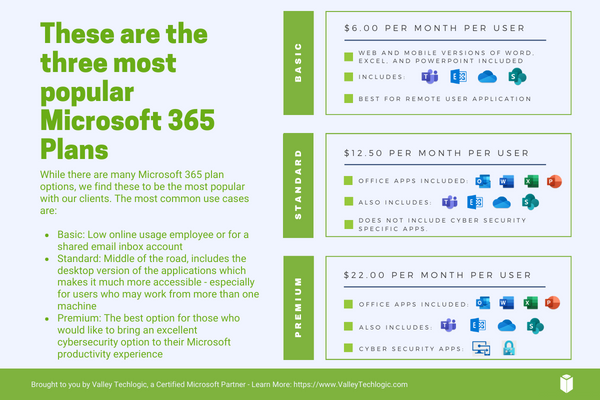
    Here are the benefits found for each of the three most popular Microsoft 365 subscription types, Microsoft 365 Business Basic, Microsoft 365 Business Standard & Microsoft 365 Business Premium.

    1. Microsoft 365 Business Basic: Microsoft 365 Business Basic is Microsoft’s no frills, low cost offering that is perfect for employees who may not be using a computer as often. This subscription type will get them an Outlook email and web versions of Word, Excel and more (so they can still be in the loop on what’s going on in your office) but if you have someone who’s not glued to a desk or are a part-time employee, this level of subscription is our recommendation. Microsoft 365 Business Basic started at $7.20 a month per user.
    2. Microsoft 365 Business Standard: Standard is truly the middle option; it includes the desktop versions of Office software but it’s missing out on the additional cyber security protections found under premium (which we believe are an excellent value). For your average employee Standard is a good option. Microsoft 365 Business Standard started at $15 a month per user.
    3. Microsoft 365 Business Premium: Microsoft 365 Business Premium is we believe, the best value when it comes to Microsoft’s subscription-based offerings. Not only do you get the all the benefits of Office but you also get superior cyber security detection delivered right to your device that’s constantly being updated to keep up with new threats with all the power of Microsoft behind it. It’s an excellent companion piece to your current cybersecurity protections and we believe this subscription is a must have for your management and C-suite level employees. Microsoft 365 Business Premium starts at $26.40 a month per user.

    Also, it’s important to note that Microsoft does offer a discount if you choose to enroll in an annual plan.

    As we mentioned, Valley Techlogic is experts in all things Microsoft and Windows, and we have been a Microsoft partner since 2004. If you would like assistance in choosing the right Microsoft 365 plan for your office, we’d be more than happy to assist. Schedule a consultation with us today.

    Looking for more to read? We suggest these other articles from our site.

    This article was powered by Valley Techlogic, an IT service provider in Atwater, CA. You can find more information at https://www.valleytechlogic.com/ or on Facebook at https://www.facebook.com/valleytechlogic/ . Follow us on Twitter at https://x.com/valleytechlogic.

  • 10 Microsoft 365 tools you need to take advantage of TODAY

    10 Microsoft 365 tools you need to take advantage of TODAY

    Most of our clients are Microsoft 365 customers and enjoy the tools and applications they receive through their Microsoft 365 subscription. Many of these same clients were long time Office customers and were already familiar with the software benefits – such as Word, Office, Outlook, Powerpoint and Excel. These are staple products in the business community and chances are if you’ve been in business long enough you’ve had some exposure to them throughout your career.

    We have had clients who miss the days when Office was a standalone product only. While you still can purchase Office 2021 for a one-time fee, many have to weigh the value of a pretty substantial upfront cost when purchasing for many employees for a product that will at some point expire vs the subscription model that is now favored by many software companies. This is a discussion onto itself, but in a nutshell many clients choose to go with a Microsoft 365 subscription.

    There is an obvious benefit to doing so right off the bat if you choose to go with Microsoft 365 Business Premium, the security benefits of this plan are well known and touted throughout the technology industry as being the crème de la crème of security suites for Windows machines.

    However, there are many benefits to your Microsoft 365 subscription that many users are not even aware of. Microsoft 365 is much more than just an Office subscription – your plan comes with business utility programs that can make organizing and running your business better.

    Here are 10 tools you can take advantage of TODAY if you have a Microsoft 365 subscription:

    1. Microsoft OneNote: OneNote is Microsoft’s digital notetaking app, it’s a step way above NotePad with the ability to organize multiple notes (with colored tabs) and collaborate and share your notes with other.
    2. Microsoft Intune: Intune allows you to control and manage all of the Microsoft endpoints within your business from one place. This one might need an IT pro when it comes to setup and management but once you get it going it really can simplify many IT tasks for your team.
    3. Microsoft Forms: Did you know that you can create surveys, quizzes and polls with a Microsoft product? You can with forms, you can even export the data to Excel and share the forms you create on your website or social media platforms.
    4. Microsoft List: With Microsoft 365 you don’t have to go off platform when it comes to managing even the somewhat more mundane aspects of your business, Microsoft Lists is Microsoft’s solution for keeping track of well, everything. Also just like with Forms you’re able to export these lists to Excel with a click of a button.
    5. Microsoft Bookings: Microsoft Bookings is Microsoft solutions to having a public calendar where clients or colleagues can book a meeting with you, and it’s tied right to your Outlook calendar. Another benefit of Bookings is it can be added to your website for prospective clients to book time with you and eliminating the cost of an outside calendar application.
    6. Microsoft To Do: If you or your employees struggle with staying on task, Microsoft To Do is the solution for you. You can plan out your days in advance and Microsoft To Do will be your one stop place for keeping things on track.
    7. Microsoft Viva: Microsoft Viva is an addition to Microsoft Teams that adds a lot of functionality not usually found in a chat program, Microsoft Viva is a multi-faceted platform but in a nutshell it allows you to set goals for your business, provide training to your employees and see insights into their workday, as well as offering them to provide feedback to you all in the Teams application they already use.
    8. Microsoft Streams: If you already use Teams for your video conference calls then you’re familiar with how reliable Microsoft is when it comes to video streaming. Microsoft Stream takes that a step further and allows you to broadcast video outside your organization with up to 1000 participants.
    9. Microsoft Power BI: Microsoft Power BI provides a snapshot of your business’s data in the form of charts and graphs, so you can see how the data your business creates evolves and changes over time.
    10. Microsoft Planner: Finally, we bring it all home with Microsoft Planner, it’s exactly what you would expect it to be a simple visual tool for planning out meetings, business goals, marketing pitches and more all found at your fingertips with your Microsoft 365 subscription.

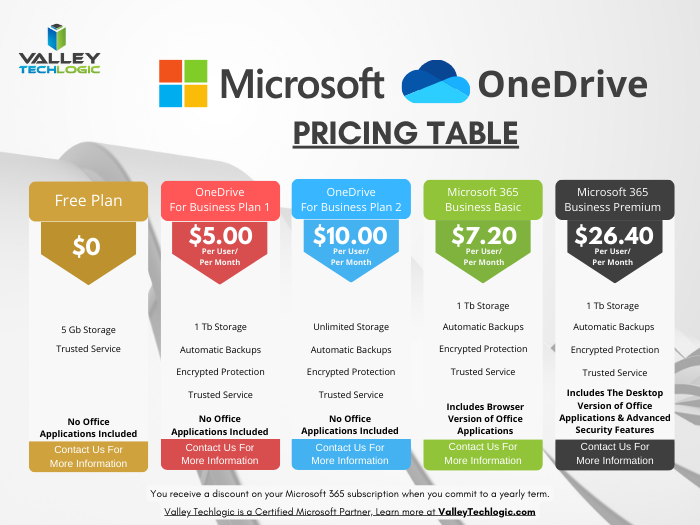
    Of course, if you’re considering signing up for Microsoft 365, you do have to take the cost into account. Here are the costs for the most popular plans (these costs factor in a discount for committing to an annual subscription, the costs are approximately 20% higher when you choose a monthly term).

    Interested in learning more about Microsoft 365? Valley Techlogic is a Microsoft partner, and we can walk you through the process of buying and making the most of your new subscription. Learn more today with a consultation.

    Looking for more to read? We suggest these other articles from our site.

    This article was powered by Valley Techlogic, an IT service provider in Atwater, CA. You can find more information at https://www.valleytechlogic.com/ or on Facebook at https://www.facebook.com/valleytechlogic/ . Follow us on Twitter at https://x.com/valleytechlogic.

  • AWS vs Azure, what is your best option when choosing a cloud platform?

    AWS vs Azure, what is your best option when choosing a cloud platform?

    We’ve had articles in the past about why you should consider making the move from on-premises to the cloud, but we’ve never specifically addressed which provider you should consider when making this move.

    For many, AWS (Amazon Web Services) and Azure are the main players that they look to when making the jump the cloud. Brand recognition is obviously there for both choices, as well as a history of impeccable uptime. Uptime is a very important factor, obviously you want your data to be available when and how you need it, but there are more things to consider.

    First, let’s look at the players. AWS has been around since 2006 and offers a “pay as you go” model, which means you pay only for the data you actually use. Many of us are familiar with the webstore Amazon, and you’d probably be surprised to learn AWS is a much bigger venture for Amazon, with 74% of their profit coming from AWS.

    Azure was launched in 2010 and is also pay as you go. However, how they differ is that Azure actually lets users access their data through a virtual machine on a Virtual Hard Desk (VHD). This means their interface is slightly more user friendly from the start. For a similar interface in AWS you must rent an EC2 (their version of a virtual machine). EC2 is more customizable but Azures Virtual Machine may more easily work with existing Cloud computing tools.

    Both are similar in that they offer scalable storage solutions; however, their object size restrictions vary slightly, with AWS having a 5 TB object size limit and Azure having a 4.75 TB limit. For most of our customers this would be a very negligible difference, however.

    Both do an excellent job of securing your data, in AWS you customize your security settings on setup. With Azure, they use Microsoft’s Cloud Defender services which are similar to the Windows Defender services you probably already utilize.

    AWS has a dashboard that may be easier to use if it’s your first-time using cloud services when it comes to looking for documentation on how to use the service. Where Azure has them beat though is that Azure keeps all of your user account and information in one place. So, depending on which kind of information you’re looking for, you may prefer one over the other.

    If customizing your cloud experience via code is something you’re after, you probably want to stick with AWS. Through their SageMaker system you can utilize their artificial intelligence (AI) tools to develop a very specific and unique experience when it comes to tracking data, making modifications, and applying updates.

    Azure on the other hand has opted for a “Codeless” interface, even someone with zero coding knowledge can drag and drop pieces to customize their cloud’s AI interface.

    Of course, from a base level you can look at what operating system these are compatible with. AWS is more compatible with Linux while Azure offers compatibility through .net with Linux, Windows and MacOS.

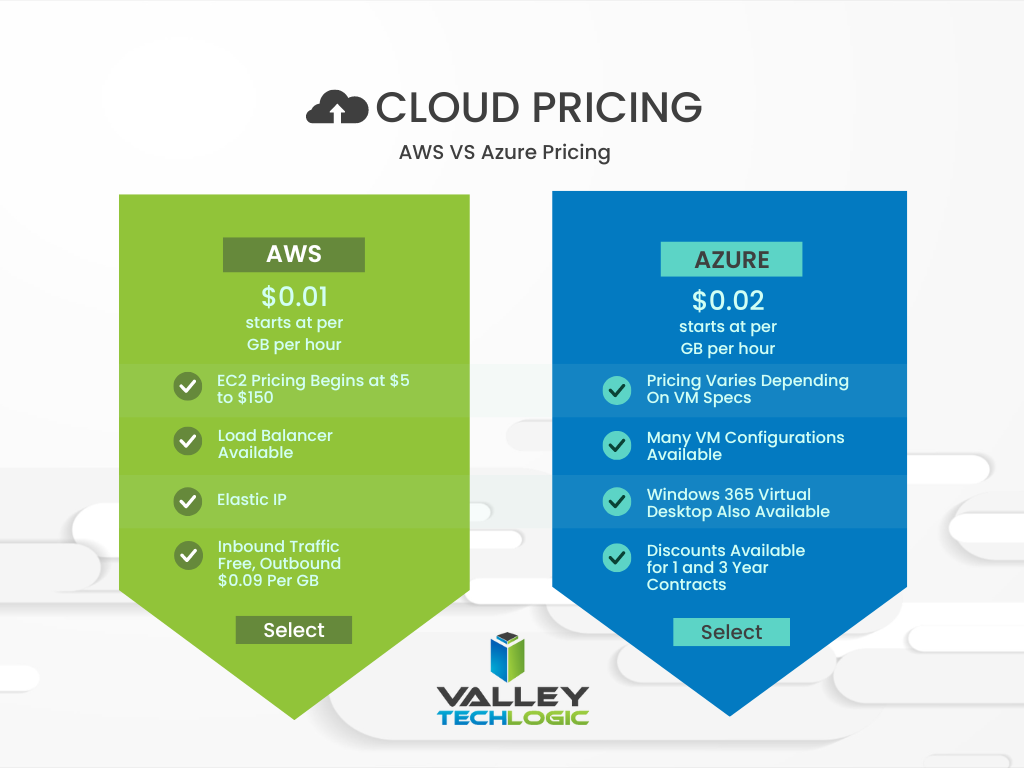
    In a nutshell, these two cloud behemoths are more alike than different but there are some factors that depending on your particular business sector or goals may lead you to shift one way or the other. We also want to spend a moment addressing a pricing breakdown for both AWS and Azure. You can see their pricing models in the chart below. We also want to note that both provide a free introductory period so you can test their services before committing to a plan.

    Are you considering a move to the cloud and aren’t sure which provider to go with, or even how to make it happen? Valley Techlogic can help. We’re experts in cloud computing and have managed many customer cloud migrations. Reach out today to schedule a free consultation.

    Looking for more to read? We suggest these other articles from our site.

    This article was powered by Valley Techlogic, an IT service provider in Atwater, CA. You can find more information at https://www.valleytechlogic.com/ or on Facebook at https://www.facebook.com/valleytechlogic/ . Follow us on Twitter at https://x.com/valleytechlogic.

  • Your questions answered, our Microsoft 365 subscription information for Nonprofits

    Your questions answered, our Microsoft 365 subscription information for Nonprofits

    As a Microsoft partner we help our customers receive the maximum benefits from their Microsoft 365 subscriptions, including access to the security features found under Microsoft Business Premium and the line of business software we’re all familiar with Office, featuring programs such as Excel, Word, Powerpoint and more.

    For our nonprofit clients they can reap these same benefits often at a reduced cost or even free. We wanted to break down what’s available and how you can take advantage of these benefits for your nonprofit business in today’s article.

    First, what are the eligibility requirements that nonprofits must meet in order to apply?

    Your organization must be one of the following three:

    1. A Nonprofit that’s recognized by your respective country, in the US if your business has 501(c ) (3) status you most likely qualify.
    2. Public Libraries.
    3. Public Museums.

    Our clients usually fall within the first category and their business sector varies, from healthcare to education and many others.

    Another restriction of the free or reduced cost licensing is you must use it for your non-profit staff. If you also have a for profit side of your business or another business that’s for profit you cannot use your non-profit licensing for those staff members. Also, for executive staff they must be unpaid to qualify to use the licensing.

    Microsoft also requires high utilization of the licenses you use, so we don’t recommend using them on staff members who don’t require a computer. They monitor usage and require 85% utilization.

    If your business meets the above requirements, you can apply using this link. Once you apply processing takes up to 10 business days while they validate your application.

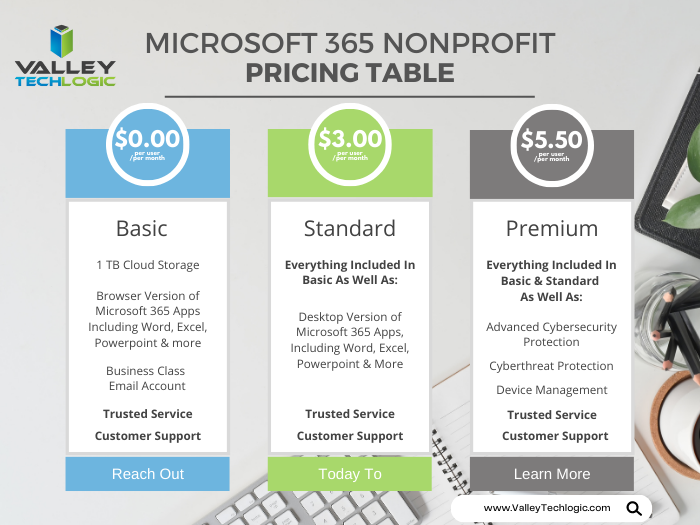
    After you’re approved, you’ll have access to the Microsoft 365 benefits found in the chart below:

    Pricing Table for Microsoft 365 Subscriptions NonprofitAs you can see, these are not scaled back versions of Microsoft 365. Nonprofits receive the same level of service for free (or at a deep discount). If you’re curious what license version makes the most sense for your staff we have a free Microsoft guide that goes into the benefits of Microsoft 365 as well as providing information on Windows, Onedrive and more here.

    Microsoft also provides specialized training for nonprofits and discounts on Surface hardware, you can learn more about these programs here.

    At Valley Techlogic we’re well versed in helping support our nonprofit clients, we can help you with the Microsoft application process as well as helping your business with your day to day technology needs. If you would like to learn more click here to schedule a consultation today.

    Looking for more to read? We suggest these other articles from our site.

    This article was powered by Valley Techlogic, an IT service provider in Atwater, CA. You can find more information at https://www.valleytechlogic.com/ or on Facebook at https://www.facebook.com/valleytechlogic/ . Follow us on Twitter at https://x.com/valleytechlogic.

  • Missing file? Don’t panic, 5 recovery tips for Windows devices

    Missing file? Don’t panic, 5 recovery tips for Windows devices

    I know this has happened to me before, I have a new Word document I’ve created sitting open (maybe I’m actively working on it) I mean to save it somewhere and I just don’t.

    Another scenario, someone requests an Excel spreadsheet I’d done some editing on and when I go to look for it, it’s nowhere to be found.

    Panic ensues, but then I remember Windows 10 (and 11) devices have a number of different ways of finding and retrieving lost documents – especially those that were created in the Office suite of software. Before trying any of these steps we suggest checking your recycle bin first just in case it was accidentally deleted.

    The easiest way (and possibly most obvious) is to just click the little magnifying glass on your taskbar and just search for what you can remember about the file name or the file contents. Windows search system is pretty powerful, and your search may end here. An extra tip for narrowing your options, up at the top of the search window you can narrow the options by type, such as Applications or Documents.

    If you tried searching for the document and came up empty, the next place you should look is the most recent files section in the document application you’re working with. In both Excel and Word you can find this section by going to the upper left hand section of the navigation panel and hitting the “File” button. From there you go to “Open”. In this section you’ll see all your most recent files.

    The recover unsaved documents button is here to save the day.

    If you strike out there don’t exit out yet, this is where tip number three comes in. At the bottom of this section, you may see a “Recover Unsaved Documents” button. Clicking that will bring up any documents that were closed without being saved and hopefully your missing document is found in this section because it starts to get a little trickier by step four and requires a bit of luck.

    If you have backups enabled on your computer you can follow these steps by first clicking the “Start” button followed by “Control Panel,” “System Maintenance” and then “Backup and Restore.” Once the backup has been restored, you can search it for your missing file.

    The final place to look is your temporary files folder, usually something like C:\Users\Owner\AppData\Local\Microsoft\Office\UnsavedFiles but individual file paths may vary.

    If you’re a Microsoft 365 OneDrive user you have a bonus recovery step available, you can try creating a file with the same name and file type as the missing document. After you’ve created the new file, select Properties, select the Previous Versions tab, and then hopefully a version appears there that you can restore.

    After trying all these steps if your wayward document is still missing, it may be time to call in the experts. Data recovery is a big part of what we do at Valley Techlogic, and to make sure our clients never have to go through the headache and stress of losing their very important documents and data backups are a core feature of all of our plans.

    Here’s an our backup program in a nutshell which we consider the gold standard for businesses:

    Click to learn more about TechVault.

    Want to learn more? Visit our calendar page to book a consultation.

    Looking for more to read? We suggest these other articles from our site.

    This article was powered by Valley Techlogic, an IT service provider in Atwater, CA. You can find more information at https://www.valleytechlogic.com/ or on Facebook at https://www.facebook.com/valleytechlogic/ . Follow us on Twitter at https://x.com/valleytechlogic.