Tag: windows

  • Make the Most of Your Microsoft 365 Subscriptions: 7 Productivity Hacks You Might Be Missing

    Make the Most of Your Microsoft 365 Subscriptions: 7 Productivity Hacks You Might Be Missing

    Microsoft 365 is packed with powerful tools designed to help businesses stay productive, collaborative, and organized—but many users barely scratch the surface of what’s available. If you’re only using Microsoft 365 for email and basic file storage, you’re likely leaving a lot of value on the table.

    Here are 7 productivity hacks to help you get the most out of your Microsoft 365 subscription:

    1. Use Microsoft Search to Navigate Faster

    Microsoft Search is a powerful, built-in tool across Outlook, OneDrive, SharePoint, and Teams that helps you quickly find emails, files, conversations, and even people in your organization. Instead of digging through folders or threads, type a keyword into the search bar—Microsoft Search will pull relevant results instantly from across all connected apps.

    Pro Tip: You can even search using natural language—like “files shared by John last week”—to find what you need faster.

    1. Streamline Repetitive Tasks with Power Automate

    Power Automate (formerly Microsoft Flow) lets you create custom workflows between apps to save time and reduce manual work. You can automate common tasks like saving email attachments to OneDrive, posting Teams alerts when a SharePoint list is updated, or sending approval requests.

    Example: Set up a flow to automatically notify your team in Teams when a new file is uploaded to a project folder.

    1. Collaborate in Real-Time with Co-Authoring

    Microsoft 365 makes real-time collaboration seamless. Whether you’re in Word, Excel, or PowerPoint, multiple users can work on a document at the same time. Changes are saved automatically and version history lets you review or restore earlier versions with ease.

    Bonus: Use @mentions in comments to get a colleague’s attention instantly.

    1. Organize Your Thoughts with OneNote

    OneNote is the hidden gem of Microsoft 365. Use it to capture meeting notes, brainstorming ideas, project plans, and more. Notebooks are searchable, can be shared across your team, and sync across all your devices.

    Use Case: Create a shared notebook for your team to store agendas, meeting recaps, and to-do lists in one central place.

    1. Turn Emails into Tasks with Microsoft To Do and Outlook Integration

    If your inbox is your to-do list, Microsoft To Do can help bring order to the chaos. With seamless integration into Outlook, you can flag emails to automatically turn them into actionable tasks.

    Tip: Use the My Day feature in To Do to focus only on what you need to accomplish today.

    1. Secure Your Data with Built-In Tools

    Microsoft 365 comes with strong security features that are often underused. Data Loss Prevention (DLP), sensitivity labels, and multi-factor authentication (MFA) can all help keep your data protected without requiring advanced setup.

    Security Tip: Admins should regularly review security and compliance reports in the Microsoft 365 Security Center to stay ahead of potential issues.

    1. Integrate Third-Party Apps into Teams

    Microsoft Teams isn’t just for chat and video calls—it’s a hub for productivity. You can integrate hundreds of apps directly into your Teams channels, from project management tools like Trello and Asana to CRM systems and custom Power Apps.

    Efficiency Hack: Pin your most-used apps to the sidebar for easy access during daily work.

    Whether you’re a power user or just getting started, Microsoft 365 has tools to help you work smarter—not harder. With a little exploration and some setup, you can automate workflows, improve collaboration, and protect your data—all within the apps you already use.

    Need help unlocking Microsoft 365’s full potential for your team? Contact Valley Techlogic today and let’s optimize your digital workspace together.
    Looking for more to read? We suggest these other articles from our site.

    This article was powered by Valley Techlogic, leading provider of trouble free IT services for businesses in California including Merced, Fresno, Stockton & More. You can find more information at https://www.valleytechlogic.com/ or on Facebook at https://www.facebook.com/valleytechlogic/ . Follow us on X at https://x.com/valleytechlogic and LinkedIn at https://www.linkedin.com/company/valley-techlogic-inc/.

  • Support will end for Windows Server 2012 in October 2023, pros and cons of upgrading, replacing, or transitioning to the cloud

    Support will end for Windows Server 2012 in October 2023, pros and cons of upgrading, replacing, or transitioning to the cloud

    As promised continuing off the back of last weeks article on Steam ending support for Windows 7 and 8 we wanted to talk about the real elephant in the room for businesses coming up this year, Windows Server 2012 end of life date which will occur October 10th, 2023.

    On that date extended support for Windows Server 2012 will end. So, what does that mean for you? In general, we’ve seen that Windows products no longer receiving support from Microsoft have in an increased risk of cyber threats as hackers launch targeted attacks on these devices. In some cases Microsoft has stepped in to release patches in especially severe cases but it’s not a good idea to count on that.

    You can also expect your vendors will end support for Windows Server 2012 in October if they haven’t already, and it also will cause your business to fall out alignment with compliance to agencies like HIPAA or PCI and others. Without vendor or Microsoft assistance it may be difficult to receive support for these devices if they suddenly fail as well.

    All in all, there’s no good reason to do nothing with this news but many of our clients wonder when it’s time to upgrade, replace or even abandon the notion of an on-premises server altogether by moving their data to the cloud.

    There’s no easy answer to this question, we do have one quick suggestion though if October comes around and you’re still debating your options. If it’s possible to take the “walled garden” approach to any device running an outdated version of Windows, we highly suggest it. What this means is getting to a place where you prevent the device from accessing the internet and only access it with other devices via a firewall or some other means of protection. This will allow you to have a little bandwidth to stretch out making a plan to upgrade, replace or remove it.

    If you do feel like you’re reading to make a decision but need some assistance on which way to go, we do have five tips for when it’s time to replace a server:

    1. Warranty: Warranty is a big concern with servers, most servers have a useful life of 5 years though some manufacturers will offer extended renewals (not generally past 7 years though). Replacing hardware in a server is similar to replacing components of a vehicle, it can add up fast.
    2. Slow Running: If your server is a slog to work with, updating the operating system to a newer addition is not going to improve it.
    3. Expired OS: Having an expired operating system is a good reason to replace the server especially if the operating system was relatively new when the server was purchased.
    4. Storage Capacity: Storage capacity and solid state drive technology continues to improve each year, if you have a server with older hard drives or very small hard drives compared to modern standards it may make sense to start fresh with a new server vs trying to transition new drives into the old one.
    5. Software Requirements: If your software requirements have changed since the server was purchased and your old server can’t run your line of business software either well or at all, that’s a good reason to upgrade to a newer server.

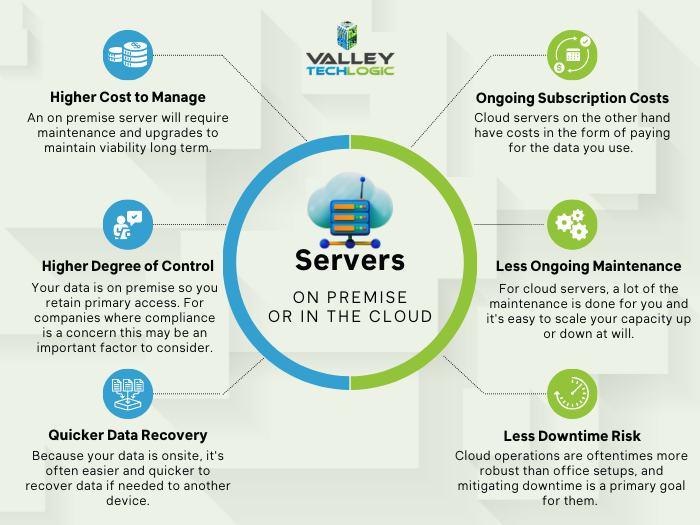
    If you answered no to all of the above then it might be worth considering whether upgrading to a supported Windows server is an option for you. We recommend leaving this task up to the professionals, upgrading a server is not the same as upgrading a laptop or desktop device. If the answer to any of the above questions was yes, then we highly recommend replacing, but should you replace your physical server or switch to the cloud? See our chart below for guidance:

    Cloud or On Premise Server? Still need more help with your Windows Server 2012? Valley Techlogic has been a Microsoft partner since 2004 and we’re experts in all things Windows. Reach out today for a consultation.

    Looking for more to read? We suggest these other articles from our site.

    This article was powered by Valley Techlogic, an IT service provider in Atwater, CA. You can find more information at https://www.valleytechlogic.com/ or on Facebook at https://www.facebook.com/valleytechlogic/ . Follow us on Twitter at https://x.com/valleytechlogic.

  • Another blow for Windows 7 and 8 hold outs, Steam announces they’re ending support for these devices January 1st 2024

    Another blow for Windows 7 and 8 hold outs, Steam announces they’re ending support for these devices January 1st 2024

    You might be thinking, why is Valley Techlogic a business IT service provider reporting on this? While it’s true, most of our content is aimed at our client base which is business owners, there is of course some overlap between that community and the gaming community. There is also the looming topic of what this signifies for those continuing to use outdated versions of Windows – business owners and gamers alike.

    The latest news from Steam officially announcing they’re cutting off support Windows 7, 8 and 8.1 devices on January 1st 2024. On that date the Steam client, which is how users access their games, will stop working on these devices. That’s because portions of the Steam client rely on a version of Chrome that has also ceased support for those versions of Windows as of February of this year.

    While Steam users still using Windows 7/8/8.1 are a minority at less than 3% of the total client base, around 7% of the population is still using devices featuring these operating systems (which doesn’t sound like a lot but represents millions of people). For context, Windows ended support for 7 as of January 2020 and for 8 and 8.1 January 2023.

    One of the obvious downsides which is connected to today’s news, beyond being unsupported by Microsoft themselves these operating systems will no longer be supported by the software platforms you use regularly, and they may cease functioning on those platforms altogether.

    There is also consequences to remaining on these operating systems that can fall way beyond losing access to your favorite games, without Microsoft support these devices are subject to more severe and more frequent security threats than modern operating systems that are still being actively supported.

    The WannaCry ransomware is one obvious example of ransomware that’s targeted these devices, infecting an estimate 16 million devices so far. The fix for this ransomware is restoring the device but that may be difficult on older machines still running Windows 7 and 8. You also run the risk of your device failing just because the components have reached their maximum lifespan.

    We always recommend replacing older devices BEFORE they fail because recovering the data on them is never a guarantee (especially without expert help).

    This especially includes servers, with support for Windows Server 2012 R2 ending October 10, 2023. Recovering the data from a server that has failed or been compromised can only be accomplished by experts – and the data recovery for servers is often lengthy and expensive.

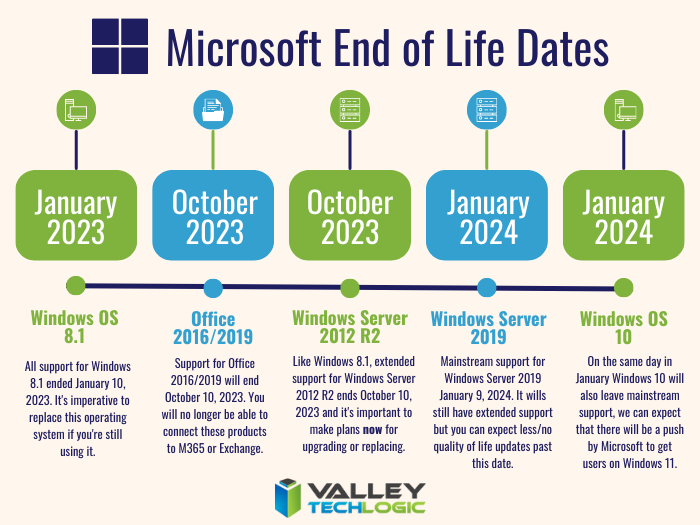
    If you’re not sure of the end of life dates for your Microsoft products are coming up, here’s a chart you can keep as a reference:

    Microsoft End of Life Dates Coming up in 2023/4.

    It can be difficult to know whether you should update your device to the latest operating system, or if it needs to be replaced altogether. Your devices may technically run Windows 10 but if you have an older hard drive, or the device is more than 8 years old it probably makes sense to replace it instead.

    For businesses looking to replace older devices, we have partnered with both Dell and Lenovo and can help you navigate the process as well as give you access to the discounts and special offers available to us. Reach out today for a consultation.

    Also stay tuned, next week we’ll dive into whether it’s worth upgrading or replacing your on premises server or if it makes sense to move your data to the cloud and bypass a hardware purchase altogether.

    Looking for more to read? We suggest these other articles from our site.

    This article was powered by Valley Techlogic, an IT service provider in Atwater, CA. You can find more information at https://www.valleytechlogic.com/ or on Facebook at https://www.facebook.com/valleytechlogic/ . Follow us on Twitter at https://x.com/valleytechlogic.

  • BYOD (Bring Your Own Device) in the workplace, 5 policies to have in place for 2023

    BYOD (Bring Your Own Device) in the workplace, 5 policies to have in place for 2023

    Last week we touched on tips for buying new tech for your business in 2023, but for some offices BYOD (Bring Your Own Device) is the norm.

    What is BYOD? Bring your own device is where an employee uses their personal device (usually a laptop) for work purposes. There are different ways to go about this, for some offices there employees using an already owned device. For others, they can use a device they own but they must log into a virtual machine to do their work. A third option is that the business still purchases the device an employee uses but because they work remotely from home the same rules of BYOD still apply even though it’s a company owned device.

    During the pandemic we saw more articles related to BYOD and remote working and how to still manage a secure workspace even if your employees aren’t coming into the office. Even with workplaces now open again many are operating on a hybrid model and advice surrounding security of devices that don’t stay in one location is still very relevant.

    Business owners themselves also often take their devices home with them at the end of the day and aren’t immune to the same pitfalls that can happen if you don’t have policies in place to help protect your office network and data. BYOD offers work places a lot of flexibility as long as security measures are adhered to.

    Here are our tips for smart BYOD policies to have in 2023:

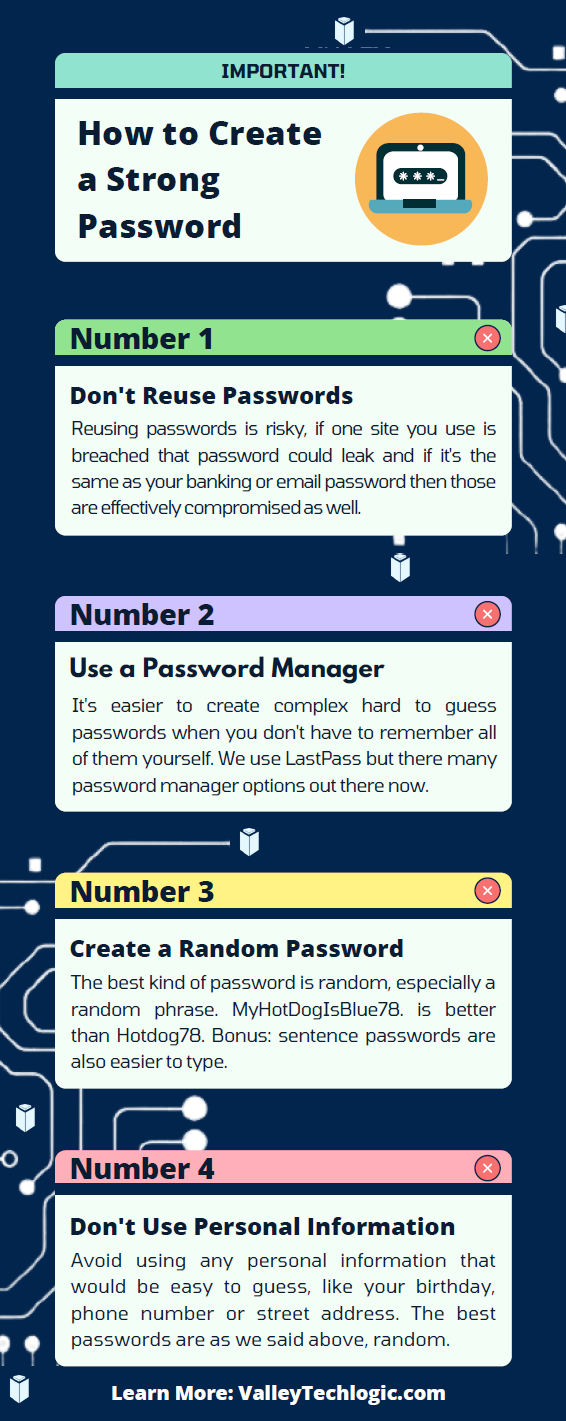
    1. First and foremost, have a good password policy. Especially for company websites and other logins. See our chart below for what makes a good password.
    2. Determine what data can be accessible from home or a BYOD. Some data should be restricted to in office/office devices only, especially anything client sensitive. You can also utilize a company SharePoint to share files without having them be locally stored on devices.
    3. Have time-based lock-out procedures to limit long sessions, especially if a device is idle. An idle device left in an unfamiliar place is a potential vector for hacker access. Time-based lockouts will make devices used offsite much more secure.
    4. Utilize the same security stack on BYOD as you do on company or office devices. Many cybersecurity tools don’t require devices to be in the same building, it’s a good policy to have your IT provider install the same tools on BYOD and other devices that leave the office. If your company uses Windows you can also consider something like Microsoft’s Intune for easier management of all of your endpoints no matter where they’re being used from.
    5. Have a policy for wiping company data off a BYOD. Especially if the device is employee owned, you shouldn’t assume that it will always be a smooth hand off. Having policies for this in writing is crucial.

    Like we said the first step is having a good password policy is step one to a good BYOD plan for your business, and we might argue it’s the first step in a good security plan overall. Here are our tips on what makes a good password:

    Click to grab the full size version.

    If you need help with device management in your business, Valley Techlogic can create a plan of action that encompasses both flexibility and security into a package with functionality at the forefront. Reach out today to learn more.

    Looking for more to read? We suggest these other articles from our site.

    This article was powered by Valley Techlogic, an IT service provider in Atwater, CA. You can find more information at https://www.valleytechlogic.com/ or on Facebook at https://www.facebook.com/valleytechlogic/ . Follow us on Twitter at https://x.com/valleytechlogic.

  • Thinking about buying new tech for your business in 2023? Here are our top 10 tips

    Thinking about buying new tech for your business in 2023? Here are our top 10 tips

    We recently touched on the tax savings benefits for making technology purchases before the new year, however maybe you’re only in the beginning stages of thinking about replacing equipment in your business and aren’t ready to go ahead and buy before 2022 is over.

    We’re a fan of making big technology purchases in bulk when it comes to our clients, instead of a mish mash of devices that all have different warranty times, hardware capabilities and software available to them you have one set of devices that can be managed in much the same way for their entire life span because they all came from the same place at the same time.

    While that Isn’t always achievable, you can accomplish almost the same goal by buying in sections as well. Maybe management devices get replaced first, followed by team 1 and team 2. Just any kind of organizational system to your technology buying beats the technology clutter of having everyone working on something different.

    Of course there are different considerations if your business BYOD (bring your own device) which we’ll touch on next week. Besides trying to make your technology purchases at roughly the same time here are 10 more tips for business technology buying in 2023.

    1. Research is key. Not all laptops for example are created equal (and the same goes for every other device) you want devices that will more than cover the requirements of Windows 10 or 11 and still perform well.
    2. On the same token, look up reviews. Sometimes a product SKU is problematic, it would be bad to read reviews about your chosen laptop having a problem with premature device failure AFTER you’ve bought 10 of them.
    3. Consult your employees. Your employees may have opinions about what is crucial to them in a work device, for example if you have one employee who handles your graphic design they may need extra memory or a better video card added to their particular device to do their job effectively.
    4. Spend a little extra on the extended warranty. You want these devices to last a long time for your business as they’re a big investment, it’s worth it to purchase the extended warranty (Dell offers up to 5 years for example).
    5. Look into what kind of support the company offers if you do encounter a problem. On the same page as the last tip, you want to make sure if one of the devices breaks or encounters a problem you can easily have it fix. Lenovo is another vendor we work with and they offer onsite repair of devices at a low additional cost.
    6. Consider consulting your software vendors. If you use a proprietary software in your business it’s especially important to make sure your chosen device will work with it (especially if we’re talking about replacing an onsite server).
    7. To follow up on that, if you’re considering replacing your server it might be a good time to consider the cloud. Onsite servers are a very expensive investment, we have seen more clients move to the cloud in 2022 than ever before. If your server has come up for replacement it might be worth researching before making that purchase.
    8. If you do want to purchase another onsite server, consider refurbished. Ordinarily we shy away from refurbished but when it comes to servers it can be a smart investment and we’ve found they perform just as well as new, we have saved clients thousands of dollars when they choose this option.
    9. You can choose the cloud for employee devices as well. If you have a BYOD format but still want the uniformity and security of having everyone connect from a similar machine, we recommend Windows 365. It’s a cloud PC your employees would connect to from their current device, it can give them the benefit of using a PC with more powerful hardware if you chose and you can manage these devices under one platform.
    10. Work with your IT provider to take advantage of their partnerships. Finally, if you have an IT provider it’s worth asking if they have partnerships with any vendors that can help you get a better deal. We have partnerships with Dell and Lenovo and utilize them to benefit our clients regularly. You can learn more about that here.

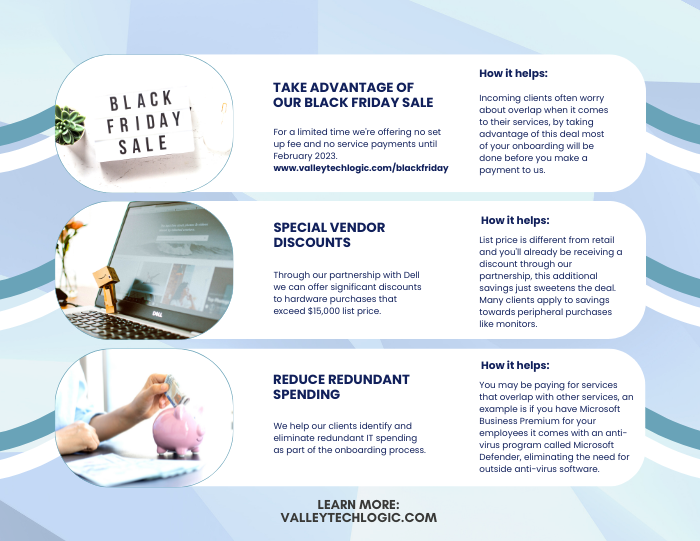
    Here are three ways you can save right now on your technology spending:

    Three additional money savings tips.Procurement services is something we reserve for clients. If you’d like to learn more about how we can help you purchase new devices and maintain them, click here to schedule a consultation.

    Looking for more to read? We suggest these other articles from our site.

    This article was powered by Valley Techlogic, an IT service provider in Atwater, CA. You can find more information at https://www.valleytechlogic.com/ or on Facebook at https://www.facebook.com/valleytechlogic/ . Follow us on Twitter at https://x.com/valleytechlogic.

  • Windows Server 2012 and Server 2012 R2 are approaching end-of-life, what should you do?

    Windows Server 2012 and Server 2012 R2 are approaching end-of-life, what should you do?

    Upgrading your personal computer with the latest Windows can come with some challenges and hesitancy due to changes that are made to every new consumer and business version of Windows for personal computers.

    UI changes and increased specifications both come to the forefront for our customers when making these changes, but for servers that decision process feels even more fraught with danger.

    On October 9th, 2023, Windows Server 2012 and 2012 R2 will be in their end-of-life. What this means is it will no longer be a primarily supported product by Microsoft, who understandably needs to focus their time and energy supporting more current products. What it means for customers still utilizing Windows Server 2012 (or 2012 R2) is that their servers may not receive crucial support updates that often prevent things like your server malfunctioning, software working as intended, or even security updates.

    With just under a year to go that gives you time to consider your options when upgrading to a more current software, or if it makes sense to pay for extended support through Microsoft.

    The Extended Security Updates (or ESU) program does not include any feature updates, the only updates your server will receive will be security updates only, and to expand on that further that will only be important or critical security updates.

    This may mean your server is still vulnerable to intrusion although much less so than devices going unpatched. Often times a device ending support is a green light to hackers to begin working on breaching these older devices now that they’re less secure.

    That problem is not unique to Microsoft either, even smaller devices such as routers or switches can fall under end-of-life and no longer receive critical security patches. Just look at the recent Cisco zero-day security announcement and their stance. They will not be patching the outdated routers to prevent security intrusion; the expectation is that customers that own those routers will need to upgrade to ensure their business is safe.

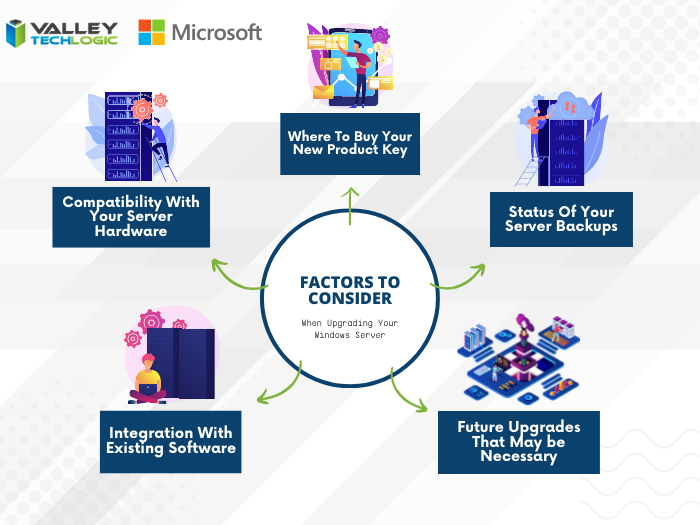
    There are some factors to consider however when it comes to upgrading your Windows serve, see our chart below:

    Five Considerations to Take When Replacing Your Windows Server

    The chart assumes an ideal scenario of either performing the update on a newly purchased server or taking the server offline temporarily. Performing an in-place Windows Server update can be risky and is best left for the professionals to decide whether it’s possible in each unique scenario.

    Purchasing a new server if your current server is too out of date to run the current version of Windows Server is tricky as well, there are more factors to consider with a machine that supports your entire business than with a device that’s only utilized by one or two employees.

    It’s also important no matter which avenue you take that you’ve properly backed up the existing server, if something were to go wrong not having that backup could mean losing all of your data. Which in many cases, is a catastrophic event.

    If we haven’t convinced you yet we’ll say it plainly, this is not a job that should be attempted by someone who’s just “computer savvy”. Upgrading your server requires an expert’s knowledge to execute in a timely manner and without losing your company data. Valley Techlogic can be that expert hand, learn more today with a free consultation.

    Looking for more to read? We suggest these other articles from our site.

    This article was powered by Valley Techlogic, an IT service provider in Atwater, CA. You can find more information at https://www.valleytechlogic.com/ or on Facebook at https://www.facebook.com/valleytechlogic/ . Follow us on Twitter at https://x.com/valleytechlogic.

  • Missing file? Don’t panic, 5 recovery tips for Windows devices

    Missing file? Don’t panic, 5 recovery tips for Windows devices

    I know this has happened to me before, I have a new Word document I’ve created sitting open (maybe I’m actively working on it) I mean to save it somewhere and I just don’t.

    Another scenario, someone requests an Excel spreadsheet I’d done some editing on and when I go to look for it, it’s nowhere to be found.

    Panic ensues, but then I remember Windows 10 (and 11) devices have a number of different ways of finding and retrieving lost documents – especially those that were created in the Office suite of software. Before trying any of these steps we suggest checking your recycle bin first just in case it was accidentally deleted.

    The easiest way (and possibly most obvious) is to just click the little magnifying glass on your taskbar and just search for what you can remember about the file name or the file contents. Windows search system is pretty powerful, and your search may end here. An extra tip for narrowing your options, up at the top of the search window you can narrow the options by type, such as Applications or Documents.

    If you tried searching for the document and came up empty, the next place you should look is the most recent files section in the document application you’re working with. In both Excel and Word you can find this section by going to the upper left hand section of the navigation panel and hitting the “File” button. From there you go to “Open”. In this section you’ll see all your most recent files.

    The recover unsaved documents button is here to save the day.

    If you strike out there don’t exit out yet, this is where tip number three comes in. At the bottom of this section, you may see a “Recover Unsaved Documents” button. Clicking that will bring up any documents that were closed without being saved and hopefully your missing document is found in this section because it starts to get a little trickier by step four and requires a bit of luck.

    If you have backups enabled on your computer you can follow these steps by first clicking the “Start” button followed by “Control Panel,” “System Maintenance” and then “Backup and Restore.” Once the backup has been restored, you can search it for your missing file.

    The final place to look is your temporary files folder, usually something like C:\Users\Owner\AppData\Local\Microsoft\Office\UnsavedFiles but individual file paths may vary.

    If you’re a Microsoft 365 OneDrive user you have a bonus recovery step available, you can try creating a file with the same name and file type as the missing document. After you’ve created the new file, select Properties, select the Previous Versions tab, and then hopefully a version appears there that you can restore.

    After trying all these steps if your wayward document is still missing, it may be time to call in the experts. Data recovery is a big part of what we do at Valley Techlogic, and to make sure our clients never have to go through the headache and stress of losing their very important documents and data backups are a core feature of all of our plans.

    Here’s an our backup program in a nutshell which we consider the gold standard for businesses:

    Click to learn more about TechVault.

    Want to learn more? Visit our calendar page to book a consultation.

    Looking for more to read? We suggest these other articles from our site.

    This article was powered by Valley Techlogic, an IT service provider in Atwater, CA. You can find more information at https://www.valleytechlogic.com/ or on Facebook at https://www.facebook.com/valleytechlogic/ . Follow us on Twitter at https://x.com/valleytechlogic.

  • This weeks Microsoft outage brought down Teams, Outlook and more for several hours

    This weeks Microsoft outage brought down Teams, Outlook and more for several hours

    In major outage news, this week Microsoft had an outage that lasted over 6 hours and brought down Teams, Outlook and Exchange and more – grinding some workplace activities to a halt until the services came back. The outage affected Microsoft 365 customers worldwide.

    Services resumed yesterday morning although there were residual issues for some customers regarding logins and more. Most of the affected services were the online versions of the product, if you have a desktop accessible version of the Microsoft 365 products you may have noticed less of a disruption (other than Teams being unavailable).

    The cause of the outage was announced on Twitter:

    We’ve determined that a recent deployment contained a broken connection to an internal storage service, which has resulted in impact. We’re working to direct traffic to a healthy service to mitigate impact. Additional information can be found in the admin center under TM402718.

    — Microsoft 365 Status (@MSFT365Status) July 21, 2022

    By afternoon Thursday July 21st the Microsoft service health page (which can be found here) indicated that all services were up and running as usual.

    Valley Techlogic is a Microsoft shop by and large and we’re major proponents of the Microsoft 365 suite of services. As we mentioned, those who currently had a Microsoft 365 plan with access to the desk top versions were, or would have been, less affected by this week’s outage.

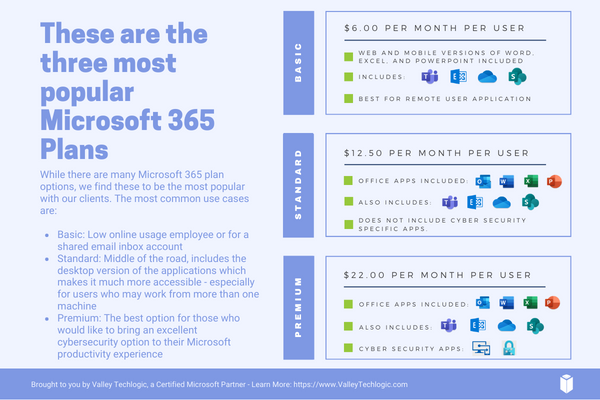
    Here’s a quick guide to the Microsoft 365 plans we recommend to our customers and why in a nutshell (note: this pricing is after discount for an annual commitment).

    Microsoft 365 Plan Chart

    Basic is a good product, but to make the most of your Microsoft 365 subscription plan we generally recommend spending a little more for Standard or Premium. For our security conscious clients in particular, the Premium subscription is an excellent value.

    Microsoft Business Premium comes with advanced cybersecurity protections built into the product, even if you’re not taking any other steps to protect your business from a cyberattack – switching to Microsoft Business Premium will give you major benefits for a very reasonable price (just $22 per user per month).

    Microsoft Business Basic is perfect for an extremely light user experience, say a shared email inbox for a specific billing purpose or for an employee who doesn’t perform many online tasks. For everyone else, we highly recommend upgrading.

    As we mentioned, we’re a Microsoft shop and a certified Microsoft partner and can assist you directly with your Microsoft products, especially choosing a Microsoft 365 subscription that will be the best fit for your business. Learn more today with a quick consultation.

    Looking for more to read? We suggest these other articles from our site.

    This article was powered by Valley Techlogic, an IT service provider in Atwater, CA. You can find more information at https://www.valleytechlogic.com/ or on Facebook at https://www.facebook.com/valleytechlogic/ . Follow us on Twitter at https://x.com/valleytechlogic.

  • Microsoft 365 pricing changes are coming in 2022, and we have the details

    Microsoft 365 pricing changes are coming in 2022, and we have the details

    Microsoft has had a busy year in 2021. With the release of Windows 11 and it’s continued roll out to more and more eligible users, as well as the quieter release of Windows Server 2022 in August. It looks like they’re not slowing down in 2022.

    We’ve been notified as a Microsoft partner there will be price increases across the board for their powerful suite of office software, Microsoft 365 expected in March 2022.

    While it’s never fun to have an unexpected increase to your overall IT spend, we think Microsoft 365 is still well worth it even at the increased cost. There are also some items that will be rolled into the new subscription model that will absorb some of the price increase while increasing the usability of your Microsoft 365 subscription.

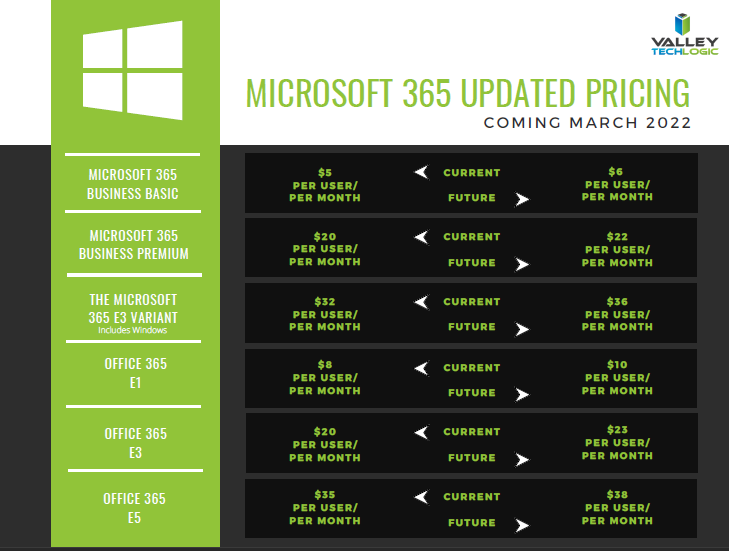
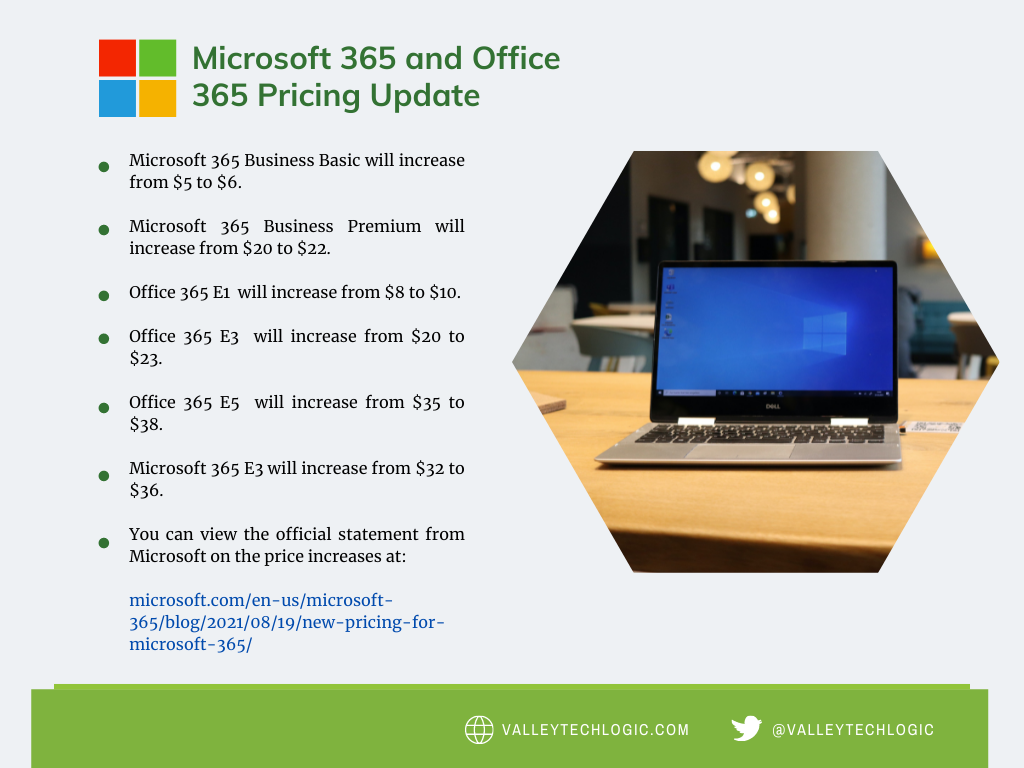
    First, here’s a chart we’ve created that you can save for your records that outlines the expected price increases. These prices may change between now and March but as of writing these are the prices that have been communicated to us by Microsoft directly. We also included the subscription models that are not going to be increased in March. We also want to note the consumer and educational models of Microsoft 365 will not be experiencing a price increase next year.

    Small Version of the Pricing Chart
    Click for the full size version.

    Now, we promised we’d talk about some of the items that are now going to be rolled into your Microsoft 365 subscription that previously had their own cost. One of those items is the ability to call in via Teams. Previously, calling in via Teams was $4 per line but as Microsoft moves to make Teams more accessible for businesses and users alike, they’re now including it in your normal subscription cost.

    This means if you have employees who are out and about during a company meeting, they can still easily call in and participate. It also opens up the opportunity to use Teams for your prospects and clients, even if they don’t currently have it installed. This year we even switched to Teams across the board ourselves and haven’t looked back. We’ve found the call quality and reliability to be phenomenal.

    Some security features will also be rolled into some of the earlier tiers of Microsoft 365 when they were previously featured à la carte. The security and compliance features found in your Microsoft 365 subscription really amount to pennies on the dollar when you consider how expensive it would be to establish the same security stack outside of Microsoft, and it would be less tailored for your own Microsoft use experience to boot.

    These security features include data loss prevention (DLP) for email and documents, as well as encryption for email (we all know email is one of the most common points of entry for bad actors). Microsoft Endpoint Manager has been a critical tool for all of the business’s that now find themselves managing a remote workforce.

    Overall, while a price increase was inevitable, we’re excited to see what new features will be rolled out in 2022 and beyond. If your office is not yet setup with a Microsoft 365 subscription, that’s one of the items we help our clients manage. If you’d like to learn how Valley Techlogic can help your business with Microsoft products and more, click here.

    Looking for more to read? We suggest these other articles from our site.

    This article was powered by Valley TechLogic, adns, n IT service provider in Atwater, CA. You can find more information at https://www.valleytechlogic.com/ or on Facebook at https://www.facebook.com/valleytechlogic/ . Follow us on Twitter at https://x.com/valleytechlogic.

  • Microsoft 365 and Office 365 prices are going up, when and by how much?

    Microsoft 365 and Office 365 prices are going up, when and by how much?

    We’ve been on a roll lately discussing the changes and products being rolled out by Microsoft this year, primarily Windows 11 which should be launched this fall. Last week Microsoft announced a price increase to their ubiquitous business products, Microsoft 365 and Office 365.

    Office has been a business staple since it’s launch in 1989 (although Word predated the Office grouping of products quite a bit, launching in 1983). The original launch set was Word, Excel and Powerpoint but the product line up has exploded since then including other must-have features such as Outlook, Teams, OneDrive and more. For many business users the Office suite of products is their go to collaboration and productivity center.

    Microsoft 365 was announced in 2017 and aimed to take things up a notch and out of just the business productivity center of activity, bringing many Windows specific cyber security features to the table as well as expanding the usability for remote employees.

    It also expanded the ease at which IT administrators can manage their office’s users in a Windows centric environment. The outcome was an all-in-one platform for business users especially that brought functionality, safety and security, and collaborative work processes together in unison all for one easy to budget for monthly fee.

    But as with many online services, fee increases are to be expected (remember when Netflix was just $7.99 a month for the standard package?). Microsoft however has bucked this trend for quite a while, pricing has been the same since Office 365 was launched in 2011.

    In that time, they’ve added untold value in the way of product innovation all for no increased monthly fee, so this price increase is both expected and possibly overdue. It’s also expected to be just a few dollars more for each product category, so you won’t need to worry about a drastic price hike. Have a look at our chart below to see what to expect.

    Microsoft Price Increase Chart

    As you can see the price increases are moderate and shouldn’t result in a drastically higher overall IT bill for most users. If you’re in the education sector you won’t have a price increase at all, and consumer products will also stay the same price at this time. These price increases are expected to go into effect March 1, 2022.

    One thing that’s worth mentioning is the program Microsoft has for non-profits, if you own or operate a non-profit organization you can receive your Microsoft products at a deeply discounted rate. This includes Microsoft 365 and Office 365 subscriptions. We have helped our non-profit clients navigate this in the past to great success, if you’re a non-profit in the Central Valley area feel free to reach out to us for more information.

    We also assist businesses with their questions when it comes to the Microsoft line or products or their Windows desktop and server machines, we’re a long time Microsoft partner and consider ourselves experts when it comes to navigating even the most complex setups. We even include the subscriptions we discussed in today’s article within our all-inclusive plans to reduce our customers IT spending to one easy to read monthly bill. Find out more today.

    Looking for more to read? We suggest these tech articles from the last week.

    This article was powered by Valley TechLogic, an IT service provider in Atwater, CA. You can find more information at https://www.valleytechlogic.com/ or on Facebook at https://www.facebook.com/valleytechlogic/ . Follow us on Twitter at https://x.com/valleytechlogic.