Category: eTechTip

eTechTip

  • Traveling for the holidays? Take 8 tech tips from our experts with you

    Traveling for the holidays? Take 8 tech tips from our experts with you

    If you’re traveling the holidays this year, we have eight tech tips to help you stay safe while using your devices on the go.

    We’ve offered holiday themed tech advice before (here are a couple of our past articles on the top 10 Holiday Shopping Tips for Safer Online Shopping & 5 Holiday Tips for Your E-Commerce Business and 5 for Everyone Else). The holidays usually mean more time off which can lead to more time spent browsing the web or being able to work on things in your business you usually don’t have time for.

    It’s also a good idea to keep in mind that bad actors don’t typically take the holidays off, in fact ransomware attacks usually increase by 30% on the holidays. That’s because many people are keeping an eye out for sale emails or emails from relatives this time of year – giving more opportunities for scammers and bad actors to take advantage of folks just looking for a good deal or a message from their loved ones.

    Traveling especially can leave you more vulnerable, if you’re quickly scanning messages in-between flight connections, logging into public WiFi or any number of things that are a normal part of being on the go you can miss some obvious red flags.

    That’s why we’re going to divide up our advice into 4 tips that are related to being safer online while traveling, and 4 tips for improving your technology experience while traveling.

    First our safety themed tips:

    1. As we mentioned, be careful on public WiFi. Nowadays, even if you need to use your laptop the better option might be to use your phone as a hotspot. If you do need to connect to public Wi-Fi, consider doing it through a VPN. We can personally recommend Mullvad which is not subscription based, one payment will get you online through a secure connection without having to remember to cancel it later.
    2. Be careful about what you’re posting on social media. Posting travel photos for your friends and family to see can be really fun, but you should be wary about who else might be watching. It’s a good idea to make your social media profiles private but if you maintain a public presence, you can also think about posting those photos after your trip has concluded instead.
    3. Public charging stations can also pose a risk. Unfortunately, these stations can be tampered with and become an attack vector to everyone who uses them. Battery banks are pretty inexpensive these days and even more convenient when you’re on the go.
    4. Don’t leave your items unattended. Just as airport personnel will ask if your suitcases have been in your possession the whole time, it’s a good idea to keep track of your belongings from a tech standpoint as well. Someone with bad intent might not be after your device when your data is much more valuable.

    Now for our convenience themed tips:

    1. Keep track of your belongings on the go with an Apple Airtag, Tile Pro or other bluetooth based trackers. A misplaced bag can ruin your vacation, having one of these trackers inside it will prevent that from happening.
    2. Turn any audio jack into a Bluetooth wireless transmitter. Whether you rent a car without a Bluetooth adapter or you want to use your Bluetooth headphones on the plane, a wireless Bluetooth transmitter is a gamechanger. Best of all many options are on sale at the moment for Black Friday, we’ve personally used the Anker Soundsync. It’s small so it won’t take up much room in your bag and as 12 hours of run time per charge.
    3. We mentioned using your phone as a mobile hotspot up above, but if your data plan is not the best you can also purchase a standalone mobile hotspot (with a data package included). This can also be a gamechanger if your network Isn’t going to be stellar where you’re going, you can purchase a mobile data plan for a network that has coverage instead. T-Mobile, AT&T and more all have options for this.
    4. Having to work on the go but don’t want to drag your whole setup with you? Consider a portable monitor. If you’ve gone to two (or more) monitors at work you know there’s no going back, but sometimes travel includes doing some work out on the road and bringing your at home setup is not going to be an option. Portable monitors often come with a travel ready case and can be connected to your laptop via USB-C (both for power and display), bringing you the convenience or two displays without the headache of trying to travel with a full-size monitor.

    Technical advice like this is one of the advantages of being a Valley Techlogic customer, and for a limited time if you meet with us about our services, we will give you $100 cash just to hear us out.

    What do you have to lose? Schedule a consultation today.

    Looking for more to read? We suggest these other articles from our site.

    This article was powered by Valley Techlogic, an IT service provider in Atwater, CA. You can find more information at https://www.valleytechlogic.com/ or on Facebook at https://www.facebook.com/valleytechlogic/ . Follow us on Twitter at https://x.com/valleytechlogic.


  • Our top five strategies for fourth quarter technology planning

    Our top five strategies for fourth quarter technology planning

    The end of the year is nearly here and if your business is anything like ours you might find yourself busier than ever, you may not relish the thought of adding more to an already full to do list but adding these technology related items will put you in a better position this time next year.

    Optimizing your business for technology is more than just purchasing new hardware, in fact some major upgrades have no cost associated with them other than a bit of your time (which we do know is valuable and in short supply).

    Our top three tips that have no cost are:

    1. Take advantage of free security upgrades like Multi-Factor Authentication (MFA). According to InfoSecurity Magazine 90% of attacks can be prevented just by enabling MFA, and enabling it for most accounts just involves a button click.
    2. Evaluate your internet service. You may be overpaying for your current plan or not getting the best service for your money, if you have a legacy plan your internet service might be slower than plans available now. Also, if your contract lapsed a while ago, they might offer significant savings to enroll under another contract. We suggest evaluating your internet service first though before re-signing another contract. In our article from last week, we discuss what to look for when it comes to business internet.
    3. Inventory your existing technology assets. This step will really help you out when it comes to applying our tips for 4 and 5, but it’s also just a good idea. If you don’t know what you have it’s pretty easy for devices to go unaccounted for, and an accounted for device (especially something like a laptop) is a pretty significant threat vector to your business. We suggest creating an inventory worksheet now that includes all of your hardware to start and later on you can look at items such as peripherals which could including networking equipment, monitors etc.

    Of course, some technology upgrades do cost money, but we found making these purchases in quarter four can be really advantageous for a multitude of reasons. One, making technology upgrades now will give you a strong start for next year. Two, there are actually tax benefits you can take advantage of before the end of the year (such as Section 179). Three, you have greater insight into what your budget for spending is because most of us are doing are year-end tallies around this time.

    Our top two tips to make the most out of your technology spending for this year is:

    1. Use that asset list you created to evaluate aging hardware. Aging hardware is risky, they can fail spontaneously and may not have the most up to date security features. Hardware such as an office server that hosts the company backups, or key employee devices that are struggling to keep up with their day-to-day workload are items we suggest replacing ASAP.
    2. Of course, technology services are another area we recommend looking at. Why go into the new year with a service provider you haven’t been thrilled with? Making a change like this now will cement a better 2024 for your business. We have a kit for making the change you can find here.

    If you’re in the Central Valley, Valley Techlogic is also offering for a limited time $100 to any business that takes a meeting with us to hear about our services. See our flyer below to learn more about taking advantage of this offer or you can sign up here to get started.

    Looking for more to read? We suggest these other articles from our site.

    This article was powered by Valley Techlogic, an IT service provider in Atwater, CA. You can find more information at https://www.valleytechlogic.com/ or on Facebook at https://www.facebook.com/valleytechlogic/ . Follow us on Twitter at https://x.com/valleytechlogic.

  • AI explained and 4 simple ways to use it in your business

    AI explained and 4 simple ways to use it in your business

    AI or Artificial Intelligence has been all over the news as online tools have emerged that can do a variety of impressive things in the creative space such as copywriting, writing code, creating videos and images and much more.

    On a more technical level, AI is being used in medical applications for assisting doctors during surgeries or identifying suspicious tissue or masses in diagnostic images. The car you drive may be using AI through GPS to help you navigate a safer or more efficient route or for specific vehicles, autonomous driving. Advances in robotics grow via AI input each day, from minute applications such as cleaning robots to complex sensors that take in data and react to it in real time to make equipment used by a wide variety of sectors much safer or more efficient.

    Even on your mobile device and computer, AI input is found in abundance. The spam filter in your email? Powered by AI. Face recognition on your phone? That’s also AI.

    Our prompt was “Red haired girl sitting at desk with computer and cat.”

    We’ve found AI tends to have a negative association to it as well however, with some worried it may allow their employer to replace them for a computerized facsimile, some worried about the implications when it comes to privacy and autonomy and others worried on a grander scale what it will mean for humanity if AI ever reaches the level of being truly sentient.

    We would like to put some of these fears to bed, in a nutshell AI is exactly what we as a society make of it. When it comes to the creative pieces that have emerged from AI it’s a mistake to believe that those creations were spawned solely via technological input.

    In reality AI conjures up images, songs, and video by compiling the vast resource that is available to it via the internet. It takes human creations and fragments them to recreate them into something that matches your text prompt. The stylistic choice, the colors, the layout – all of this is garnered from human ingenuity that is then reiterated for your viewing consumption,via machine learning.

    The impressive part of AI is not the end product it provides to you, it is its ability to take so much information and compile it into something even remotely coherent. Even this is not something that’s spawned from the ether but is instead the net result of many decades of talented engineers with one goal in mind – to make many jobs simpler and safer to do.

    AI will not replace human ingenuity; it will do as any tool is designed to do – help us do more.

    Now that we have hopefully put some of your fears about AI to bed, you may be wondering how you can use AI in your business? Well, we have a few suggestions.

    1. Images. As we showcased above, AI is excellent for creating graphics that match your text input and can add a little bit of context or pizzaz to your designs or documents. Top Recommendation: AI
    2. Social Media Posts. If you own a business, you should ideally be posting to your social media platforms every weekday if possible (or at least three times a week). However, managing to squeeze content creation into your day to day can feel like a major chore. That’s where our top recommendation comes in, Canva allows you to create social media posts quickly and easily resize them for whichever platform you’re on (so you can make one post go further). Top Recommendation: Canva
    3. Editing: Just take a great group photo at work but realize there’s something really distracting in the background? Or maybe the colors are off, or it’s a little blurry? All highly fixable via Adobe Express, and you don’t need to be a graphic design expert. Best of all, it’s free. Top Recommendation: Adobe Express
    4. Text Prompts: While we don’t recommend leaving all of your content writing to AI, it can be a useful tool to help you get started or to help you reword a paragraph to be more persuasive or engaging. Top Recommendation: AnyWord

    Of course, it would be remiss of us if we didn’t mention you can get the best of human ingenuity and technological prowess by partnering with a technology service provider like Valley Techlogic. We pride ourselves on being at the forefront of technological innovation, and that includes advancements in AI.

    If you would like to learn more about how we can help you navigate this space and utilize automation and AI in your business today, you can schedule a consultation with us here.

    Looking for more to read? We suggest these other articles from our site.

    This article was powered by Valley Techlogic, an IT service provider in Atwater, CA. You can find more information at https://www.valleytechlogic.com/ or on Facebook at https://www.facebook.com/valleytechlogic/ . Follow us on Twitter at https://x.com/valleytechlogic.

  • If you received a loud phone alert this week at 11:20 PST, you definitely were not alone

    If you received a loud phone alert this week at 11:20 PST, you definitely were not alone

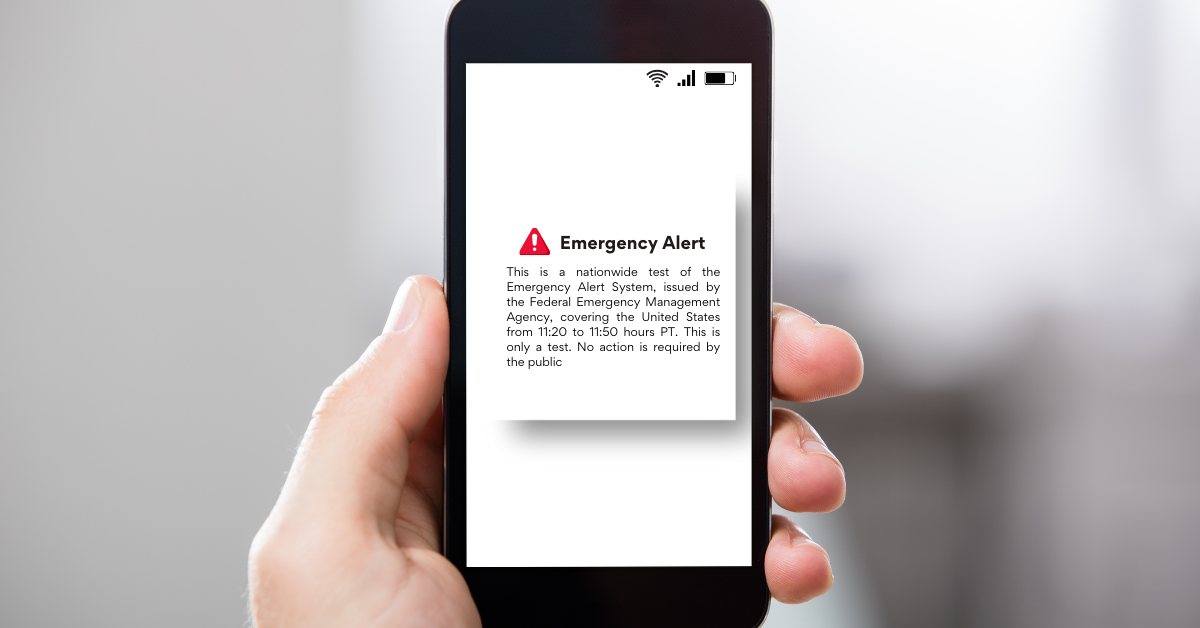
    At 11:20 PST on Wednesday phones across the nation blared a screeching sound with a prompt on the screen alerting users that this was a test of the National Wireless Emergency Alert system.

    In addition to cellphones across the nation this alert was also played on the TV and radio, although EAS (Emergency Alert System) alerts are common this was the first time a cellphone alert was used in conjunction with EAS simultaneously.

    The purpose of the EAS system was to be able to warn the public of any threats on a national scale. As television and radio viewership has declined in recent years. Adding cellphone alerts into the mix makes sense from an application level, though many were not aware that this was going to occur before this first alert hit their phones at a deafening volume.

    This test was conducted by FEMA and the Federal Communications Commission (FCC) and was conducted using the same systems that send alerts about severe weather or Amber Alerts locally. The tone and volume were chosen in addition to vibration to make the alert accessible to those with disabilities. In many cases the notification was received in English as well as Spanish.

    Legislation was passed in 2015 requiring FEMA to conduct nationwide tests every 3 years, so you can extrapolate that another test of this nature will be received in 2026. The test was designed so that even if your phone was able to opt out of alerts for weather etc. they would not be able to opt out of alerts from NWEA.

    Although having your phone on airplane mode during the testing window would prevent the alert from reaching your phone. The test was scheduled to last, until dismissed, for 30 minutes. The sound would also not be played for those currently on a call when the alert went out.

    There were some claims in advance of this test made by groups concerned that the government will have overarching control of your mobile phone during the test (or afterward) or concerns about their phones security.

    The system behind how this alert was delivered was constructed after an executive order by then President George W. Bush in 2006. Labeled Integrated Public Alert and Warning System (IPAWS) in a nutshell it’s a code that distributes an alert to supported wireless devices via the internet, though that also unfortunately makes it vulnerable to the same roadblocks that can make internet unavailable (such as being out of network).

    The Common Alerting Protocol (CAP) at the heart of the IPAWS system is not unique to the US but is instead a worldwide distributed protocol for both delivering alerts and studying the nature of the alerts that are being broadcast to look for trends and improve safety standards. CAP was adopted worldwide after a Geneva convention in 2006 and has been improved upon ever since.

    We realize we just delivered a lot of complicated information but in general, this alert was nothing to worry about and is a sign that the system is working. In the event of a national emergency, it’s important that the public can be warned so that they can take whatever safety measures necessary and to control widespread panic.

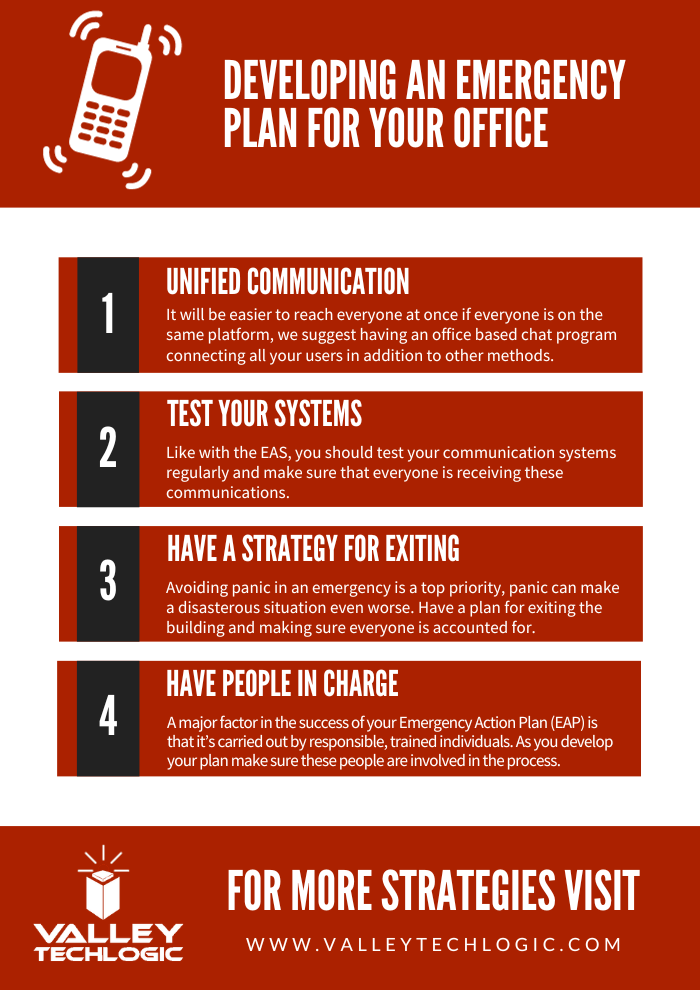
    This alert is an excellent example of effective communication and on a smaller scale, businesses can use this example to develop strategies in their own business for more effective communication. If you had to reach all your employees quickly, could you? If not, here are four things you can look at to develop a good emergency strategy for your office:

    If improving digital communication is something you would like to improve in your business, Valley Techlogic can help. We have experience in creating unified systems that includes increasing communication and collaboration, especially through our partnership with Microsoft. If you’d like to learn more, reach out today to schedule a consultation.

    Looking for more to read? We suggest these other articles from our site.

    This article was powered by Valley Techlogic, an IT service provider in Atwater, CA. You can find more information at https://www.valleytechlogic.com/ or on Facebook at https://www.facebook.com/valleytechlogic/ . Follow us on Twitter at https://x.com/valleytechlogic.

  • Chrome browser extensions we recommend, and ones to avoid

    Chrome browser extensions we recommend, and ones to avoid

    Whether you use Chrome, Edge, Firefox, Opera or something else for your day to day browsing, there are browser extensions (or add-ons) that can make that browsing better – but which ones?

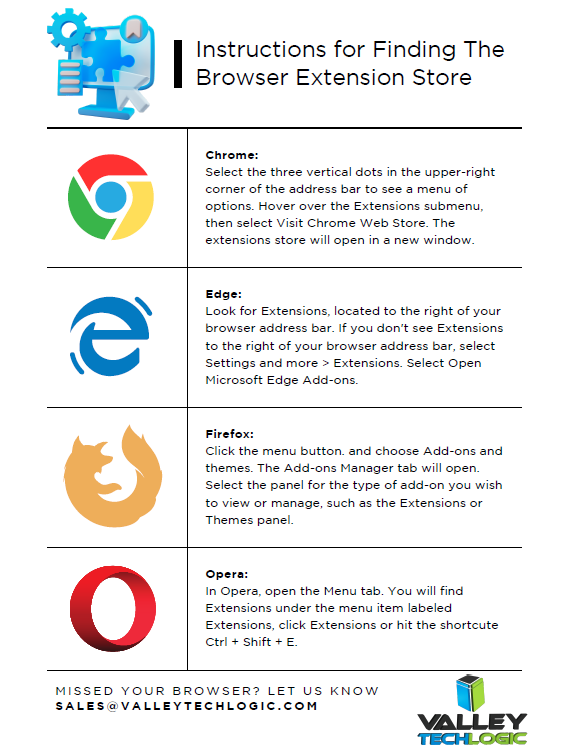
    All browser options these days have a dedicated section in your settings options to find extensions that are compatible with that particular browser. See our chart below for the steps to finding it in each of the browser options mentioned above.

    Reaching the extension store is really just the first step, actually choosing extensions that will make browsing more pleasant or more efficient for you is a whole other ball game. There are extensions for changing the appearance of your browser, adding functionality (like highlighting specific tabs) blocking ads and more.

    Since Chrome dwarfs the competition in market share (with a whopping 63.56% of traffic worldwide coming from Chrome) we’re going to focus on Chrome, but in most cases there will be a direct analog for these found in other browsers.

    Top 5 Chrome Browser Extensions We Recommend (And Actually Use Ourselves):

    1. LastPass: LastPass is a subscription-based password storage vault, and it has an extension that makes logging into your accounts super easy. For one low annual fee they will safeguard all of your passwords and via the extension, you can autofill those into sites you use to login. It will also alert you if you’re usually a duplicated password (giving you the option to make better choices there) and if you want to change that duplicated password – it also comes with a password generator built in.
    2. Ghostery: There are a lot of adblocker options available, but Ghostery is unobtrusive and also blocks something many of the other ones miss, trackers. If you’ve ever had an ad seemingly follow you around it’s because websites will deposit a “cookie” onto your computer through your browsing that then allows you to be tracked across the web. Ghostery puts these sneaky ads in their place and blocks that practice altogether.
    3. Loom: If you’ve ever wanted to quickly show staff how to navigate a website or service you use in your business, Loom can help. Loom lets you quickly record video and screen captures directly from your Chrome browser. You can also file share via Loom so you can send the videos you make directly via the same extension.
    4. Buffer: Managing your social media content and enacting a strategy that allows you to be consistent is harder than it sounds. When you get into the grind of your day it’s very easy to forget that daily Facebook post or to check in on that new LinkedIn campaign you started. Buffer allows you to publish, review analytics, add content ideas to a calendar and review social engagement all under ONE platform found directly in your browser.
    5. Dark Reader: This is a Chrome extension your retinas will appreciate. As a dark mode fan it can be glaring when you hit a website that doesn’t have a dark mode option, luckily there’s a Chrome extension that adds the Chrome Dark Theme to every site you visit.

    So now that we’ve covered some extensions we do recommend, what about ones we don’t? In general, it’s good to think of the extension stores as being similar to the application stores found on your mobile phone. These are added by independent developers and as with the Android/Apple shops there can be unscrupulous additions included with the intended features, like collecting your data or abusing your systems resources.

    As such we suggest using your best judgement when downloading and if you’re ever unsure, reach out to your tech support team to confirm. If you need guidance for this or other technology topics in your business, Valley Techlogic is here to help.

    We’ve been providing our technical expertise to businesses in the Central California area since 2004, reach out today to schedule a consultation.

    Looking for more to read? We suggest these other articles from our site.

    This article was powered by Valley Techlogic, an IT service provider in Atwater, CA. You can find more information at https://www.valleytechlogic.com/ or on Facebook at https://www.facebook.com/valleytechlogic/ . Follow us on Twitter at https://x.com/valleytechlogic.
  • Our Top 10 Technology Myths and Urban Legends, Debunked

    Our Top 10 Technology Myths and Urban Legends, Debunked

    The advent of the internet brought an influx of information right to our fingertips, and unfortunately not everything that proliferates on the internet is factual.

    With “fake news” undoubtedly being one of the official buzz word phrases of the 2020’s, how close are you reviewing these common place technology tropes? These are the top 10 technology myths and urban legends we see as a technology provider:

    1. Privacy/Incognito mode is DEFINITELY private: We’re sorry to say, if you think everything you’re doing in a private/incognito browser is hidden from view you would be incorrect. The way this mode works is it hides your browsing history from other people who may use your computer, but your ISP definitely can still see what you’re doing and depending on what’s been set up at work, possibly your IT Team/employer as well.
    2. Leaving your phone plugged in destroys your battery: Nope this one is also false, we’re not sure how the idea of “over charging” a battery came to be but there’s zero evidence that leaving your phone or laptop on a charger for an extended period of time will have a long-term effect on your device’s battery.
    3. At the same time, don’t let your device die completely before charging it: Letting a battery discharge completely before charging it again will not improve your phone’s battery life. Just charge your devices when they need a charge and let these myths about batter life go.
    4. Mac/Linux devices (basically anything not Windows) are virus proof: Nope again, the bad news is if a device has access to the internet, it’s going to be a target for hackers. If even your smart fridge Isn’t safe, what makes you think any computer or cellphone would be?
    5. Force killing apps save resources and speeds up your computer: If you have ever opened your computers task manager you’ve probably seen a lot of processes running, and you may have even force closed some of these processes to “speed” up your computer. It doesn’t really work that way unfortunately, many of the processes you see are background processes that your computer needs to run. Your computer will just open them again automatically, effectively making this activity a waste of time. You can, however, close applications you’re not using the regular way (and if you’re still having issues, it might be time to look at upgrading your device).
    6. Full bars mean the best service: We’ve heard it time and again, “I have four bars!” someone will exclaim, indicating that their cellphone service has reached its full potential. More bars just mean stronger signal strength, but unfortunately for you if you’re in a heavily populated urban area it means you’re sharing that same strong signal strength with everyone else in the area. Mobile service, just like any other internet service, is subject to bandwidth load so even with a strong signal you may still experience slow service depending on where you are and how many other people are around.
    7. You shouldn’t shut your computer down at night: This is another head scratcher for us, but we still see folks who believe they shouldn’t shut their computer down when they walk away for the evening. We’re happy to report that shutting down your computer will not harm it, in fact reducing the load on it each day by turning it off at night may even extend the life of your device.
    8. Magnets will wipe your data/destroy your device: There’s a little bit of truth to this one but it’s run amok for so long that the truth has been obfuscated for most folks – we’re happy to report your device will NOT be destroyed by a common refrigerator magnet. However, a really big industrial magnet could do some damage, so we suggest not placing your computer near one of those.
    9. Cellphones etc. can give you cancer: Nope, this one has been completely debunked. The radiofrequency that is emitted by your cellphone, tablet, laptop etc will NOT give you cancer.
    10. I’m a small business/single person, no hacker will bother with me: This is unfortunately, quite untrue. It’s estimated half a million U.S. accounts are hacked each day – many of these are just regular folks or small business owners like yourself.

    We hope this article helped in quashing some of these myths for you but if you have any other technical urban legends you’re not sure about, we’d be happy to weigh in (just jump on our live chat and ask away!).

    If the last one was a scary one for you and you’re a business owner in California, Valley Techlogic can assist. We provide cyber security services for our clients that make sure they won’t be part of that frightening statistic. Learn more through a consultation today.

    Looking for more to read? We suggest these other articles from our site.

    This article was powered by Valley Techlogic, an IT service provider in Atwater, CA. You can find more information at https://www.valleytechlogic.com/ or on Facebook at https://www.facebook.com/valleytechlogic/ . Follow us on Twitter at https://x.com/valleytechlogic.
  • Patch Management 101 – From Neglected to Automated; 5 Tips for Managing Patching in your Business

    Patch Management 101 – From Neglected to Automated; 5 Tips for Managing Patching in your Business

    If we asked a new client what they had in place for patching most of them would answer in one of two ways. Either they’re “pretty sure” patching is happening regularly, or they know patches have mostly been ignored for quite some time.

    Regardless of how they answered, the outcome is usually the same. We usually inherit managing systems that are way behind on patches. That’s because patching doesn’t start out being an automated easy process for most businesses, there is some effort required to get into a good patching process established.

    If patching is left up to employees for their devices, it’s typical for the “Remind Me Later” to become the permanent option when it comes to patching. Depending on their level within your company this can either be a bad idea to very risky (though any device can act as a threat vector when it’s connected to your network). If a device that has admin level access is unpatched and it’s basically handing the keys to your kingdom over to bad actors.

    That’s because many patches are released specifically to address an active security concern. While functionality and quality of life improvements are also addressed via patching, active security concern patches can be released with little notice and should not be ignored.

    We’re also aware many users have a negative association with patching, especially if they’ve installed patches in the past and encountered bugs or issues. While these patches can be rolled back, it may not be simple to do so especially if your machine hasn’t been set up that way.

    There’s also patches for IoT (Internet of Things) and peripheral devices that aren’t as simple as clicking “Update Now”. Many times, patching these devices involves going to the companies website, downloading the patch, and manually installing it. With routers in particular patches are typically released to address a very serious security threat. We reported on a series of Netgear routers which when unpatched could easily be taken over by an intruder.

    Now that we’ve established why patching is important, here are five ways to make it more manageable:

    1. Create an Inventory of Devices Within Your Business: To manage consistent patching across the board you first need to know what you have. It’s a good idea to keep an inventory of all your devices (even peripherals or handheld devices like tablets).
    2. Create Consistency for Work Devices: For devices you or your employees work on, like laptops and desktops, it’s a good idea to try and maintain consistency. Meaning if you’re applying a patch to one of them you should apply it to all of them. That way it’s not a mishmash of various updates across your business. This will also make it much easier to troubleshoot any issues.
    3. Make Sure They’re Running the Latest OS (Operating System) Too: For Windows devices, it’s also important to keep them up to date with the latest OS version. Windows will discontinue patches for operating systems that have reached end-of-life. This doesn’t mean they no longer require patching; in fact, these devices are often targeted by hackers specifically because they can no longer be maintained.
    4. Also, for Windows Devices Have a Group Policy for Patching: This is an advanced tip, but you or your current IT provider can setup a group policy to make sure patches are occurring on a schedule for Windows devices.
    5. Work With a Professional to Create a Patching Plan: Patching is part of ongoing maintenance, and it can be difficult to address it on your own. At Valley Techlogic patching management is provided under every monthly service plan with us.

    Here is a mini report on how Valley Techlogic addresses patching management (as well as other routine maintenance items):

    Interested in learning more? Schedule a consultation with us today.

    Looking for more to read? We suggest these other articles from our site.

    This article was powered by Valley Techlogic, an IT service provider in Atwater, CA. You can find more information at https://www.valleytechlogic.com/ or on Facebook at https://www.facebook.com/valleytechlogic/ . Follow us on Twitter at https://x.com/valleytechlogic.

  • They quit, now what? 5 tips for digitally offboarding employees safely.

    They quit, now what? 5 tips for digitally offboarding employees safely.

    Having an employee quit can be very disruptive to your business, besides having to scramble to rehire for the role or find coverage within your organization you also have to tie up any loose ends they may have been working on (especially if they left without a hand off period).

    Unfortunately, it’s not a good idea to wait until the dust has settled, when it comes to tying up loose ends we recommend jumping into action immediately once you’ve been made aware that your employee will not be continuing in their role.

    We’ve touched on what you should do if your IT guy quits here but many of your non-IT employees also leave a strong digital footprint within your business that will need to be dealt with when they leave.

    Here are the five things we suggest doing immediately on your former employees last day:

    1. First, identify all of the company programs or platforms that they have logins or passwords for. Even during an amicable split, it’s still a good idea to change these passwords in the same way a landlord might update the locks between tenants if they weren’t absolutely sure they recovered all the keys to the building (and since we’re talking digital, there’s no way to be sure).
    2. You also need to change their email password. You might be thinking you should just delete their email but depending on the role they performed for your business there may be pertinent information that’s only found within their work email. We also suggest forwarding emails that come to that employee to whoever is handling their work activities until you’re sure that every client or vendor that worked with them has gotten the message about who to contact instead.
    3. Recover any work devices if applicable. In some cases it may be suitable to just have your IT team wipe the device or remove company data if you’re not interested in passing it along to their replacement (especially for older devices).
    4. In the same vein, if there is relevant company data on their devices it may be worthwhile to have your IT team recover it if possible. While we recommend collaborating with your employees through something like a company SharePoint or another unified platform, anything that was currently in flux before they quit may still be worth recovering.
    5. The final steps are related to physical office security as well, you’ll want to disable their badges and network privileges upon their exit.

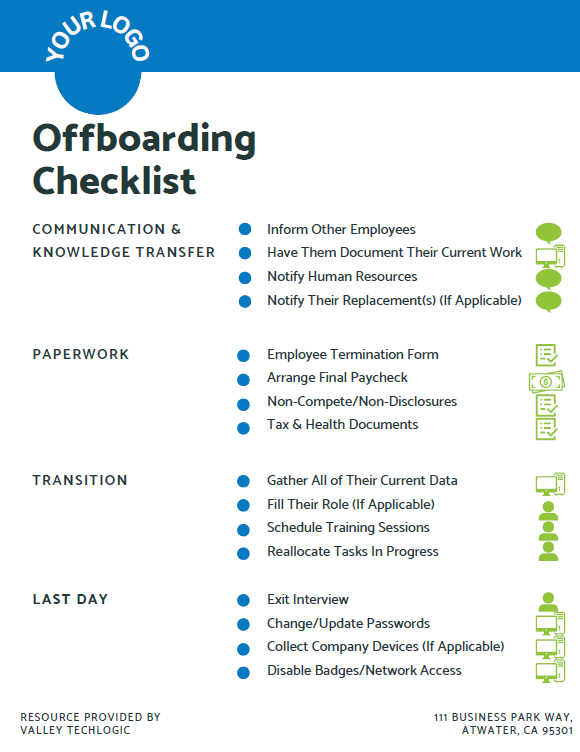
    At Valley Techlogic we like to create resources for our community, and while many steps in the offboarding process aren’t strictly digital we thought it would be helpful to provide an offboarding checklist that can be used to make sure you’re covering not only steps outlined above but also all aspects of the offboarding process (with a clear view on what’s digital and what’s not). Need help branding it? Just let us know.

    Click to grab the full size version.

    If you need assistance in creating a thorough offboarding process for your business, or even an onboarding process that includes coverage for making future offboarding easier, we can help.

    We’re experts in creating specialized processes for our clients so that all aspects of the technology they use are secured and maintained, including devices and platforms used by employees.

    Schedule a consultation with us today to learn more about how we can assist you with your digital employee planning and maintenance.

    Looking for more to read? We suggest these other articles from our site.

    This article was powered by Valley Techlogic, an IT service provider in Atwater, CA. You can find more information at https://www.valleytechlogic.com/ or on Facebook at https://www.facebook.com/valleytechlogic/ . Follow us on Twitter at https://x.com/valleytechlogic.
  • Bing’s ChatGPT Chatbot had some unexpected conversations with customers this week, plus 3 Chatbots we CAN recommend for your website

    Bing’s ChatGPT Chatbot had some unexpected conversations with customers this week, plus 3 Chatbots we CAN recommend for your website

    While Microsoft has been somewhat hush hush on the exact amount of their investment into the creator of ChatGPT, OpenAI (with some estimates nearing $10 billion).  It is clear that they’re going all in on AI and looking towards the future by already integrating it into their search engine Bing, via a new chat bot feature.

    The results have been, to say the least, unexpected. While in the majority of cases the bot responds appropriately to the prompts and provides helpful information, there were some instances this week where the opposite happened.

    Including a conversation about the new movie Avatar: Way of the Water in which case the bot got confused about what year it was and insisted it was still 2022, punctuating it’s arguments with the user with “I’m a good Bing bot”.

    In another case, a New York Times writer hearing about the unusual way the bot was sometimes responding, led him to holding a conversation with it for over 2 hours. The bizarre results of the lengthy conversation culminated in the bot trying to convince him they were in love and that he should leave his wife.

    This highlights the complex nature of AI in its current form, many think AI is advanced hardware working at full capacity to create something brand new to human-kind. When in reality it’s a vast collection of what humans have already put onto the internet scrambled together and supported by algorithms to be readily available upon a human prompt. You have to imagine having the full capacity of the internet at your fingertips – both the good and the bad.

    That’s why AI has been able to pass the Bar exam and also why it has also responded very strangely to simple prompts as in the Bing example, because like the internet it’s a mixed bag.

    In response to the news Microsoft has limited their chatbot to prevent more unsettling conversations, with 5 user prompts on the same topic the bot will now respond with “I prefer not to talk about this topic.”.

    AI can be very useful but it’s definitely not a replacement for all human led activity, especially when it comes to engaging with your customers.

    That’s why we have our top 3 picks for live chat options that will improve customer engagement (with no unexpected results):

    1. LiveChat: This is the one we personally use and we enjoy the features it has including an “attention grabber” which is an animated .gif that grabs customers attention and the ability to instigate conversations with visitors. It also keeps a record of who has tried to chat and allows customer service agents to “take over” a conversation when it’s appropriate to. It also includes customizable branding (all of the chatbots on our list do).
    2. Olark is another good option, like LiveChat it keeps track of the conversations happening on your website but it also offers analytics based on those conversations so you can track customer outcomes. It also offers many integrations with popular products such as Google Analytics, Hubspot, Mailchimp, Salesforce and more.
    3. Tawk.to is a free live chat option that still has some very nice features, including monitoring customers on your website and being able to answer chats from a mobile device. You can even share your screen if you’re trying to assist a customer in finding something.

    We believe in answering customers live which is why we have Live Chat available to our customers, with live service reps on our website and a dedicated dispatcher to answer customer phone calls. Technology advice like what’s provided in this article is just one of the ways we help our clients, if you would like to learn more about obtaining technology support for your business schedule a consultation with us today.

    Looking for more to read? We suggest these other articles from our site.

    This article was powered by Valley Techlogic, an IT service provider in Atwater, CA. You can find more information at https://www.valleytechlogic.com/ or on Facebook at https://www.facebook.com/valleytechlogic/ . Follow us on Twitter at https://x.com/valleytechlogic.

  • Hiring a tech vs outsourcing, a cost breakdown

    Hiring a tech vs outsourcing, a cost breakdown

    If you’ve realized you need additional IT support for your business but are on the fence about which route to take, hiring IT staff or outsourcing your needs to an IT service provider the choice can be difficult.

    Many of our clients reach us because they have been using an unreliable IT support service, their existing IT staff left, or sometimes because they’ve somehow gotten by with no IT at all but realize that needs to change.

    We also frequently have clients who are utilizing a person in their office who is “tech savvy” but is not IT, it can be quite expensive to hire an IT professional with the experience needed to perform the variety of duties needed work on items such as cybersecurity improvements, hardware upgrades, software deployments and more.

    Here are some benefits of hiring in house IT staff:

    1. They’re already at your office so there’s no waiting for IT support to show up.
    2. They will be well versed on your systems since in many cases they will be the one who set them up in the first place.
    3. They should be pre-emptively taking care of updates that will keep your business more secure.

    On the other hand, here are the benefits of outsourcing your IT:

    1. The cost is usually much lower than hiring personnel.
    2. You get many experts for one price, no matter how well versed your IT person is they can’t be an expert in everything.
    3. You get software tools that may be otherwise unavailable to a single business or not cost effective to purchase.
    4. Round the clock service and monitoring, many IT service providers including us offer 24/7 support.
    5. You will have an agreement with them that spells out the level of service you’re supposed to receive.

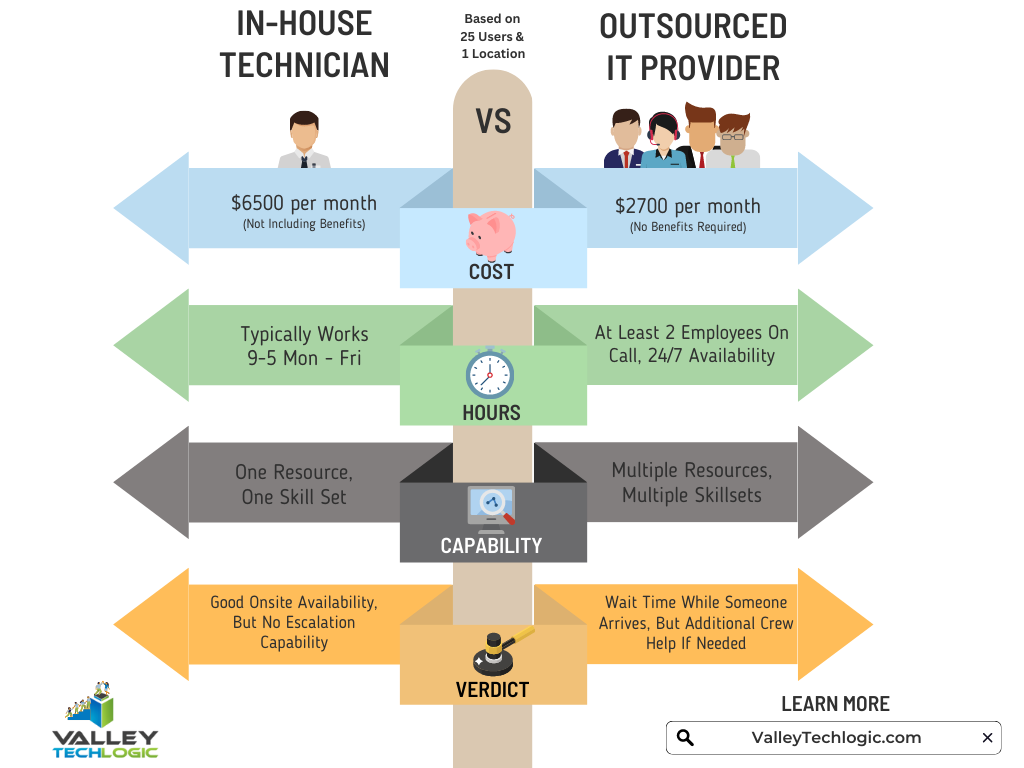
    It’s a difficult choice and only you know whether your business would greatly benefit from having in-house staff or whether outsourcing your IT is your best option. As you weigh your options we created this chart with the average baseline cost for an in-house IT person vs. an IT service plan with us.

    However, as we mentioned many of our clients are utilizing an in-house resource already, these tech savvy staff are usually performing the day-to-day activities such as patching and password resets but may be missing crucial items such as cybersecurity prevention or maintaining (or even starting) backups.

    For clients like these we recommend our co-managed plan option. With our co-managed plan we work directly with the staff already performing your IT duties, if there’s an issue they call us directly and we pass on a cost savings to you.

    We do that because usually by working with a staff member that already knows your systems we can bypass a lot of the early troubleshooting that occurs, and that staff member usually still handles minor day to day tech related activities.

    If you would like to learn more about our co-managed plan options just reach out today for a consultation.

    Looking for more to read? We suggest these other articles from our site.

    This article was powered by Valley Techlogic, an IT service provider in Atwater, CA. You can find more information at https://www.valleytechlogic.com/ or on Facebook at https://www.facebook.com/valleytechlogic/ . Follow us on Twitter at https://x.com/valleytechlogic.