Tag: windows 11

  • Planning a tech refresh ahead of the Windows 10 support ending? Here are our six best strategies

    Planning a tech refresh ahead of the Windows 10 support ending? Here are our six best strategies

    Microsoft officially announced that support for Windows 10 will end on October 14, 2025. While that may sound far away, businesses that rely on Windows 10 across their devices need to start planning now. Waiting until the last minute can mean rushed decisions, unexpected costs, and potential downtime, which is something no organization wants.

    At Valley Techlogic, we’ve helped countless Central Valley businesses through smooth technology transitions, and we know how important it is to plan ahead. If your company is still running Windows 10, here are our six best strategies for preparing your tech refresh.

    1. Take Inventory of Your Current Environment

    Start by identifying which machines are still running Windows 10 and which may already be compatible with Windows 11. This step helps you avoid unnecessary purchases and ensures you only upgrade what’s needed. An inventory audit can also uncover outdated hardware, unsupported software, or security gaps.

    1. Evaluate Hardware Readiness

    Not every device that runs Windows 10 will support Windows 11. Requirements like TPM 2.0 and specific processor generations may prevent older PCs from upgrading. If your business has hardware that won’t make the cut, it’s best to plan replacements now, rather than scrambling in 2025.

    1. Budget and Phase Your Refresh

    Replacing or upgrading multiple devices at once can be expensive. By starting early, you can phase in new equipment over time, spreading out costs and minimizing disruption.

    1. Consider Cloud and Virtualization Options

    For some businesses, moving workloads to the cloud or implementing virtual desktops can reduce reliance on on-site hardware. Utilizing a service like Windows 365 (a cloud PC option) could be a more cost-effective solution than replacing every PC.

    1. Strengthen Security Along the Way

    End of support also means no more security updates from Microsoft. That makes staying on Windows 10 after October 2025 a serious risk. As you refresh your devices, it’s also a good time to review your company’s cyber security landscape, from endpoint protection and email security to backups and multi-factor authentication.

    1. Partner With an IT Provider for a Smooth Transition

    Technology refreshes are complex, especially when tied to a major operating system change. An experienced partner like Valley Techlogic can guide you through the process, ensuring you select the right devices, configure them correctly, and migrate your data without downtime.

    Don’t Wait Until October. The sooner you start planning your Windows 10 exit, the smoother your business will transition. Whether it’s a phased rollout of new PCs, upgrading to Windows 11, or exploring cloud options, Valley Techlogic can help your business stay secure, productive, and ahead of the curve.

    Are you ready to start your tech refresh plan? Contact Valley Techlogic for a free consultation today and let’s make your upgrade stress-free.

    Looking for more to read? We suggest these other articles from our site.

    This article was powered by Valley Techlogic, leading provider of trouble free IT services for businesses in California including Merced, Fresno, Stockton & More. You can find more information at https://www.valleytechlogic.com/ or on Facebook at https://www.facebook.com/valleytechlogic/ . Follow us on X at https://x.com/valleytechlogic and LinkedIn at https://www.linkedin.com/company/valley-techlogic-inc/.
  • Not ready for Windows 11? Microsoft has announced it’s possible to get free security updates for Windows 10 for a year – but there’s a catch

    Not ready for Windows 11? Microsoft has announced it’s possible to get free security updates for Windows 10 for a year – but there’s a catch

    Microsoft’s end-of-support date for Windows 10 is fast approaching: October 14th, 2025. After this date, regular security updates for Windows 10 will stop, leaving devices potentially exposed to cyber threats.

    But there’s new information that gives businesses a little breathing room. Microsoft has announced that it will offer free security updates for Windows 10 users for one additional year, providing some temporary relief for those not ready to migrate to Windows 11. However, before you put your upgrade plans on pause, you need to understand the catch.

    Historically, when Microsoft ends support for an operating system, businesses must either upgrade to a newer version or pay for Extended Security Updates (ESUs) to keep receiving critical patches. With this announcement, Microsoft is giving users a 12-month extension of free ESUs, allowing them to continue receiving vital security updates through October 2026.

    This is particularly helpful for organizations that:

    • Rely on legacy applications that don’t play well with Windows 11
    • Have hardware not yet compatible with the new OS
    • Need extra time to budget, plan, and test a smooth transition

    However, there is a catch for redeeming the free offer, you need to do one of the following steps:

    • Pay $30 in local currency.
    • Use Windows Backup to sync your settings to the cloud.
    • Redeem 1,000 Microsoft Rewards points.

    So this offer is only free if you utilize Windows Backup or have Microsoft points to redeem, otherwise it’s $30 which is still less than the $61 per user that was originally reported by Microsoft (and us).

    Also, while this free security patch extension buys time, it is not a long-term solution. Once the grace period ends, businesses will need to:

    • Upgrade to Windows 11 or beyond
    • Pay for extended security updates beyond the free year
    • Risk running unsupported devices that are vulnerable to cyberattacks

    It’s also important to note that Microsoft has not promised feature updates or full support during this period, only essential security patches. Outdated software and hardware may still experience compatibility and performance issues, leaving businesses at a disadvantage compared to those who make the switch sooner.

    Microsoft’s free Windows 10 security updates for an extra year are a welcome reprieve, but they’re not a permanent fix. The safest, most cost-effective path forward is to start planning your Windows 11 migration now, rather than waiting for the clock to run out. Contact Valley Techlogic today to schedule your Windows 11 readiness assessment and avoid the risks of running unsupported systems.

    Looking for more to read? We suggest these other articles from our site.

    This article was powered by Valley Techlogic, leading provider of trouble free IT services for businesses in California including Merced, Fresno, Stockton & More. You can find more information at https://www.valleytechlogic.com/ or on Facebook at https://www.facebook.com/valleytechlogic/ . Follow us on X at https://x.com/valleytechlogic and LinkedIn at https://www.linkedin.com/company/valley-techlogic-inc/.
  • Windows 10 reaches EOL October 2025, and those who don’t upgrade may have to pay

    Windows 10 reaches EOL October 2025, and those who don’t upgrade may have to pay

    Windows operating system end of life events are a big deal, with 1.6 billion active Windows devices as of 2024 Microsoft still holds a commanding lead over any other operating system provider. Even though Windows 11 was released almost 4 years ago at this point, it still only represents 28% of the global Windows market share (with 70% still using Windows 10).

    There are a lot of reasons for this, from users being comfortable with the Windows 10 interface to many devices that simply aren’t Windows 11 ready (interested in a Windows 11 device in 2025? Here’s our guide).

    Users hanging onto a previous version of Windows until the bitter end is nothing new for Microsoft, Windows 7 still had a 12% market share when Windows 11 was released October 2021 (almost 2 years since it’s own EOL date occurred).

    In the past, Microsoft has released critical security updates even for systems no longer receiving support. Users could also purchase optional extended support plans for devices that can’t be upgraded for one reason or another (the keyword being “optional”).

    Now Microsoft has announced for the first time ever that consumers looking to extend the life of their Windows 10 devices – or just remain on the operating system they prefer – will have to $30 for a single year of Extended Security Updates (ESU).

    Businesses will be charged even more for ESU, $61 for the first year with the price increasing steeply every year beyond 2025 – $122 for the second year and $244 for the third year respectively. This does not grant Windows 10 users the ability to receive support from Microsoft for these devices, it only means they will still receive critical and important security updates.

    Microsoft has been pushing Windows 11 adoption and we will likely see a stronger market share as consumers replace older devices especially as more AI ready devices become available on the market and Microsoft users look to also take advantage of Co-Pilot.

    There are also some compelling reasons not to use a device that’s reached EOL that go beyond user preference (and the first is covered by this article):

    1. Lack of Security Updates: EOL devices no longer receive critical security patches, leaving them vulnerable to cyberattacks and malware.
    2. Compliance Risks: Using outdated devices can lead to non-compliance with industry regulations, potentially resulting in fines or reputational damage.
    3. Performance Issues: EOL devices may struggle with newer applications and workloads, leading to inefficiencies and reduced productivity.
    4. Increased Maintenance Costs: Aging hardware is more prone to failures and often requires costly repairs or workarounds to maintain functionality.

    If navigating Windows 10 EOL in your office in 2025 keeps you awake at night, Valley Techlogic can assist. Whether it be evaluating whether your office devices are Windows 11 ready or procurement assistance, we are experts at helping our clients make strategic choices in the technology hardware used by their business. Reach out today to schedule a consultation.

    Looking for more to read? We suggest these other articles from our site.

    This article was powered by Valley Techlogic, leading provider of trouble free IT services for businesses in California including Merced, Fresno, Stockton & More. You can find more information at https://www.valleytechlogic.com/ or on Facebook at https://www.facebook.com/valleytechlogic/ . Follow us on Twitter at https://x.com/valleytechlogic and LinkedIn at https://www.linkedin.com/company/valley-techlogic-inc/.

  • Missing file? Don’t panic, 5 recovery tips for Windows devices

    Missing file? Don’t panic, 5 recovery tips for Windows devices

    I know this has happened to me before, I have a new Word document I’ve created sitting open (maybe I’m actively working on it) I mean to save it somewhere and I just don’t.

    Another scenario, someone requests an Excel spreadsheet I’d done some editing on and when I go to look for it, it’s nowhere to be found.

    Panic ensues, but then I remember Windows 10 (and 11) devices have a number of different ways of finding and retrieving lost documents – especially those that were created in the Office suite of software. Before trying any of these steps we suggest checking your recycle bin first just in case it was accidentally deleted.

    The easiest way (and possibly most obvious) is to just click the little magnifying glass on your taskbar and just search for what you can remember about the file name or the file contents. Windows search system is pretty powerful, and your search may end here. An extra tip for narrowing your options, up at the top of the search window you can narrow the options by type, such as Applications or Documents.

    If you tried searching for the document and came up empty, the next place you should look is the most recent files section in the document application you’re working with. In both Excel and Word you can find this section by going to the upper left hand section of the navigation panel and hitting the “File” button. From there you go to “Open”. In this section you’ll see all your most recent files.

    The recover unsaved documents button is here to save the day.

    If you strike out there don’t exit out yet, this is where tip number three comes in. At the bottom of this section, you may see a “Recover Unsaved Documents” button. Clicking that will bring up any documents that were closed without being saved and hopefully your missing document is found in this section because it starts to get a little trickier by step four and requires a bit of luck.

    If you have backups enabled on your computer you can follow these steps by first clicking the “Start” button followed by “Control Panel,” “System Maintenance” and then “Backup and Restore.” Once the backup has been restored, you can search it for your missing file.

    The final place to look is your temporary files folder, usually something like C:\Users\Owner\AppData\Local\Microsoft\Office\UnsavedFiles but individual file paths may vary.

    If you’re a Microsoft 365 OneDrive user you have a bonus recovery step available, you can try creating a file with the same name and file type as the missing document. After you’ve created the new file, select Properties, select the Previous Versions tab, and then hopefully a version appears there that you can restore.

    After trying all these steps if your wayward document is still missing, it may be time to call in the experts. Data recovery is a big part of what we do at Valley Techlogic, and to make sure our clients never have to go through the headache and stress of losing their very important documents and data backups are a core feature of all of our plans.

    Here’s an our backup program in a nutshell which we consider the gold standard for businesses:

    Click to learn more about TechVault.

    Want to learn more? Visit our calendar page to book a consultation.

    Looking for more to read? We suggest these other articles from our site.

    This article was powered by Valley Techlogic, an IT service provider in Atwater, CA. You can find more information at https://www.valleytechlogic.com/ or on Facebook at https://www.facebook.com/valleytechlogic/ . Follow us on Twitter at https://x.com/valleytechlogic.

  • With Windows 11 out now, how many people are still using Windows 7?

    With Windows 11 out now, how many people are still using Windows 7?

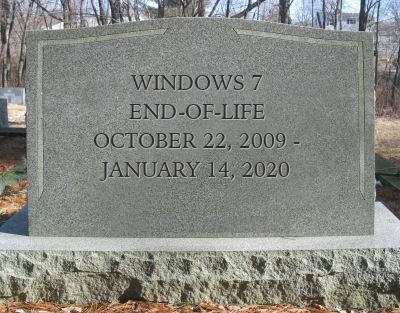
    Windows 11 arrived this year to a somewhat muted response that mostly can be attributed to a tempered rollout – many machines that would have been eligible for a Windows software upgrade in the past were deemed not eligible for the enhanced requirements found in Windows 11. The end-of-life date for Windows 10 is still a way off (October 14, 2025) but a surprising number of people are still using Windows 7 which had it’s end of life event over two years ago now, on January 14th, 2020.

    Microsoft 7 EOL Tombstone

    However, according to GlobalStats Windows 7 still has an almost 12% operating market share. While many of those are probably unused machines that still equates to a large percentage of Windows 7 users over 2 years past it’s end of life date.

    When an operating system is discontinued by Microsoft that means they stop providing support and updates for it, including security updates that protect users from ongoing threats. Even the FBI has strongly warned against continuing to use Windows 7 as it can make you an easy target for cybercrime.

    It can be challenging to move away from a system you know well and at this point upgrading probably means also purchasing new hardware, which during the microchip shortages exacerbated by the pandemic could be no small task (or expense). However, there are deals to be had on hardware now in 2022.

    It can be also difficult to find software that’s supported on an older operating system as updates are made to make them compatible with the latest generation of operating systems.

    We know that for some of our clients it’s actually the reverse, they’re utilizing a line of business software that no longer is being maintained or updated by the provider, but it still functions for their business. The caveat being they must use it on an older machine that hasn’t been updated.

    There are several inherent risks to this, including the first one being that that machine is an obvious choice as a threat vector for would be bad actors. The tenuous relationship between that software and the hardware that deploys it is also ripe for failure the longer you wait to replace it. Securing older hardware to be able to continue to use a discontinued line of business software will also be a significant challenge as time goes on.

    We’ve touched on comfort and convenience between prime motivation to continue using an unsupported operating system, but there’s also the technology challenge of deploying new hardware and software within your business. A major rollout is best left to the experts who can smoothly retrieve the data from your devices and help you make the transition to newer hardware.

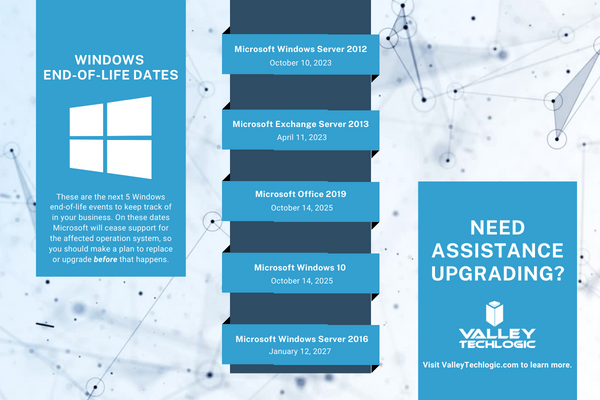
    At Valley Techlogic, we can even help you with procuring that hardware and making the best software choices for your business. This includes servers as well. Here is a list of the next 5 Windows end-of-life dates that you should be keeping an eye out for.

    Microsoft EOL Dates That Are Coming Up

    If for some reason you just can’t part with an outdated operating system at this time, here are three tips that will make it slightly safer until you are able to replace those devices:

    1. Make using an anti-virus and firewall a priority. This won’t offer you complete protection as many threats will seek to undermine the unsecured status of the device, but it’s better than being completely unsecured.
    2. Login to important accounts from another device if possible. We would not suggest logging into sites such as your banking website from a device this far out of date from updates.
    3. Utilize network-based mitigation strategies. This is again not foolproof strategy but separating your Windows 7 or other end-of-life devices from the rest of network will offer a slight buffer in the event the device(s) are compromised.

    Need assistance migrating away from devices that have reached their end-of-life date? Valley Techlogic can help, we’re a certified Microsoft partner and experts in all things Windows. Reach out to us today for a quick consultation to learn more.

    Looking for more to read? We suggest these other articles from our site.

    This article was powered by Valley Techlogic, an IT service provider in Atwater, CA. You can find more information at https://www.valleytechlogic.com/ or on Facebook at https://www.facebook.com/valleytechlogic/ . Follow us on Twitter at https://x.com/valleytechlogic.

  • Windows 365 and the Pros and Cons of Virtualization in Cloud Computing

    Windows 365 and the Pros and Cons of Virtualization in Cloud Computing

    One of the big announcements that coincided with the news around Windows 11 was the arrival of Windows 365, Microsoft’s new cloud PC product.

    Windows 365 is an easy to use, cross device cloud computing solution. You log into a Windows 10 virtual PC (Windows 11 should be available soon) and it’s already pre-loaded with the Microsoft 365 suite of tools and ready to go.

    The best part is it’s not restricted to whatever device you’re logging into, the Windows 365 instance you log into from work is the same one you can log into from your home device.

    You can even access increased computing power. You can configure a Windows 365 instance that has more processing power than the device you’re logging in from. It also includes one of the main benefits of cloud computing, the ability to easily roll back to a previous instance. Accidentally deleted a file you’ve been working on all day?  Roll back to an earlier instance to easily recover it.

    It’s also beneficial to the security of your business, if you have employees that work from home it can be difficult to manage devices that aren’t under your office network. You can have these employees instead log into their Windows 365 instances and you know that the rules are the same across the board (and that they’re benefitting from the Microsoft 365 advanced security features).

    Pricing for Windows 365 starts at $28 per month for a setup that’s best for low intensity office work all the way up to $162 per month for an 8 Core model with 512 GBs of shortage. Pricing leads us to the discussion of the pros and cons to virtualizing your office.

    5 Pros of Virtualizing Your Office Are:

    1. Increased Availability: As we mentioned, your Windows 365 goes wherever you do. The beauty of the cloud is it’s available everywhere and as most cloud computing products have an uptime guarantee.
    2. Easy to Setup: With Windows 365, many of the applications you use are already preloaded. You can also have your IT team set up the instances ahead of time, so your new employees don’t have to waste a day installing the programs they need to use.
    3. Data Security: This one applies to servers as well but having a cloud backup for both your devices and office server increases your data security through redundancy.
    4. Disaster Recovery: On the same topic, if something happens to the device your employee logs in from or your office server, the data is still safe in the cloud which means little to no downtime.
    5. Efficient: You can apply policies and updates to all of your Windows 365 instances at once, no managing updates one computer at a time.

    The cons you may encounter are:

    1. Start Up Costs: Most of the costs around cloud computing is related to the storage you need, and some of these costs are ongoing. When you buy a device it’s usually a one time purchase, but you also have to think about the costs associated with maintaining the device. With cloud computing, maintenance costs are deferred.
    2. Availability: While most providers have a guaranteed uptime, there can be times where the service is down. Also, your internet connect will matter a great deal when it comes to connecting to your cloud instance. Backups may take longer if you have a poor internet connection at your office.
    3. Limitations: You can spec out any kind of machine you like to fit a specific purpose, but with virtualization you are limited to what’s available and setups for the most common use cases are going to be what’s highly available.

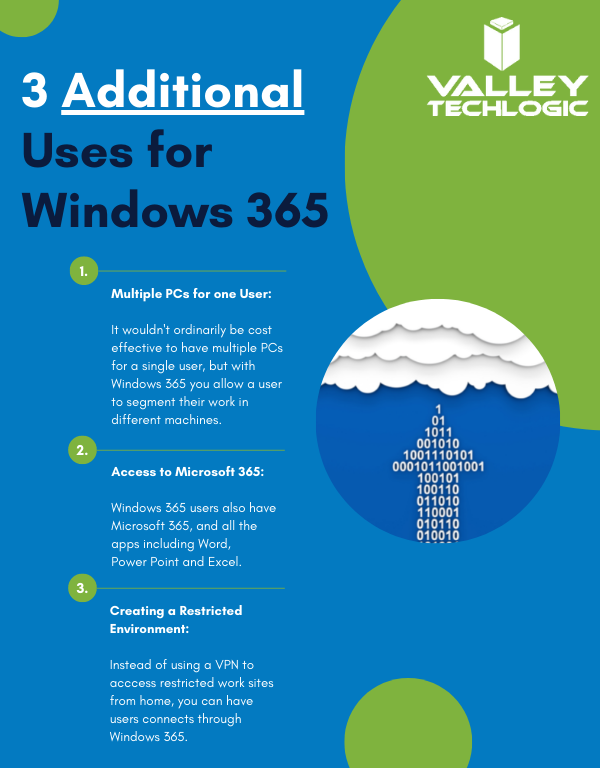
    Here are a few other ways you can use Windows 365 in your business:

    Additional Windows 365 Benefits

    Interested in learning how Valley Techlogic can help your business create a virtualization plan? Learn more today with a quick consultation.

    Looking for more to read? We suggest these other articles from our site.

    This article was powered by Valley TechLogic, an IT service provider in Atwater, CA. You can find more information at https://www.valleytechlogic.com/ or on Facebook at https://www.facebook.com/valleytechlogic/ . Follow us on Twitter at https://x.com/valleytechlogic.

  • Microsoft 365 pricing changes are coming in 2022, and we have the details

    Microsoft 365 pricing changes are coming in 2022, and we have the details

    Microsoft has had a busy year in 2021. With the release of Windows 11 and it’s continued roll out to more and more eligible users, as well as the quieter release of Windows Server 2022 in August. It looks like they’re not slowing down in 2022.

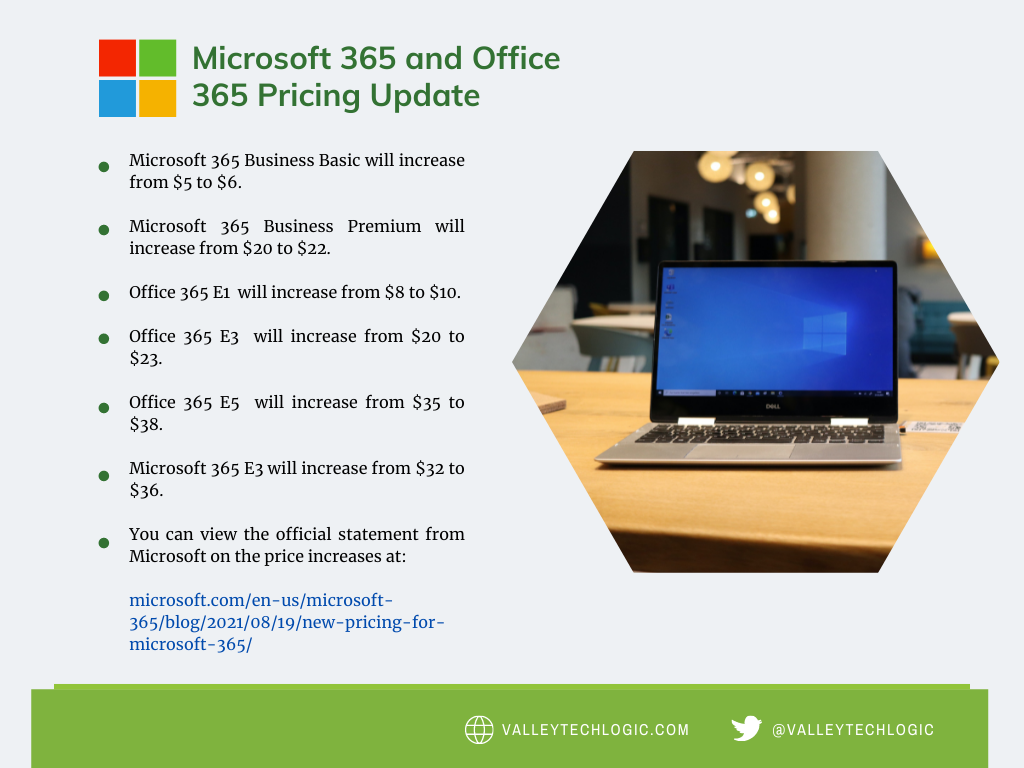
    We’ve been notified as a Microsoft partner there will be price increases across the board for their powerful suite of office software, Microsoft 365 expected in March 2022.

    While it’s never fun to have an unexpected increase to your overall IT spend, we think Microsoft 365 is still well worth it even at the increased cost. There are also some items that will be rolled into the new subscription model that will absorb some of the price increase while increasing the usability of your Microsoft 365 subscription.

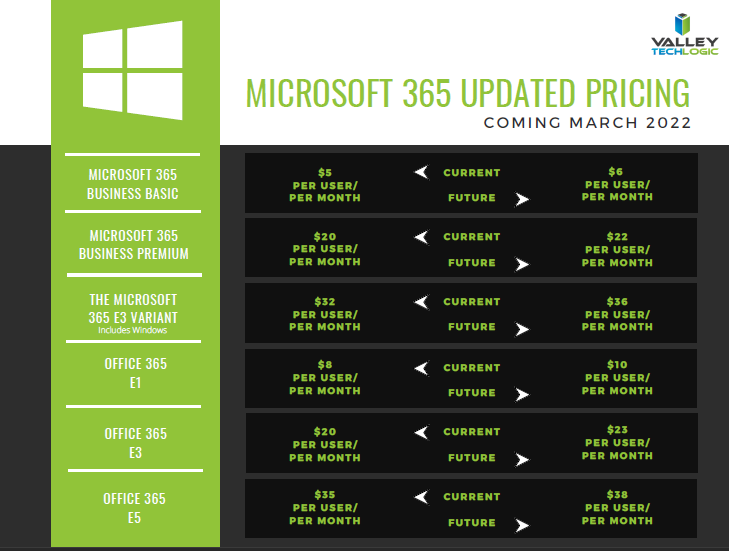
    First, here’s a chart we’ve created that you can save for your records that outlines the expected price increases. These prices may change between now and March but as of writing these are the prices that have been communicated to us by Microsoft directly. We also included the subscription models that are not going to be increased in March. We also want to note the consumer and educational models of Microsoft 365 will not be experiencing a price increase next year.

    Small Version of the Pricing Chart
    Click for the full size version.

    Now, we promised we’d talk about some of the items that are now going to be rolled into your Microsoft 365 subscription that previously had their own cost. One of those items is the ability to call in via Teams. Previously, calling in via Teams was $4 per line but as Microsoft moves to make Teams more accessible for businesses and users alike, they’re now including it in your normal subscription cost.

    This means if you have employees who are out and about during a company meeting, they can still easily call in and participate. It also opens up the opportunity to use Teams for your prospects and clients, even if they don’t currently have it installed. This year we even switched to Teams across the board ourselves and haven’t looked back. We’ve found the call quality and reliability to be phenomenal.

    Some security features will also be rolled into some of the earlier tiers of Microsoft 365 when they were previously featured à la carte. The security and compliance features found in your Microsoft 365 subscription really amount to pennies on the dollar when you consider how expensive it would be to establish the same security stack outside of Microsoft, and it would be less tailored for your own Microsoft use experience to boot.

    These security features include data loss prevention (DLP) for email and documents, as well as encryption for email (we all know email is one of the most common points of entry for bad actors). Microsoft Endpoint Manager has been a critical tool for all of the business’s that now find themselves managing a remote workforce.

    Overall, while a price increase was inevitable, we’re excited to see what new features will be rolled out in 2022 and beyond. If your office is not yet setup with a Microsoft 365 subscription, that’s one of the items we help our clients manage. If you’d like to learn how Valley Techlogic can help your business with Microsoft products and more, click here.

    Looking for more to read? We suggest these other articles from our site.

    This article was powered by Valley TechLogic, adns, n IT service provider in Atwater, CA. You can find more information at https://www.valleytechlogic.com/ or on Facebook at https://www.facebook.com/valleytechlogic/ . Follow us on Twitter at https://x.com/valleytechlogic.

  • Windows 11 is out, should you upgrade?

    Windows 11 is out, should you upgrade?

    Windows 11 officially came out on October 5th and maybe it just us or perhaps it’s been overshadowed by other tech news this week, but the release has seemed somewhat unceremonious so far.

    Perhaps that’s because it wasn’t released for everyone. In fact, it’s not available for most people.

    How will you know if your PC has the upgrade (which is free by the way) available? Well, there are some steps to take first.

    1. Make sure you’re on Windows 10, you can only receive the Windows 11 free upgrade if you’re already on Windows 10.
    2. Download the free Microsoft Health Check App to see if your device is supported.
    3. Perform a backup of any important files and documents. This is a big upgrade, so you want to make sure your prepared if anything problematic happens during it.
    4. Then head to Settings > Update & Security > Windows Update on your PC.
    5. If the update is available to you, you’ll see it in your update section and can perform the upgrade if you wish to but maybe read on first to see if that’s a good idea.

    For most of us though, the upgrades not available yet and that’s probably a good thing. It can take a bit of trial and error following a release, especially on the level a Microsoft operating system releases at, to get the kinks worked out. Many of the promised features are still not available yet and won’t be for several months.

    Also, for many people their PCs don’t have the required specifications for Windows 11. Especially concerning issues surrounding TPM and secure boot.

    There’s also no rush, Windows 10 will continue to receive mainstream support through October of 2025. Looking at all the features we understand why some are rushing to upgrade ASAP, but for businesses especially a calculated approach to performing this upgrade is a smart idea.

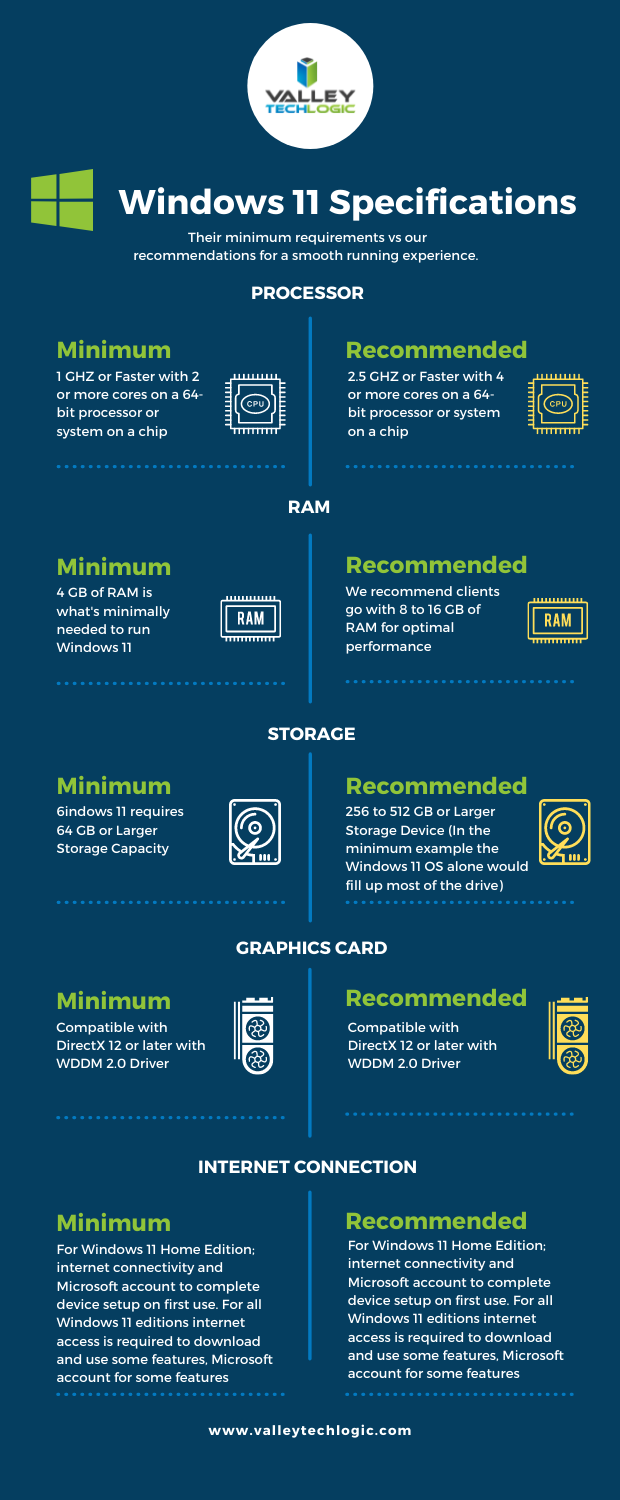
    We’ve talked about the system requirements surrounding making the upgrade to Windows 11 in the past. We’ve even turned the graphics we made for that article into a side-by-side chart you can print out.

    Though the global chip shortage is making it virtually impossible for the average person to easily make a new desktop or laptop purchase at the moment. Even as an IT provider, we’re feeling the pinch.

    If you’re a business owner in the Central Valley and need some advice on upgrading your office computers to Windows 11 (or even to Windows 10) or need help with hardware, we’re here for you. Schedule a discovery call today to learn more.

    Looking for more to read? We suggest these other articles from our site.

    This article was powered by Valley TechLogic, adns, n IT service provider in Atwater, CA. You can find more information at https://www.valleytechlogic.com/ or on Facebook at https://www.facebook.com/valleytechlogic/ . Follow us on Twitter at https://x.com/valleytechlogic.

  • Microsoft’s Windows 11 finally has an official release date, and more Windows 11 updates

    Microsoft’s Windows 11 finally has an official release date, and more Windows 11 updates

    Microsoft finally has an official release date for their first operating system release in six years, it will be released October 5th, 2021. Windows 11 will be a free upgrade to Windows 10 users – if you’re not already a Windows 10 user we urge you to upgrade while it’s still available and free.

    This means that the release is just over a month away and the buzz surrounding it is only continuing to amp up.  We had word last week that while Windows 11 may work on older computers, you may be prevented from completing updates as normal.

    Microsoft is drawing a line in the sand when it comes to not supporting old hardware. We talked about the specifications required in this article a few weeks ago and nothing has changed on Microsoft’s end when it comes to those required specifications so far. They’ll also be unveiling their own hardware lineup that will feature Windows 11 on September 22nd.

    There are even some indications you not only won’t get software updates, but you may not get security patches either, although they’ve proven to be somewhat soft on that stance on the past when it comes to unsupported copies of their operating systems. Either way with chip shortages and other pandemic related shipping delays this may be a tricky time for those looking to upgrade but realizing they don’t have a machine with the hardware capable of supporting the new operating system.

    Another thing we now know is that even though the Android support found in Windows 11 was a heavily lauded feature, it won’t be there at launch. All of the other showcased featured will be there but the Android support will come later in the year, although a preview of it should be available to Microsoft Insiders soon.

    If you’re wondering how you’ll know when Windows 11 is available to you or whether it will be difficult to figure out, you need not worry. Microsoft is aiming for a “phased and measured” launch and will prompt users via the Windows Update system that the upgrade to Windows 11 is available.

    It won’t be available to all PCs and laptops right on October 5th however, they’ll be slowing releasing it in waves dependent on your computer specifications, the age of your device and other factors. It’s been noted though that some users will have to wait until 2022 to receive the upgrade.

    That should give users plenty of time to sort out any of their hardware related questions and for those on the fence about upgrading, time to see how it fares for other people first.

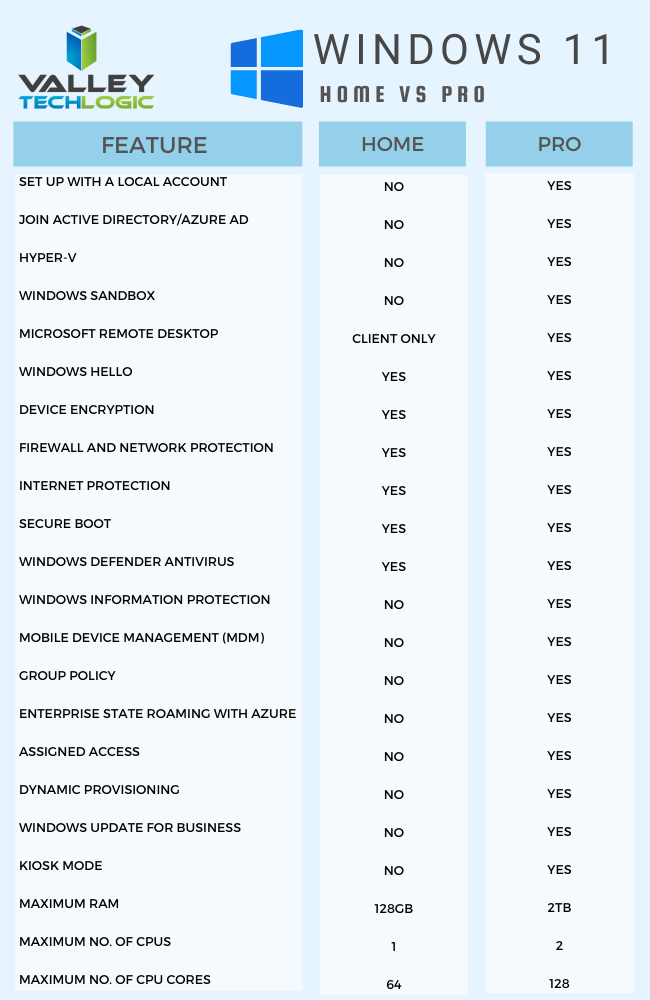
    For business users, who often opt for the pro version, the choice to upgrade can require more thought and planning then simply clicking the upgrade button when it pops up. We’ve made this chart that outlines the differences between Windows 11 Home and Windows 11 Pro.Windows11HomevsProChart

    One other big difference is that going forward Microsoft is requiring home users to tie a Microsoft account to their Windows installation, but this Isn’t a requirement for Pro users, you can just set up your computer with a local account.

    It will be interesting to see what other details are released as we continue to creep closer to the October release. If you’ve got Windows 11 on your radar for your business Valley Techlogic can help with the planning, we’re a certified Microsoft partner and help businesses all over the Central Valley manager their Windows applications, both for PC and server. Learn more today.

    Looking for more to read? We suggest these other articles from our site.

    This article was powered by Valley TechLogic, an IT service provider in Atwater, CA. You can find more information at https://www.valleytechlogic.com/ or on Facebook at https://www.facebook.com/valleytechlogic/ . Follow us on Twitter at https://x.com/valleytechlogic.

  • Microsoft 365 and Office 365 prices are going up, when and by how much?

    Microsoft 365 and Office 365 prices are going up, when and by how much?

    We’ve been on a roll lately discussing the changes and products being rolled out by Microsoft this year, primarily Windows 11 which should be launched this fall. Last week Microsoft announced a price increase to their ubiquitous business products, Microsoft 365 and Office 365.

    Office has been a business staple since it’s launch in 1989 (although Word predated the Office grouping of products quite a bit, launching in 1983). The original launch set was Word, Excel and Powerpoint but the product line up has exploded since then including other must-have features such as Outlook, Teams, OneDrive and more. For many business users the Office suite of products is their go to collaboration and productivity center.

    Microsoft 365 was announced in 2017 and aimed to take things up a notch and out of just the business productivity center of activity, bringing many Windows specific cyber security features to the table as well as expanding the usability for remote employees.

    It also expanded the ease at which IT administrators can manage their office’s users in a Windows centric environment. The outcome was an all-in-one platform for business users especially that brought functionality, safety and security, and collaborative work processes together in unison all for one easy to budget for monthly fee.

    But as with many online services, fee increases are to be expected (remember when Netflix was just $7.99 a month for the standard package?). Microsoft however has bucked this trend for quite a while, pricing has been the same since Office 365 was launched in 2011.

    In that time, they’ve added untold value in the way of product innovation all for no increased monthly fee, so this price increase is both expected and possibly overdue. It’s also expected to be just a few dollars more for each product category, so you won’t need to worry about a drastic price hike. Have a look at our chart below to see what to expect.

    Microsoft Price Increase Chart

    As you can see the price increases are moderate and shouldn’t result in a drastically higher overall IT bill for most users. If you’re in the education sector you won’t have a price increase at all, and consumer products will also stay the same price at this time. These price increases are expected to go into effect March 1, 2022.

    One thing that’s worth mentioning is the program Microsoft has for non-profits, if you own or operate a non-profit organization you can receive your Microsoft products at a deeply discounted rate. This includes Microsoft 365 and Office 365 subscriptions. We have helped our non-profit clients navigate this in the past to great success, if you’re a non-profit in the Central Valley area feel free to reach out to us for more information.

    We also assist businesses with their questions when it comes to the Microsoft line or products or their Windows desktop and server machines, we’re a long time Microsoft partner and consider ourselves experts when it comes to navigating even the most complex setups. We even include the subscriptions we discussed in today’s article within our all-inclusive plans to reduce our customers IT spending to one easy to read monthly bill. Find out more today.

    Looking for more to read? We suggest these tech articles from the last week.

    This article was powered by Valley TechLogic, an IT service provider in Atwater, CA. You can find more information at https://www.valleytechlogic.com/ or on Facebook at https://www.facebook.com/valleytechlogic/ . Follow us on Twitter at https://x.com/valleytechlogic.