Category: Backup and Disaster Recovery

  • 5 Smart Data Retention Policies and 3 Data Saving Pitfalls Costing Your Business Money

    5 Smart Data Retention Policies and 3 Data Saving Pitfalls Costing Your Business Money

    In today’s digital business landscape, how you manage your data is just as important as how you collect or store it. For small businesses, having a smart data retention policy isn’t just about staying organized, it’s about staying compliant, secure, and efficient.

    Whether you’re holding on to customer records, invoices, employee files, or emails, you need a clear plan for how long that data stays on your systems and what happens when it reaches the end of its lifecycle. Retaining everything “just in case” or deleting too soon can create legal headaches, security risks, or operational confusion.

    Let’s explore five data retention policies small businesses should implement, and three common mistakes you should absolutely avoid.

    ✅ 5 Smart Data Retention Policies to Implement

    1. Retention by Data Type

    Not all data is created equal. Treat it that way.

    Set different retention periods based on the type of data you’re storing:

      • Financial records may need to be kept for 7+ years (IRS rules).
      • Customer data may have different lifespans depending on usage and consent.
      • HR and employee records often follow labor law guidelines.
      • Emails may only need to be stored for 1–3 years unless tied to legal or financial records.

    Classifying data by type ensures your business is both legally compliant and operationally efficient.

    1. Automatic Archiving

    Out of sight, but not out of reach.

    Instead of deleting data prematurely, implement archiving policies that automatically move older, inactive data to secure long-term storage. This keeps your active systems clean and performing well, while still giving you access to historical data when needed.

    Modern cloud services and document management platforms often offer built-in archiving features, use them to your advantage.

    1. End-of-Life Deletion Protocols

    When data has outlived its purpose or retention period, it’s time to say goodbye — securely. Have a documented process for data deletion:

    • Use secure wipe methods to prevent recovery.
    • Maintain deletion logs for compliance.
    • Be especially cautious with personally identifiable information (PII) and health data.

    Deleting outdated data reduces your risk surface in the event of a data breach and helps you stay on the right side of data privacy regulations.

    1. Regular Audits

    Your business isn’t static, and your data policy shouldn’t be either. Review your retention practices annually to:

    • Stay aligned with evolving regulations.
    • Remove outdated systems or redundant storage.
    • Confirm your team is following protocols.

    Audits help identify gaps and keep your policy relevant.

    1. Employee Training

    Even the best policies can fall apart without employee buy-in. Train your staff on:

      • What data to retain or delete.
      • How to handle sensitive information.
      • Recognizing phishing or security threats that target stored data.

    Make data management part of your onboarding and annual training. It’s easier to maintain compliance when everyone’s on the same page.

    ❌ 3 Common Data Retention Practices to Avoid

    1. Keeping Everything “Just in Case”

    This is one of the most common — and risky — habits. Over-retaining data can:

      • Expose your business in a breach.
      • Increase legal discovery risks.
      • Cost more in storage and management.

    If you don’t need it and aren’t required to keep it then securely dispose of it.

    1. One-Size-Fits-All Retention Periods

    What works for one type of data might be a liability for another.

    Using a blanket policy for all files or records could lead to unintentional violations of compliance laws or operational inefficiencies. Customize your retention schedules by category and jurisdiction.

    1. No Defined Ownership of Data Management

    When no one is responsible, no one is accountable.

    Every small business should assign someone (or a team) to oversee data retention. This ensures policies are applied consistently and gives your staff a go-to resource when questions arise.

    Small businesses face growing data responsibilities, but they don’t have to face them alone. With the right retention policies in place, you can protect your business, reduce clutter, and maintain compliance without wasting valuable time or resources.

    At Valley Techlogic, we help small businesses build smart, secure, and scalable data strategies, including customized retention policies that align with your industry’s regulations and your company’s workflow. Need help building your retention roadmap? Contact us today to schedule a consultation with our team.

    Looking for more to read? We suggest these other articles from our site.

    This article was powered by Valley Techlogic, leading provider of trouble free IT services for businesses in California including Merced, Fresno, Stockton & More. You can find more information at https://www.valleytechlogic.com/ or on Facebook at https://www.facebook.com/valleytechlogic/ . Follow us on X at https://x.com/valleytechlogic and LinkedIn at https://www.linkedin.com/company/valley-techlogic-inc/.


  • Verizon’s massive outage this week and it’s connection to Hurricane Helene

    Verizon’s massive outage this week and it’s connection to Hurricane Helene

    While much of the eastern side of the country continues to grapple with the effects of Hurricane Helene (in particular western North Carolina which had many towns wiped off the map), restoring cellular communication has been a top priority to locate and aid those currently affected.

    In order to do that, cellular communication providers have enabled something called “disaster roaming” in the effected areas, this type of roaming services allows customers of any mobile phone company to use any available cell tower. Normally, cell towers are maintained and restricted to certain companies. So, for example, you may find as an AT&T customer you have better service in one locations vs another. With disaster roaming turned on this would no longer be the case.

    What does this have to do with the Verizon outage that occurred this week? Well, this unplanned outage that affected as of writing caused over 100,000 reports from customers on DownDetector.com, a site that reports service complaints, also affected the areas currently recovering from Hurricane Helene.

    Users reported their phones being stuck in “SOS” mode, and after several hours issued a statement that their engineers had fixed the issue and that anyone still affected should try restarting their phones. During the outage the company’s response was underwhelming, in many cases just informing customers they were “aware of the issue”.

    The timing of this outage and the announcement that disaster roaming was turned on in certain areas is also possibly worth investigating, though no announcement on the cause of the outage has been revealed at this time.

    This is also not the first time we’ve written about a major cellular outage (AT&T and T-Mobile have had their fair share as well). Disasters like the one currently ongoing in North Carolina highlight our need to have effective ways to communicate in times of an emergency and it is past time that cellular companies be held to a higher standard when it comes to communicating and addressing outages that can have drastic consequences for their customers.

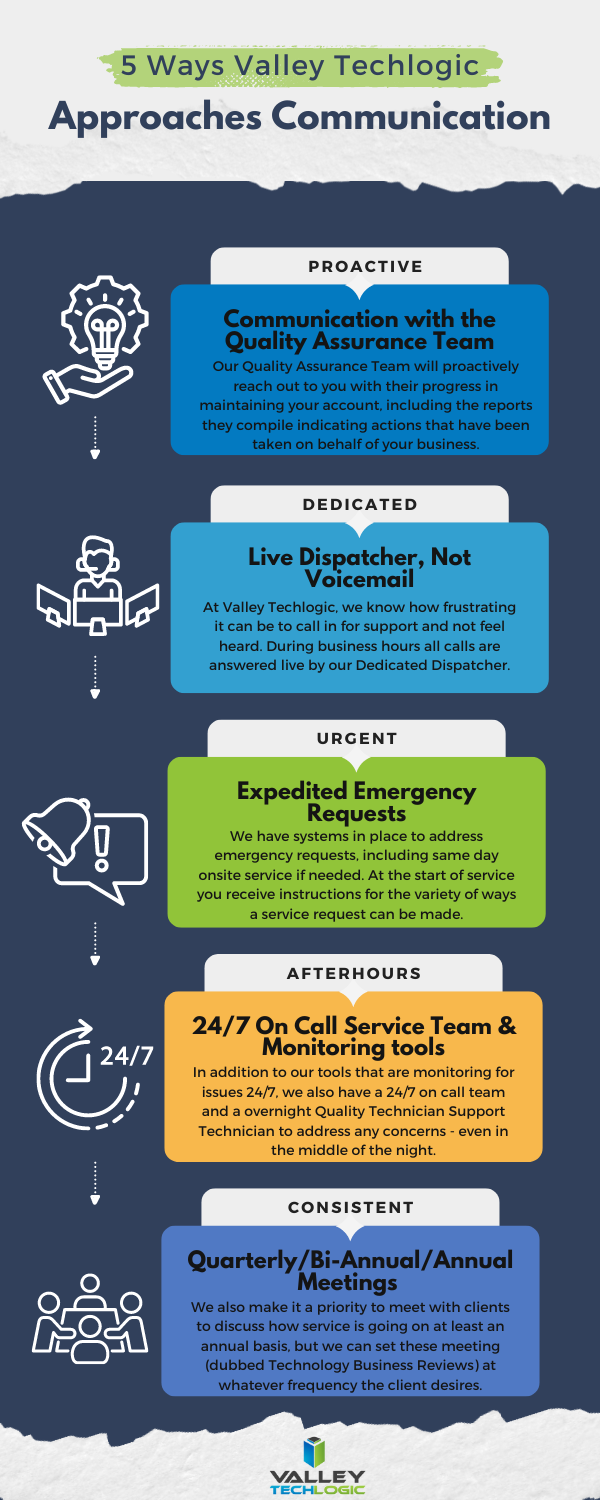
    Effective communication is an important part of running a business, if you’re not making your customers aware of your intentions then you’re leaving it up to them to draw conclusions on your behalf. Below are five ways Valley Techlogic addresses communicating with clients who have a technology service plan with us:

    Don’t settle for underwhelming or non-existent communication on the services you pay for, learn more about how Valley Techlogic can support your business today with a free consultation.

    Looking for more to read? We suggest these other articles from our site.

    This article was powered by Valley Techlogic, leading provider of trouble free IT services for businesses in California including Merced, Fresno, Stockton & More. You can find more information at https://www.valleytechlogic.com/ or on Facebook at https://www.facebook.com/valleytechlogic/ . Follow us on Twitter at https://x.com/valleytechlogic and LinkedIn at https://www.linkedin.com/company/valley-techlogic-inc/.

  • Is the cloud still your best option or would an on-premises server be the smarter way to go? 5 facts to consider about both

    Is the cloud still your best option or would an on-premises server be the smarter way to go? 5 facts to consider about both

    Originally touted as the wave of the future “the cloud”, which is nebulous phrasing that basically means putting your data anywhere besides your direct location, is often seen as the solution for corralling data into one central online location that’s managed by someone else (IE cloud providers).

    However, rising costs of data storage and uncertainty surrounding data security and availability in the wake of ever-increasing data breach threats has meant more businesses are seriously considering their options when it comes to the best strategy for data storage in their business. Where once more and more businesses were on board with an all-cloud solution, now many are turning away from the cloud for on-premises solutions or even a hybrid solution.

    First, five facts to consider in favor of an all-cloud solution:

    1. Scalability: Cloud solutions provide on-demand scalability, allowing businesses to easily increase or decrease resources such as storage, processing power, and bandwidth, based on changing needs without having to invest in physical infrastructure.
    2. Cost Efficiency: Moving to the cloud can reduce capital expenses (CapEx) for hardware and maintenance. Instead, businesses can move to an operating expense (OpEx) model, where they only pay for the resources they use, thus reducing waste and optimizing budgets.
    3. Accessibility and Flexibility: Cloud platforms allow employees to access data and applications from anywhere with an internet connection. This supports remote work, global collaboration, and increases flexibility for businesses.
    4. Automatic Updates and Maintenance: Cloud service providers manage routine maintenance, security patches, and software updates, freeing up internal IT teams to focus on more strategic tasks, and ensuring systems are up to date with the latest technologies.
    5. Disaster Recovery and Backup: Cloud solutions offer robust disaster recovery options, ensuring data redundancy and availability. Cloud providers often have geographically distributed data centers, reducing the risk of data loss due to localized incidents and enhancing business continuity.

    On the other hand, here are five facts in favor of an on-premises solution:

    1. Greater Control and Customization: With on-premises servers, organizations have full control over their hardware, software, and network configurations. This allows for highly customized setups that can be tailored to meet specific business or security needs.
    2. Data Security and Privacy: On-premises storage allows businesses to maintain direct oversight of their data, which can be crucial for industries that require strict data security and regulatory compliance (e.g., healthcare or finance). Sensitive data stays within the company’s infrastructure, reducing third-party access risks.
    3. No Dependence on Internet Connectivity: Unlike cloud-based solutions that require constant internet access, on-premises servers allow organizations to access and manage their data even if there are internet outages or network interruptions, ensuring business continuity.
    4. Predictable Costs: While the upfront costs of on-premises servers can be higher, they are typically one-time capital expenditures. Over time, businesses have greater control over their long-term budget for hardware upgrades and maintenance without the recurring subscription fees that cloud services often require.
    5. Legacy Systems Integration: Many businesses have legacy applications or systems that are better suited for, or only compatible with, on-premises infrastructure. Keeping data and applications on-site ensures better performance and integration with existing, sometimes older, internal systems.

    There are factors to consider when it comes to choosing either cloud or on-premises for your business storage solution, but what about a mix of both? Maintaining an on-premises storage solution combined with a cloud storage solution as a backup gives you both the redundancy you need with the flexibility of cloud storage and alongside the control of an on-premises solution in a hybrid solution completely customized for your needs.

    In today’s world, data storage can be customized to your business’s specific needs and here at Valley Techlogic we are experts in developing backup solutions that work for you (through our program TechVault). Whether you’re looking to protect your current data, migrate your data to the cloud or to an on-premises solution, or even if you’ve reached this article while going through a data loss event – Valley Techlogic can help. Reach out for a consultation today.

    Looking for more to read? We suggest these other articles from our site.

    This article was powered by Valley Techlogic, leading provider of trouble free IT services for businesses in California including Merced, Fresno, Stockton & More. You can find more information at https://www.valleytechlogic.com/ or on Facebook at https://www.facebook.com/valleytechlogic/ . Follow us on Twitter at https://x.com/valleytechlogic and LinkedIn at https://www.linkedin.com/company/valley-techlogic-inc/.
  • The day the world stopped (for Windows users anyways)

    The day the world stopped (for Windows users anyways)

    Unless you’ve been living under a rock for the past week, you’re probably well aware of the worldwide outage that occurred last Friday effecting millions of Windows users and causing disruptions for airlines, healthcare facilities, banks and more.

    CrowdStrike, a cybersecurity technology company that provides endpoint protection and cyberattack response services to numerous Fortune 500 companies was behind the outage which was linked to a software glitch.

    The update that was pushed out Friday was supposed to just enable sensors on Windows devices to detect new potential threats, but instead knocked systems offline around the world. CrowdStrike utilizes an update mechanism they call “Rapid Response Content” which is supposed to react to threats in real time and push updates out to respond to those threats. As we know, time is of the essence with cybersecurity especially with Zero Day attacks.

    Instead of addressing threats though, a defect in the update caused an outage that has cost airlines in particular $860 million in losses during the course of the outage. Airlines even resorted to writing flight times on whiteboard in airports for travelers who had no access to flight information during the outage. Affected devices all displayed the infamous blue screen of death.

    Photo courtesy of Reddit user u/New_Fault_1002.

    It’s also being reported that cyber insurers are expected to only cover 10 to 20 percent of the costs associated with this outage, leaving much of the financial burden on companies still trying to recover from the disruption the outage caused to their business.

    The bittersweet news behind this outage is that companies with cloud facing options for their data recovered much more easily than businesses dependent on physical devices. For the example the healthcare sector, which despite the overwhelming coverage airports have received was the hardest hit with $1.94 billion in losses anticipated so far. Companies that could access unaffected devices to reach the data they had stored in the cloud were able to resume business as usual much quicker than those dependent on hard copy data found only on their Windows devices.

    CrowdStrike has pledged to keep an outage created by an update glitch from happening again by taking a more staggered approach to their updates by not having every user receive the same update all at once and also by having a more thorough process to vet updates before they go live.

    However, the fate of the company and its ability to rebound after such a critical failure is unknown at this point and they’re not winning any favors with a measly $10 gift card being offered as a “sorry” for the outage.

    For us at Valley Techlogic, the outcome of relying on having all of your “data eggs” in one basket is unsurprising. We have long been proponents of taking a layered approach to backups, two is good and three is better. Our backup service, TechVault, is included with all our service plans. If you would like to learn more, reach out today for a consultation.

    Looking for more to read? We suggest these other articles from our site.

    This article was powered by Valley Techlogic, leading provider of trouble free IT services for businesses in California including Merced, Fresno, Stockton & More. You can find more information at https://www.valleytechlogic.com/ or on Facebook at https://www.facebook.com/valleytechlogic/ . Follow us on Twitter at https://x.com/valleytechlogic and LinkedIn at https://www.linkedin.com/company/valley-techlogic-inc/.

  • Are you sure you can count on your data backups? 5 ways to confirm your backups are working (and avoid the 37% data backup failure rate)

    Are you sure you can count on your data backups? 5 ways to confirm your backups are working (and avoid the 37% data backup failure rate)

    Data backups are a big part of our service offering here at Valley Techlogic (learn more here) and we believe backing up your data is one of the easiest preventative option for a host of technology related headaches – including device failure, cyber breaches, accidental deletions and more.

    According to the statistics 91% of business organizations have some form of data backup in place but 76% report having a data loss in the last year. This tells us backups are happening, they’re just not happening very well.

    Here are five ways to check to see if your data backups are functioning as they should:

    1. Regular Backup Testing: Schedule regular tests where you restore data from your backups to ensure they are functional. This can involve restoring a small subset of data or running a full restoration process in a test environment.
    2. Data Integrity Checks: Use checksums or hash functions to verify the integrity of backed-up data. By comparing checksums or hashes of original data with those of the backed-up data, you can ensure that the backup process has not introduced any errors or corruptions.
    3. Backup Monitoring Tools: Implement backup monitoring tools that provide real-time alerts and reports on backup status, including successful completion, errors, or failures. These tools can help you proactively identify any issues with your backup process.
    4. Versioning Verification: If your backup system supports versioning, regularly check that multiple versions of files are being retained as expected. This ensures that you have access to historical versions of data in case of accidental deletions or data corruption.
    5. Backup Logging and Auditing: Maintain detailed logs of backup activities, including start and end times, success or failure statuses, and any error messages encountered. Regularly review these logs to identify any anomalies or patterns that may indicate problems with the backup process.

    Other pitfalls we see when it comes to backups? Not backing up everything you intend to, there’s nothing worse than going to look for a file and realizing it was deleted accidentally at some point. Or not moving your files to the intended central location that does receive regular backing up and experiencing a device failure.

    It’s a good idea to take a look at the full picture when it comes to backups, for many simply backing up your office server is enough because all work stems from that central location (this is especially true if you use a type of specialized software that all employees must work through and that software is stored on the office server).

    For others work is less centralized, and it might make sense to backup the workstations of specific employees because if their devices were lost, compromised, or broken it would also mean a loss of files that are significant to your day-to-day operations.

    Another backup related item to consider? Your email. While most email services offer ample storage, we still find it’s a good idea to add a backup to that just in case (and again, this is another protection against losing data due to a breach which occurs frequently with email). At Valley Techlogic we even have a product that can backup your Microsoft 365 data specifically, and if you use Word, Excel, PowerPoint etc. throughout your business or as your business productivity software suite of choice, this kind of backup coverage can go a long way.

    In a nutshell, if you’re looking for assistance in determining if your backups are functioning as they should, in expanding your backups to include more of your data, a switch from on-premises backups to cloud or even establishing backups from the ground up Valley Techlogic is able to assist you with all of these and more. Backups are one facet of the services you’ll receive as a Valley Techlogic client, so what are you waiting for? Get started today.

    Looking for more to read? We suggest these other articles from our site.

    This article was powered by Valley Techlogic, an IT service provider in Atwater, CA. You can find more information at https://www.valleytechlogic.com/ or on Facebook at https://www.facebook.com/valleytechlogic/ . Follow us on Twitter at https://x.com/valleytechlogic.

  • The details on AT&Ts massive outage last week and the compensation coming your way if you’re an AT&T customer

    The details on AT&Ts massive outage last week and the compensation coming your way if you’re an AT&T customer

    As our headline suggests, AT&T experienced a massive outage Feb. 22 which affected their cell network nationwide. The outage affected over 70,000 reported customers (the actual numbers are certainly much higher) and left many unable call, text or even reach 911 for 12 hours. Many police departments report seeing an increase in 911 calls as some customers tried dialing to see if the call would go through.

    AT&T had been seeing an increase in outages affecting their networks ahead of the major outage that occurred last Thursday. The outage lasted just under 12 hours and it was enough time for speculation as to the cause to run rampant across the internet.

    AT&T has confirmed the outage was not due to a cyber incident but instead a botched update that took their networks offline. They also confirmed no customer data was lost In the event. The outage hit consumers and business customers alike.

    According to AT&T’s own landing page about the incident, consumers will be seeing a credit issued to their accounts automatically ($5.00 at the time of writing) and they say they will work with business customers individually to compensate for the down time.

    For some customers that might feel like too little to compensate for the inconvenience caused and at least one state’s attorney general agrees, with New York Attorney General Letitia James announcing they’ll be conducting an investigation into the matter.

    “Americans rely on cell service providers for consistent and reliable service to help them with nearly every aspect of their daily lives,” New York Attorney General Letitia James said. “Nationwide outages are not just an inconvenience, they can be dangerous, and it’s critical that we protect consumers when an outage occurs.”

    There are also some concerns surrounding the credit that’s going to be issued and whether scammers may take advantage of the situation for their own gain. Consumers should be extra vigilant when opening and responding to emails relating to credit or compensation from AT&T. At the time of writing AT&T has said consumers do not need to do anything on their end to receive the credit. We especially want to warn against clicking on any links with the promise of compensation, which is inadvisable well beyond the current situation.

    Consumers should also avoid responding to text messages or phone calls requesting their information to receive the credit, again AT&T will not be contacting customers directly, and any communications should be directed at official lines of communication. If you’re not sure how to contact AT&T, we suggest referring to a recent bill.

    For businesses, downtime like this can be more than an inconvenience, it can affect your business in major ways and be financially very costly.

    At Valley Techlogic, we have strategies  to prevent outages from affecting your business or your bottom line and our clients rely on our expert advice for navigating technology solutions for their business. Reach out to us today to learn more.

    Looking for more to read? We suggest these other articles from our site.

    This article was powered by Valley Techlogic, an IT service provider in Atwater, CA. You can find more information at https://www.valleytechlogic.com/ or on Facebook at https://www.facebook.com/valleytechlogic/ . Follow us on Twitter at https://x.com/valleytechlogic.

  • Inclement weather, solar flares, earthquakes – how disaster proof is your businesses technology?

    Inclement weather, solar flares, earthquakes – how disaster proof is your businesses technology?

    We’ve written quite a bit about cyber security disasters and disaster recovery in that context (here are just a couple options Why every business needs a documented backup and disaster recovery strategy and Data Breached? 5 ways to reduce the impact on your business), but what about a disaster that’s truly out of your hands?

    Depending on where you live there are different types of types of disasters to worry about, and some disasters such as solar flares or geomagnetic storms are a global concern.

    While it’s been hyped by certain news outlets that a solar storm of spectacular magnitude could wipe out our global network and cause nationwide blackouts, solar events of the level required to cause mass destruction are spectacularly rare. Nasa rates solar flare levels on a scale that includes B Class which is the smallest, through C, M and X class which is the biggest. Within each scale there is a rating from 1-9 for the first three levels of solar flares and X class flares can be rated up to 17.

    X-class flares actually occur fairly frequently, with there being 11 so far in 2023 at the time of writing. These flares are strong enough to disrupt satellite signals or deliver a minor dose of radiation to passengers on an airplane when they occur.

    The best defense against solar events such as these is to advocate for improving our electricity grids, above ground electricity components are the most vulnerable if a significant solar flare were to occur. We do want to stress again though that an event of that nature would be exceedingly rare.

    Let’s now take a look at events that are much more common, such as inclement weather or for California based businesses such as ours, earthquakes.

    While you most likely have insurance that would cover your physical property including your office building, hardware and office furniture, it might be important to ask your insurance broker if it will also cover intangible assets.

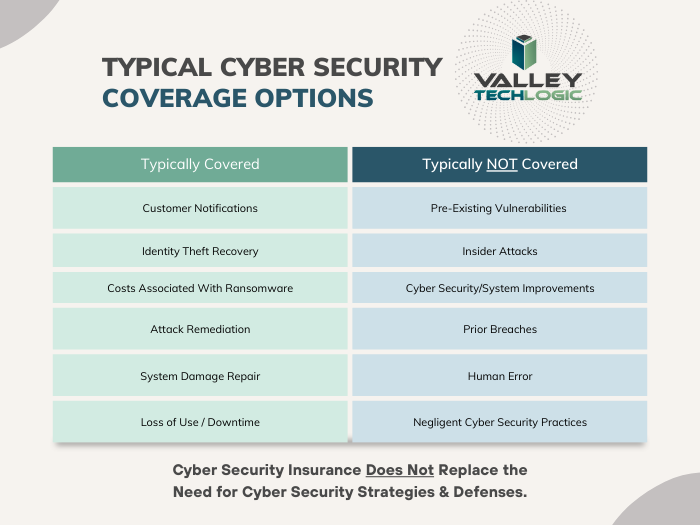
    It is likely you’ll need a cyber liability policy to provide coverage for your data, below is a chart for what we typically see is covered (and not covered) by cyber liability coverage.

    As you can see most cyber liability policies cover business interruptions and data loss even if the cause is not cyber security related. What’s often not covered is events that fall within your control (such as the human element we’re always mentioning when it comes to common hacking techniques such as phishing).

    Another good way to protect your data from disaster events that may impact your business is to have most of your data located off premises in the cloud.

    While the cloud is often construed as a nebulous concept, really hosting your data in the cloud just means it’s on a server somewhere else. If your on-premises server is subject to catastrophic system failure for any reason, the cloud copy of your data would be safe.

    There are many low cost or free cloud options you can take advantage of for your data, we have a guide to the best way to use the free OneDrive storage that comes with your Microsoft 365 subscription here.

    Also, if you work with a managed IT provider such as Valley Techlogic, backups and backup maintenance is often included as part of your service plan. We have information about our own back program, TechVault.

    If disaster proofing your business in 2024 is on your to-do list, why not collaborate with us? We have experience in creating plans for businesses to make sure we avoid all preventable downtime and to protect your data from catastrophic events. If you’ve already suffered a data breach or other system outage and need assistance in data recovery that is also a service Valley Techlogic can provide. Reach out today for more information.

    Looking for more to read? We suggest these other articles from our site.

    This article was powered by Valley Techlogic, an IT service provider in Atwater, CA. You can find more information at https://www.valleytechlogic.com/ or on Facebook at https://www.facebook.com/valleytechlogic/ . Follow us on Twitter at https://x.com/valleytechlogic.

  • Proactive vs Reactive Tech Care – Why Tackling Things as They Spring Up Can Backfire BIG

    Proactive vs Reactive Tech Care – Why Tackling Things as They Spring Up Can Backfire BIG

    As a technology service provider, it’s probably a given that we believe in proactive maintenance. We believe being proactive is less costly both in lost revenue and lost time (and time is money so it’s doubling down when a technology outage occurs).

    Many clients are afraid to replace aging hardware, these systems represent a big investment for them typically and they want to get the most “bang for their buck” out of systems they spent thousands of dollars on. They’re also used to how these machines operate and aren’t sure if newer machines will really represent a quality of life upgrade for them.

    There’s also the fear that replacing hardware will be a protracted situation, where transferring files, setup etc. may result in the one thing we all fear most in the business world – downtime.

    This is generally not the case, most of the time switching out systems is an easy seamless process that’s completed in less than a couple of hours or even during a lunch break. Switching out a server can be more time consuming but at Valley Techlogic we perform those upgrades after hours so as not to inconvenience our clients. We can also keep your existing server running as we get the replacement up and going in most cases (and is another reason it’s a good idea to perform these upgrades before a hardware failure occurs).

    Proactive maintenance also applies to software, whether it be updating existing software or finding a new solution for a software product that’s no longer available. Replacing aging hardware and aging software often go hand in hand, with clients keeping a system around that’s functionally way past it’s prime but is necessary to run a line of business software that’s no longer available.

    This is a risky endeavor, machines running Windows 7 or Windows Server 2012 or older are no longer being updated by Microsoft and represent a literal threat vector to which bad actors can infiltrate your business. The same goes for other aging devices that are no longer receiving firmware updates, such as routers and peripherals like smart switches that connect to the internet.

    At Valley Techlogic we are utilizing tools that track the age of equipment and whether it’s been recently updated, that way we can make recommendations to our clients ahead of time when equipment has reached its end of life.

    In many businesses, operating on a “run-to-failure” basis makes sense, if you’re in manufacturing for example repairing large, expensive equipment for as long as you can to maximize your ROI is a smart business practice. However, anyone would agree that replacing equipment that’s become unsafe is absolutely crucial.

    That’s why we operate on a proactive model, in the technology world aging hardware that can’t be updated is a risk to your business whether it be from unintended downtime or a cyber security threat.

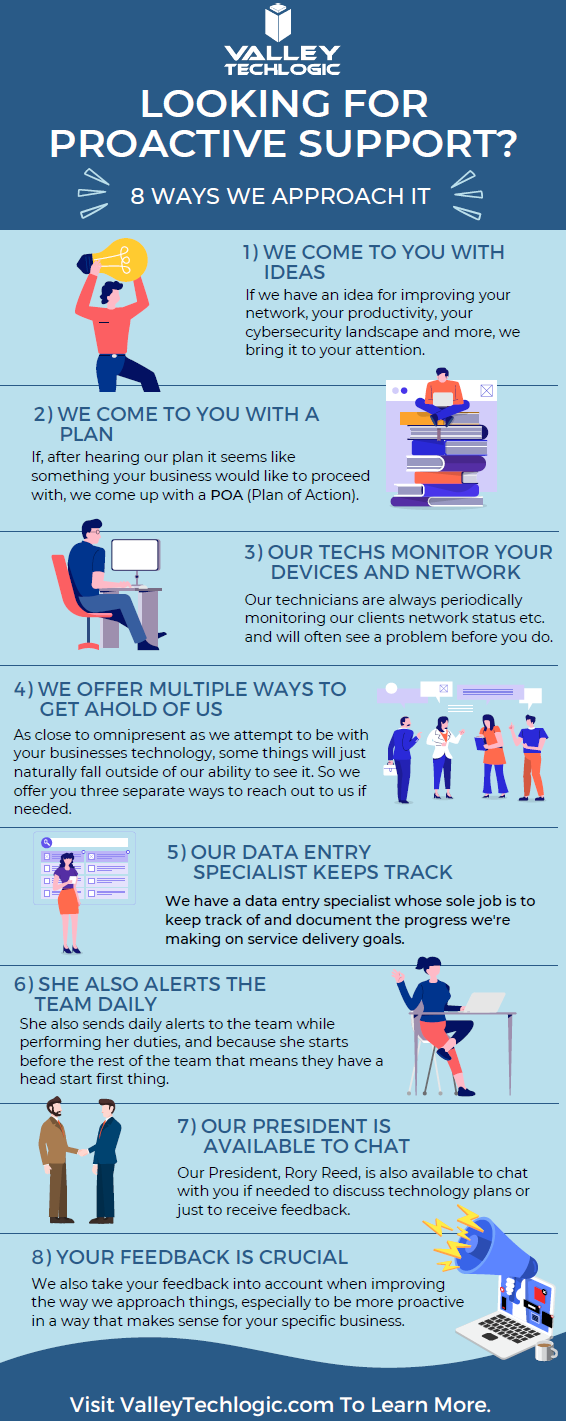
    Here are some other items we’re also proactive about for our clients:

    Click to view the full size version.

    If you would like to learn more about obtaining a proactive technology service plan for your business, just request a consultation. We’ll even give you your first service call on the house (up to 2 hours) which we can use to evaluate your existing devices and offer our recommendations. Learn more today.

    Looking for more to read? We suggest these other articles from our site.

    This article was powered by Valley Techlogic, an IT service provider in Atwater, CA. You can find more information at https://www.valleytechlogic.com/ or on Facebook at https://www.facebook.com/valleytechlogic/ . Follow us on Twitter at https://x.com/valleytechlogic.

  • Missing file? Don’t panic, 5 recovery tips for Windows devices

    Missing file? Don’t panic, 5 recovery tips for Windows devices

    I know this has happened to me before, I have a new Word document I’ve created sitting open (maybe I’m actively working on it) I mean to save it somewhere and I just don’t.

    Another scenario, someone requests an Excel spreadsheet I’d done some editing on and when I go to look for it, it’s nowhere to be found.

    Panic ensues, but then I remember Windows 10 (and 11) devices have a number of different ways of finding and retrieving lost documents – especially those that were created in the Office suite of software. Before trying any of these steps we suggest checking your recycle bin first just in case it was accidentally deleted.

    The easiest way (and possibly most obvious) is to just click the little magnifying glass on your taskbar and just search for what you can remember about the file name or the file contents. Windows search system is pretty powerful, and your search may end here. An extra tip for narrowing your options, up at the top of the search window you can narrow the options by type, such as Applications or Documents.

    If you tried searching for the document and came up empty, the next place you should look is the most recent files section in the document application you’re working with. In both Excel and Word you can find this section by going to the upper left hand section of the navigation panel and hitting the “File” button. From there you go to “Open”. In this section you’ll see all your most recent files.

    The recover unsaved documents button is here to save the day.

    If you strike out there don’t exit out yet, this is where tip number three comes in. At the bottom of this section, you may see a “Recover Unsaved Documents” button. Clicking that will bring up any documents that were closed without being saved and hopefully your missing document is found in this section because it starts to get a little trickier by step four and requires a bit of luck.

    If you have backups enabled on your computer you can follow these steps by first clicking the “Start” button followed by “Control Panel,” “System Maintenance” and then “Backup and Restore.” Once the backup has been restored, you can search it for your missing file.

    The final place to look is your temporary files folder, usually something like C:\Users\Owner\AppData\Local\Microsoft\Office\UnsavedFiles but individual file paths may vary.

    If you’re a Microsoft 365 OneDrive user you have a bonus recovery step available, you can try creating a file with the same name and file type as the missing document. After you’ve created the new file, select Properties, select the Previous Versions tab, and then hopefully a version appears there that you can restore.

    After trying all these steps if your wayward document is still missing, it may be time to call in the experts. Data recovery is a big part of what we do at Valley Techlogic, and to make sure our clients never have to go through the headache and stress of losing their very important documents and data backups are a core feature of all of our plans.

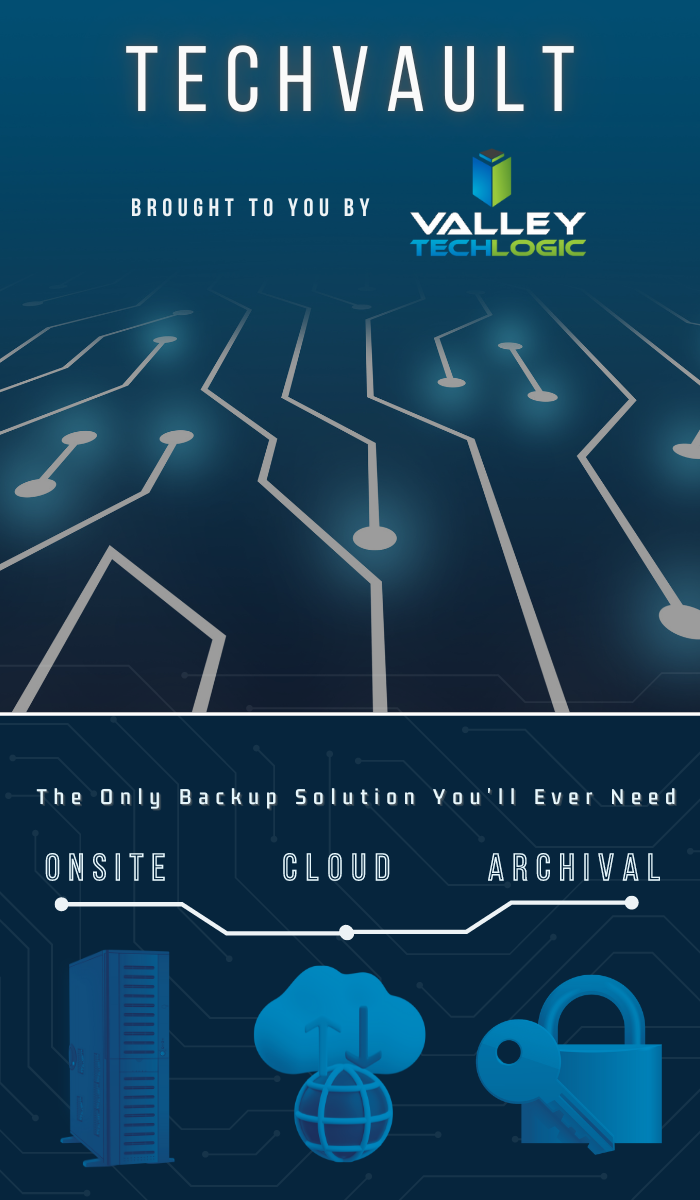
    Here’s an our backup program in a nutshell which we consider the gold standard for businesses:

    Click to learn more about TechVault.

    Want to learn more? Visit our calendar page to book a consultation.

    Looking for more to read? We suggest these other articles from our site.

    This article was powered by Valley Techlogic, an IT service provider in Atwater, CA. You can find more information at https://www.valleytechlogic.com/ or on Facebook at https://www.facebook.com/valleytechlogic/ . Follow us on Twitter at https://x.com/valleytechlogic.

  • How to best utilize and organize OneDrive, the free cloud storage included with your Microsoft 365 subscription

    How to best utilize and organize OneDrive, the free cloud storage included with your Microsoft 365 subscription

    We find with our clients we find they’re often unaware they have a personal cloud storage solution right at their fingers tips and included for free with their Microsoft 365 subscription, OneDrive.

    Every Microsoft 365 business subscription user will have 1 TB of storage space free with their Microsoft 365 subscription. If you have an IT provider managing your Microsoft 365 subscriptions they probably have set this up to backup certain folders by default, usually your documents, pictures and desktop folders.

    These folders will automatically be synchronized to the cloud, so it provides excellent protection if one of your company devices is lost, stolen or breaks. It’s also a good cybersecurity measure to have your company workstations backed up in someway so if there’s ever a cybersecurity attack that effects your office, not all of your files will be lost.

    On that note, Microsoft does operate on what they call a “shared responsibility” model, so if your Microsoft account is compromised as well you may still lose those files even if they were backed up (which is why we always recommend enabling 2-Factor Authentication, Microsoft makes it easy).

    If OneDrive is successfully enabled on a device you’ll see a little blue cloud icon on your task bar, that when you hover over will tell you the status of your backup (it should say your files are up to date).

    Clicking on the blue cloud will allow you a glimpse at what files have been backed up recently, as well as a quick way to access the OneDrive folder located on your computer as well as the one that’s found online.

    1 Terabyte of storage is plenty for most users, but if you’re a heavy data user or someone in charge of most of the documentation for your office you may need more. Microsoft offers OneDrive plans outside of the 1 TB you receive for free as a Microsoft 365 user, see our chart below:

    Also, if you just want to try the service out but you’re not yet a Microsoft 365 user, you can either purchase a OneDrive subscription outside of the Microsoft 365 service (though we wouldn’t necessarily recommend it, Microsoft 365 is a better value) or you can test drive the service with their completely free 5 gigabyte storage option.

    5 GB is not a lot of storage these days but if you’re wanting to see if the service would be a good fit for you, it’s plenty for a good test run.

    Once you have your OneDrive set up, you might be thinking about how you’re going to organize it. Luckily, for the folders you back up any pre-existing folder organization you have will be backed up as well. If you have a sub-folder inside your Documents folder labeled “Mikes Important Files 8/20/2019” that same sub-folder will exist in your OneDrive.

    Besides that, here are 5 fast and easy folder organization tips:

    1. Don’t let files languish in your Downloads folder. I’m guilty of this myself, you’re busy and files you receive from colleagues or make just never make it out of their origination folder. It’s a good habit as you go to organization your new OneDrive space to sort things as they come in.
    2. Organize things by project or by date. When you’re looking for work and documents around a certain task or event, sorting by the date or by project is a good system to easily find them again. I’m in favor of by project myself.
    3. Use descriptive names, there’s nothing worse than trying to find a specific receipt if all your receipts from that store have the exact same name. Rename files so they’re easy to find.
    4. While sorting things when they come in is a good idea, even the best intentions fail when we get busy. Set up a time once a week to sort anything that gets left behind.
    5. Don’t make a folder for every single thing. You don’t want the solution to become worse than the problem. Group up items where you can (this is another vote in favor of sorting by project).

    If you need help with your businesses Microsoft 365 subscription and OneDrive, or just for tackling the topic of backups once and for all – Valley Techlogic is here for you. We even have our own backup solution for servers, TechVault. Learn more with a quick consultation today.

    Looking for more to read? We suggest these other articles from our site.

    This article was powered by Valley Techlogic, an IT service provider in Atwater, CA. You can find more information at https://www.valleytechlogic.com/ or on Facebook at https://www.facebook.com/valleytechlogic/ . Follow us on Twitter at https://x.com/valleytechlogic.