Tag: backups

  • You have cloud backups for your business, but are you wasting money on storage you don’t need? 5 ways to tidy up your cloud storage

    You have cloud backups for your business, but are you wasting money on storage you don’t need? 5 ways to tidy up your cloud storage

    The worst backup situation to have as a business owner is no backups at all, so if you’ve made keeping backups of your data a priority in your business, we want to encourage you to keep the effort up. Having data backups is crucial for making a full recovery in the event of device failure, cyber security breaches and more.

    With that said, the cost of storage and in particular cloud storage is something to be considered when formulating a plan for backups. With physical hardware you have a tangible wall that prevents storage costs from ballooning out of control, but with cloud storage no such wall exists. Your provider will likely sell you as much data storage as you need and if your backups aren’t set up in an efficient way you may find the costs continue to rise while not being entirely sure as to why.

    Here are five ways to setup efficiency for your cloud backup solution and keep costs under control:

    1. Implement Data Archiving Policies: Regularly archive older, infrequently accessed data to cheaper, long-term storage solutions. This reduces the cost of more expensive, high-performance storage.
    2. Use Tiered Storage Solutions: Take advantage of cloud providers’ tiered storage options. Store critical, frequently accessed data in high-performance storage and less critical data in more economical storage tiers.
    3. Automate Backup Schedules and Policies: Set up automated backup schedules to ensure data is backed up regularly without human intervention. Use policies to manage retention, ensuring outdated backups are deleted after a certain period.
    4. Compress and Deduplicate Data: Use data compression and deduplication techniques to reduce the amount of storage required. Compression reduces file size, while deduplication eliminates duplicate copies of data.
    5. Monitor and Optimize Storage Usage: Regularly review storage usage and costs. Use analytics and reporting tools provided by cloud providers to identify unused or underused resources and optimize storage allocation accordingly.

    By implementing these strategies, business owners can effectively manage their cloud storage costs and maintain an organized, efficient backup system.

    Did you know backups are a core feature of Valley Techlogic’s service offering? Not only can we assist you in maintaining your existing backups, we also will keep our own backup of your data as part of your service plan with us.

    You can learn more about our backup program here, but in a nutshell whether you want to keep your current backups and utilize ours as an additional copy or erase that expenditure from your billing and let us handle it – Valley Techlogic can support your business’s backup planning in addition to the other ways we support your business.

    Learn more today by scheduling a meeting with one of our experienced

    Looking for more to read? We suggest these other articles from our site.

    This article was powered by Valley Techlogic, leading provider of trouble free IT services for businesses in California including Merced, Fresno, Stockton & More. You can find more information at https://www.valleytechlogic.com/ or on Facebook at https://www.facebook.com/valleytechlogic/ . Follow us on Twitter at https://x.com/valleytechlogic and LinkedIn at https://www.linkedin.com/company/valley-techlogic-inc/.

  • Are you sure you can count on your data backups? 5 ways to confirm your backups are working (and avoid the 37% data backup failure rate)

    Are you sure you can count on your data backups? 5 ways to confirm your backups are working (and avoid the 37% data backup failure rate)

    Data backups are a big part of our service offering here at Valley Techlogic (learn more here) and we believe backing up your data is one of the easiest preventative option for a host of technology related headaches – including device failure, cyber breaches, accidental deletions and more.

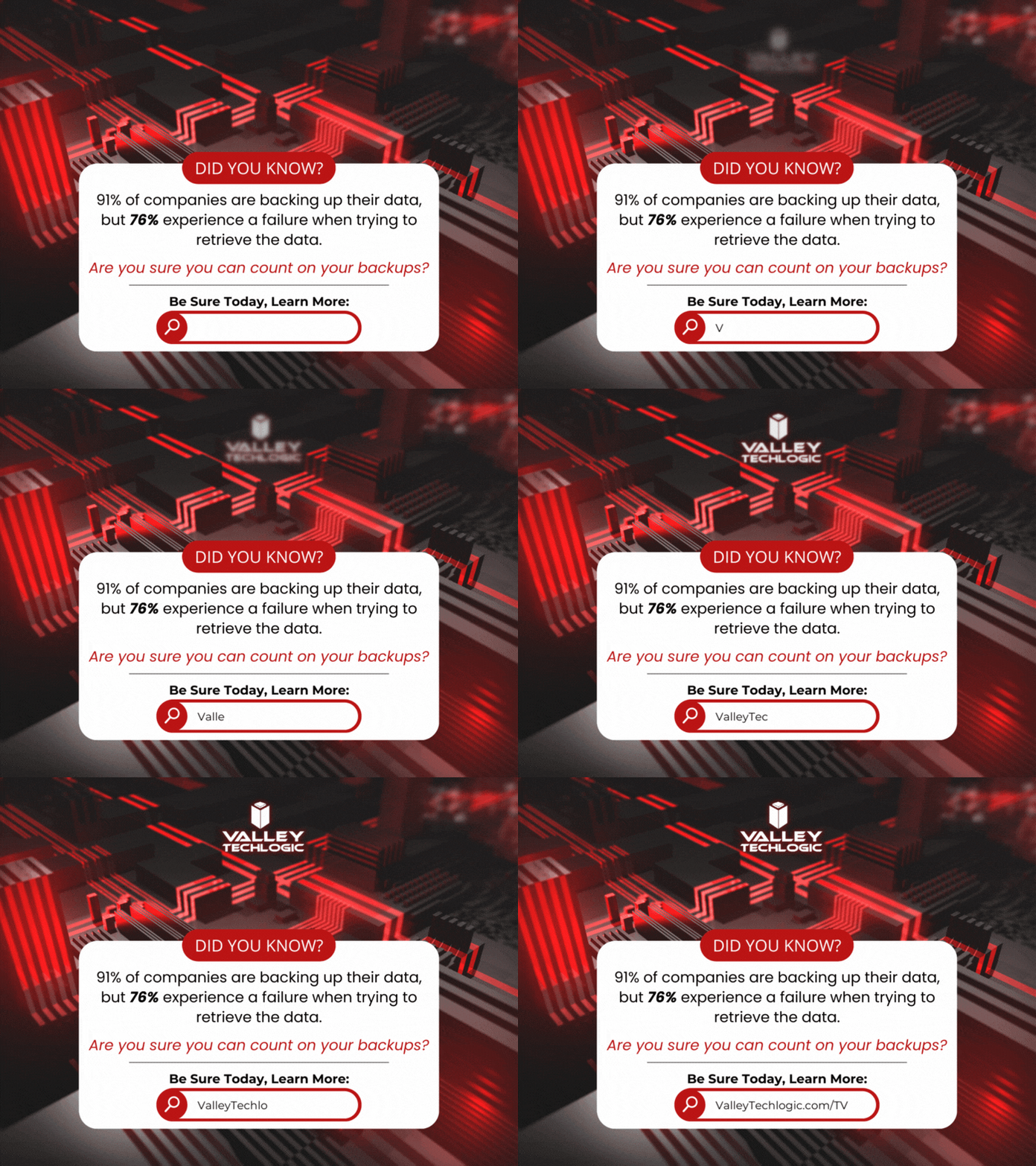
    According to the statistics 91% of business organizations have some form of data backup in place but 76% report having a data loss in the last year. This tells us backups are happening, they’re just not happening very well.

    Here are five ways to check to see if your data backups are functioning as they should:

    1. Regular Backup Testing: Schedule regular tests where you restore data from your backups to ensure they are functional. This can involve restoring a small subset of data or running a full restoration process in a test environment.
    2. Data Integrity Checks: Use checksums or hash functions to verify the integrity of backed-up data. By comparing checksums or hashes of original data with those of the backed-up data, you can ensure that the backup process has not introduced any errors or corruptions.
    3. Backup Monitoring Tools: Implement backup monitoring tools that provide real-time alerts and reports on backup status, including successful completion, errors, or failures. These tools can help you proactively identify any issues with your backup process.
    4. Versioning Verification: If your backup system supports versioning, regularly check that multiple versions of files are being retained as expected. This ensures that you have access to historical versions of data in case of accidental deletions or data corruption.
    5. Backup Logging and Auditing: Maintain detailed logs of backup activities, including start and end times, success or failure statuses, and any error messages encountered. Regularly review these logs to identify any anomalies or patterns that may indicate problems with the backup process.

    Other pitfalls we see when it comes to backups? Not backing up everything you intend to, there’s nothing worse than going to look for a file and realizing it was deleted accidentally at some point. Or not moving your files to the intended central location that does receive regular backing up and experiencing a device failure.

    It’s a good idea to take a look at the full picture when it comes to backups, for many simply backing up your office server is enough because all work stems from that central location (this is especially true if you use a type of specialized software that all employees must work through and that software is stored on the office server).

    For others work is less centralized, and it might make sense to backup the workstations of specific employees because if their devices were lost, compromised, or broken it would also mean a loss of files that are significant to your day-to-day operations.

    Another backup related item to consider? Your email. While most email services offer ample storage, we still find it’s a good idea to add a backup to that just in case (and again, this is another protection against losing data due to a breach which occurs frequently with email). At Valley Techlogic we even have a product that can backup your Microsoft 365 data specifically, and if you use Word, Excel, PowerPoint etc. throughout your business or as your business productivity software suite of choice, this kind of backup coverage can go a long way.

    In a nutshell, if you’re looking for assistance in determining if your backups are functioning as they should, in expanding your backups to include more of your data, a switch from on-premises backups to cloud or even establishing backups from the ground up Valley Techlogic is able to assist you with all of these and more. Backups are one facet of the services you’ll receive as a Valley Techlogic client, so what are you waiting for? Get started today.

    Looking for more to read? We suggest these other articles from our site.

    This article was powered by Valley Techlogic, an IT service provider in Atwater, CA. You can find more information at https://www.valleytechlogic.com/ or on Facebook at https://www.facebook.com/valleytechlogic/ . Follow us on Twitter at https://x.com/valleytechlogic.

  • Inclement weather, solar flares, earthquakes – how disaster proof is your businesses technology?

    Inclement weather, solar flares, earthquakes – how disaster proof is your businesses technology?

    We’ve written quite a bit about cyber security disasters and disaster recovery in that context (here are just a couple options Why every business needs a documented backup and disaster recovery strategy and Data Breached? 5 ways to reduce the impact on your business), but what about a disaster that’s truly out of your hands?

    Depending on where you live there are different types of types of disasters to worry about, and some disasters such as solar flares or geomagnetic storms are a global concern.

    While it’s been hyped by certain news outlets that a solar storm of spectacular magnitude could wipe out our global network and cause nationwide blackouts, solar events of the level required to cause mass destruction are spectacularly rare. Nasa rates solar flare levels on a scale that includes B Class which is the smallest, through C, M and X class which is the biggest. Within each scale there is a rating from 1-9 for the first three levels of solar flares and X class flares can be rated up to 17.

    X-class flares actually occur fairly frequently, with there being 11 so far in 2023 at the time of writing. These flares are strong enough to disrupt satellite signals or deliver a minor dose of radiation to passengers on an airplane when they occur.

    The best defense against solar events such as these is to advocate for improving our electricity grids, above ground electricity components are the most vulnerable if a significant solar flare were to occur. We do want to stress again though that an event of that nature would be exceedingly rare.

    Let’s now take a look at events that are much more common, such as inclement weather or for California based businesses such as ours, earthquakes.

    While you most likely have insurance that would cover your physical property including your office building, hardware and office furniture, it might be important to ask your insurance broker if it will also cover intangible assets.

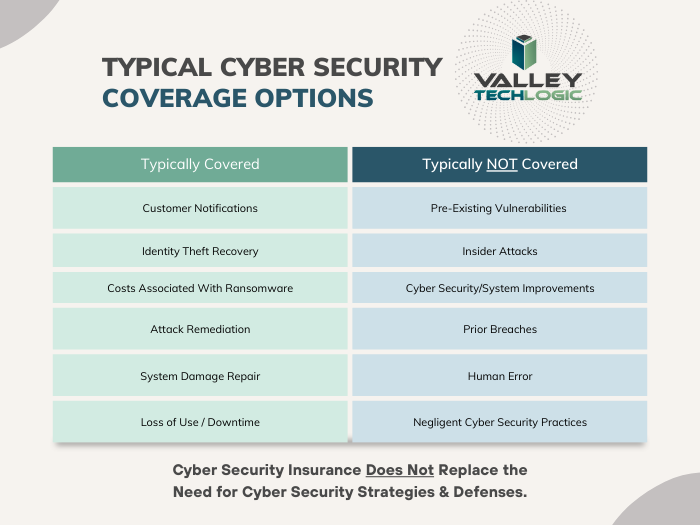
    It is likely you’ll need a cyber liability policy to provide coverage for your data, below is a chart for what we typically see is covered (and not covered) by cyber liability coverage.

    As you can see most cyber liability policies cover business interruptions and data loss even if the cause is not cyber security related. What’s often not covered is events that fall within your control (such as the human element we’re always mentioning when it comes to common hacking techniques such as phishing).

    Another good way to protect your data from disaster events that may impact your business is to have most of your data located off premises in the cloud.

    While the cloud is often construed as a nebulous concept, really hosting your data in the cloud just means it’s on a server somewhere else. If your on-premises server is subject to catastrophic system failure for any reason, the cloud copy of your data would be safe.

    There are many low cost or free cloud options you can take advantage of for your data, we have a guide to the best way to use the free OneDrive storage that comes with your Microsoft 365 subscription here.

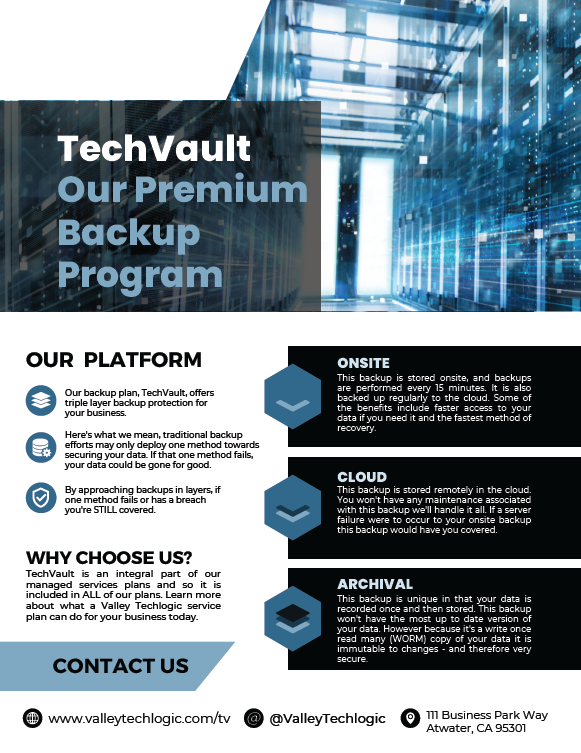
    Also, if you work with a managed IT provider such as Valley Techlogic, backups and backup maintenance is often included as part of your service plan. We have information about our own back program, TechVault.

    If disaster proofing your business in 2024 is on your to-do list, why not collaborate with us? We have experience in creating plans for businesses to make sure we avoid all preventable downtime and to protect your data from catastrophic events. If you’ve already suffered a data breach or other system outage and need assistance in data recovery that is also a service Valley Techlogic can provide. Reach out today for more information.

    Looking for more to read? We suggest these other articles from our site.

    This article was powered by Valley Techlogic, an IT service provider in Atwater, CA. You can find more information at https://www.valleytechlogic.com/ or on Facebook at https://www.facebook.com/valleytechlogic/ . Follow us on Twitter at https://x.com/valleytechlogic.

  • Threat actors attack on cloud company leads to customers data being wiped completely

    Threat actors attack on cloud company leads to customers data being wiped completely

    Last week a Danish cloud provider called CloudNordic suffered a cyber attack that led to them losing all of their customers data in one fell swoop.

    The hackers who gained access to CloudNordic’s system immediately issued a financial demand that the company was unable and unwilling to meet and led to all of their data being encrypted by the hackers. The company said that no evidence of being hacked was left behind other than the encrypted data.

    This hack also effected their sister company, AzeroCloud, and both companies released identical statements on the ongoing issues they’re facing after this event, you can see the statement below translated to English from Danish.

    In an effort to start over the company has establish a new name and new servers and have offered to restore their clients to servers with the same name as they had previously, though they’ve also included instructions for customers who want to move their domains to new hosts.

    CloudNordic suspects the attack occurred while they were moving data centers, exposing them to already infected systems. As they were mid-migration it allowed the attackers access to their systems and even their own backups.

    CloudNordic states “”The attackers succeeded in encrypting all servers’ disks, as well as on the primary and secondary backup system, whereby all machines crashed and we lost access to all data,”.

    They’ve stated while the data was scrambled during the attack, they don’t believe the attackers copied customers data as is typical with ransomware attacks, so it’s unlikely individual customers will be targeted to be ransomed back their data.

    No known ransomware group has so far taken credit for this attack. The company CloudNordic and their sister company AzeroCloud have both said they plan to try to rebuild from here without access to their previous data.

    At Valley Techlogic, backups are an important puzzle piece when it comes to maintaining the security of your business. For many businesses, a cyber event where all of your data is lost would be difficult to impossible to recover from. Many businesses that suffer attacks like these end up going out of business.

    That’s why we created our triple layer backup plan, TechVault.

    With TechVault you not only have an onsite copy of your data, there’s also a cloud backup and what we call an archival backup.

    This archival backup is what makes this program we’ve created special, as it’s write once read many. Basically, the data can be copied back to you as many times as needed but once it’s on there, it cannot be deleted.

    This, in addition to the 24/7 monitoring we provide as well as firewall, antivirus and other protections means your data is virtually bullet proof.

    If you would like to learn more about what makes Valley Techlogic a cyber security leader in the Central Valley, schedule a consultation with us today.

    Looking for more to read? We suggest these other articles from our site.

    This article was powered by Valley Techlogic, an IT service provider in Atwater, CA. You can find more information at https://www.valleytechlogic.com/ or on Facebook at https://www.facebook.com/valleytechlogic/ . Follow us on Twitter at https://x.com/valleytechlogic.

  • Western Digital suffers a ransomware attack, with hackers requesting an 8 figure sum and leaking image from internal meeting

    Western Digital suffers a ransomware attack, with hackers requesting an 8 figure sum and leaking image from internal meeting

    Western Digital is a well-known name in the data production and storage industry. Established in 1970, they were one of the original players in the process of making semiconductors and they have a storied history that began with calculator chips, included a bankruptcy as well as being at the forefront of floppy disc creation in the 1980’s to eventually the hard drives they became known for in the 1990’s. Chances are good you have had a Western Digital drive in one of your devices (you may even have one now).

    Despite being leaders in the digital storage industry, they’ve unfortunately proven no one is immune when it comes to ransomware attacks. While this story emerged mid-April (and the attack occurred March 26) we have an update as the hacker group “BlackCat” taunts Western Digital by leaking an internal video conference on the topic just this week. They leaked an image from the meeting on social media coyly dubbing the people included “the finest threat hunters Western Digital has to offer”. A clear mockery of their attempts to remediate the threat thus far.

    The hacker group is clearly trying to up the ante to get the company to fork over the ransom they’ve requested, a sum reportedly coming in at an eye watering 8 figures. For context a typical ransomware payment paid out by a business in Quarter 1 of 2022 was $228, 125. For individuals payouts hover around $6000. In a nutshell, ransomware is a lucrative business for those with unscrupulous motives.

    To make matters worse, it’s been reported that the group BlackCat has access to multiple Western Digital systems. Meaning this attack was well orchestrated and highly effective at not only making their data vulnerable but creating a disruption to all parts of their business. Western Digital has reported requested the services of outside security and forensic experts to try and recover what they can but needless to say this is an expensive lesson for their business both in money and time lost as well as their reputation in the technical industry.

    You would think being a leader in data storage that their backup recovery process would be flawless, unfortunately when hackers gain domain level access even the best laid plans for your data can go out the window. That’s why Valley Techlogic offers a multi-pronged approach to backups.

    Many clients like the idea that all their data is at their fingertips within their on-premises server. The server itself serves as a physical reminder that their data is ready and available when they need it.

    Unfortunately, having your data all in one place is not a good idea. Other than ransomware attacks such as this, it also leaves your business vulnerable if your server fails for whatever reason. We’ve seen it before; many clients aren’t expecting their servers to just give out or for something like a fire or other disaster to affect them and when it happens, they’re left scrambling. The process to recover from scratch is not always guaranteed and even if a recovery is possible, it can take as long as 3 months to get back mostly to where you were. Generally, a 100% recovery is not possible in these instances.

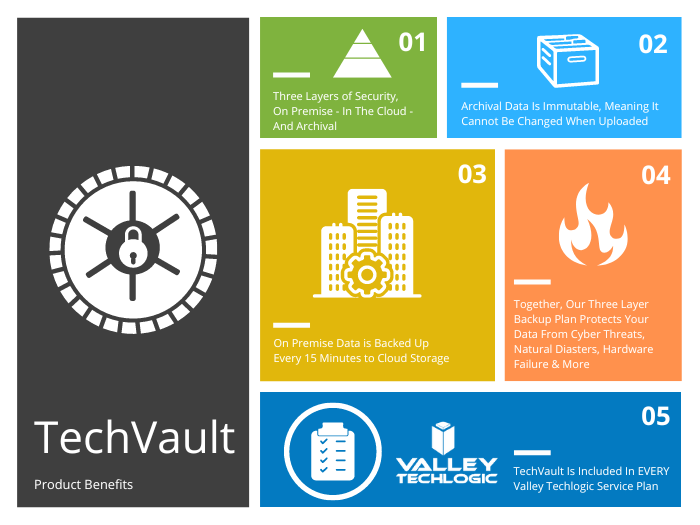
    That’s why at Valley Techlogic our backup solution TechVault is available and used by each of our clients. We have this chart on the benefits of our TechVault solution.

    You can also learn more about it by visiting here. If the Western Digital breach has left you concerned for the safety of your data, or you would just like more information on our backup solution you can request a consultation with our expert sales staff here.

    Looking for more to read? We suggest these other articles from our site.

    This article was powered by Valley Techlogic, an IT service provider in Atwater, CA. You can find more information at https://www.valleytechlogic.com/ or on Facebook at https://www.facebook.com/valleytechlogic/ . Follow us on Twitter at https://x.com/valleytechlogic.

  • 5 USB flash drive safety and usage tips, also our 3 recommended drives for 2023

    5 USB flash drive safety and usage tips, also our 3 recommended drives for 2023

    USB flash drives (also known as thumb drives or memory sticks) have grown a lot in the last few years, what was once a handy tool for transporting small files but couldn’t compete with the capacity of CD disks or traditional drives is now available in sizes up to 1 terabyte which makes them a competitive product for even backup purposes.

    While they may have fallen in favor due to cloud services becoming more ubiquitous, many are looking for more tangible ways to backup important files and take them on the go.

    Many users also worry about the safety of these devices. This is because they’re a common vector for drop attacks, which is where a USB drive is left in a conspicuous location for someone to find and try to use not knowing it contains a virus or trojan horse.

    They also can be insecure if left on a desk or somewhere in public. Luckily, there are even options now that offer 2 factor authentication, biometric verification, and encryption. This means even if your flash drive fell into the wrong hands, it would be useless to the thief. You should also be wary of where you plug your flash drive into as the data path is a two way street.

    Here are 5 more safely and usage tips for utilizing a USB flash drive:

    1. Have separate flash drives for work and home. This will reduce the risk of cross-contamination if one of your devices is compromised, it will also make it easier to organize your files.
    2. Be careful where you purchase your flash drives from. There are irreputable sellers online selling fake drives that don’t contain the amount of storage they’re supposed to, or worse they could be infected with malware. Always buy from a reputable source.
    3. Don’t purchase any drives that require software for use. This is unnecessary and again opens up your device to being compromised with malware. USB drives should be “plug and play”.
    4. Think about the physical size of the drive you’re buying. It needs to be able to fit into the device you’re trying to plug it into, and a bulky USB drive may not be compatible with all devices.
    5. Be aware of the lifespan for the device you’re buying. USB flash drives (also solid-state drives and hard drives) have a certain number of write/erase cycles. Longer is better but if you plan to just keep a static backup on it you can get away with a lower number. Typical USB flash drives have 10,000 to 100,000 write/erase cycles.

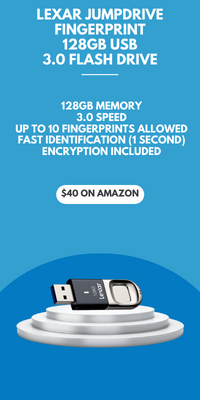
    If we’ve piqued your interest in USB flash drives, you still might not be sure where or what to buy. There are thousands upon thousands of options but here are three options we can recommend. We have one that fits the bill as a budget friendly option for general use, one that has a slim sturdy form factor, and one that meets the requirements if security is a concern.

    Security conscious.
    Slim form factor.
    Budget friendly.


    All of the options we have selected have USB 3.0 speeds, while this is changing all the time this is the minimum we recommend as of writing. You also want to be aware of what kind of connector you’re looking for. USB-A is the most common but there are options for USB-C, MicroUSB and Lightning connectors on the market. You can also use an adaptor if needed.

    If you need hardware buying advice for your business, including the topic of digital storage, Valley Techlogic is happy to help. We can help you select the best option and offer advice on how to secure it. You can learn more about procurement assistance through Valley Techlogic here or schedule a meeting to find out more about our services.

    Looking for more to read? We suggest these other articles from our site.

    This article was powered by Valley Techlogic, an IT service provider in Atwater, CA. You can find more information at https://www.valleytechlogic.com/ or on Facebook at https://www.facebook.com/valleytechlogic/ . Follow us on Twitter at https://x.com/valleytechlogic.

  • How to best utilize and organize OneDrive, the free cloud storage included with your Microsoft 365 subscription

    How to best utilize and organize OneDrive, the free cloud storage included with your Microsoft 365 subscription

    We find with our clients we find they’re often unaware they have a personal cloud storage solution right at their fingers tips and included for free with their Microsoft 365 subscription, OneDrive.

    Every Microsoft 365 business subscription user will have 1 TB of storage space free with their Microsoft 365 subscription. If you have an IT provider managing your Microsoft 365 subscriptions they probably have set this up to backup certain folders by default, usually your documents, pictures and desktop folders.

    These folders will automatically be synchronized to the cloud, so it provides excellent protection if one of your company devices is lost, stolen or breaks. It’s also a good cybersecurity measure to have your company workstations backed up in someway so if there’s ever a cybersecurity attack that effects your office, not all of your files will be lost.

    On that note, Microsoft does operate on what they call a “shared responsibility” model, so if your Microsoft account is compromised as well you may still lose those files even if they were backed up (which is why we always recommend enabling 2-Factor Authentication, Microsoft makes it easy).

    If OneDrive is successfully enabled on a device you’ll see a little blue cloud icon on your task bar, that when you hover over will tell you the status of your backup (it should say your files are up to date).

    Clicking on the blue cloud will allow you a glimpse at what files have been backed up recently, as well as a quick way to access the OneDrive folder located on your computer as well as the one that’s found online.

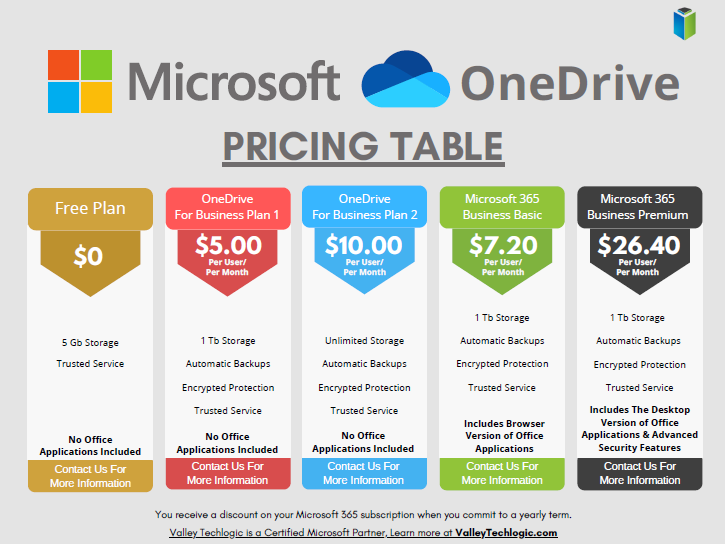
    1 Terabyte of storage is plenty for most users, but if you’re a heavy data user or someone in charge of most of the documentation for your office you may need more. Microsoft offers OneDrive plans outside of the 1 TB you receive for free as a Microsoft 365 user, see our chart below:

    Also, if you just want to try the service out but you’re not yet a Microsoft 365 user, you can either purchase a OneDrive subscription outside of the Microsoft 365 service (though we wouldn’t necessarily recommend it, Microsoft 365 is a better value) or you can test drive the service with their completely free 5 gigabyte storage option.

    5 GB is not a lot of storage these days but if you’re wanting to see if the service would be a good fit for you, it’s plenty for a good test run.

    Once you have your OneDrive set up, you might be thinking about how you’re going to organize it. Luckily, for the folders you back up any pre-existing folder organization you have will be backed up as well. If you have a sub-folder inside your Documents folder labeled “Mikes Important Files 8/20/2019” that same sub-folder will exist in your OneDrive.

    Besides that, here are 5 fast and easy folder organization tips:

    1. Don’t let files languish in your Downloads folder. I’m guilty of this myself, you’re busy and files you receive from colleagues or make just never make it out of their origination folder. It’s a good habit as you go to organization your new OneDrive space to sort things as they come in.
    2. Organize things by project or by date. When you’re looking for work and documents around a certain task or event, sorting by the date or by project is a good system to easily find them again. I’m in favor of by project myself.
    3. Use descriptive names, there’s nothing worse than trying to find a specific receipt if all your receipts from that store have the exact same name. Rename files so they’re easy to find.
    4. While sorting things when they come in is a good idea, even the best intentions fail when we get busy. Set up a time once a week to sort anything that gets left behind.
    5. Don’t make a folder for every single thing. You don’t want the solution to become worse than the problem. Group up items where you can (this is another vote in favor of sorting by project).

    If you need help with your businesses Microsoft 365 subscription and OneDrive, or just for tackling the topic of backups once and for all – Valley Techlogic is here for you. We even have our own backup solution for servers, TechVault. Learn more with a quick consultation today.

    Looking for more to read? We suggest these other articles from our site.

    This article was powered by Valley Techlogic, an IT service provider in Atwater, CA. You can find more information at https://www.valleytechlogic.com/ or on Facebook at https://www.facebook.com/valleytechlogic/ . Follow us on Twitter at https://x.com/valleytechlogic.

  • 10 things you can do today (yes today) to make your business’s network safer

    10 things you can do today (yes today) to make your business’s network safer

    There’s an onslaught of information aimed at internet safety and most of it lets be honest, falls on deaf ears.

    Most people online today feel like they’re technology savvy enough to avoid the scams out there (unfortunately at least 1 out of 6 are wrong) and even if you acknowledge tech falls outside your scope of expertise you’re still at risk.

    The good news is we have a list of 10 things you can do today even if you’re technologically challenged that will make a major impact on the network safety in your office.

    1. Confirm your backups are working. Backups are one of your best defenses against ransomware, especially if you have an archival copy which is a backup copy that’s made once and then tucked away until you need it (usually behind layers of security, like with our TechVault solution).
    2. Security awareness training for you and your employees. When we know better, we do better. Many security awareness training programs are implemented in bite size doses that are easy to squeeze into your day. It’s easier to avoid a phishing scam if you’ve seen the obvious examples through training.
    3. Speaking of phishing scams, don’t open suspicious emails. We’ve talked a lot about this topic including how to spot a phishing email, but email scams are one of the top ways hackers can infiltrate your network.
    4. Upgrade software that’s reached End of Life (EoL). If your office computers are still on Windows 7 it’s definitely time for an upgrade and technically you can still upgrade to Windows 10 for free. While other upgrades may not be free, it’s still a good idea to get rid of software that’s no longer being supported by the vendor.
    5. You should also make sure all the software you need to stay safe online is installed on your devices. Programs can go missing or just not be reinstalled if a computer needs to be wiped for whatever reason, you should make sure important software such as anti-virus detection is installed on all of your office computers.
    6. While you’re at it, it’s time to serious think about Multi-Factor Authentication. We always hear a collective groan when this topic comes up, but password managers have become much easier to use and can even make logging into the various sites you use to work easier. Here are our top picks.
    7. Remove any devices you’re no longer using from your network. Besides being a waste of electricity, devices connected to your network that aren’t being used can be vessels for infiltration if they’re not being kept up to date via patching etc. Get rid of them!
    8. Have a plan for reporting suspicious activity. Do your employees know what to do if they receive a suspicious email or their computers acting “funny”? Having a plan documented somewhere (even if the only advice is “Contact our IT service team”) can mean a cyber threat event is recorded and dealt with instead of just ignored because they didn’t know what to do.
    9. Have an office password policy guide as well. It’s a good idea to have a guide for passwords available to your employees, especially if it covers what not to do such as having your phone number or any other PII (Personal Identifying Information) as your password.
    10. Know when to ask for help. This list is a good place to start but if your business has no IT help now (or possibly worse, inadequate help) it’s a good idea to call in the experts. Calling Valley Techlogic for a free consultation is another step you can take today to improve the safety of your office network.

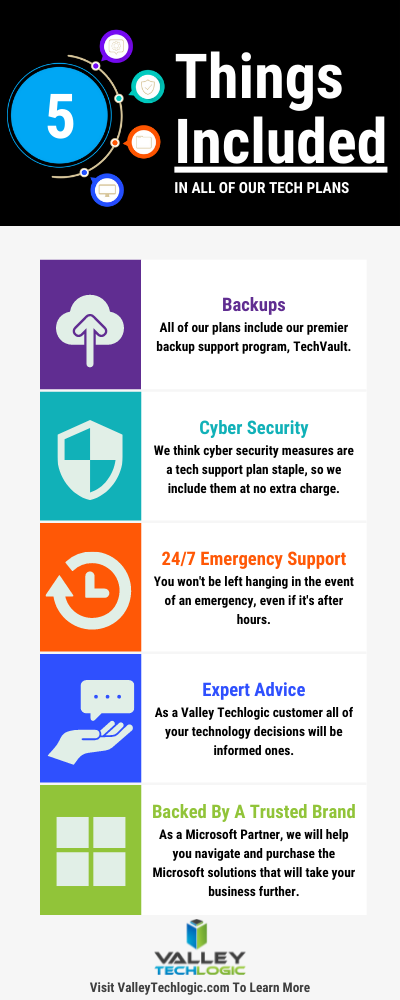
    Here are 5 things all Valley Techlogic Plans includes:

    5 Things Included in Valley Techlogic Plans

    Want to learn more? Reach out today for a free consultation and learn how Valley Techlogic can specifically support your business’s technology.

    Looking for more to read? We suggest these other articles from our site.

    This article was powered by Valley TechLogic, an IT service provider in Atwater, CA. You can find more information at https://www.valleytechlogic.com/ or on Facebook at https://www.facebook.com/valleytechlogic/ . Follow us on Twitter at https://x.com/valleytechlogic.

  • Considering Moving to the Cloud? Here Are 5 Things You Should Know.

    Considering Moving to the Cloud? Here Are 5 Things You Should Know.

    Moving to the cloud makes sense for a lot of businesses. The infrastructure required for a business level technology setup can be difficult to budget for, and you also have to consider the ongoing maintenance required.

    Even if your business has an onsite server, it makes sense to have a cloud backup. This way if anything happens to your physical server, you have a backup ready. There are even archival backups available that are incredibly safe from cyber attacks (this is something we offer as part of our TechVault service, you can learn more here).

    Here are 5 things you should consider as you venture into the cloud computing space.

    1. Compatibility. You need to consider whether the cloud service you’re moving to is compatible with your existing software and services for a smooth roll out. Since cloud services are usually used to host remote setups, this is especially important if you don’t have all of your employees at a singular location. Also, if your business uses legacy systems, it may be more difficult and complex to move to the cloud but not necessarily impossible.
    2. Internet Connection. Another thing to consider is the type of internet connection your office has. If you have a slow or unreliable connection, it may make rollovers from backup more difficult. It may be worth looking to see if higher speed/increased bandwidth internet solution is available at your office location to help support your cloud solution.
    3. Service Level Agreements. Most cloud providers have guarantees they spell out in these agreements regarding uptime and maintenance. You will want to review these agreements carefully and make sure the arrangement will work for your particular business. We have a free report on the cost of downtime here.
    4. Disaster Recovery. Piggybacking off topic number 3, you also need sure they cover you on the off chance there is a disaster on their end as well as support your efforts to recover if something happens to your onsite backups. Many cloud service providers offer this type of support for an additional fee or as a service add-on.
    5. Scaling. Finally, you want to pick a provider that can grow with your business. One of the benefits of a cloud solution is the ability to scale without the expensive upfront cost. When it comes time to upgrade you should know how easily you can move from one plan to the next.

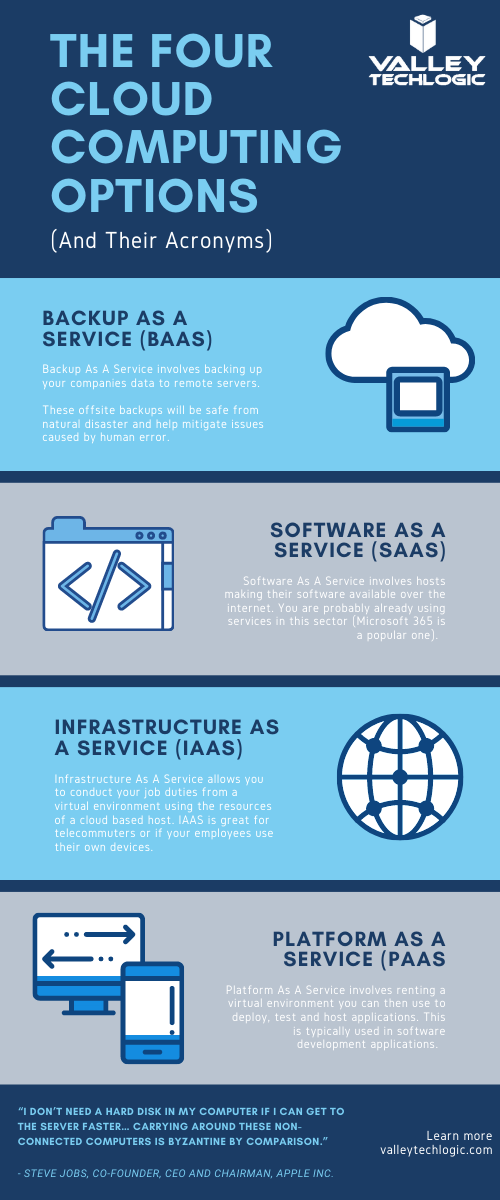
    As a bonus, here is our chart of common Cloud acronyms found in this space.

    Chart With Cloud Acronyms

    Backup solutions, including those in the cloud, can be a complex undertaking. You want to make sure It’s done correctly so if the time should come that you actually need to utilize that backup it goes as smooth as possible and doesn’t leave your business down for an extended period of time.

    At Valley Techlogic we are experts in the field of crafting backup solutions tailored to the businesses we service. If your business is located in the Central Valley and you need assistance in creating a reliable backup solution for your business, we’re happy to provide a free consultation. You can schedule one here.

    Looking for more to read? We suggest these tech articles from the last week.

    This article was powered by Valley TechLogic, an IT provider in Atwater, CA. You can find more information at https://www.valleytechlogic.com/ or on Facebook at https://www.facebook.com/valleytechlogic/ . Follow us on Twitter at https://x.com/valleytechlogic.

  • Our Top 3 Ways to Get MORE from Your Business’s Technology

    Our Top 3 Ways to Get MORE from Your Business’s Technology

    Most of us rely heavily on technology to accomplish our goals, whether it be at work or at home. Computers have made so many things in life more accessible, from learning to banking to downtime (though too much idle scrolling is the antithesis of productivity).

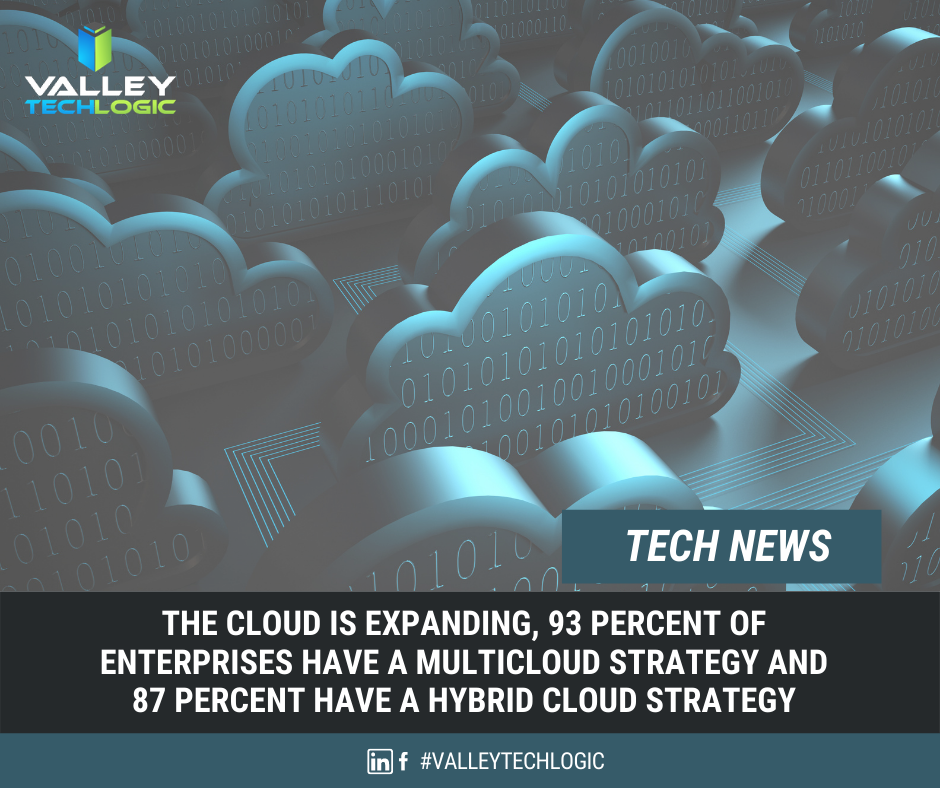
    But have you ever stopped to think if you’re really getting the most from the technology Tech News Graphicyou use? Often we get stuck in a rut and don’t really explore what else may be out there. Your favorite tried and true software or add on has never let you down, right?

    There’s nothing wrong with using things you know and love, and most importantly trust. Any new addition to your stack should be vetted thoroughly. Especially software applications, if it looks sketchy or seems to be too good to be true then it probably is.

    So, what are the 3 things we as a technology provider recommend when it comes to getting more productivity and convenience from the technology you use every day?

    1. The first is built right into your Windows 10 operating system. With Windows 10 you can create multiple desktops with the Task View setting. Hitting the Windows Key + Tab will bring up the menu and from there you can go about creating an unlimited number of Windows Virtual Desktops (or at least as many as your RAM will support). You can organize your day through these virtual desktops, having one for work and one for your lunchbreak.
    2. Make use of the virtual calendars available to you. Whether it be through Google or Outlook, or even a source such as Calendly which makes it easy to schedule with clients and even sends text message reminders. Virtual calendars can help you organize your week, month or even year. The popup reminders will make sure you don’t miss an important meeting or event.
    3. We will always recommend utilizing automatic backups. OneDrive is built in to Windows and comes with 5 GBs of free storage. For just $2 a month you can bump that up to 50 GBs, we think it’s a small price to pay for the piece of mind it provides. If you’re working with a technology provider your backups should be one of their main priorities. Having a thoughtful and thorough backup program in place can mean the difference between getting back to work quicly and losing it all in a disaster recovery situation.

    On top of these ways to get more productivity and usefulness out of your technology, your technology provider can also help you understand the benefit and scope of the tools they are providing for your business.

    They will probably have their own stack of software they recommend and may even have tools they themselves use that they can recommend for you and your staff. It’s a good idea to have an understanding of the systems that power your business and keep it running smoothly.

    It’s our belief that transparent processes and thorough reporting helps our clients make informed choices within their business. If you would like some recommendations on tools that may help increase the usefulness of your technology, we’d be happy to help.

    Looking for more to read? We suggest these tech articles from the last week.

    This article was powered by Valley TechLogic, an IT provider in Atwater, CA. You can find more information at https://www.valleytechlogic.com/ or on Facebook at https://www.facebook.com/valleytechlogic/ . Follow us on Twitter at https://x.com/valleytechlogic.