Tag: microsoft

  • Missing file? Don’t panic, 5 recovery tips for Windows devices

    Missing file? Don’t panic, 5 recovery tips for Windows devices

    I know this has happened to me before, I have a new Word document I’ve created sitting open (maybe I’m actively working on it) I mean to save it somewhere and I just don’t.

    Another scenario, someone requests an Excel spreadsheet I’d done some editing on and when I go to look for it, it’s nowhere to be found.

    Panic ensues, but then I remember Windows 10 (and 11) devices have a number of different ways of finding and retrieving lost documents – especially those that were created in the Office suite of software. Before trying any of these steps we suggest checking your recycle bin first just in case it was accidentally deleted.

    The easiest way (and possibly most obvious) is to just click the little magnifying glass on your taskbar and just search for what you can remember about the file name or the file contents. Windows search system is pretty powerful, and your search may end here. An extra tip for narrowing your options, up at the top of the search window you can narrow the options by type, such as Applications or Documents.

    If you tried searching for the document and came up empty, the next place you should look is the most recent files section in the document application you’re working with. In both Excel and Word you can find this section by going to the upper left hand section of the navigation panel and hitting the “File” button. From there you go to “Open”. In this section you’ll see all your most recent files.

    The recover unsaved documents button is here to save the day.

    If you strike out there don’t exit out yet, this is where tip number three comes in. At the bottom of this section, you may see a “Recover Unsaved Documents” button. Clicking that will bring up any documents that were closed without being saved and hopefully your missing document is found in this section because it starts to get a little trickier by step four and requires a bit of luck.

    If you have backups enabled on your computer you can follow these steps by first clicking the “Start” button followed by “Control Panel,” “System Maintenance” and then “Backup and Restore.” Once the backup has been restored, you can search it for your missing file.

    The final place to look is your temporary files folder, usually something like C:\Users\Owner\AppData\Local\Microsoft\Office\UnsavedFiles but individual file paths may vary.

    If you’re a Microsoft 365 OneDrive user you have a bonus recovery step available, you can try creating a file with the same name and file type as the missing document. After you’ve created the new file, select Properties, select the Previous Versions tab, and then hopefully a version appears there that you can restore.

    After trying all these steps if your wayward document is still missing, it may be time to call in the experts. Data recovery is a big part of what we do at Valley Techlogic, and to make sure our clients never have to go through the headache and stress of losing their very important documents and data backups are a core feature of all of our plans.

    Here’s an our backup program in a nutshell which we consider the gold standard for businesses:

    Click to learn more about TechVault.

    Want to learn more? Visit our calendar page to book a consultation.

    Looking for more to read? We suggest these other articles from our site.

    This article was powered by Valley Techlogic, an IT service provider in Atwater, CA. You can find more information at https://www.valleytechlogic.com/ or on Facebook at https://www.facebook.com/valleytechlogic/ . Follow us on Twitter at https://x.com/valleytechlogic.


  • This weeks Microsoft outage brought down Teams, Outlook and more for several hours

    This weeks Microsoft outage brought down Teams, Outlook and more for several hours

    In major outage news, this week Microsoft had an outage that lasted over 6 hours and brought down Teams, Outlook and Exchange and more – grinding some workplace activities to a halt until the services came back. The outage affected Microsoft 365 customers worldwide.

    Services resumed yesterday morning although there were residual issues for some customers regarding logins and more. Most of the affected services were the online versions of the product, if you have a desktop accessible version of the Microsoft 365 products you may have noticed less of a disruption (other than Teams being unavailable).

    The cause of the outage was announced on Twitter:

    We’ve determined that a recent deployment contained a broken connection to an internal storage service, which has resulted in impact. We’re working to direct traffic to a healthy service to mitigate impact. Additional information can be found in the admin center under TM402718.

    — Microsoft 365 Status (@MSFT365Status) July 21, 2022

    By afternoon Thursday July 21st the Microsoft service health page (which can be found here) indicated that all services were up and running as usual.

    Valley Techlogic is a Microsoft shop by and large and we’re major proponents of the Microsoft 365 suite of services. As we mentioned, those who currently had a Microsoft 365 plan with access to the desk top versions were, or would have been, less affected by this week’s outage.

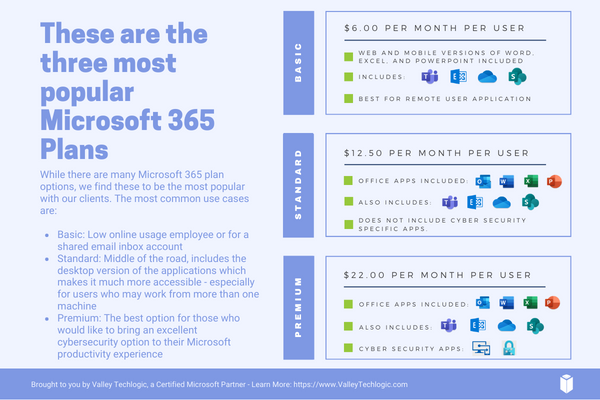
    Here’s a quick guide to the Microsoft 365 plans we recommend to our customers and why in a nutshell (note: this pricing is after discount for an annual commitment).

    Microsoft 365 Plan Chart

    Basic is a good product, but to make the most of your Microsoft 365 subscription plan we generally recommend spending a little more for Standard or Premium. For our security conscious clients in particular, the Premium subscription is an excellent value.

    Microsoft Business Premium comes with advanced cybersecurity protections built into the product, even if you’re not taking any other steps to protect your business from a cyberattack – switching to Microsoft Business Premium will give you major benefits for a very reasonable price (just $22 per user per month).

    Microsoft Business Basic is perfect for an extremely light user experience, say a shared email inbox for a specific billing purpose or for an employee who doesn’t perform many online tasks. For everyone else, we highly recommend upgrading.

    As we mentioned, we’re a Microsoft shop and a certified Microsoft partner and can assist you directly with your Microsoft products, especially choosing a Microsoft 365 subscription that will be the best fit for your business. Learn more today with a quick consultation.

    Looking for more to read? We suggest these other articles from our site.

    This article was powered by Valley Techlogic, an IT service provider in Atwater, CA. You can find more information at https://www.valleytechlogic.com/ or on Facebook at https://www.facebook.com/valleytechlogic/ . Follow us on Twitter at https://x.com/valleytechlogic.

  • Windows 365 and the Pros and Cons of Virtualization in Cloud Computing

    Windows 365 and the Pros and Cons of Virtualization in Cloud Computing

    One of the big announcements that coincided with the news around Windows 11 was the arrival of Windows 365, Microsoft’s new cloud PC product.

    Windows 365 is an easy to use, cross device cloud computing solution. You log into a Windows 10 virtual PC (Windows 11 should be available soon) and it’s already pre-loaded with the Microsoft 365 suite of tools and ready to go.

    The best part is it’s not restricted to whatever device you’re logging into, the Windows 365 instance you log into from work is the same one you can log into from your home device.

    You can even access increased computing power. You can configure a Windows 365 instance that has more processing power than the device you’re logging in from. It also includes one of the main benefits of cloud computing, the ability to easily roll back to a previous instance. Accidentally deleted a file you’ve been working on all day?  Roll back to an earlier instance to easily recover it.

    It’s also beneficial to the security of your business, if you have employees that work from home it can be difficult to manage devices that aren’t under your office network. You can have these employees instead log into their Windows 365 instances and you know that the rules are the same across the board (and that they’re benefitting from the Microsoft 365 advanced security features).

    Pricing for Windows 365 starts at $28 per month for a setup that’s best for low intensity office work all the way up to $162 per month for an 8 Core model with 512 GBs of shortage. Pricing leads us to the discussion of the pros and cons to virtualizing your office.

    5 Pros of Virtualizing Your Office Are:

    1. Increased Availability: As we mentioned, your Windows 365 goes wherever you do. The beauty of the cloud is it’s available everywhere and as most cloud computing products have an uptime guarantee.
    2. Easy to Setup: With Windows 365, many of the applications you use are already preloaded. You can also have your IT team set up the instances ahead of time, so your new employees don’t have to waste a day installing the programs they need to use.
    3. Data Security: This one applies to servers as well but having a cloud backup for both your devices and office server increases your data security through redundancy.
    4. Disaster Recovery: On the same topic, if something happens to the device your employee logs in from or your office server, the data is still safe in the cloud which means little to no downtime.
    5. Efficient: You can apply policies and updates to all of your Windows 365 instances at once, no managing updates one computer at a time.

    The cons you may encounter are:

    1. Start Up Costs: Most of the costs around cloud computing is related to the storage you need, and some of these costs are ongoing. When you buy a device it’s usually a one time purchase, but you also have to think about the costs associated with maintaining the device. With cloud computing, maintenance costs are deferred.
    2. Availability: While most providers have a guaranteed uptime, there can be times where the service is down. Also, your internet connect will matter a great deal when it comes to connecting to your cloud instance. Backups may take longer if you have a poor internet connection at your office.
    3. Limitations: You can spec out any kind of machine you like to fit a specific purpose, but with virtualization you are limited to what’s available and setups for the most common use cases are going to be what’s highly available.

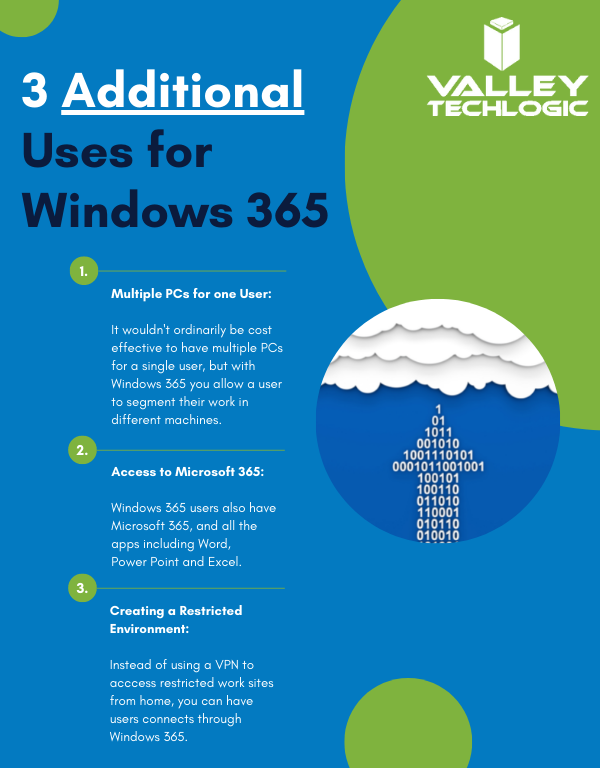
    Here are a few other ways you can use Windows 365 in your business:

    Additional Windows 365 Benefits

    Interested in learning how Valley Techlogic can help your business create a virtualization plan? Learn more today with a quick consultation.

    Looking for more to read? We suggest these other articles from our site.

    This article was powered by Valley TechLogic, an IT service provider in Atwater, CA. You can find more information at https://www.valleytechlogic.com/ or on Facebook at https://www.facebook.com/valleytechlogic/ . Follow us on Twitter at https://x.com/valleytechlogic.

  • 10 things you can do today (yes today) to make your business’s network safer

    10 things you can do today (yes today) to make your business’s network safer

    There’s an onslaught of information aimed at internet safety and most of it lets be honest, falls on deaf ears.

    Most people online today feel like they’re technology savvy enough to avoid the scams out there (unfortunately at least 1 out of 6 are wrong) and even if you acknowledge tech falls outside your scope of expertise you’re still at risk.

    The good news is we have a list of 10 things you can do today even if you’re technologically challenged that will make a major impact on the network safety in your office.

    1. Confirm your backups are working. Backups are one of your best defenses against ransomware, especially if you have an archival copy which is a backup copy that’s made once and then tucked away until you need it (usually behind layers of security, like with our TechVault solution).
    2. Security awareness training for you and your employees. When we know better, we do better. Many security awareness training programs are implemented in bite size doses that are easy to squeeze into your day. It’s easier to avoid a phishing scam if you’ve seen the obvious examples through training.
    3. Speaking of phishing scams, don’t open suspicious emails. We’ve talked a lot about this topic including how to spot a phishing email, but email scams are one of the top ways hackers can infiltrate your network.
    4. Upgrade software that’s reached End of Life (EoL). If your office computers are still on Windows 7 it’s definitely time for an upgrade and technically you can still upgrade to Windows 10 for free. While other upgrades may not be free, it’s still a good idea to get rid of software that’s no longer being supported by the vendor.
    5. You should also make sure all the software you need to stay safe online is installed on your devices. Programs can go missing or just not be reinstalled if a computer needs to be wiped for whatever reason, you should make sure important software such as anti-virus detection is installed on all of your office computers.
    6. While you’re at it, it’s time to serious think about Multi-Factor Authentication. We always hear a collective groan when this topic comes up, but password managers have become much easier to use and can even make logging into the various sites you use to work easier. Here are our top picks.
    7. Remove any devices you’re no longer using from your network. Besides being a waste of electricity, devices connected to your network that aren’t being used can be vessels for infiltration if they’re not being kept up to date via patching etc. Get rid of them!
    8. Have a plan for reporting suspicious activity. Do your employees know what to do if they receive a suspicious email or their computers acting “funny”? Having a plan documented somewhere (even if the only advice is “Contact our IT service team”) can mean a cyber threat event is recorded and dealt with instead of just ignored because they didn’t know what to do.
    9. Have an office password policy guide as well. It’s a good idea to have a guide for passwords available to your employees, especially if it covers what not to do such as having your phone number or any other PII (Personal Identifying Information) as your password.
    10. Know when to ask for help. This list is a good place to start but if your business has no IT help now (or possibly worse, inadequate help) it’s a good idea to call in the experts. Calling Valley Techlogic for a free consultation is another step you can take today to improve the safety of your office network.

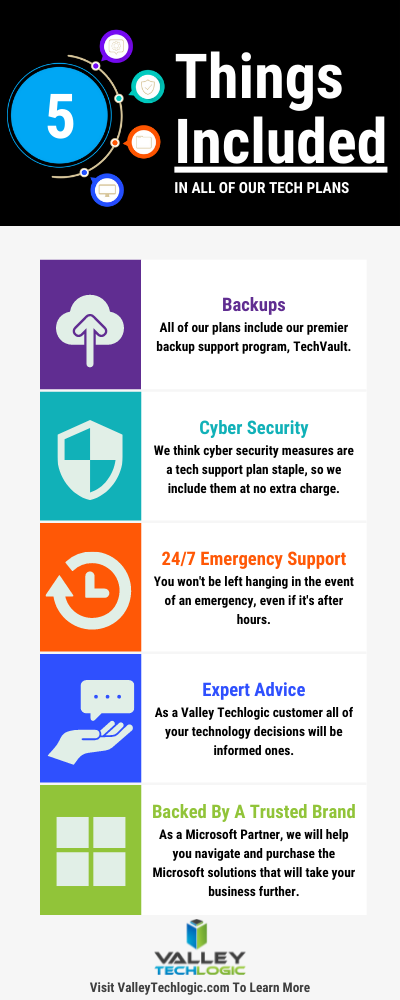
    Here are 5 things all Valley Techlogic Plans includes:

    5 Things Included in Valley Techlogic Plans

    Want to learn more? Reach out today for a free consultation and learn how Valley Techlogic can specifically support your business’s technology.

    Looking for more to read? We suggest these other articles from our site.

    This article was powered by Valley TechLogic, an IT service provider in Atwater, CA. You can find more information at https://www.valleytechlogic.com/ or on Facebook at https://www.facebook.com/valleytechlogic/ . Follow us on Twitter at https://x.com/valleytechlogic.
  • Microsoft 365 pricing changes are coming in 2022, and we have the details

    Microsoft 365 pricing changes are coming in 2022, and we have the details

    Microsoft has had a busy year in 2021. With the release of Windows 11 and it’s continued roll out to more and more eligible users, as well as the quieter release of Windows Server 2022 in August. It looks like they’re not slowing down in 2022.

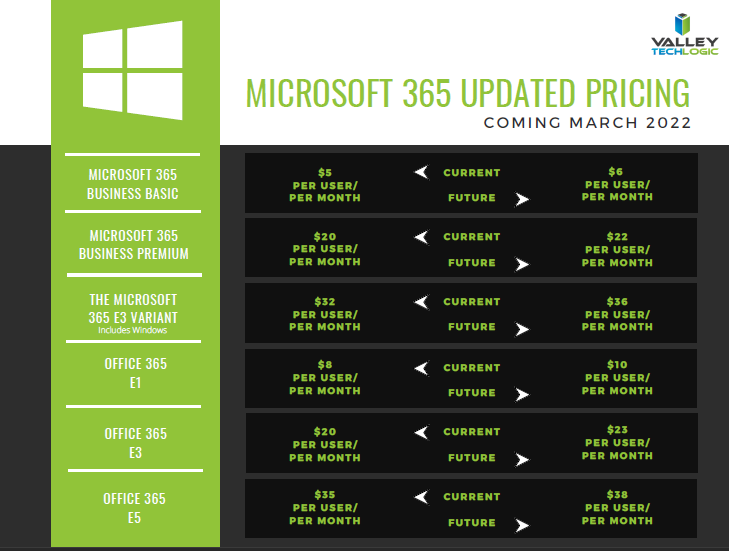
    We’ve been notified as a Microsoft partner there will be price increases across the board for their powerful suite of office software, Microsoft 365 expected in March 2022.

    While it’s never fun to have an unexpected increase to your overall IT spend, we think Microsoft 365 is still well worth it even at the increased cost. There are also some items that will be rolled into the new subscription model that will absorb some of the price increase while increasing the usability of your Microsoft 365 subscription.

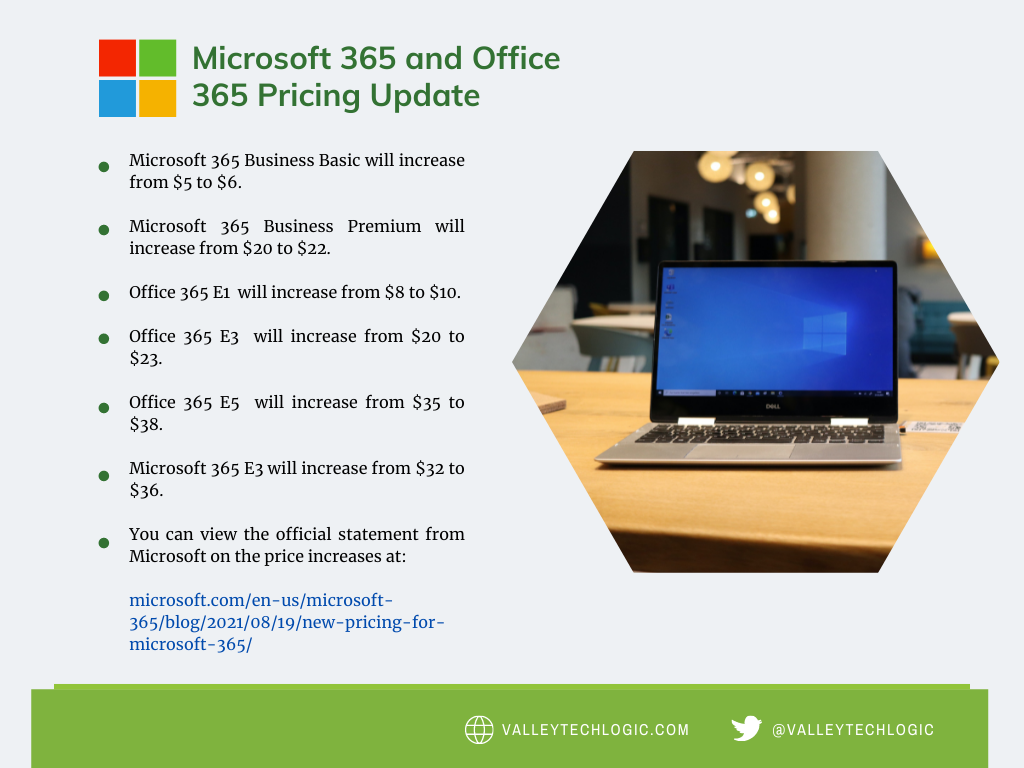
    First, here’s a chart we’ve created that you can save for your records that outlines the expected price increases. These prices may change between now and March but as of writing these are the prices that have been communicated to us by Microsoft directly. We also included the subscription models that are not going to be increased in March. We also want to note the consumer and educational models of Microsoft 365 will not be experiencing a price increase next year.

    Small Version of the Pricing Chart
    Click for the full size version.

    Now, we promised we’d talk about some of the items that are now going to be rolled into your Microsoft 365 subscription that previously had their own cost. One of those items is the ability to call in via Teams. Previously, calling in via Teams was $4 per line but as Microsoft moves to make Teams more accessible for businesses and users alike, they’re now including it in your normal subscription cost.

    This means if you have employees who are out and about during a company meeting, they can still easily call in and participate. It also opens up the opportunity to use Teams for your prospects and clients, even if they don’t currently have it installed. This year we even switched to Teams across the board ourselves and haven’t looked back. We’ve found the call quality and reliability to be phenomenal.

    Some security features will also be rolled into some of the earlier tiers of Microsoft 365 when they were previously featured à la carte. The security and compliance features found in your Microsoft 365 subscription really amount to pennies on the dollar when you consider how expensive it would be to establish the same security stack outside of Microsoft, and it would be less tailored for your own Microsoft use experience to boot.

    These security features include data loss prevention (DLP) for email and documents, as well as encryption for email (we all know email is one of the most common points of entry for bad actors). Microsoft Endpoint Manager has been a critical tool for all of the business’s that now find themselves managing a remote workforce.

    Overall, while a price increase was inevitable, we’re excited to see what new features will be rolled out in 2022 and beyond. If your office is not yet setup with a Microsoft 365 subscription, that’s one of the items we help our clients manage. If you’d like to learn how Valley Techlogic can help your business with Microsoft products and more, click here.

    Looking for more to read? We suggest these other articles from our site.

    This article was powered by Valley TechLogic, adns, n IT service provider in Atwater, CA. You can find more information at https://www.valleytechlogic.com/ or on Facebook at https://www.facebook.com/valleytechlogic/ . Follow us on Twitter at https://x.com/valleytechlogic.
  • Your data is safer in the cloud, period.

    Your data is safer in the cloud, period.

    Speaking in absolutes is not usually a good idea, but in the case of data storage we feel the onus is on us to speak plainly – and it’s the plain truth that your data is safer in the cloud.

    It’s natural to be hesitant to move everything into the cloud, especially when it really wasn’t that long ago in the grand scheme of things that all data was stored in filing cabinets. Safely tucked away and (hopefully) properly indexed to be pulled out as needed.

    Sure, we didn’t have to worry about malware with paper files, but theft and natural disasters were the enemy of on premises paper documents. Or just the ravages of time wreaking havoc on plain paper and ink. You also had to make sure to shred important documents and not just trash them lest they fall into the wrong hands.

    With the advent of computers most of our data moved to our personal computers and it greatly elevated our ability to communicate that data to others. Multi-million-dollar transactions can be easily completed by simply emailing a proposal and contract. Billing information, medical documents, all of the private information about an individual or business is often times found online and is available to be pulled up when needed.

    But this ease of information is also it’s downfall. Old fashioned robberies where thieves would break into brick-and-mortar establishments and steal private information to then be used to create false identities and/or use payment details for their own benefit have now been replaced with often a single user attacking a small business’s online accounts. They can dismantle everything that business has built in days or even hours and make recovering difficult or even impossible.

    That’s not even taking to account that a single on-premises server is just as vulnerable to fire or flood damage as your filing cabinet is. A singed or waterlogged hard drive has no more usefulness than the same data contained in a charred or dripping stack of papers.

    Like with many things in life this problem is solved by working together with others, and that’s where cloud data solutions come in. It’s still your data and we, like you, think it should have the same level of accessibility as it does when it’s on your personal computer or even a paper file on your desk.

    With the high-speed internet most of us have in our homes and offices downloading files from the cloud is often a nearly instantaneous click of a button and then you’re working on the file you were last night. Make a mistake a few hours in? Another benefit of the cloud is you can often times roll back to an earlier version.

    The cloud can sound nebulous but it’s not, it’s just using the resources of companies that put their whole stake into safeguarding data. Their existence as a business is in keeping your data safe, companies that fail at that task don’t stay in business long.

    It’s really not that different than utilizing the services of the power company for all of your power, or your local ISP for all of your networking needs. These services work best when they’re maintained by companies that dedicate themselves to the task and can provide a high level of continuity.

    And there are some major players in the game, players that have been in the business of data and even computers themselves as a whole for decades. At Valley Techlogic we greatly utilize the power of Microsoft’s cloud service – One Drive – to collaborate within our business. It’s even paved the way for our remote employees to maintain productivity with the whole team without missing a beat. The default storage capacity is 1 Terabyte (TB) which is more than most users will ever need.

    If our office ever burned down with no one inside, we can state with the utmost confidence it would not affect our ability to do business. Could you say the same?

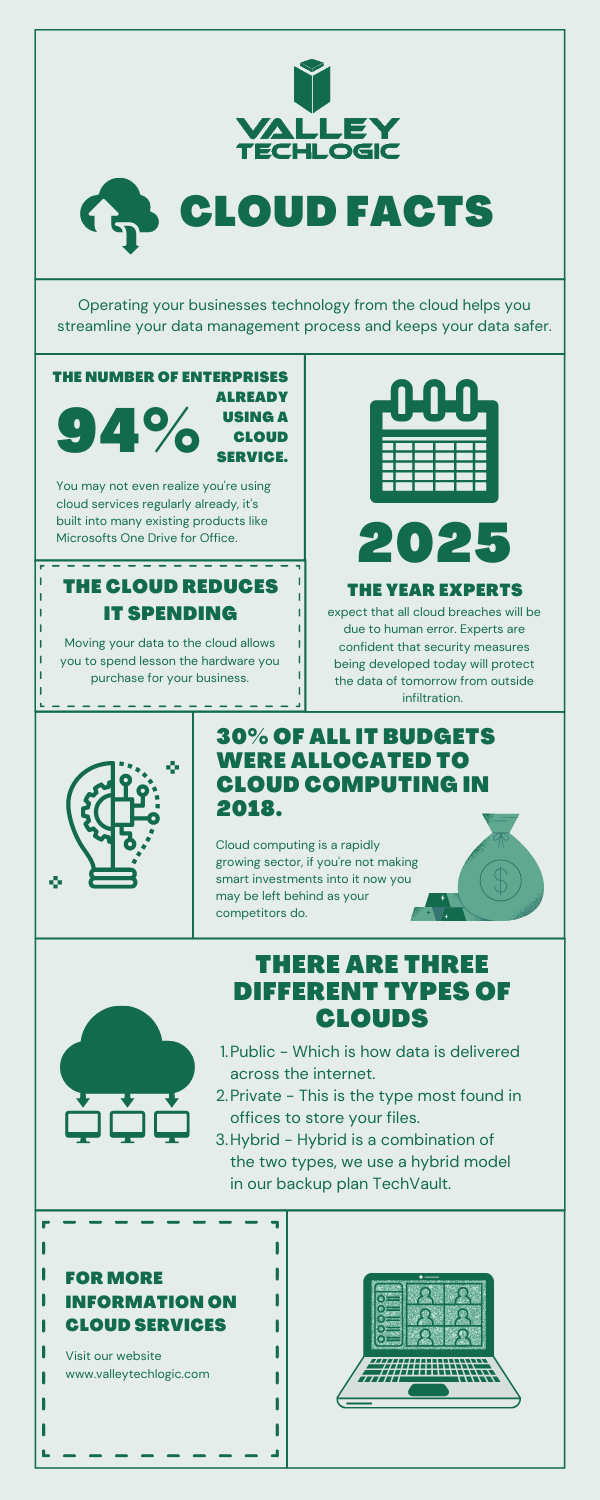
    Cloud Data Facts

    If you’re considering a move to the cloud for your business, we can help. Backups and data recovery solutions are a keystone piece of all of our service plans, learn more today.

    Looking for more to read? We suggest these other articles from our site.

    This article was powered by Valley TechLogic, an IT service provider in Atwater, CA. You can find more information at https://www.valleytechlogic.com/ or on Facebook at https://www.facebook.com/valleytechlogic/ . Follow us on Twitter at https://x.com/valleytechlogic.
  • Microsoft’s Windows 11 finally has an official release date, and more Windows 11 updates

    Microsoft’s Windows 11 finally has an official release date, and more Windows 11 updates

    Microsoft finally has an official release date for their first operating system release in six years, it will be released October 5th, 2021. Windows 11 will be a free upgrade to Windows 10 users – if you’re not already a Windows 10 user we urge you to upgrade while it’s still available and free.

    This means that the release is just over a month away and the buzz surrounding it is only continuing to amp up.  We had word last week that while Windows 11 may work on older computers, you may be prevented from completing updates as normal.

    Microsoft is drawing a line in the sand when it comes to not supporting old hardware. We talked about the specifications required in this article a few weeks ago and nothing has changed on Microsoft’s end when it comes to those required specifications so far. They’ll also be unveiling their own hardware lineup that will feature Windows 11 on September 22nd.

    There are even some indications you not only won’t get software updates, but you may not get security patches either, although they’ve proven to be somewhat soft on that stance on the past when it comes to unsupported copies of their operating systems. Either way with chip shortages and other pandemic related shipping delays this may be a tricky time for those looking to upgrade but realizing they don’t have a machine with the hardware capable of supporting the new operating system.

    Another thing we now know is that even though the Android support found in Windows 11 was a heavily lauded feature, it won’t be there at launch. All of the other showcased featured will be there but the Android support will come later in the year, although a preview of it should be available to Microsoft Insiders soon.

    If you’re wondering how you’ll know when Windows 11 is available to you or whether it will be difficult to figure out, you need not worry. Microsoft is aiming for a “phased and measured” launch and will prompt users via the Windows Update system that the upgrade to Windows 11 is available.

    It won’t be available to all PCs and laptops right on October 5th however, they’ll be slowing releasing it in waves dependent on your computer specifications, the age of your device and other factors. It’s been noted though that some users will have to wait until 2022 to receive the upgrade.

    That should give users plenty of time to sort out any of their hardware related questions and for those on the fence about upgrading, time to see how it fares for other people first.

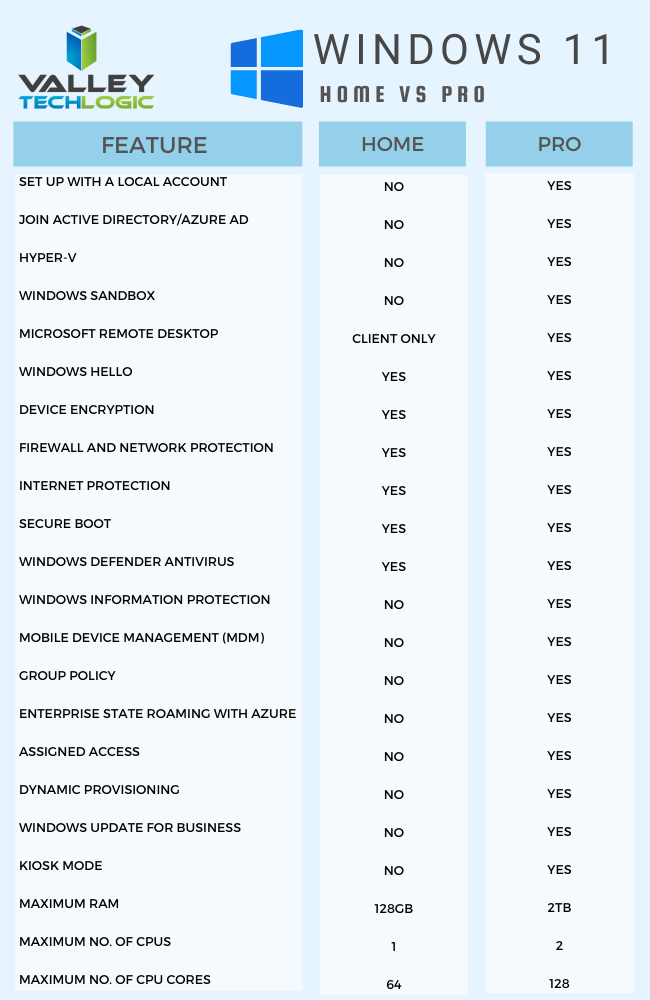
    For business users, who often opt for the pro version, the choice to upgrade can require more thought and planning then simply clicking the upgrade button when it pops up. We’ve made this chart that outlines the differences between Windows 11 Home and Windows 11 Pro.Windows11HomevsProChart

    One other big difference is that going forward Microsoft is requiring home users to tie a Microsoft account to their Windows installation, but this Isn’t a requirement for Pro users, you can just set up your computer with a local account.

    It will be interesting to see what other details are released as we continue to creep closer to the October release. If you’ve got Windows 11 on your radar for your business Valley Techlogic can help with the planning, we’re a certified Microsoft partner and help businesses all over the Central Valley manager their Windows applications, both for PC and server. Learn more today.

    Looking for more to read? We suggest these other articles from our site.

    This article was powered by Valley TechLogic, an IT service provider in Atwater, CA. You can find more information at https://www.valleytechlogic.com/ or on Facebook at https://www.facebook.com/valleytechlogic/ . Follow us on Twitter at https://x.com/valleytechlogic.

  • Microsoft 365 and Office 365 prices are going up, when and by how much?

    Microsoft 365 and Office 365 prices are going up, when and by how much?

    We’ve been on a roll lately discussing the changes and products being rolled out by Microsoft this year, primarily Windows 11 which should be launched this fall. Last week Microsoft announced a price increase to their ubiquitous business products, Microsoft 365 and Office 365.

    Office has been a business staple since it’s launch in 1989 (although Word predated the Office grouping of products quite a bit, launching in 1983). The original launch set was Word, Excel and Powerpoint but the product line up has exploded since then including other must-have features such as Outlook, Teams, OneDrive and more. For many business users the Office suite of products is their go to collaboration and productivity center.

    Microsoft 365 was announced in 2017 and aimed to take things up a notch and out of just the business productivity center of activity, bringing many Windows specific cyber security features to the table as well as expanding the usability for remote employees.

    It also expanded the ease at which IT administrators can manage their office’s users in a Windows centric environment. The outcome was an all-in-one platform for business users especially that brought functionality, safety and security, and collaborative work processes together in unison all for one easy to budget for monthly fee.

    But as with many online services, fee increases are to be expected (remember when Netflix was just $7.99 a month for the standard package?). Microsoft however has bucked this trend for quite a while, pricing has been the same since Office 365 was launched in 2011.

    In that time, they’ve added untold value in the way of product innovation all for no increased monthly fee, so this price increase is both expected and possibly overdue. It’s also expected to be just a few dollars more for each product category, so you won’t need to worry about a drastic price hike. Have a look at our chart below to see what to expect.

    Microsoft Price Increase Chart

    As you can see the price increases are moderate and shouldn’t result in a drastically higher overall IT bill for most users. If you’re in the education sector you won’t have a price increase at all, and consumer products will also stay the same price at this time. These price increases are expected to go into effect March 1, 2022.

    One thing that’s worth mentioning is the program Microsoft has for non-profits, if you own or operate a non-profit organization you can receive your Microsoft products at a deeply discounted rate. This includes Microsoft 365 and Office 365 subscriptions. We have helped our non-profit clients navigate this in the past to great success, if you’re a non-profit in the Central Valley area feel free to reach out to us for more information.

    We also assist businesses with their questions when it comes to the Microsoft line or products or their Windows desktop and server machines, we’re a long time Microsoft partner and consider ourselves experts when it comes to navigating even the most complex setups. We even include the subscriptions we discussed in today’s article within our all-inclusive plans to reduce our customers IT spending to one easy to read monthly bill. Find out more today.

    Looking for more to read? We suggest these tech articles from the last week.

    This article was powered by Valley TechLogic, an IT service provider in Atwater, CA. You can find more information at https://www.valleytechlogic.com/ or on Facebook at https://www.facebook.com/valleytechlogic/ . Follow us on Twitter at https://x.com/valleytechlogic.
  • Windows 11 updates as the fall release rapidly approaches

    Windows 11 updates as the fall release rapidly approaches

    While it hasn’t been made official yet, all sources seem to indicate an October 2021 release of Windows 11 is eminent. That date would track with previous release schedules and merges nicely with the big feature updates that always occurs around that time for mainstream Microsoft products.

    As we inch closer, and the beta versions reveal new details we want to continue our coverage of new features that are being announced as well as specification requirement updates that may impact your future device purchases (or device upgrades).

    For example as of August 2021 here are the minimum specifications to run Windows 11:

    • Processor:1 gigahertz (GHz) or faster with at least two cores on a compatible 64-bit processor or SoC
    • RAM:4GB
    • Storage: 64GB
    • Graphics Card:DirectX 12 or later with WDDM 2.0 driver
    • Display:720p, 8-bit per color channel, at least 9-inch diagonal

    These requirements are published by Microsoft but are still subject to change as the release nears. Also, computers currently running Windows 10 may not have the upgrade available to them as soon as October hits. It seems likely that new machines will be released featuring Windows 11 at that time but the free upgrade for Windows 10 running machines may come later in 2022.

    Tech News #12

    If you would like to try Windows 11 for free right now you can do so by joining the Microsoft Insider program. This program allows you to preview you Windows releases before they’re pushed out to the market, and you can take part in the Microsoft community to see what others are saying about Windows 11 in real time.

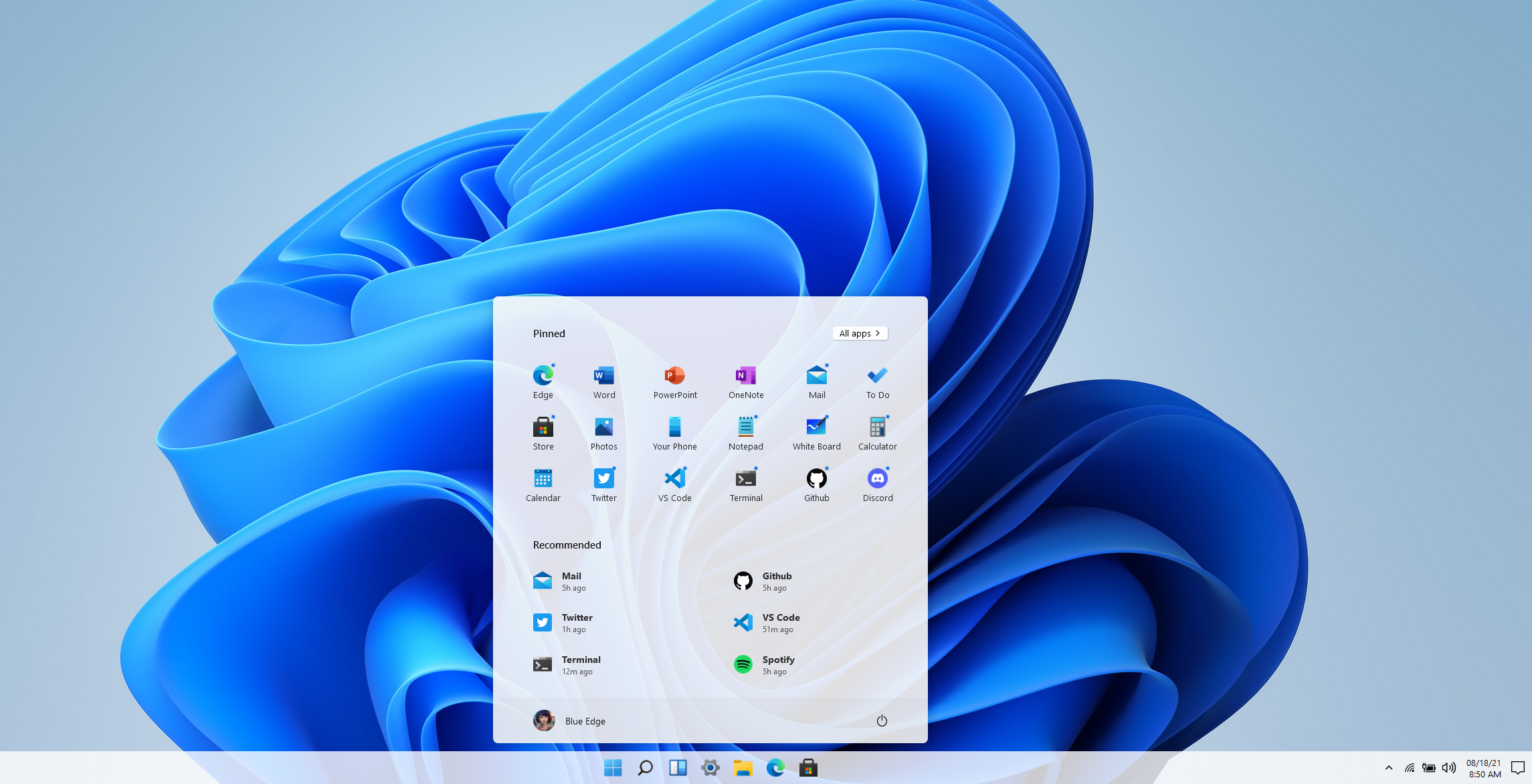
    Another option if you would just like to get a feel for the UI without downloading anything is a widget that was created by Github user BlueEdgeTechno. This Windows 11 simulator lets you access all the UI navigation elements and even browse through the new Microsoft Store. You can find it here: win11.blueedge.me/

    Also making a comeback in Windows 11 are Windows widgets. These widgets are AI determined, meaning your use of Windows 11 will help Microsoft dynamically choose widgets that will give you a customized Windows experience. Widgets such as weather and news as well as 3rd party widgets that you may have available on your Android and OS devices will all be possible options.

    Windows 11 is also making it much easier for users (even those not technically inclined) to keep track of the health of their device. With the new health check feature you can see at a glance how your machine is performing including applications that may have higher than normal battery usage or how much space is available on your SSD.

    Windows 11 is expected to be a free upgrade from Windows 10. If you’re still using Windows 7 or 8 on your device, we urge you to make the jump to Windows 10 while it’s still available as a free upgrade. You can learn how to take advantage of that here. We realize upgrading can be a complex task for businesses, especially if a number of machines are involved. You can schedule a consultation here and we can help you create a plan to bring your office computer software current.

    Looking for more to read? We suggest these tech articles from the last week.

    This article was powered by Valley TechLogic, an IT service provider in Atwater, CA. You can find more information at https://www.valleytechlogic.com/ or on Facebook at https://www.facebook.com/valleytechlogic/ . Follow us on Twitter at https://x.com/valleytechlogic.

  • Our first look at Teams 2.0

    Our first look at Teams 2.0

    As we mentioned in our last post, Windows 11 is coming and with its announcement also came with the announcement of what’s being dubbed “Teams 2.0”.

    In preview builds right now appearance wise Teams 2.0 is very similar to the Teams you’re used to using. It has the same minimalistic UI you’re used to. However, one change is you can now switch light, dark and high contrast mode. This is a customization feature found in other video conferencing software now brought to Teams to make the program more user friendly and inclusive.

    Speaking of customization, you can also shrink your Teams windows exactly how you like now instead of simply shrinking the window down horizontally only. This will allow users to integrate a Teams window as they’re setting up their workstations for the day. The application can also “click” into place, fitting the size of the square or rectangle the user has left for it.

    Under the hood you’ll find that Teams 2.0 is much lighter than your existing Teams applications. While this is an early build of the program it’s interesting to note and holds true to Microsoft’s promise of making Windows 11 lighter in every fashion. Many video chat programs are memory hogs for older machines and a more agile chat client would be welcome for those as well as lighter duty laptops with less memory capacity.

    You can also quickly invite users with a link with Teams 2.0, allowing users to hold meetings more on the fly without having to schedule something through the Outlook calendar. This is one benefit found in Zoom that we think Microsoft is wise to integrate into Teams to broaden their appeal.

    Another change is you can now find users by their phone number or by syncing your contacts with Outlook and Skype. It’s clear with Windows 11 the goal is to have Teams be the de facto video chat choice and adding the ability to lookup friends and family will greatly extend the use of Teams outside workplaces.

    Although we still expect workplaces to be the primary use of Teams and we’re looking forward to more changes aimed at catering to the workforce marketplace beyond the scaled down client size (though don’t get us wrong, we definitely approve of that benefit). In the current preview builds video chat and voice chat are disabled so we’re unable to comment on that functionality at this time.

    This is still very early on in the process, and we anticipate more changes to come not just for Teams 2.0 but also Microsoft 11 as a whole.

    Skype for Business is Ending News

    In fact, it’s already been announced that the web client version will be released for preview soon, improved PowerPoint integration and also the ability to utilize multiple user accounts under a single client. Microsoft is a flurry of activity as they gear up for the fall release of Windows 11.

    Users currently on Windows 10 are already receiving patches aimed at getting their computers Windows 11 ready. As we noted in a previous blog Windows 11 will be a free upgrade to users already on Windows 10.

    Still on Windows 7 or 8 in your office? It’s still possible to upgrade to Windows 10 either for free or for a small $99 upgrade fee. This is going to much less than Windows 11 will be retailing for at launch and a 50% discount on the Windows 10 Pro retail cost. Windows 7 ended extended support in January of last year and Windows 8 will be soon as well. It’s not a good idea to remain on an operating system no longer supported by Microsoft and can leave your business much more vulnerable to cyber security attacks.

    If you need assistance upgrading the machines in your office so that they’re Windows 10 or 11 ready, reach out to us here.

    Looking for more to read? We suggest these tech articles from the last week.

    This article was powered by Valley TechLogic, an IT service provider in Atwater, CA. You can find more information at https://www.valleytechlogic.com/ or on Facebook at https://www.facebook.com/valleytechlogic/ . Follow us on Twitter at https://x.com/valleytechlogic.